Table of Contents
Safely shutting down your computer not only protects hardware components from sudden failure but also helps the operating system optimize performance for the next use. Following the correct procedure will help you maintain the lifespan of your device and avoid losing important data during use.
Why is it important to shut down your computer safely?
When shutting down a computer properly, the operating system has time to close running programs, save unfinished data, and disconnect hardware according to standard procedures. This helps limit system errors, prevent file loss, and reduce the risk of hard drive failure over time.

Ignoring safe computer shutdown procedures can cause your computer to shut down unexpectedly, interrupting data processing and causing software conflicts. In the long run, this habit leads to less stable operation, more frequent minor errors, and reduced lifespan of internal components.
Shut down, restart, sleep, or hibernate?
Currently, operating systems like Microsoft Windows offer various power management options, each serving a specific purpose. Understanding the differences between Shut down, Restart, Sleep, and Hibernate will help you choose the correct operation, saving time and protecting your data and hardware.
- Shut down: Completely shut down the system, close all programs, and disconnect the power supply.
- Restart: Turn off the computer and then restart it immediately to refresh the operating session. Often used when installing software, updating the system, or troubleshooting errors.
- Sleep: Puts the machine into a sleep state, consuming very little power to keep the current session in RAM.
- Hibernate: Records the current operating state to the hard drive before completely shutting down the power. When the computer is turned back on, it restores to the previous state without consuming the power it was in while off.

Safe computer shutdown procedures
Knowing how to safely shut down your computer helps protect your data, minimize system errors, and extend the lifespan of your device. Below are standard, easy-to-follow shutdown methods, even for novice users.
Safely shut down your computer using the Start Menu
Using the Start Menu is the safest and simplest way to shut down your computer on Windows. This method ensures that all system processes are closed in the correct order, helping to protect the integrity of your data.
- Step 1: Click the Start button .
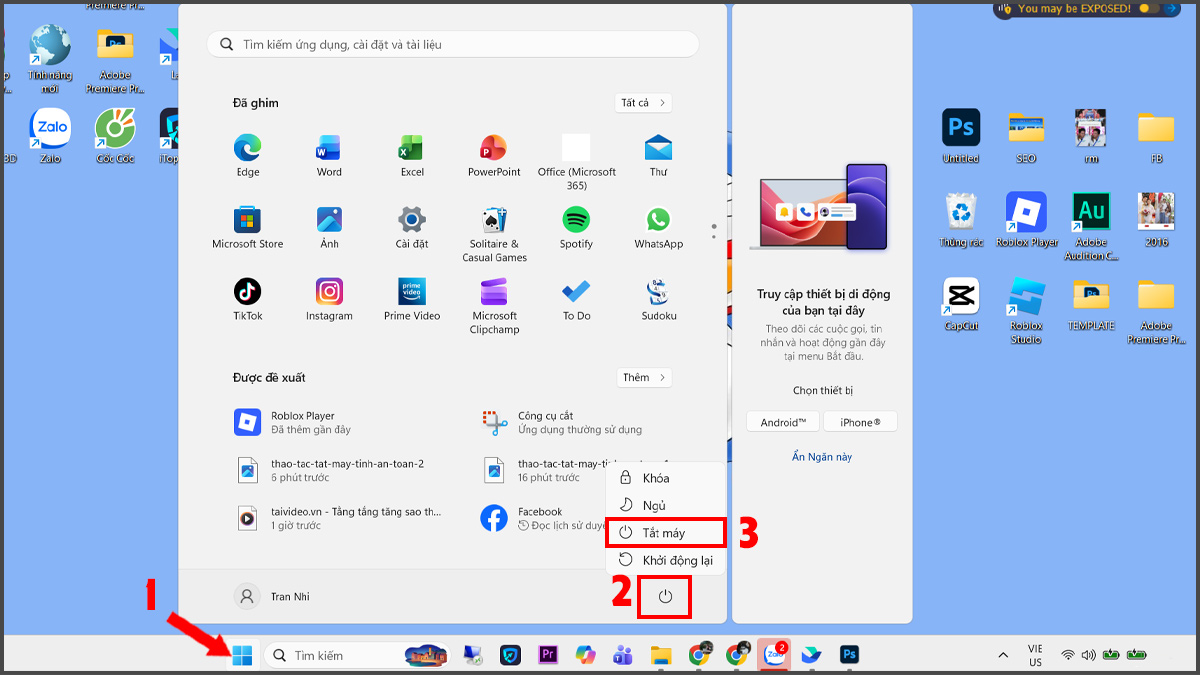
- Step 2: Select the Power icon .
- Step 3: Select Shut down , wait for the shutdown process to complete before closing the laptop lid or unplugging the power cord.
If your laptop frequently freezes at the logo screen, displays Recovery mode errors, or runs unusually slowly, it's time to have your hardware checked or upgrade to a new machine. Visit us today to check out our range of durable, affordable ASUS laptops with student discounts!
How to safely shut down your computer using the keyboard
Using the keyboard is the quickest way to safely shut down your computer without using the mouse. While on the desktop, simply press Alt + F4 → select Shut down → press OK or Enter to shut down. You can also use the shortcut Windows + X , then press U twice in quick succession to shut down your computer quickly while still following the correct procedure.
How to safely shut down your computer on Windows
Although the interface has changed across versions, the fundamental principle of safely shutting down a Windows computer remains the same. Below are the appropriate methods for each version.
How to safely shut down your computer on Windows 7
On Microsoft Windows 7, properly shutting down your computer is quite intuitive and familiar with the traditional Start button. Simply open Start from the taskbar and select Shut down from the power menu to shut down your computer properly. Note that you should always ensure you have saved all your working files before performing these steps to ensure your data is completely protected.
How to safely shut down your computer on Windows 10
Unlike older versions of Windows, Windows 10 has an intelligent power management mechanism that allows for quick shutdowns while ensuring the integrity of user data. Simply press Start → select the Power icon → click Shut down and wait for the computer to completely shut down before closing the lid or unplugging the charger.
Safe shutdown procedure on macOS
On macOS, the correct and safe way to shut down your computer, applicable to all MacBooks (including those with Touch ID), is to use the Apple Menu.
- Step 1: Tap the Apple logo in the upper left corner of the screen.
- Step 2: From the dropdown menu, select the Shut Down command.
- Step 3: Press Shut Down to confirm.
Note: With MacBooks that have Touch ID, older key combinations involving the Power button often only lock the screen, not shut down. Prioritize the Apple Menu to ensure the correct procedure.
When should you NOT shut down your computer immediately?
There are times when you shouldn't shut down your computer immediately, as it could cause system errors or data loss. Wait for the following processes to complete before shutting down:
- While the computer is updating Windows or installing software.
- When copying or moving large amounts of data.
- When the software is rendering video, exporting files, or processing heavy tasks.
- When the browser or application hasn't had time to save the data automatically.
- When the hard drive is continuously accessing data, the HDD light will flash constantly.
Set the default safe computer shutdown procedure
Setting safe shutdown as the default mode helps you protect your system with just one click. Check out how to set it up to optimize your workflow and ensure your device lasts longer.
Set up the power button for safe computer shutdown
You can configure the physical power button to shut down your computer properly with just one press. Instead of having to hold down the power button (which bypasses the normal shutdown process and can cause data loss), proper configuration will help the computer perform the application closing and power-off process most accurately.
- Step 1: Open Control Panel → select Hardware and Sound .
- Step 2: Select Power Options .
- Step 3: Click on " Choose what the power buttons do".
- Step 4: In the " When I press the power button" section, select "Shut down" or "Hibernate/Sleep" depending on your needs, then click " Save changes".
From now on, simply pressing the power button once will automatically shut down the machine according to a safe procedure.
Troubleshoot Fast Startup only when needed
Fast Startup helps your computer start up faster, but sometimes it causes errors after shutdown, such as a frozen logo, missing drivers, or hardware conflicts. Disabling this feature will ensure a safe shutdown process.
- Step 1: Open Control Panel → select Hardware and Sound .
- Step 2: Select Power Options .
- Step 3: Click on the "Choose what the power buttons do " option in the left column.
- Step 4: Click on the blue text " Change settings that are currently unavailable".
- Step 5: Uncheck the box next to " Turn on fast startup" → click "Save changes".
Let applications prompt you to save
Avoid Registry changes that force applications to close automatically; they can discard unsaved work. Save documents and close important applications before shutting down.
Tips for safer computer shutdown
The following tips will help make safe computer shutdown a good habit, providing comprehensive protection for both your hardware and software:
- Saving and closing documents: Always press Save and close running applications to avoid data loss when the computer shuts down.
- Disconnect peripheral devices: Unplug USB drives and external hard drives before shutting down the computer to prevent electrical shocks or data corruption.
- Clean up background apps: Disable apps that start with the system to make the boot and shutdown process faster.
- Update complete: Wait for the operating system updates to finish before turning off the power to avoid serious software errors.
- Use an uninterruptible power supply (UPS): Equip your desktop computer with a UPS to ensure a proper shutdown in the event of a power outage.
Safely shutting down your computer is a small habit, but it has a big impact on the device's durability and stability. Simply doing it correctly every day can help you minimize system errors, protect your data, and extend the lifespan of your components. Read more interesting technology and computer terminology on our website.
Related Articles
 Menu: How to Shut Down Windows6 minutes read
 Instructions on How to Safely Remove the USB from the Computer, Disconnect2 minutes read
 Should I Turn Off My Mac After Each Use?6 minutes read
 How to Safely Remove USB from Computer3 minutes read
 Is It Necessary to Disconnect Secure USB Devices?4 minutes read
 How to Schedule Your Computer to Shut Down Daily5 minutes read
Reader Comments 0
Sign in with email or Google to join the discussion.