Table of Contents
Turning off your computer using the keyboard can save you a considerable amount of time compared to the usual method.
Many people search for ways to shut down their computer using the keyboard to save time, or when their mouse is malfunctioning or broken. However, different versions of Windows require different key combinations and steps. Let's explore how to shut down your computer using the keyboard when it freezes in Windows 11, 7, 10, and 8 in the article below.
Benefits of knowing how to shut down your computer using the keyboard
Turning off your computer using the keyboard can save you a considerable amount of time compared to the usual method. You won't need to close each window individually; with just a few simple steps, you can shut down the computer or put it into sleep mode. This is an extremely useful tip for office workers.
Using the keyboard to quickly shut down your computer can be helpful in many different situations. This is useful when you're in a hurry, such as leaving work to catch the bus, or needing to shut down quickly for a meeting. Additionally, you can also use this method to turn off your computer when it freezes or your mouse malfunctions.

If your computer is still working fine but your mouse is broken, you can temporarily use the mouse that came with it. However, for the most convenience, it's best to buy a new mouse immediately to avoid any disruption to your usage. Check out some of the best-selling wired and wireless mice currently available in the link below:
Keyboard methods for shutting down Windows
By using just a few quick keyboard shortcuts, you can easily shut down your computer without using the mouse or executing multiple commands. You can find instructions on how to quickly and easily shut down your computer using the keyboard below:
How to shut down your computer using the keyboard for various versions of Windows
This is a method for shutting down your computer using the keyboard, which can be used on many different versions of Windows. However, whether this method works depends on the operating system of each laptop . To quickly shut down your computer using this keyboard method, follow the three steps below:
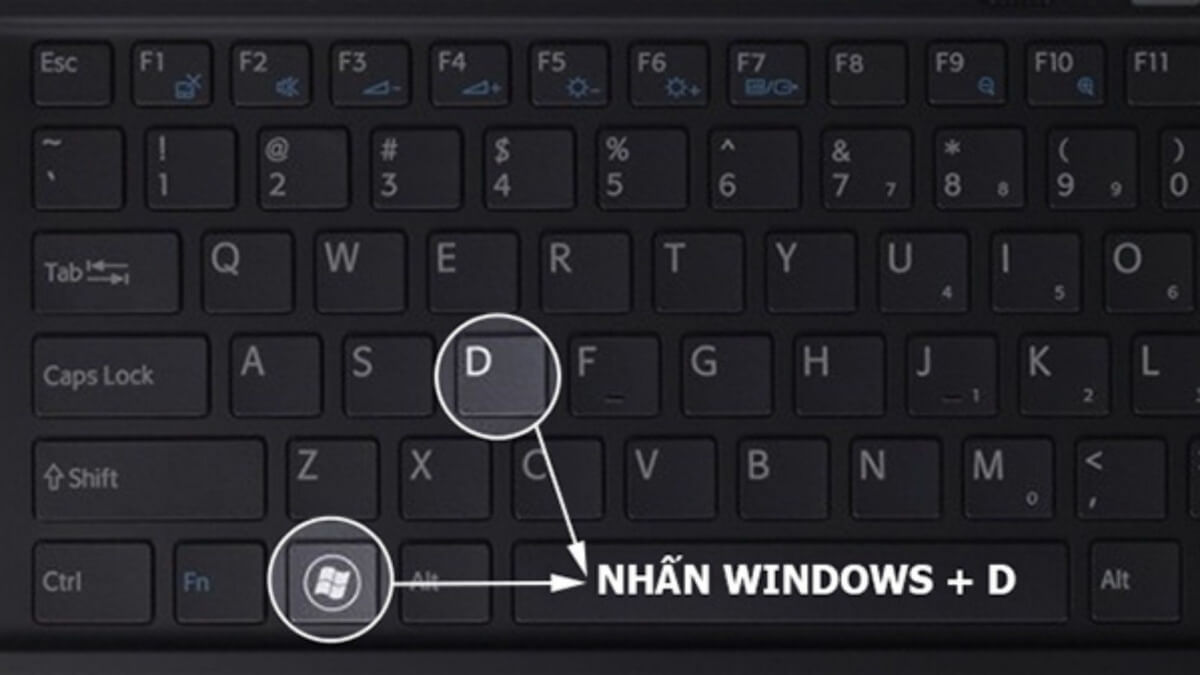
Step 1: First, you need to press the Windows + D key combination to return to your computer's desktop screen . Note that you won't need to do this step if your laptop is already on the home screen.
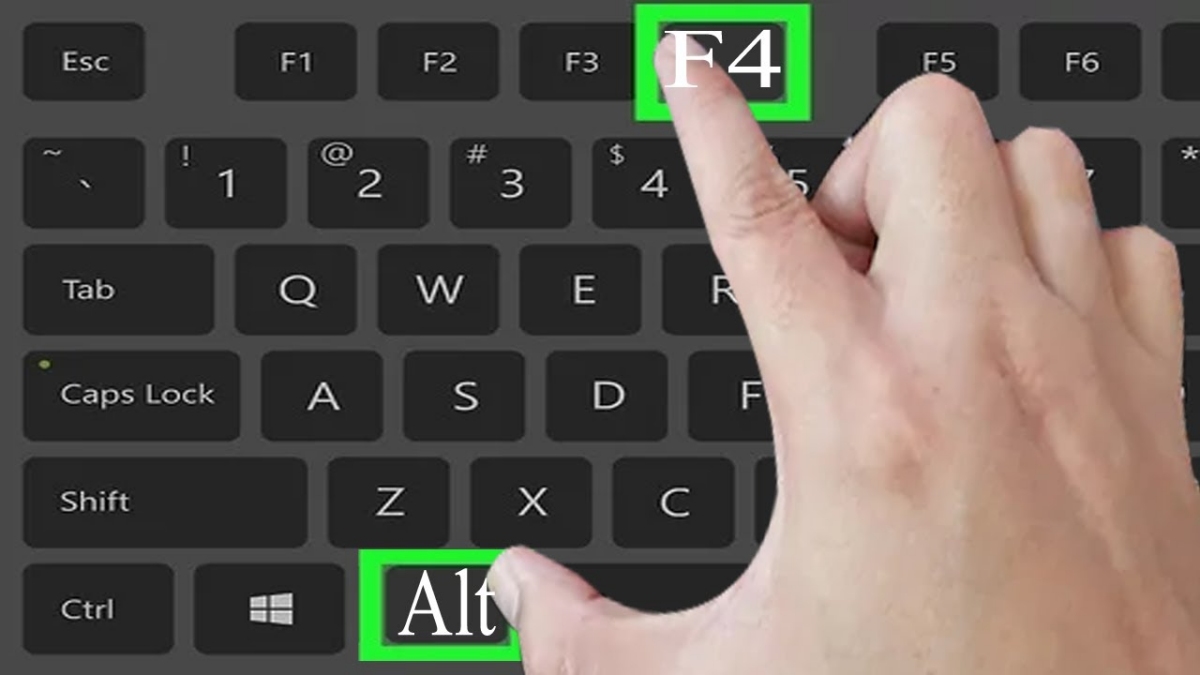
Step 2: Press the ALT + F4 key combination to display the Shut Down Window on your screen.
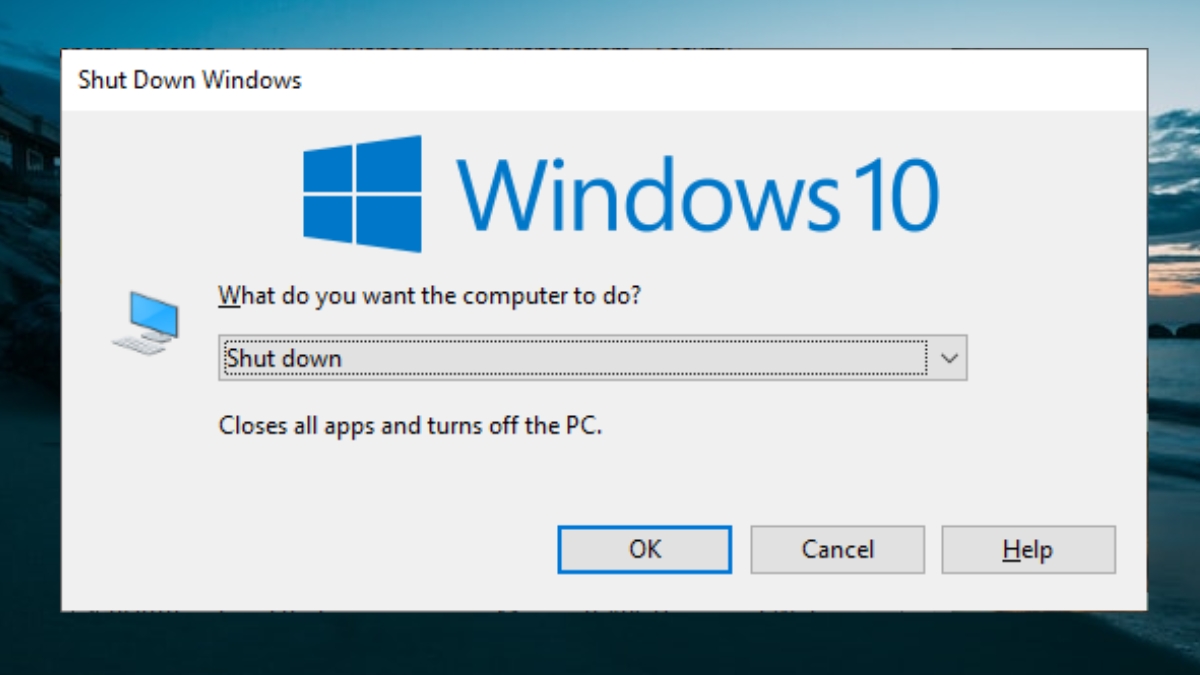
Step 3: From the window displayed on the screen, use the arrow keys on your keyboard to find the "Shut down" option. Finally, press OK or Enter to complete the shutdown process.
How to shut down your computer using the keyboard in Windows 11
Turning off your computer using the keyboard in Windows 11 follows similar steps as above. By using ALT + F4, you can turn off your laptop without much time or effort. Below is the procedure for turning off your laptop using the keyboard on Windows 11:
Step 1: Return to the home screen using the Windows + M or Windows + D key combination. Alternatively, you can close programs one by one to avoid losing important data.
Step 2: After you have finished closing all the windows, press ALT + F4 to open the Shut Down Windows dialog box.
Step 3: Use the up or down arrow keys on your keyboard until the "Shut down" option appears. Then, press the OK button on the screen or press the Enter key to shut down the computer.
How to shut down your computer using the keyboard in Windows 10 and Windows 8
When using the keyboard to shut down your computer in Windows 10 and Windows 8, you can do it quickly without closing any running programs. Specifically, follow these steps:
Step 1: Press the Windows + X key combination. A floating window will then appear on your screen displaying the basic programs of your computer.
Step 2: Press the U key twice in quick succession. Your computer will then shut down immediately.
How to shut down your computer using the Windows 7 keyboard
Compared to computers with newer operating systems like Windows 10 or Windows 11, turning off the power using the keyboard on Windows 7 is slightly different but much simpler. On this version of Windows, you just need to press the following keys:
Step 1: Click the Windows button; the All Programs window will appear.
Step 2: Press the arrow button to move to the right, select "Shut down," and then press Enter.
How to shut down your computer using the keyboard when it freezes
In some cases, the computer may freeze and be unable to shut down normally or by pressing key combinations. You can fix this by pressing and holding the power button for a few seconds. The laptop will then shut down immediately without waiting for the system to process. This method of shutting down a computer using the keyboard when it's unresponsive or frozen can be done on many types of laptops and various versions of Windows.
This method doesn't harm the computer's hardware. However, shutting down the computer this way carries certain risks. You could lose all your working data and be unable to recover it. Therefore, unless absolutely necessary, you should limit the use of this method.
How to temporarily shut down your computer using the keyboard
Press Windows + L to lock the computer; this does not put it to sleep. To open the power menu, press Windows + X, then U, followed by S for Sleep. Note that you should set a password to prevent unauthorized access while your computer is temporarily shut down.
How to shut down your computer using the keyboard while still listening to music
Many people enjoy listening to music on their computers but don't want to leave the screen on constantly to save battery. To do this, you can try the two methods below:
- Sleep normally pauses applications and audio, so use a display-off setting instead if music should continue.
Step 1: On the Taskbar, go to Start and click the power button icon.
Step 2: Click on Sleep mode to put your computer into sleep mode. Alternatively, using the shortcut Fn + F4 is also an option to quickly activate the Sleep function on your laptop.
- Method 2: Close the screen while the computer is still running.
Besides putting your computer into sleep mode, you can also close your laptop lid to save battery. Below are instructions on how to temporarily shut down your computer while still listening to music:
Step 1: Select Start from the Taskbar and click on Control Panel.
Step 2: Next, click on Hardware and Sound and then select Power Options.
Step 3: Click on "Choose what closing the lid does" or "Choose what the power buttons do" on the left side of the screen.
Step 4: In the "When I Close the lid" section, change "Sleep" to "Do nothing" for both "Plugged in" and "On battery". Then, click "Save changes" to save the changes.
Some things to keep in mind when shutting down your computer using the keyboard
Here are some things to keep in mind when shutting down your computer using the keyboard:
- You need to use the correct keyboard shortcuts according to the Windows operating system specific to your computer.
- Before shutting down your computer, always back up your files and data to avoid any unfortunate incidents.
- You might encounter a situation where your computer freezes and you can't use keyboard shortcuts. In this case, quickly shut down your computer by pressing and holding the power button.
- The same power-off method can be applied to computers with newer operating systems such as Windows 10 and Windows 11.
Above are 7 of the most detailed ways to shut down your computer using the keyboard. If you don't know how to shut down your computer using the keyboard when it freezes in Windows 11, 7, 10, or 8, you can try one of the methods shared in this article. Follow our new articles to learn more useful computer tips and tricks.
Related Articles
 3 Quick Ways to Turn Off the Computer with the Keyboard: Recommended Choices7 minutes read
 3 Easy Ways to Lock Your Acer Laptop Keyboard at Home9 minutes read
 Menu: How to Shut Down Windows6 minutes read
 How to Force Shut Down a Mac9 minutes read
 4 Simple and Quick Ways to Lock Your Windows Laptop Keyboard6 minutes read
 How to Schedule Your Computer to Shut Down Daily5 minutes read
Reader Comments 0
Sign in with email or Google to join the discussion.