Table of Contents
“Windows has detected an IP address conflict” usually means two devices on the same local network are trying to use the same IP address. The fix is to give each device a unique, valid address and correct the DHCP or manual configuration that caused the duplication.
Do not assign a random static address as the first fix. That can create another conflict or leave the computer on the wrong subnet.
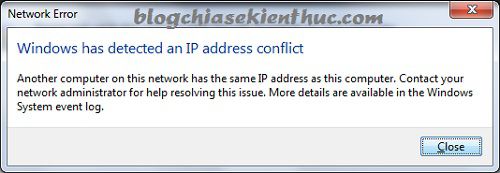
Why this can happen with only one computer
A local network can include phones, printers, TVs, access points, and virtual machines as well as PCs. A manually configured device may overlap the router's DHCP pool, or more than one misconfigured DHCP server may be issuing addresses.
The message is not proof that someone stole your Wi-Fi password. Bridged virtual machines can appear as separate network devices, but virtualization is only one possible source of duplication.
1. Check whether Windows uses DHCP
Open Command Prompt and run:
ipconfig /allFind the adapter you are actually using and note its IPv4 address, gateway, and whether DHCP is enabled. Do not confuse a VPN or disconnected adapter with the active connection. The IP, gateway, and DHCP check explains these fields.
If this is a work or school network, report the details to its administrator before changing addressing. A static address may be required for a specific reason.
2. Renew a DHCP lease
If the adapter is set to obtain an address automatically, a lease release and renewal can help. It temporarily interrupts connectivity, so avoid doing it through a remote session that depends on the same connection.
ipconfig /release
ipconfig /renew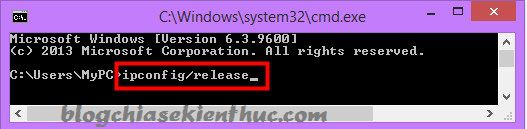
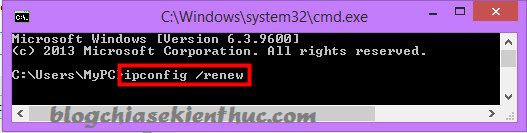
Check the resulting address and test the connection. Renewal requests DHCP configuration; it does not guarantee a different address and does not directly change the router's public internet address. The commands can also target a named adapter. See the ipconfig reference.
If renewal fails, check the network connection and DHCP server rather than repeatedly running the commands. These commands do not repair a manually assigned static address.
3. Correct accidental manual addressing
On a normal home network that uses the router's DHCP service, an accidentally configured static IPv4 address can often be replaced with automatic addressing. Record the current settings before changing them, and do not alter DNS settings blindly.
If a device genuinely needs a fixed address, coordinate it with the network's plan. A DHCP reservation is often easier to manage than a manually assigned client address. Any manual address must be unique, in the correct subnet, and excluded from conflicting DHCP assignment.
4. Restart the router when appropriate
On a home network you manage, a normal router restart can clear a temporary service problem. Warn other users, follow the manufacturer's restart procedure, and allow it to finish starting before reconnecting.
A restart is different from a factory reset. Do not press the reset button or erase the router configuration for a simple IP conflict. Restarting also will not permanently solve a duplicated static address.
5. Inspect DHCP settings if conflicts return
For administrators, check the router or DHCP server's lease list, reservations, pool, and exclusions. Compare the conflicting address with manually configured devices. A full DHCP pool and an address conflict are related addressing problems, but they are not the same diagnosis.
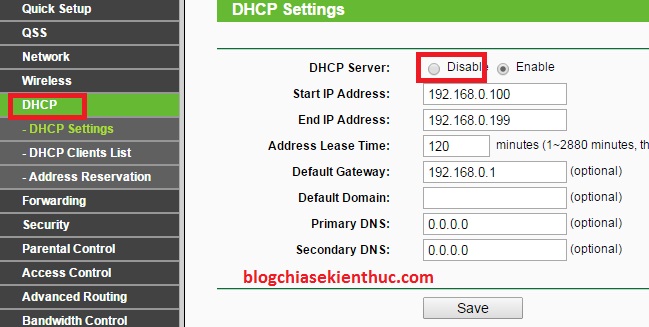
Expand a pool only when there are insufficient addresses, the subnet has capacity, and the new range will not overlap static assignments. Simply enlarging it does not remove an existing duplicate.
Multiple routers need a deliberate topology. An access point bridging clients onto the same LAN should not run an independent, overlapping DHCP service. A separate router serving its own routed subnet is a different case; do not disable DHCP on every secondary device without understanding its role.
Verify the underlying problem is fixed
- Check that Windows has an address and gateway appropriate for the network.
- Confirm local and internet access after reconnecting.
- Watch for the conflict returning when another device powers on.
- Record the address and device involved if the error repeats.
If there is no actual duplicate-address warning, troubleshoot the observed fault rather than assuming an IP conflict. The network error overview distinguishes several common messages.
Related Articles
 Windows Has No Sound: Check Outputs, Settings, and Drivers
 10 cities with the fastest internet speeds in the world
 Fix IP address conflict error on Windows computer
 How to Fix a Yellow Exclamation Mark on the Windows Network Icon
 Some troubleshooting tips for internet connection
 Computers that are not connected to the internet can still be hacked
Reader Comments 0
Sign in with email or Google to join the discussion.