Table of Contents
Genially can generate an interactive quiz from a topic and place it inside an editable game template. This can save setup time for classroom review, but AI-generated questions must be checked for factual accuracy, level, wording, and alignment with the lesson.
The available templates, AI limits, source-upload options, downloads, and sharing controls depend on the current Genially plan. Use the controls shown in your account if they differ from the screenshots.
1. Create or open a Genially account
Open Genially and sign in using one of the available methods.
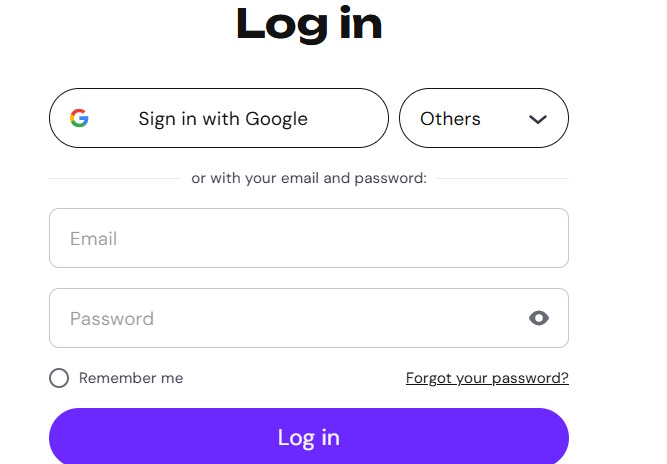
Before using student data, confirm that the account and sharing settings meet your school or organization's privacy requirements. A review game rarely needs students' full names or personal information.
2. Start an AI quiz
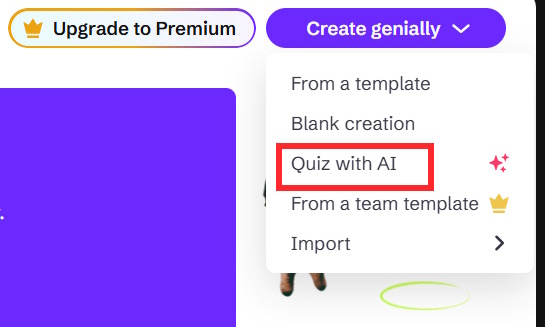
From the home area, choose the option to create a new Genially project and select Quiz with AI or the closest quiz-generation tool available.
3. Define the learning objective
Enter the topic, number of questions, and difficulty. A detailed learning objective produces better questions than a broad subject name.
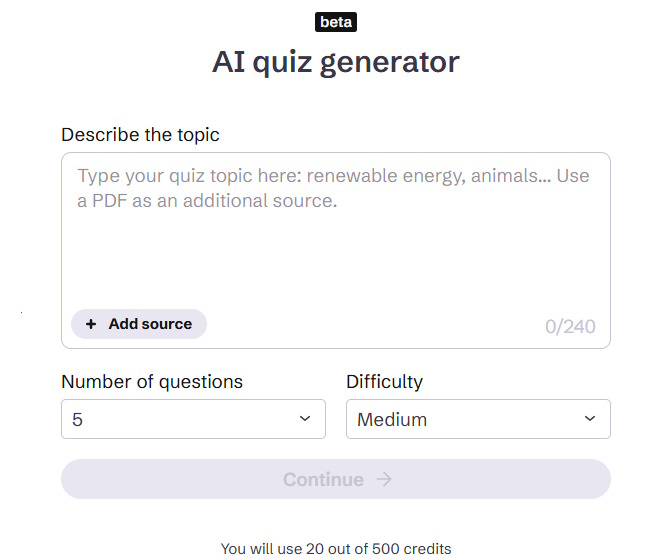
Example prompt:
Create a 10-question review quiz for Grade 8 students.

Topic: area of trapezoids
Learning objective: calculate area using A = (b1 + b2)h / 2 and identify the perpendicular height
Difficulty: 4 recall/application questions, 4 multi-step questions, 2 error-analysis questions
Use metric units.
Give one correct answer and three plausible distractors for each multiple-choice question.
Do not use diagrams unless all measurements are stated in the text.
Include a one-sentence explanation for every answer.
If source upload is available in your plan, attach an approved lesson document and instruct the generator to use only that source. Do not assume an uploaded source guarantees accuracy.
4. Choose the quiz format
Genially may suggest several interaction or game formats. Select one that suits the objective and available class time.
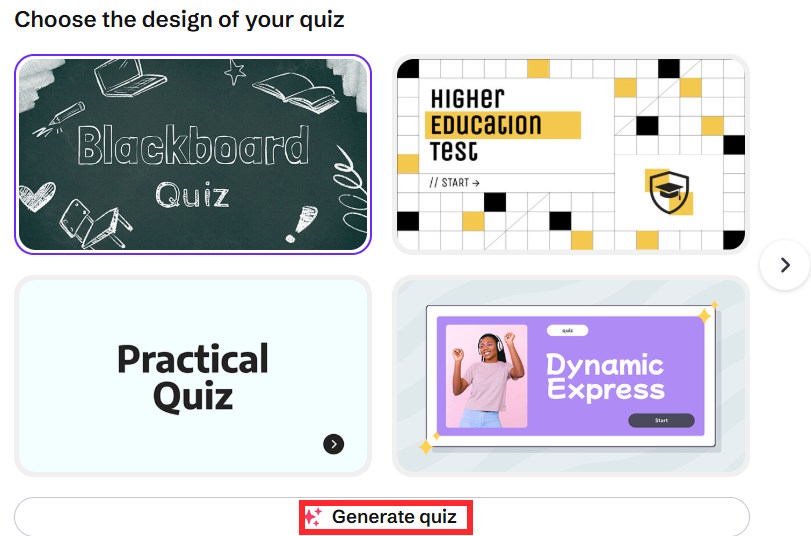
A simple multiple-choice flow is usually easier to review and more accessible than a heavily animated game. Use competition only when it supports learning and does not penalize students who need more reading or processing time.
5. Review the generated project
After generation, open the result in Genially's editor.
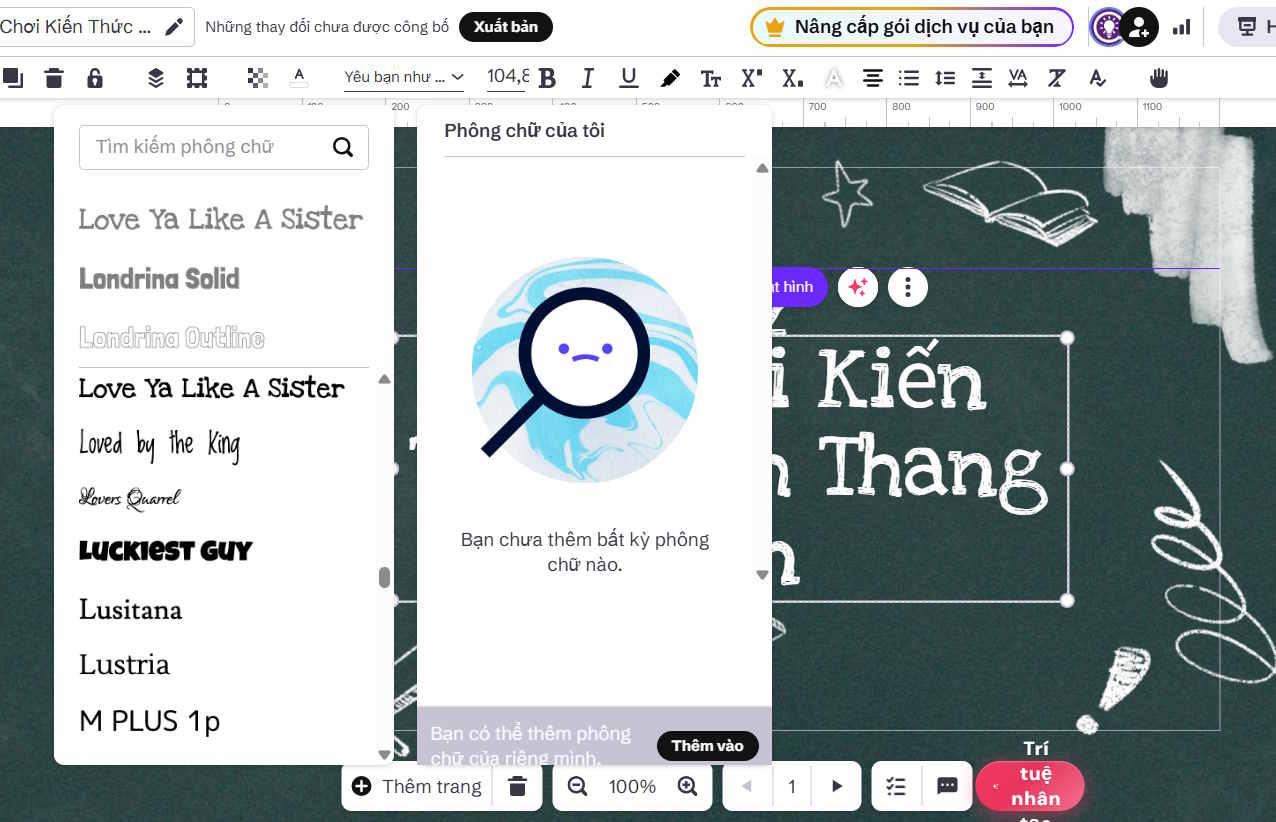
Check every item against the lesson source. Verify:
- there is one defensible correct answer;
- the question is clear without hidden assumptions;
- distractors are plausible but unambiguously wrong;
- units, formulas, names, and dates are correct;
- reading difficulty matches the students;
- feedback explains the answer rather than merely saying “Correct”;
- the question does not reveal the answer to another item.
6. Customize animation without obscuring content
Select an element and open Animation if you want to adjust how it enters, exits, or moves.
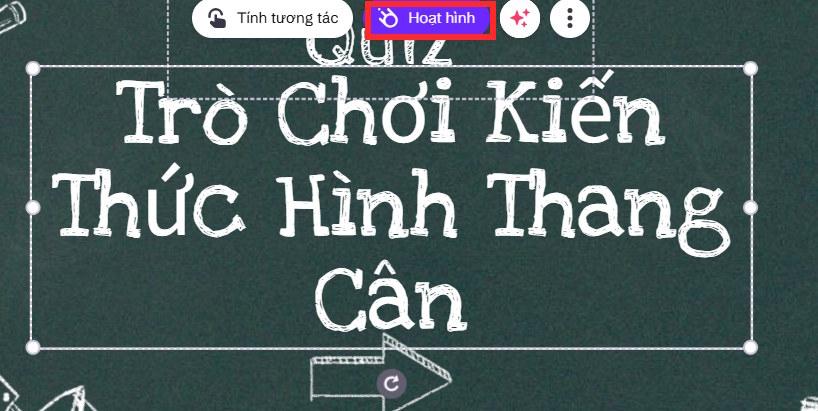
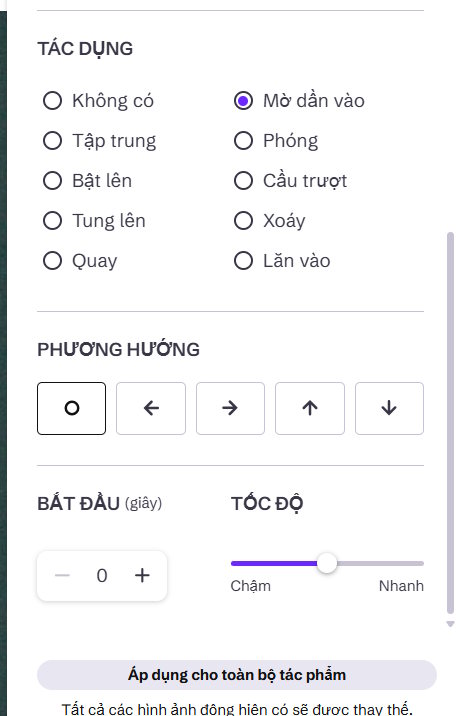
Keep motion brief and consistent. Do not make students wait for decorative animations before they can read or answer. Avoid flashing effects and preserve a reduced-motion alternative when possible.
7. Edit questions, answers, and feedback
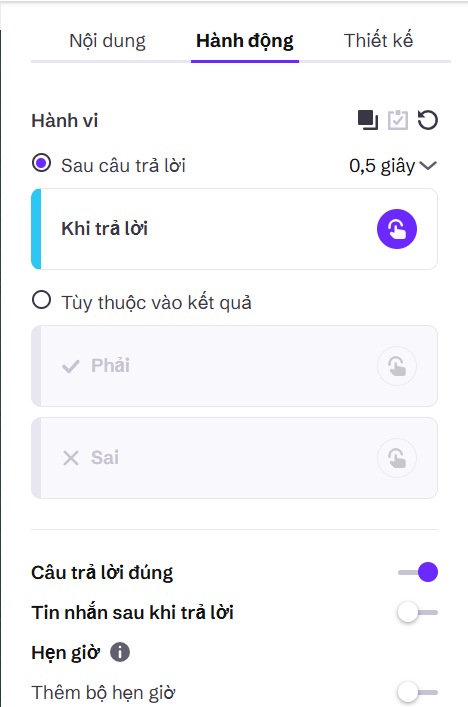
Select the question area to revise wording, answer options, and the correct-answer setting.
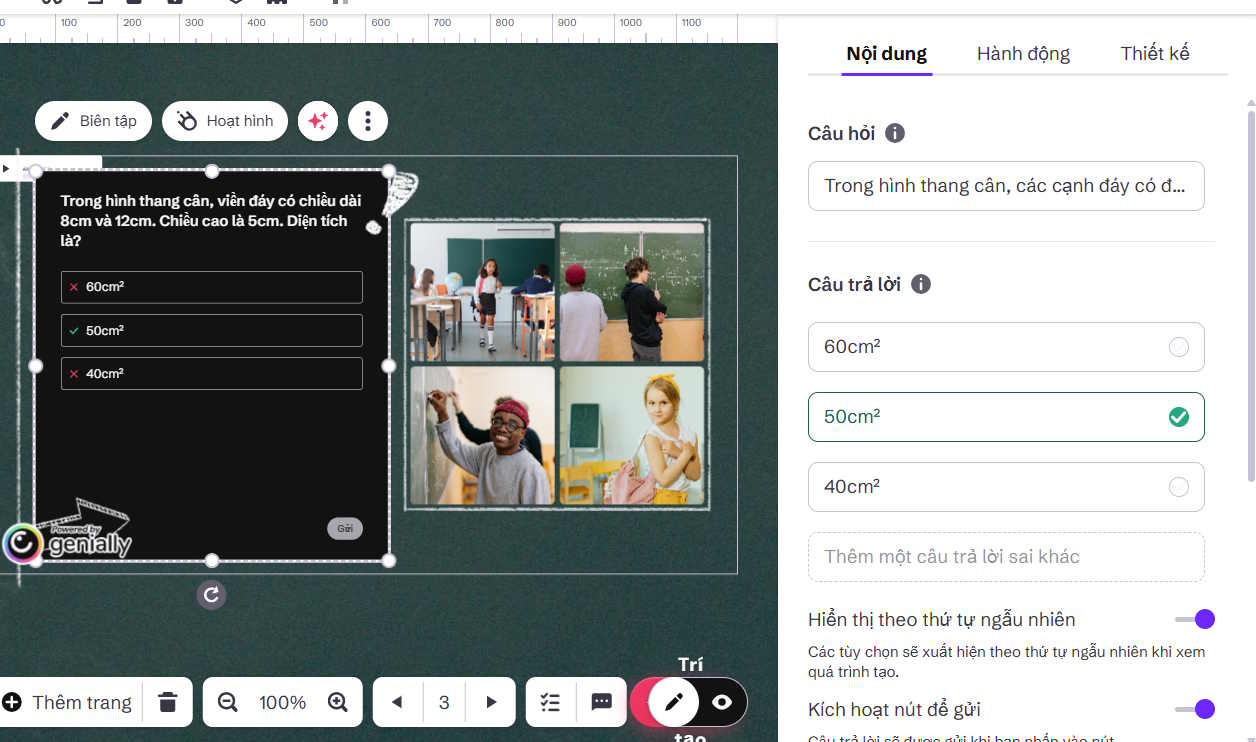
Use the action or interaction controls to define what happens after an answer. If a timer is available, make sure it measures the intended skill. A short countdown may test reading speed instead of subject knowledge.
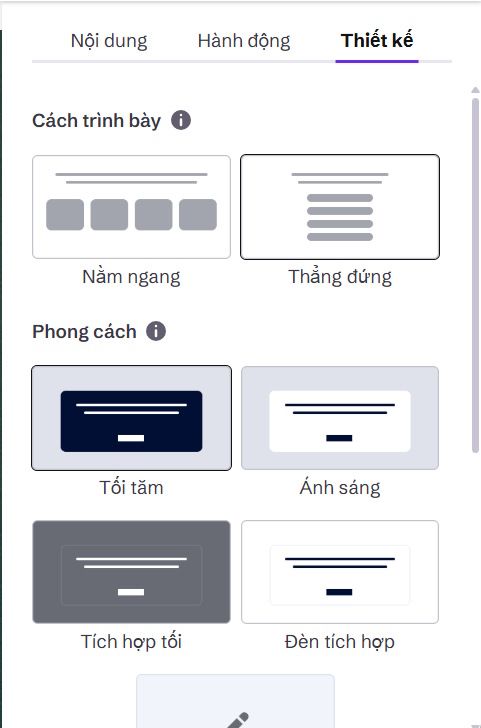
Use the design controls to adjust option layout and visual hierarchy.
Accessibility checks
- Use large text and strong color contrast.
- Do not communicate correct and incorrect answers by color alone.
- Add meaningful alternative text to instructional images.
- Ensure buttons have clear labels and a predictable order.
- Provide enough time or an untimed option.
- Offer the questions in another accessible format if the interaction cannot be used with a keyboard or assistive technology.
8. Test the game as a student
Preview the entire activity from start to finish. Deliberately choose both correct and incorrect answers. Check scoring, feedback, navigation, restart behavior, links, media, and the final results screen.
Ask another teacher to review the answer key. For mathematics, science, and language questions, a second check often catches ambiguity that the author no longer notices.
9. Share or download the activity
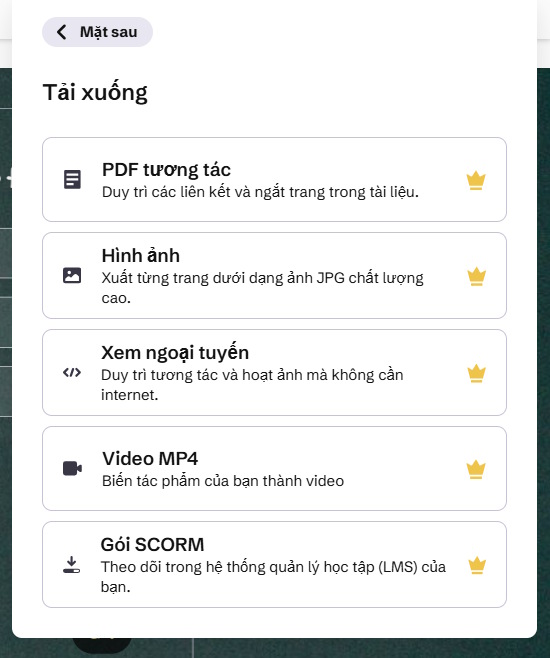
Open Share and review the available link, embed, presentation, or download options.
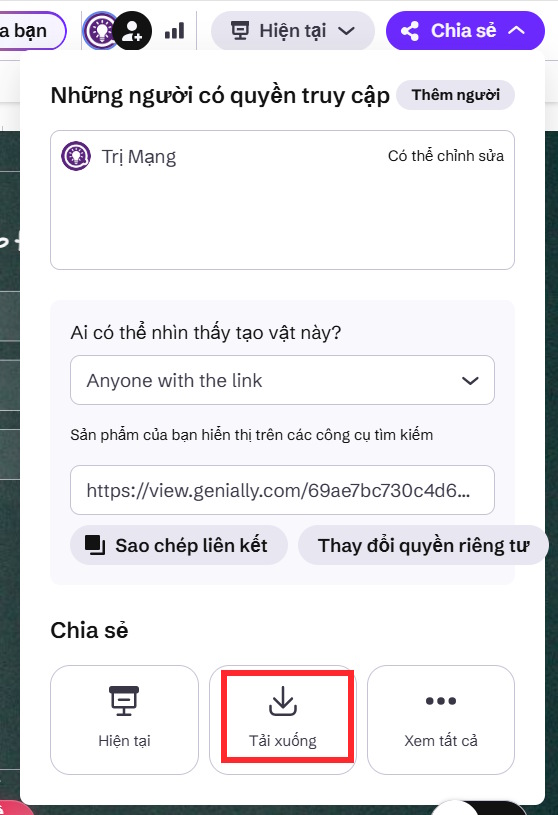
Some offline or export formats may require a paid plan.
Open the full publishing options when you need a direct link or another delivery method.
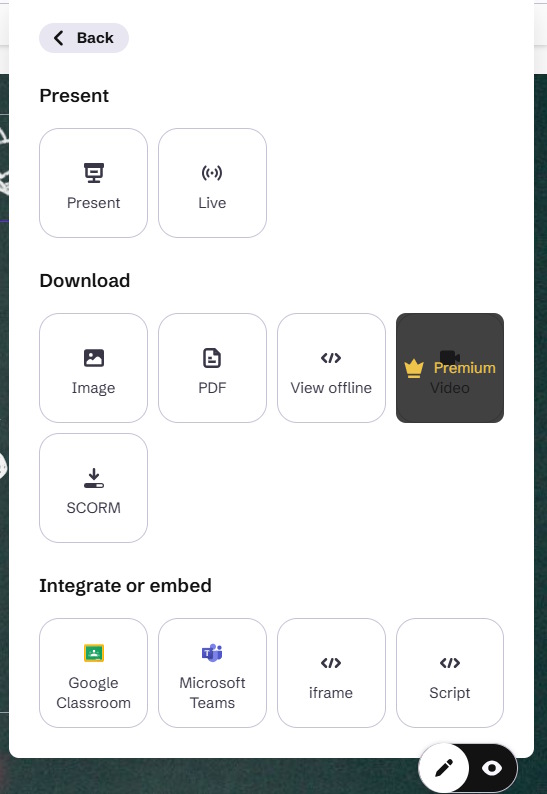
Test the published link in a private browser window or student account. This reveals sign-in requirements, missing permissions, and resources that are visible only to the creator.
Use the results for learning
A game is not automatically an assessment. Decide whether it is a low-stakes practice activity, a discussion prompt, or a scored task. If results influence grades, document how answers are recorded, allow appropriate accommodations, and provide a way to review mistakes.
Genially AI is most valuable for generating a starting structure. The teacher's work—verifying content, improving feedback, protecting student privacy, and making the interaction accessible—is what turns that structure into a useful review activity.
Related Articles
 How to Create a Clue-Finding Game on General3 minutes read
 What Is Review: What Is a Review? Job Experience Test for People4 minutes read
 Quickly Create a Bowling Game to Review Knowledge5 minutes read
 3 Best Sections to Create Professional Barcodes on Computers4 minutes read
 Review HP Zbook Create G78 minutes read
 Looking Back on a Year on Facebook Via Video Year in Review 20185 minutes read
Reader Comments 0
Sign in with email or Google to join the discussion.