Table of Contents
Genially's Secret Clue Game template lets teachers create a browser-based quiz in which each correct answer reveals or advances a clue. The original article repeatedly called the platform “General”; the correct product name is Genially.
1. Open the Secret Clue Game template
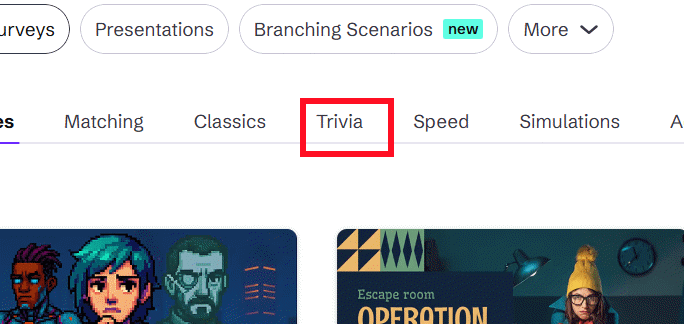
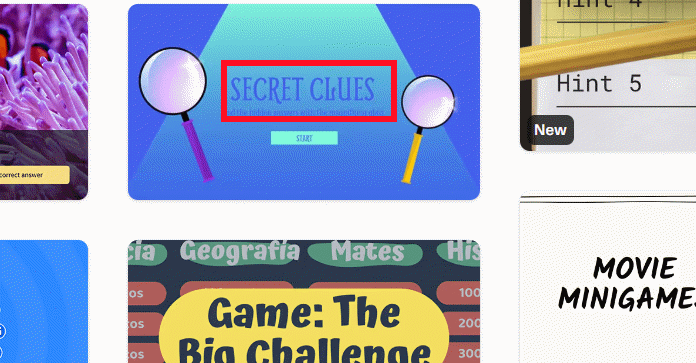
Sign in at Genially and open its game templates. You can search for Secret Clue Game directly or browse the Games category.
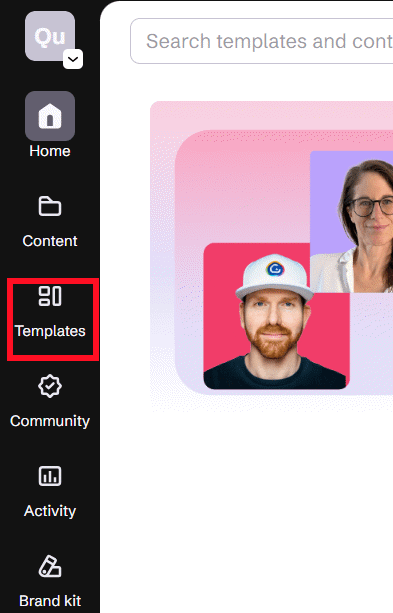
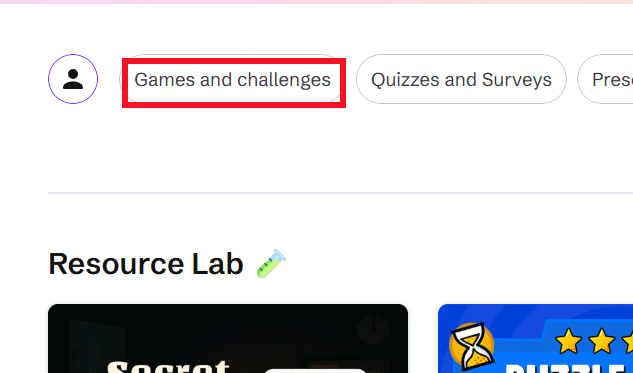
The current Secret Clue Game template is customizable and supports interactive elements, animation, audio, video, presentation, and online sharing. Select Use this template to add an editable copy to your workspace.
2. Plan the clue sequence before editing
Write the final answer first, then create three to six clues that move from broad to specific. Decide what learners must know, what evidence each clue provides, and how a wrong answer should respond.
| Round | Purpose | Example for “photosynthesis” |
|---|---|---|
| 1 | Broad category | “I am a process used by plants.” |
| 2 | Key inputs | “I use light, water, and carbon dioxide.” |
| 3 | Key result | “I help produce glucose and release oxygen.” |
Keep the facts unambiguous. If more than one answer fits, revise the clue rather than marking a reasonable response wrong.
3. Customize the introduction
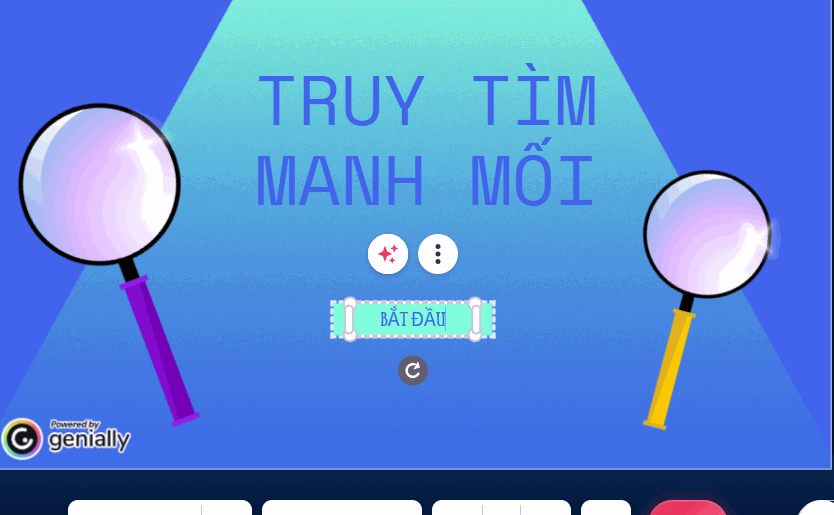
Edit the title, instructions, learning objective, number of rounds, and how participants should submit an answer. Keep the first screen short enough to read without scrolling on a classroom display.

Tell players whether they work individually or in teams, whether they can retry, and whether earlier guesses earn more points. Avoid rules that reward clicking quickly at the expense of reading.
4. Replace the sample questions and answers
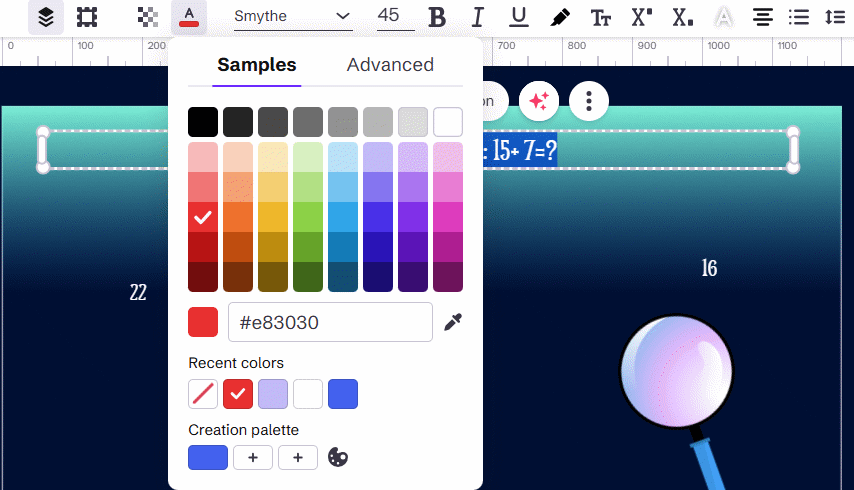
Move through each game page and replace the placeholder question, clue, correct answer, and distractors. Click directly into a text box to edit it, then adjust font, size, color, and alignment consistently.
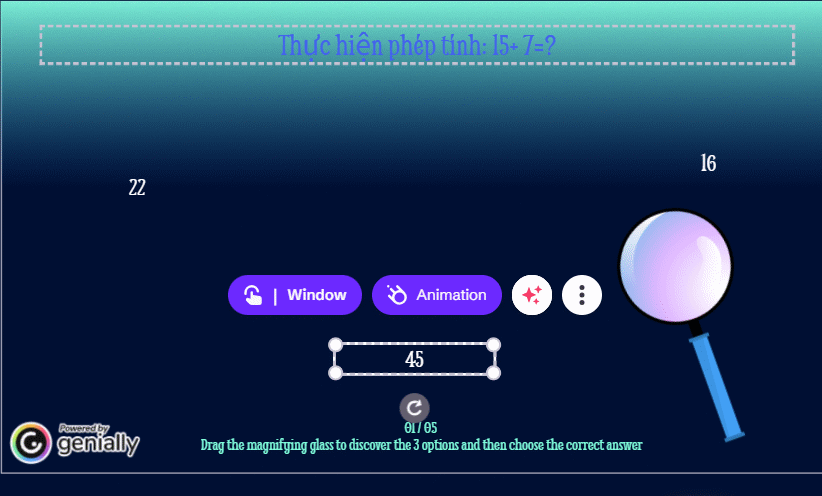
Do not change only the visible label. Interactive templates may link a button to a success page, retry layer, or next clue. Open the element's interactivity settings and confirm that each answer points to the intended result.
5. Add or remove rounds
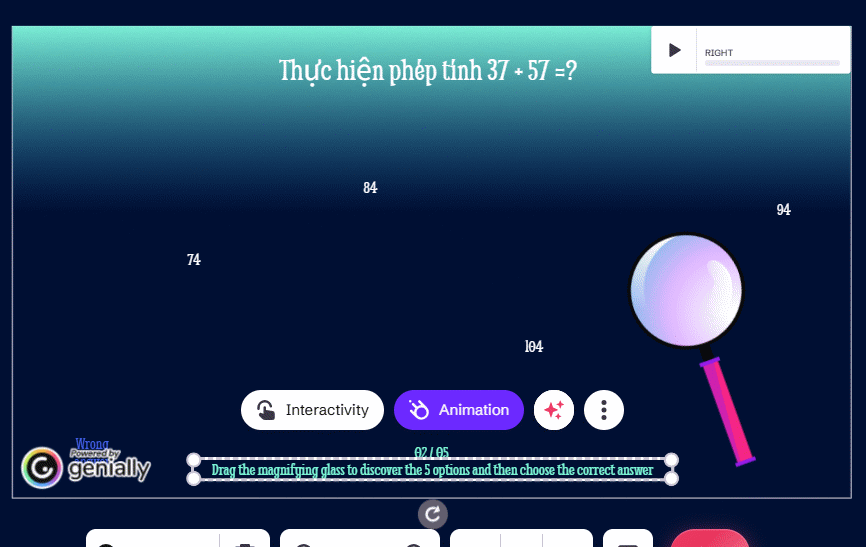
Duplicate a complete working page when you need another round, then replace its content. Duplicating preserves the layout, but you must still inspect every interaction. When deleting a round, update progress labels and any links that previously led to it.
6. Test the game as a learner
Use Preview or Present mode and test every path:
- Choose the correct answer on each round.
- Choose every incorrect answer at least once.
- Check the back, retry, home, and next controls.
- Test keyboard navigation and visible focus where supported.
- Open the game on a phone or tablet if learners will use one.
- Check audio volume, captions, contrast, and text size.
A button that looks correct in the editor may still point to the wrong page, so do not skip the full-path test.
7. Share or publish
Select Share or the current publish control, choose the access setting, and copy the viewing link. Open the link in a private browser window to confirm that students can reach it without editor access.
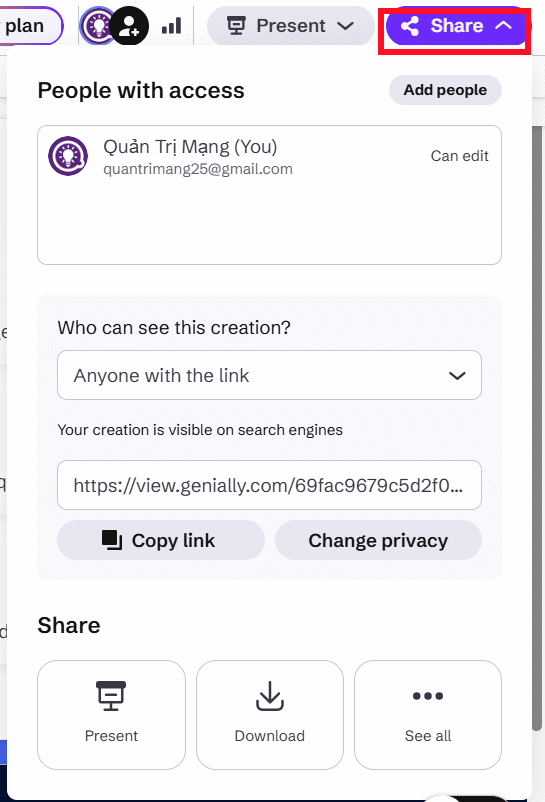
Share a view-only link rather than the editing URL. If the activity contains student names, scores, photos, or other personal information, follow the institution's privacy policy and limit access appropriately.
Design tips for a better clue game
- Keep one learning objective per game.
- Use plausible distractors based on common misconceptions.
- Explain why an answer is wrong instead of displaying only “Incorrect.”
- Do not rely on color alone to show correct and incorrect states.
- Compress large media so classroom devices load the game reliably.
- Provide a non-game alternative for learners who cannot use the interaction.
Genially offers other variations, including character-clue, secret-code, and escape-room templates. Start with Secret Clue Game for a short quiz; choose an escape-room format only when the lesson genuinely benefits from multiple linked puzzles.
Related Articles
 Quickly Create Gameshows on Canva4 minutes read
 Designing the 'Golden Bell Ringing' Game on Canva AI4 minutes read
 A Guide to Creating a Telegram Bot That Anyone Can Do6 minutes read
 How to Create an Educaplay Unscramble Letters Game10 minutes read
 Quickly Create a Bowling Game to Review Knowledge5 minutes read
 How to Create Professional Review Games with Genially AI6 minutes read
Reader Comments 0
Sign in with email or Google to join the discussion.