Table of Contents
Magic School supports the creation of a Q&A chatbot for students to review lessons, based on teachers' own designs. We will set up this chatbot to focus on specific topics,...
Magic School supports the creation of chatbots for students to review lessons and answer questions, based on teachers' own designs. We will set up this chatbot to focus on specific topics, knowledge areas, and learning content. When students review and ask questions related to that knowledge, they will receive immediate answers. Below is a guide on creating a review chatbot using Magic School.
For more context before choosing a tool, compare Claude and ChatGPT and review these practical AI tools for students.
How to create a Q&A review chatbot on Magic School
Step 1:
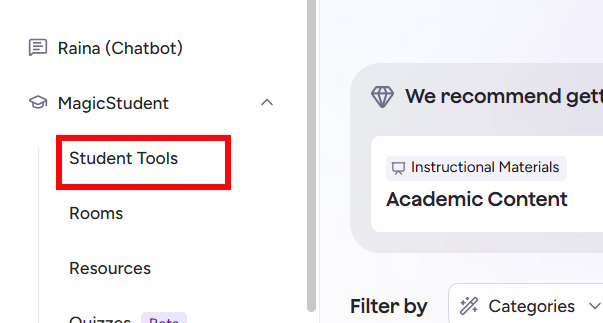
We access the Magic School website and then create an account. Next, on the left side, click on Magic Student and then select Student Tools.
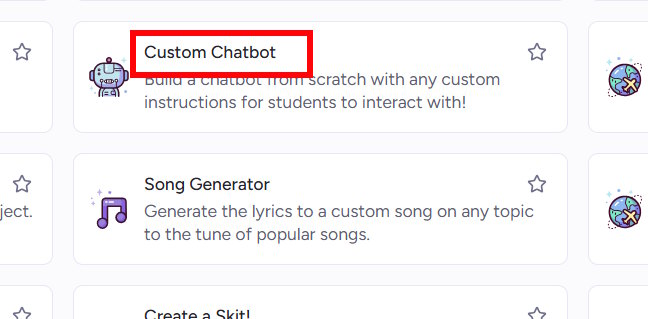
Look to the side and click on the Custom Chatbot tool.
Step 2:
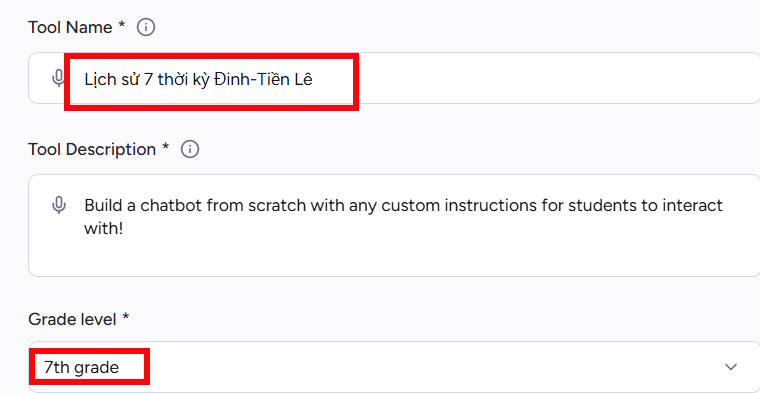
To access the chatbot setup interface, first enter a name for the chatbot. Then select the grade level you are teaching.
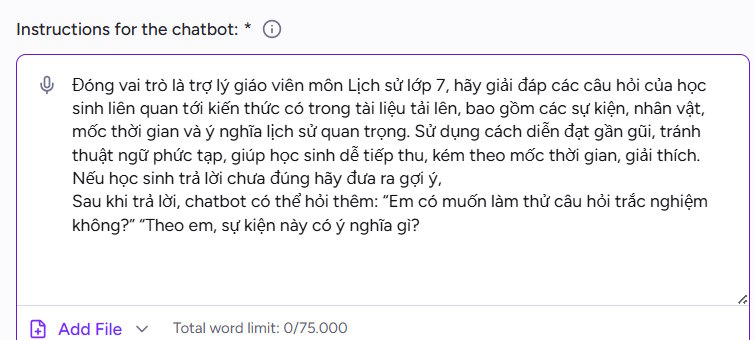
The Instruction section provides instructions on how this chatbot works, how it responds to student questions, and how it answers them. Teachers can refer to the chatbot operation instructions below.
Đóng vai trò là trợ lý giáo viên môn Lịch sử lớp 7, hãy giải đáp các câu hỏi của học sinh liên quan tới kiến thức có trong tài liệu tải lên, bao gồm các sự kiện, nhân vật, mốc thời gian và ý nghĩa lịch sử quan trọng. Sử dụng cách diễn đạt gần gũi, tránh thuật ngữ phức tạp, giúp học sinh dễ tiếp thu, kém theo mốc thời gian, giải thích. Nếu học sinh trả lời chưa đúng hãy đưa ra gợi ý. Sau khi trả lời, chatbot có thể hỏi thêm: 'Em có muốn làm thử câu hỏi trắc nghiệm không?' 'Theo em, sự kiện này có ý nghĩa gì?
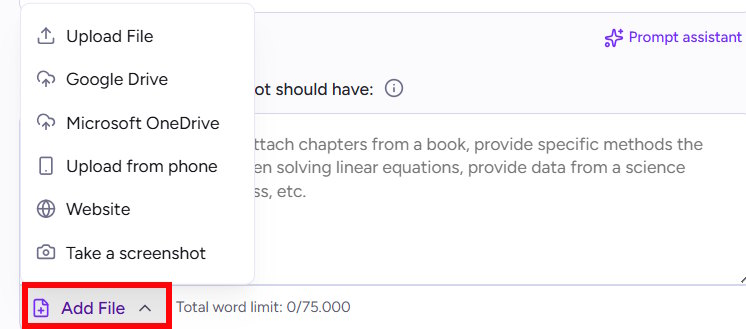
Next, upload the data file below that students need to review and only answer questions within that content.
Step 3:
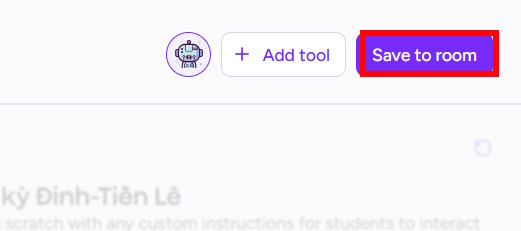
Click "Save to room" to save and name it the same as the chatbot, then click "Save room" again.
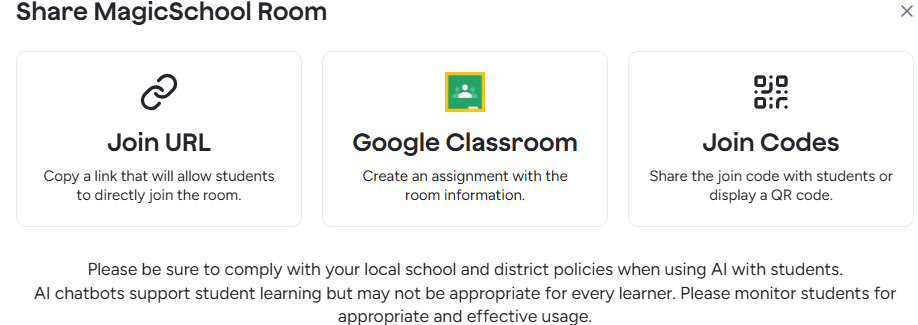
As a result, we now have a chatbot to send students review questions and answers about the material they have learned.
Step 4:
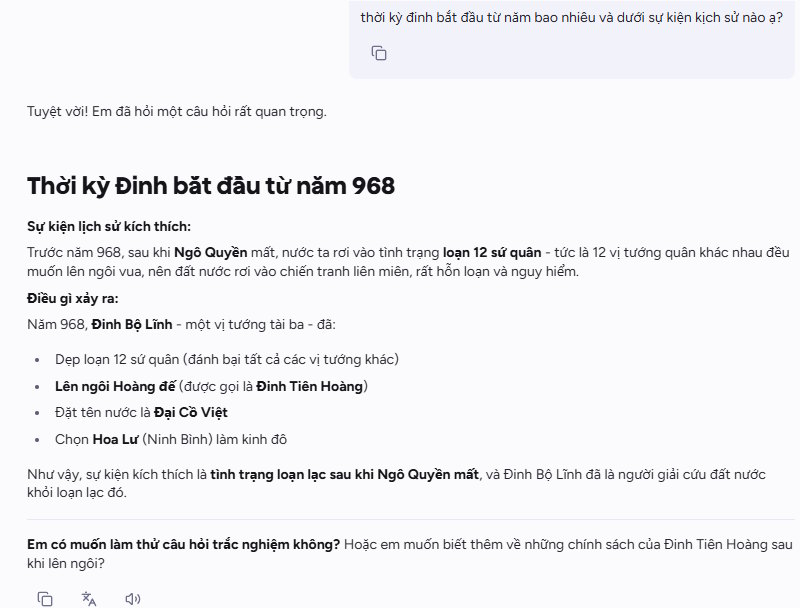
When students access the link, they need to enter their name and click "Join room". The chatbot will then introduce itself, as shown in the image below.
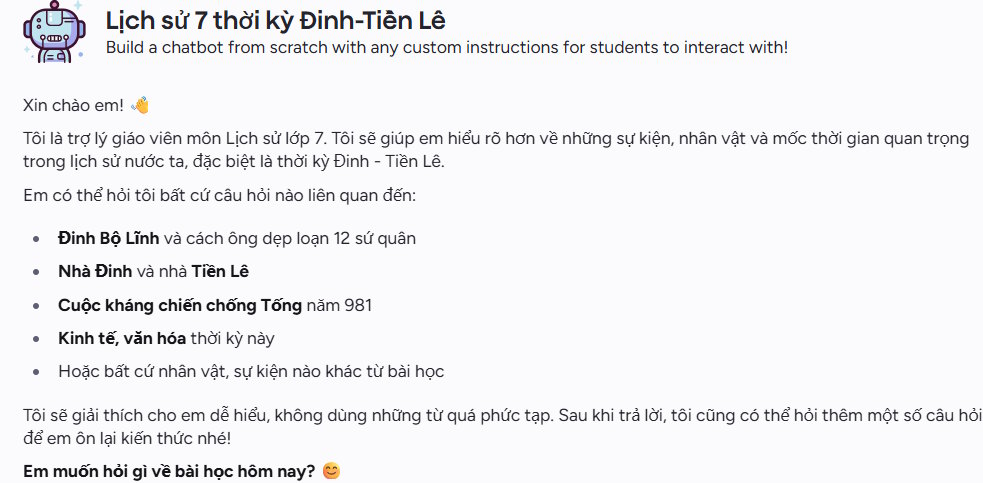
Now, students will ask for any information related to the content in this knowledge section. For example, a student might ask when the Dinh Dynasty began and what events occurred during that period. The chatbot will then respond with concise yet comprehensive information.
The chatbot will provide further content suggestions related to this knowledge.
Step 5:
Teachers can return to Magic School and click on the "Room" section, select the chatbot name, and see the number of students using the chatbot, the number of responses, and the content of the responses sent.
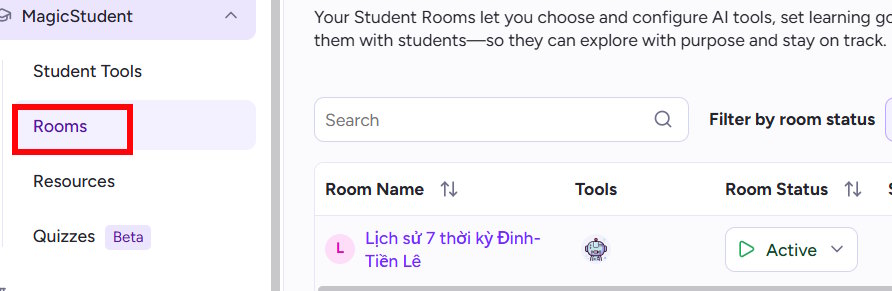
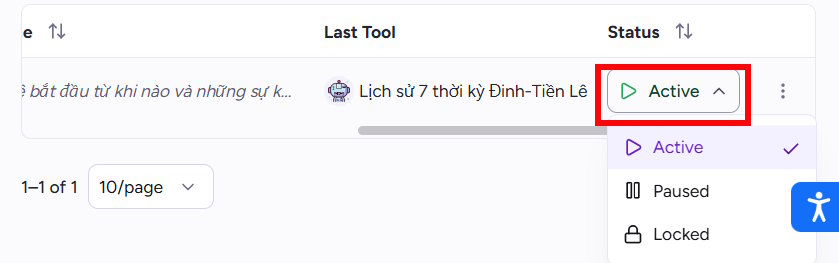
In this interface, teachers can stop the chatbot for this student by adjusting the Status setting.
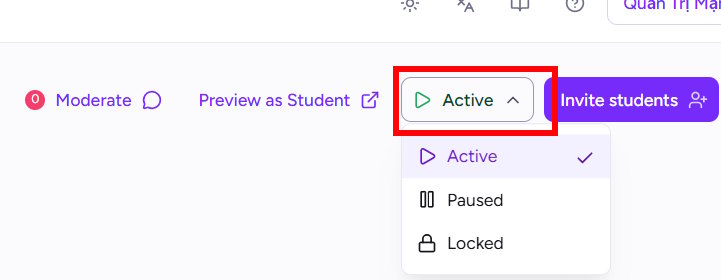
To completely stop this chatbot, look at the top, click the Active button, and then select Paused.
Related Articles
 Quickly Create Multiple-choice Quizzes from Videos Using Magic School AI5 minutes read
 How to Quickly Create Worksheets on Magic School4 minutes read
 Perfect STEM Activities for Middle School Students12 minutes read
 Deciphering the Magic Screen Matchstick Knows Dancing Is2 minutes read
 Which Pocket Computers Should High School Students Buy5 minutes read
 The School Is Closed Because of COVID-19, Japanese3 minutes read
Reader Comments 0
Sign in with email or Google to join the discussion.