Table of Contents
A computer that restarts or loses power unexpectedly may have a software crash, overheating, unstable power, or failing hardware. Start by identifying what actually happens: an error screen followed by a restart is different from an instant loss of power.
Save work frequently and back up important files before running repairs. If there is smoke, a burning smell, visible battery swelling, or damaged power equipment, stop using the device and arrange service.
1. Record the symptoms before changing anything
- Does it restart, shut down completely, or only lose the display?
- Does it happen under load, while idle, during startup, or when moving the power cable?
- Did it begin after an update, hardware addition, or driver change?
- Does an error screen show a stop code or driver name?
Photograph any stop code and note the time. Change one variable at a time so you can tell whether it made a difference.
2. Check Windows and recent changes
A recurring stop error can involve a driver, hardware device, or software. Remove recently added external hardware, check Device Manager for warnings, and install applicable Windows and manufacturer-driver updates. If the desktop is unstable, use Safe Mode to investigate recent changes.
Use Microsoft's unexpected restart and stop-code guidance for a crash-focused workflow. Reinstalling Windows should not be the first response to a computer that loses power instantly.
3. Check cooling and airflow
Blocked vents, dust, a failed fan, or poor cooler contact can cause overheating. Put a laptop on a firm surface, clear external vents, and observe whether fans operate normally. Stop demanding work if the machine repeatedly powers off under load.
Compare temperature readings with the component manufacturer's guidance rather than using a single universal threshold. Internal cleaning, cooler removal, and thermal-paste replacement should follow the service manual or be handled by a technician. Adding paste without correctly removing and refitting the cooler is not a reliable repair.
4. Inspect the power path
Check the wall connection, power cable, adapter connector, and any power strip for looseness or visible damage. Use the correct manufacturer-approved adapter for a laptop.
A desktop PSU that cannot supply the required power, or has developed a fault, can cause instability. A higher voltage is not the solution. A replacement must match the PC's electrical specifications, connectors, and power requirements. Never open a PSU; internal components can remain hazardous after it is unplugged.
Software sensor readings cannot conclusively prove a PSU is healthy. Have a technician test with appropriate equipment or a known-compatible replacement when power failure is suspected.
5. Check memory without damaging contacts
Memory faults or an unstable memory configuration can cause crashes. Run the manufacturer's diagnostics or Windows Memory Diagnostic where available. If overclocking or memory tuning was recently enabled, review that change using the board's documented procedure.
Reseat removable RAM only with the computer shut down, power disconnected, and proper electrostatic precautions. Do not scrape contacts or rub them with an eraser as a routine fix. Beep patterns vary by manufacturer and do not always identify RAM.
6. Check both HDD and SSD health
Storage failures can affect either an HDD or an SSD. Back up readable files first if you see disk warnings, repeated read errors, unusual drive behavior, or disappearing storage. Avoid heavy repair scans on a drive suspected of failing before protecting the data.
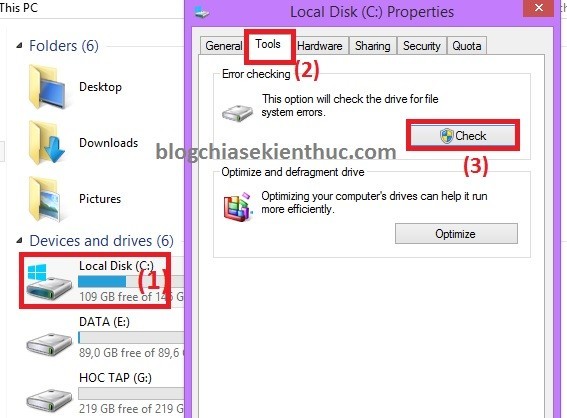
Windows drive error checking addresses file-system issues; it is not a complete hardware-health assessment. Use the drive manufacturer's diagnostics and review available health information. See checking HDD and SSD health with CrystalDiskInfo. A “Good” result does not rule out every intermittent fault.
7. Review graphics-related failures
If the problem appears during games or graphics work, check the graphics driver, cooling, and power connections. A black display while the computer stays running is a different symptom from the whole system switching off.
Testing integrated graphics is an option only if the CPU and motherboard support it. Do not remove a graphics card while the PC is powered, and do not assume every graphics-load crash proves the card itself has failed.
8. Scan for malware when there is evidence

Use updated, trusted security software and run an appropriate scan. Unknown activation tools or modified installations can complicate diagnosis, but a Windows activation problem alone does not establish the cause of a shutdown. Buying a key is not a hardware repair.
A crash in a rescue environment may make ordinary installed applications less likely as the cause, but it does not by itself identify a failed component or completely rule out software problems.
9. Check laptop batteries and adapters safely
Run the manufacturer's battery and adapter diagnostics. Compare behavior on battery and AC power only using procedures supported by the laptop maker. Some machines have internal batteries that should not be disconnected by an inexperienced user.
Different behavior on AC and battery is a clue, not proof of a particular failed part. Do not open battery packs or replace individual cells. If the battery is swollen, follow the manufacturer's service process; Dell's swollen-battery guidance explains why it must not be punctured or forced out.
10. Treat CMOS battery symptoms separately
A failing RTC/CMOS battery can be associated with lost clock settings or firmware warnings. It is not a universal explanation for random power loss. Never test a battery by licking it. Use the correct replacement and documented service procedure, or have it checked professionally.
Do not reset all firmware settings blindly: storage and boot-mode changes can prevent Windows from starting. Record the current configuration and keep encryption recovery information available before firmware changes.
When to arrange repair
Seek hardware service if shutdowns continue outside Windows, power connectors are damaged, cooling fails, diagnostics report a fault, or you cannot safely isolate the cause. Give the technician the symptom pattern, error codes, and changes already tested. Protect data first; the Windows image-backup guide is useful when the system is stable enough to back up.
Related Articles
 Fix the error that the computer automatically restarts
 Causes and How to Fix Computer Restarting Continuously
 Computer shuts down unexpectedly: causes and solutions
 Fixing a computer that keeps restarting but doesn't display the BIOS screen
 Error of Task Manager shutting down automatically and solutions to fix it
 How to fix Windows computer automatically restarting when shutdown button is pressed
Reader Comments 0
Sign in with email or Google to join the discussion.