Table of Contents
Apple One bundles Apple Music, Apple TV, Apple Arcade, and iCloud+ into one subscription. It can save money if you already pay for several of those services. If you only need more iCloud storage or only watch Apple TV occasionally, price those services separately before subscribing.
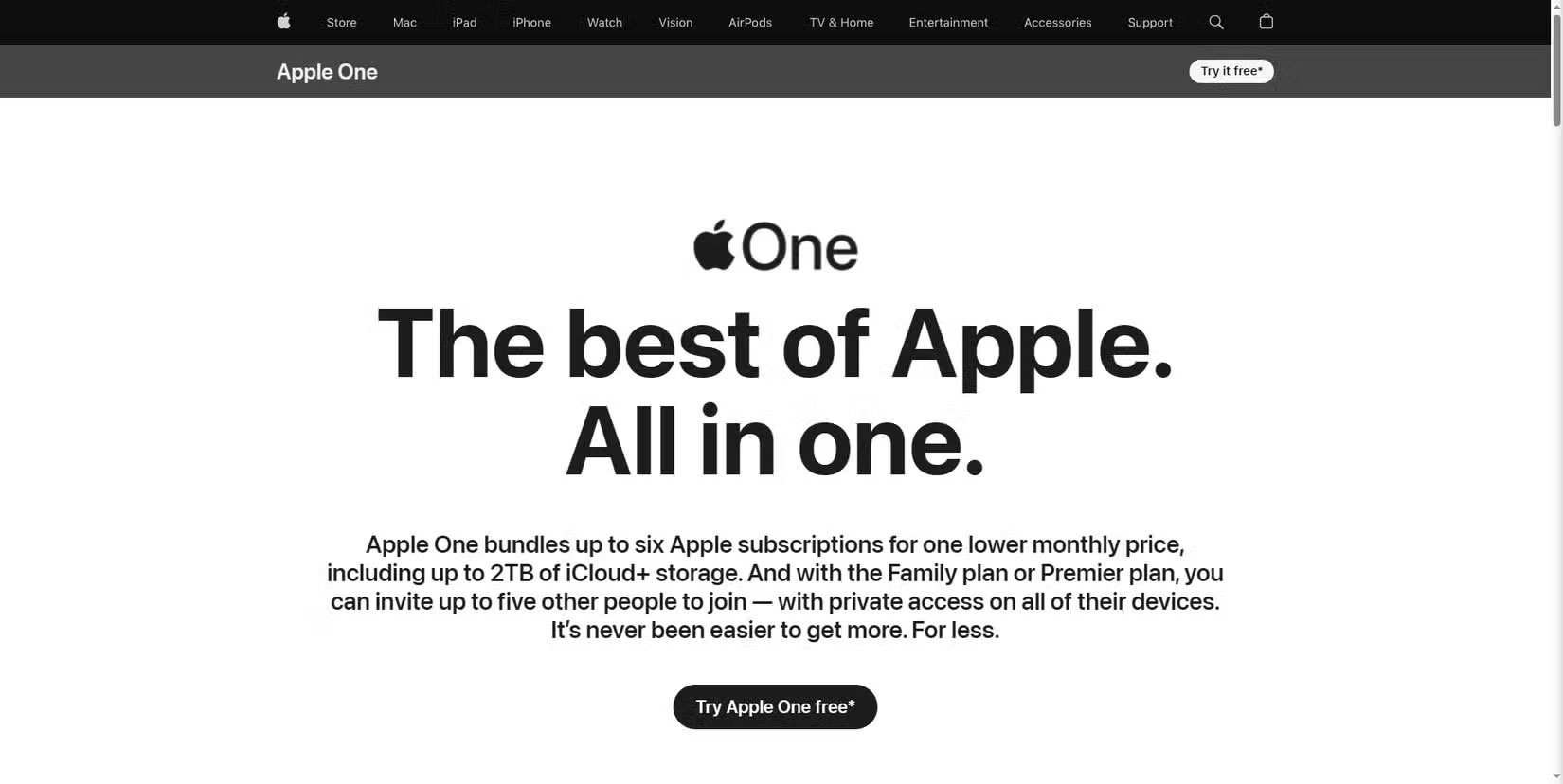
Compare Apple One plans
| Plan | Services | Included iCloud+ storage |
|---|---|---|
| Individual | Apple Music, Apple TV, Apple Arcade | 50 GB |
| Family | Apple Music, Apple TV, Apple Arcade | 200 GB |
| Premier | Apple Music, Apple TV, Apple Arcade, Apple News+, and Apple Fitness+ | 2 TB |
Check Apple’s current plan details and the offer shown in your Apple Account. Pricing and service availability vary by country. Family and Premier can be shared with up to five other people. Compare the shared storage allowance with what everyone is already using.
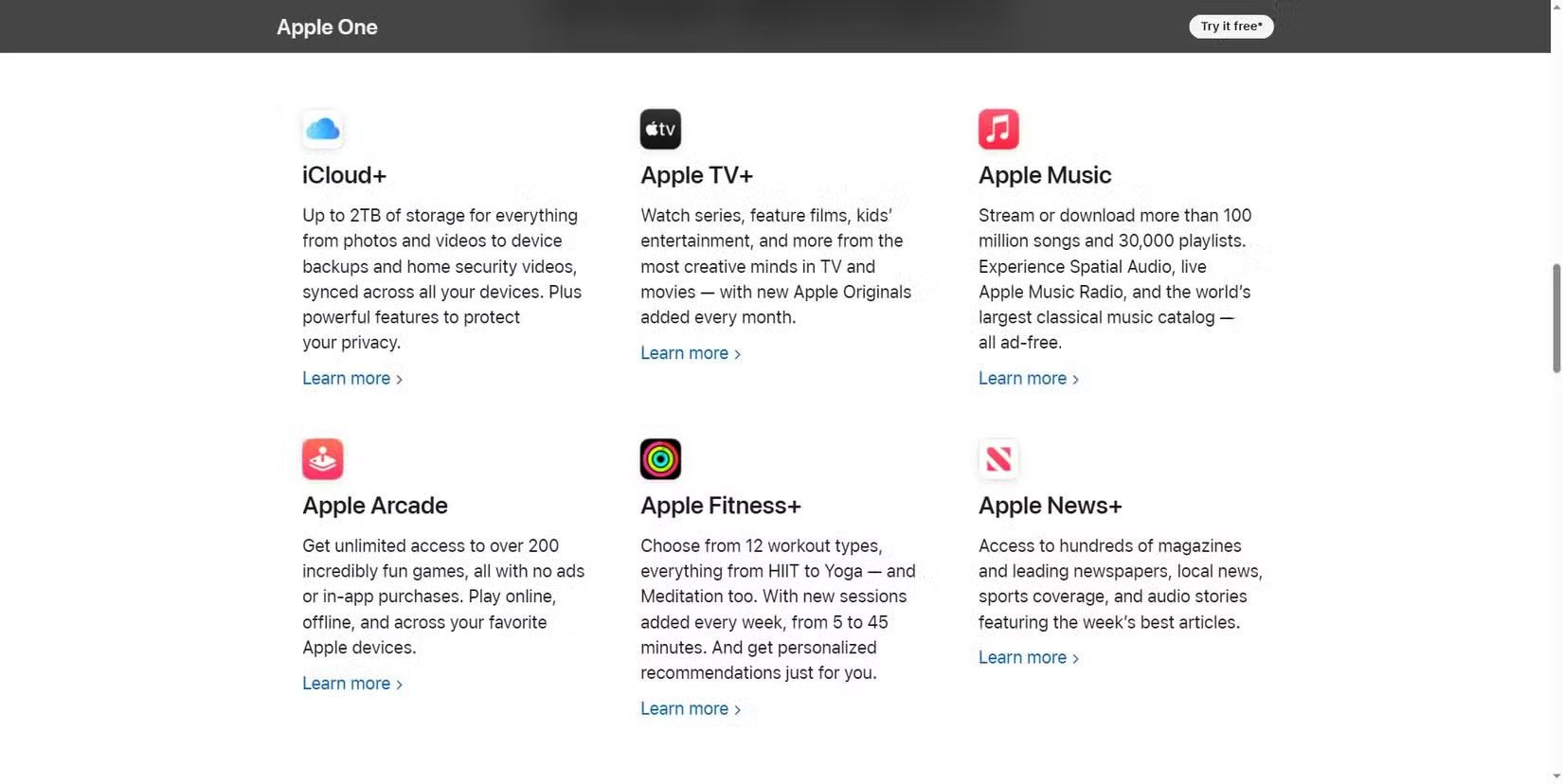
What you can use across your devices
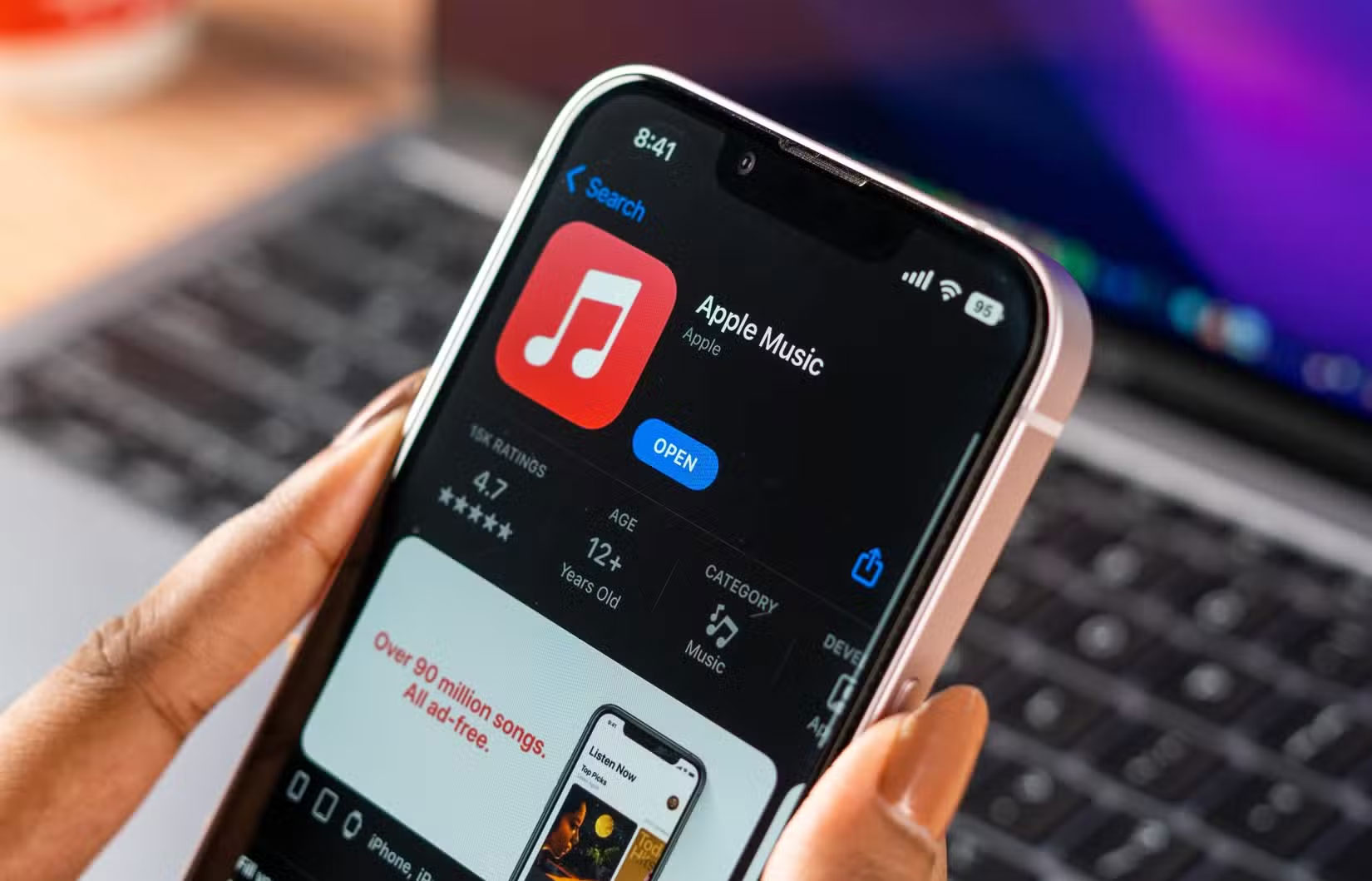
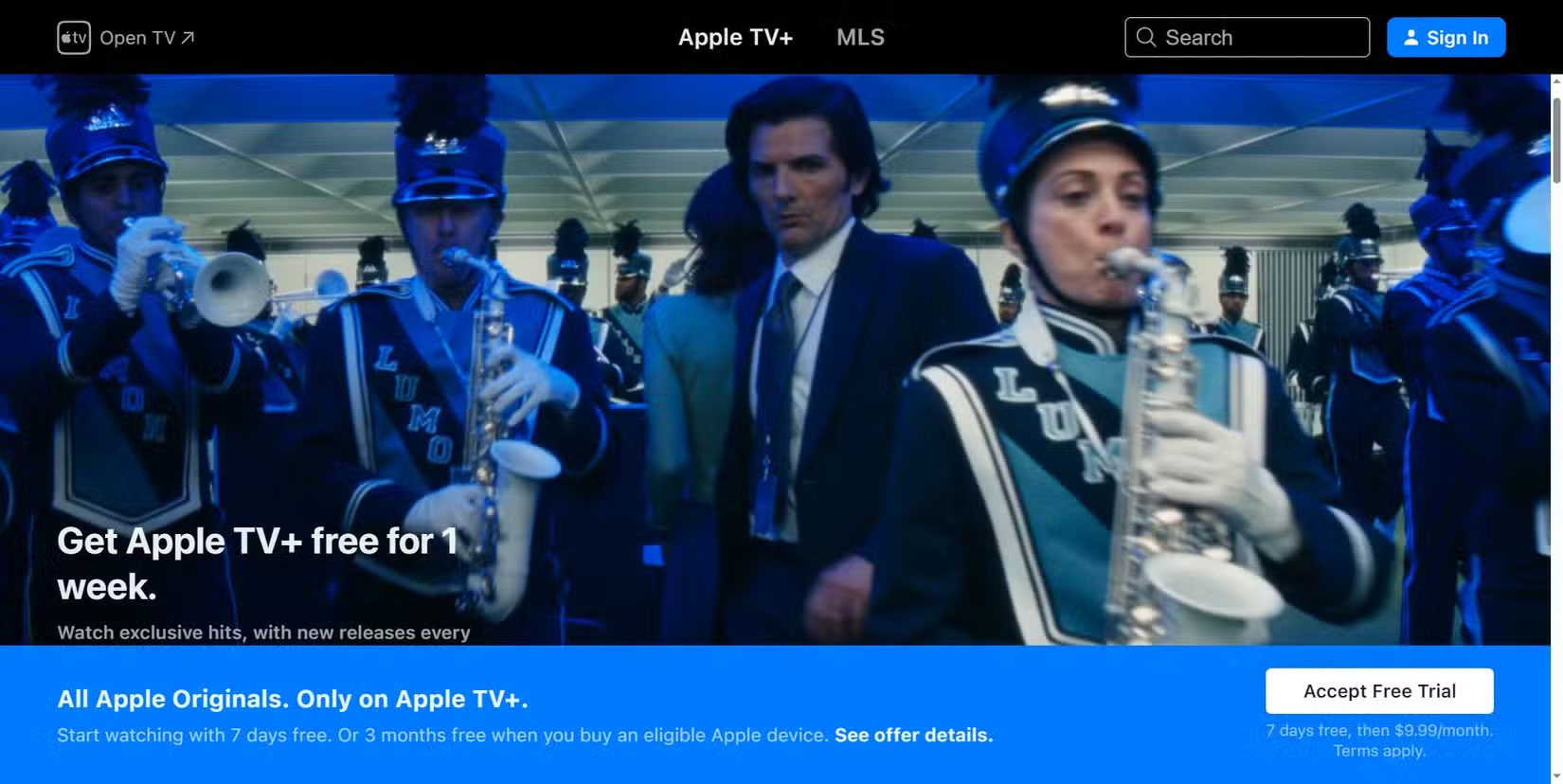
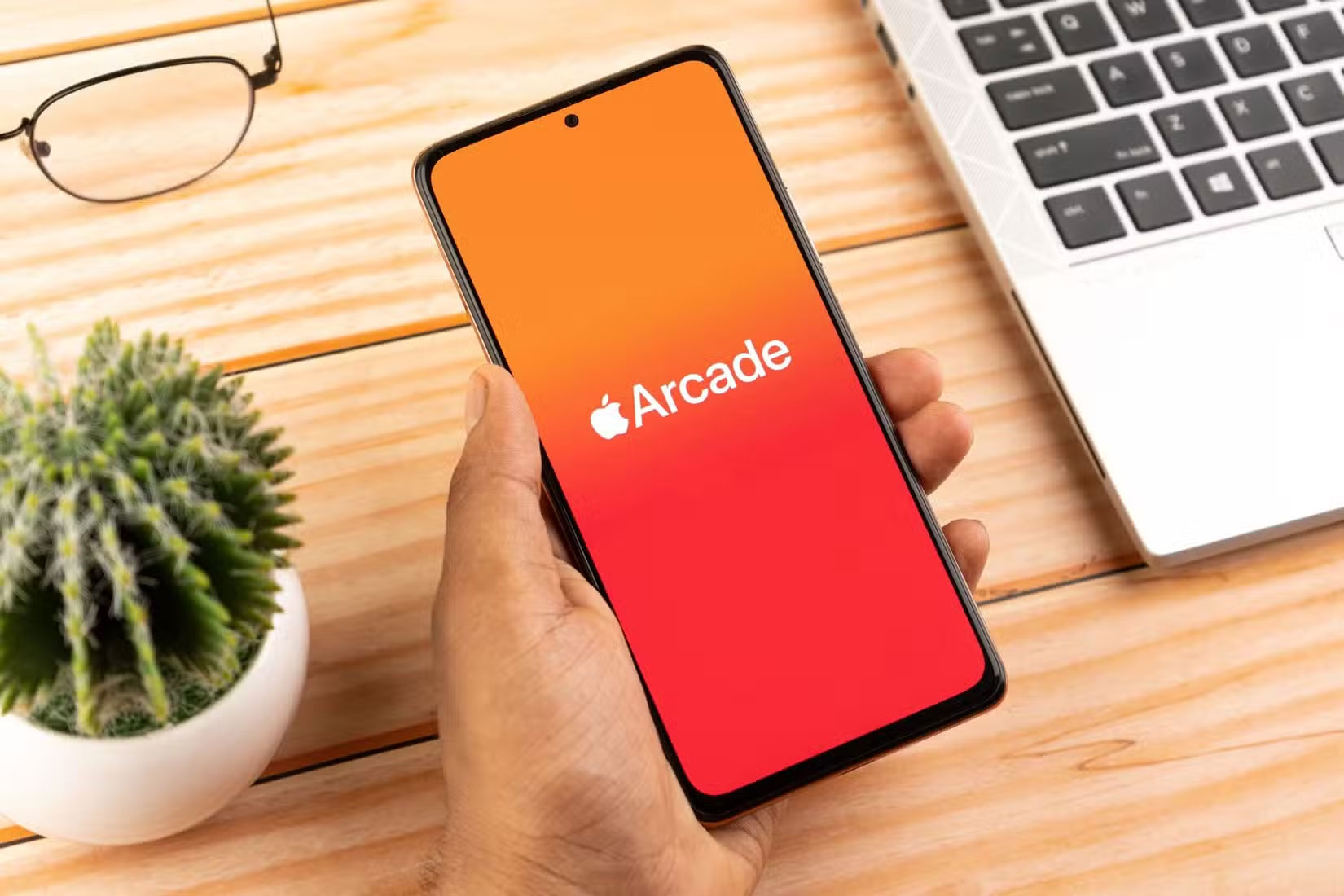
Apple Music covers music streaming, Apple TV includes Apple originals such as Severance, and Apple Arcade offers downloadable games on supported Apple devices. Check which services work on the TV, console, or computer you actually use. Apple Music and Apple TV are available on some non-Apple platforms, while other services have different device requirements.
Work out whether to bundle
- Check your active subscriptions and write down what you actually pay for the ones included in the bundle.
- Check your current iCloud storage usage. If you need to buy additional storage, include it in the comparison.
- For a household plan, confirm who will use the subscriptions and how your Family Sharing group is set up.
- Compare the bundle price with that total. Count Apple News+ or Fitness+ as savings only if you would otherwise pay for them.
Related Articles
 What is the AAB (Android App Bundle) format?
 Get free Bundle Storm v2 graphic package licenses worth more than 147 USD, free of charge
 How to get the Stereo Blaster Bundle in Free Fire
 How to craft and use bundles in Minecraft
 Apple is preparing to combine iOS and Mac applications as one
 Tor launched an anonymous chat application on March 31
Reader Comments 0
Sign in with email or Google to join the discussion.