Table of Contents
Anhdv Boot 2021 is an older computer-rescue toolkit intended to boot a temporary maintenance environment from removable media. This article documents its legacy USB-creation workflow. For a new rescue drive, check the publisher's current supported release and instructions rather than assuming a 2021 image supports modern hardware.
Get the correct release from the publisher
Use the official Anhdv Boot download page and its release history to identify the package you intend to use. The original article's download size, password, hashes, and script filename applied to one historical build; they should not be reused to validate a different file.
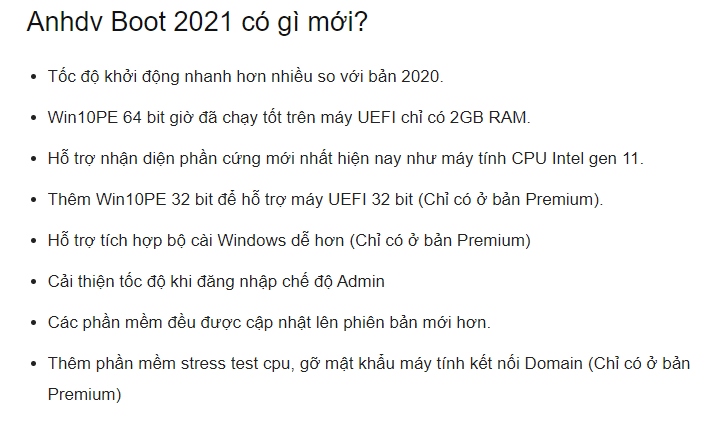
Historical feature illustration from the 2021 release. Current editions can contain different tools and drivers.
Compare a download with verification information published for that exact file. A matching old MD5 or SHA-1 value is not a general guarantee of safety, and password-protecting an archive does not make its contents trustworthy. Do not bypass a security warning merely because a download page recommends doing so.
Prepare before writing the USB
- Use a USB drive large enough for the selected release and any planned additions. Follow that release's requirements rather than an old 4 GB minimum.
- Copy all needed USB files elsewhere and verify the backup. The creation process can repartition or erase the selected device.
- Disconnect unrelated removable drives to reduce selection mistakes.
- Have a working computer, a compatible archive extractor, and administrator access for the creation tool.
- Record recovery keys for encrypted internal drives before attempting repair work.
Legacy 2021 creation workflow
1. Extract and inspect the package
Extract the verified archive into a folder and read its included instructions. The screenshots show the files from the older package.
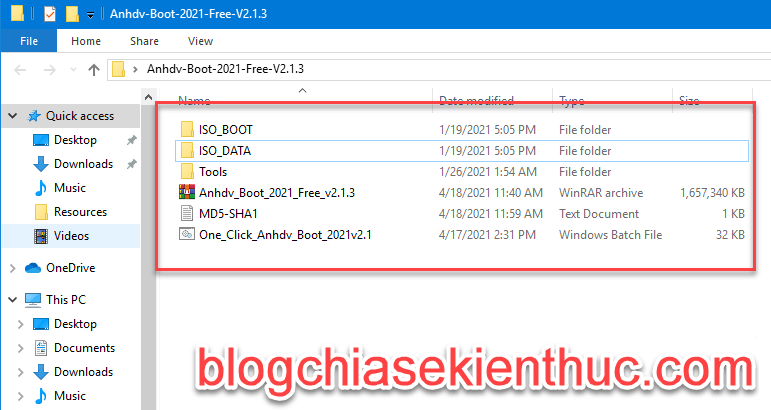
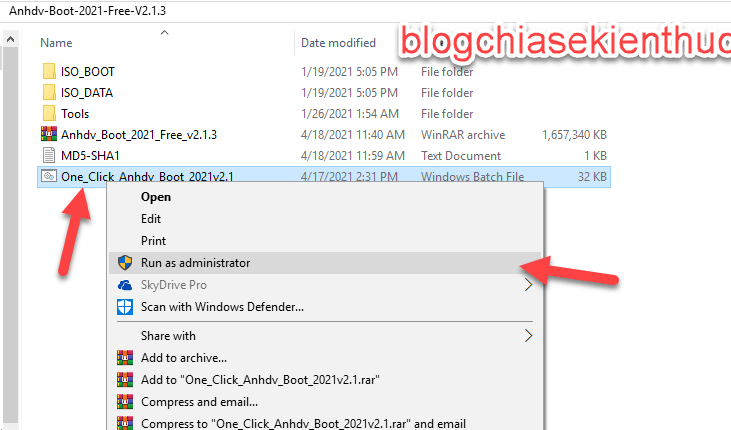
If you intentionally use that version, run the creation script supplied by the verified package with the privileges it requires. Do not substitute a similarly named script from another source.
2. Choose language and identify the USB
Select the interface language, then inspect the device list. Match the USB by its model and capacity and confirm that it is removable media. Device numbers can change: never type “1” merely because the example uses it.
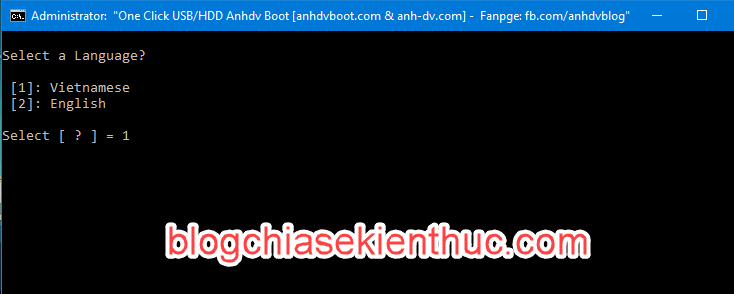
If you cannot distinguish the USB from an internal disk, stop before selecting a target. Reconnect only the intended drive and inspect the list again.
3. Choose the partition layout
The older tool offered a boot partition plus a data partition, or a simpler single-partition arrangement. Follow the package's instructions for the layout and file systems; these choices affect boot compatibility and available data space.
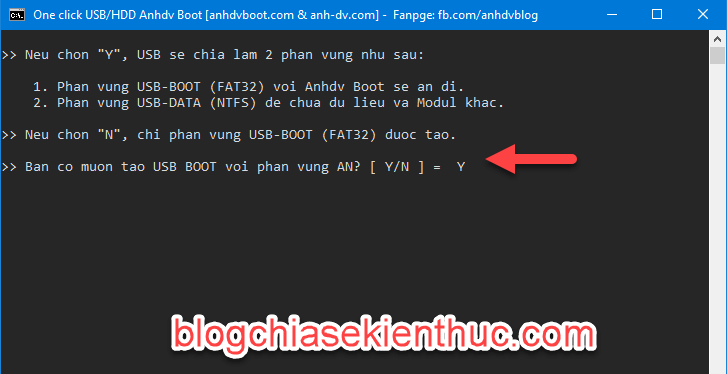
FAT32 cannot store an individual file of 4 GiB or larger. A separate data partition can help in suitable workflows, but the correct layout depends on the boot tool and target firmware. Hidden boot partitions are not a security boundary.
Optional images need enough allocated space for their actual sizes. Do not use old fixed Fedora or other add-on sizes as current requirements. Avoid adding unrelated images unless you need and understand them.
4. Review the destructive-write warning
Before confirming, check the selected device again and verify that all needed data is backed up. Continue only when you intend to erase or repartition that USB.
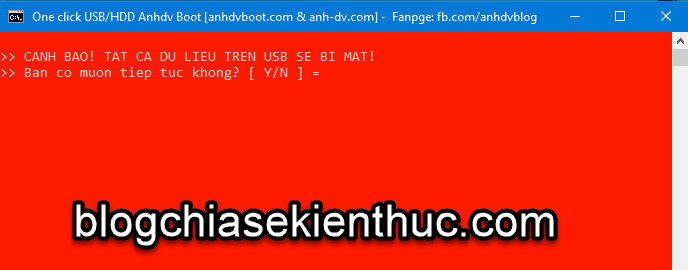
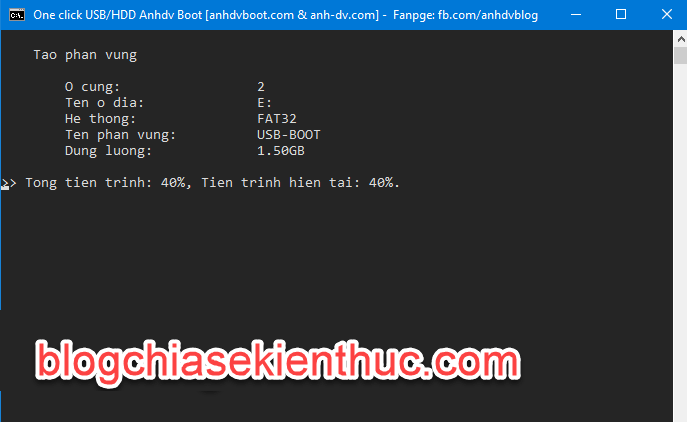
Allow the write to complete without unplugging the drive. Duration depends on the package, USB speed, and computer.
Check partitions and test booting
Safely reconnect the drive after completion. The number of visible partitions in File Explorer is not enough to establish that the media boots correctly. Use the publisher's instructions if the visible data partition is not the one expected.
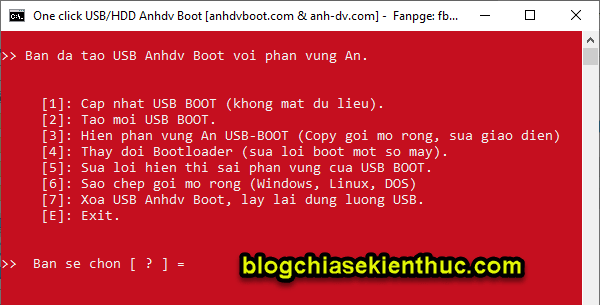
Legacy maintenance menu. Identify the option by its description rather than assuming the repair command is always menu item 5.
Open the destination computer's one-time boot menu and select the appropriate USB entry. Test that the rescue environment loads and sees the necessary devices, then exit without modifying an internal disk. Do not disable Secure Boot automatically; check compatibility first.
Use recovery tools deliberately
Booting a rescue environment does not repair Windows by itself. Identify the problem and preserve important data before writing to disks or changing partitions. If a drive appears physically unhealthy, avoid repeated repair attempts that write more data.
For a maintained alternative workflow, see Hiren's BootCD PE. For Windows installation media, see UEFI and legacy USB-creation choices. Match the tool to the recovery task and test the media before an emergency.
Related Articles
 DLC Boot - Download DLC Boot here
 Anhdv Boot 2024: Create and test a recovery USB
 Instructions for creating a USB Boot to rescue your computer using Hiren's Boot
 How to create versatile USB Boot, USB boot rescue
 How to create USB boot versatile, USB rescue by DLC Boot
 Download Monokai Toolkit - the handy toolkit for Facebook on Android
Reader Comments 0
Sign in with email or Google to join the discussion.