Table of Contents
If your laptop screen becomes dim as soon as you unplug the charger, first raise the brightness while the laptop is running on battery. Windows, the laptop maker's utility, and the graphics driver can each apply a separate battery-powered brightness setting. A small reduction is normal for saving power; a screen that becomes unreadable or does not respond to the brightness slider needs troubleshooting.
Start with the brightness control on battery
- Unplug the charger so the problem is present.
- Press the laptop's brightness-up key. Depending on the keyboard, you may need to hold Fn.
- In Windows 11, press Windows + A and move the brightness slider. You can also open Settings > System > Display and adjust Brightness.
- Reconnect and unplug the charger once more to see whether the new battery-powered level is retained.
The Windows slider controls the built-in panel. For an external monitor, use the monitor's buttons or its supported control software. TipsMake's guide to Windows laptop brightness controls covers other adjustment methods.
Turn off unwanted automatic brightness changes
On supported laptops, expand Brightness under Settings > System > Display. Review both options that may be present:
- Change brightness automatically when lighting changes uses an ambient-light sensor.
- Change brightness based on content changes brightness and contrast according to the image on screen. Choose Off if the shifting is distracting.
These options appear only on compatible hardware. Microsoft explains the available controls in its Windows brightness documentation. On older Windows 10 installations, adaptive brightness may instead appear in the active power plan's advanced settings; TipsMake also has a guide to turning adaptive brightness on or off.
Check Windows power-saving settings
Open Settings > System > Power & battery. Review Energy Saver or Battery Saver, depending on the Windows version. If its option to lower screen brightness is enabled, turn it off temporarily and retest. Also change Power mode from the most restrictive battery-saving mode to Balanced for comparison.
Reducing brightness on battery is useful, so you do not have to disable every power-saving feature permanently. The goal is to identify the setting responsible and choose a readable level.
Disable Intel Display Power Savings when available
Some Intel-based laptops use Display Power Saving Technology (DPST), which can make the built-in panel look darker on battery. The menu depends on the graphics-driver generation.
Intel Graphics Command Center
- Open Intel Graphics Command Center.
- Select System > Power.
- Under On Battery, set Display Power Savings to Off.
- If offered, use a less aggressive graphics power plan and apply the change.
Legacy Intel HD Graphics Control Panel
On older systems, right-click the desktop, open Intel Graphics Settings, and select Power.
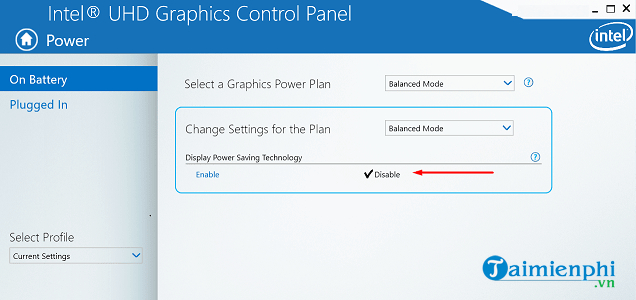
Select On Battery, turn off Display Power Saving Technology, and apply the change. Intel's automatic brightness troubleshooting page documents both panel versions.
If the Power page is missing, do not edit random registry values to force the option. The laptop maker may manage the feature through firmware, a driver package, or its own power utility.
Check the laptop manufacturer's utility
Apps such as Lenovo Vantage, MyASUS, Dell Optimizer, HP Command Center, AcerSense, and similar OEM tools may offer battery, display, eye-care, or adaptive-brightness settings. Names and availability vary by model. Temporarily disable display power-saving or adaptive options, then unplug the charger to test.
Also check whether the laptop has a physical privacy-display or low-power-panel shortcut. Such features can resemble extreme dimming even when the Windows brightness value is high.
Update or reinstall the correct display driver
If brightness controls are missing, frozen, or suddenly stopped working after an update, use the driver intended for your exact laptop model.
- Press Windows + R, type devmgmt.msc, and press Enter.
- Expand Display adapters and note the installed Intel, AMD, or NVIDIA device.
- Install Windows updates, including relevant optional driver updates, or download the display package from the laptop manufacturer's support page.
- Restart the laptop and test on AC power and battery.
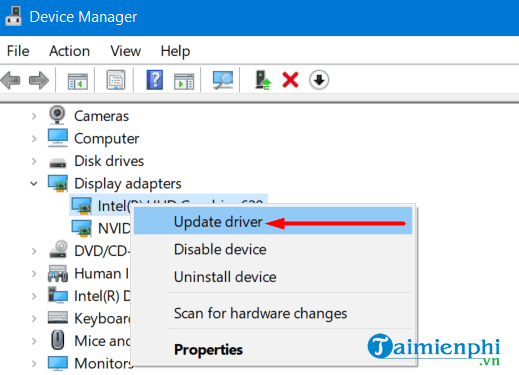
A laptop with switchable graphics may need both its integrated and discrete GPU drivers. The integrated GPU often controls the internal panel even when a game uses the discrete GPU. Avoid third-party driver-updater utilities.
Legacy Windows 10 Power troubleshooter
Older Windows 10 builds included a dedicated Power troubleshooter under Settings > Update & Security > Troubleshoot. It can reset inconsistent power-plan settings but does not exist in the same form on every current Windows installation.
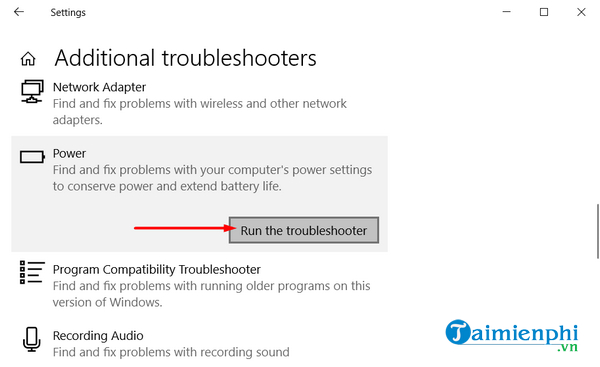
If it is present, run it and review any changes before testing again. On current versions, concentrate on Display, Power & battery, graphics-driver, and manufacturer utility settings.
How to narrow down the cause
| What happens | Most useful next check |
|---|---|
| The screen dims only after unplugging | Battery-specific brightness, Energy Saver, and graphics power-saving settings |
| Brightness changes with dark and light pages | Content-adaptive brightness or Intel Display Power Savings |
| The brightness slider is missing | Integrated graphics and monitor drivers, then OEM support packages |
| The display is dim before Windows starts | Firmware, panel, backlight, cable, or power hardware |
| The laptop switches off instead of only dimming | Battery health, charger, power connector, or motherboard diagnostics |
When the problem may be hardware
If the display is extremely dim in the manufacturer's logo screen or firmware setup, the Windows settings are not the cause. Shine a flashlight at the panel: a faint image can indicate a backlight or display-cable fault, though that test is not a complete diagnosis. Run the manufacturer's hardware diagnostics and follow TipsMake's laptop screen testing checklist.
Back up important files before service. Stop using a visibly swollen battery, and have it handled by a qualified technician; do not press on or puncture it.
Related Articles
 Is It Really Safe to Use Another Laptop Charger?4 minutes read
 Is the Laptop Broken, Should It Be Repaired or Purchased?5 minutes read
 How to Charge Your Laptop Quickly and Conveniently without a Charger6 minutes read
 How to Fix a Laptop with a Full Battery but Unplug the Charger Then Turn5 minutes read
 Use a Battery Charger Like 'the Beard That He Has on Her Chin'5 minutes read
 What Is a Universal Laptop Charger? What Models Does It Apply To?5 minutes read
Reader Comments 0
Sign in with email or Google to join the discussion.