Table of Contents
Quick answer
Inserting videos into PowerPoint makes presentations more visual and engaging. You can add videos from your computer or embed YouTube videos into your slides. The instructions below will help you easily do this on popular versions of PowerPoint.
Inserting videos into PowerPoint makes presentations more engaging. This guide will show you how to insert videos from your computer or YouTube into your slides without errors.
Contents:
1. Inserting videos into PowerPoint 2003
2. In the 2007 version
3. With the 2010 version
4. Versions 2013, 2016, 2019
1. How to do it in PowerPoint 2003
Step 1 : Go to Insert , select Movies and Sounds , then right-click and select Movies from File… from the list that appears.
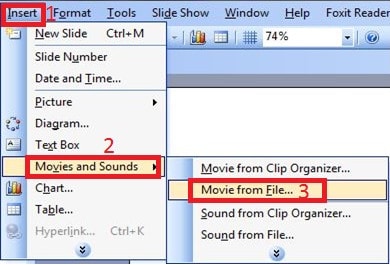
Step 2 : When the dialog box appears, locate the video you want to insert into your slide and click Insert to complete the process. You can move the video's position on the slide by selecting the video, holding down the mouse button, and dragging it to the desired location.
2. With PowerPoint 2007
Step 1: Click on the Insert tab, select the small arrow below the Movie icon , and choose Movie from File… from the list of options.
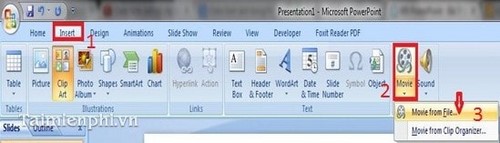
Step 2: Find and select the desired video, then simply press Insert to complete the process.
3. On the 2010 version
Step 1 : Click on the Insert tab, select the arrow below the Video icon, then click on Video from File… as shown below:
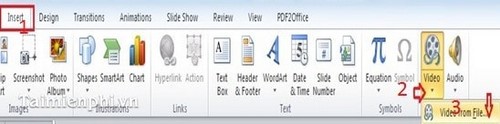
Step 2 : The Insert Video window will appear. Select the video you want to insert and click Insert to complete the insertion.
4. Insert videos on versions 2013, 2016, and 2019.
Step 1 : Similar to other versions of Word, click on the Insert tab, select Video , and then select Video on My PC (as shown below):
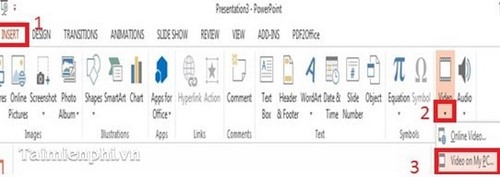
Step 2 : Select the video in the Insert Video dialog box and click Insert to complete the process.
Inserting videos into slides makes presentations more dynamic and engaging. With PowerPoint, you can easily embed videos from your computer or insert online videos to increase interactivity. This not only helps convey content visually but also keeps viewers engaged longer. For a more professional presentation, try customizing video effects or reformatting the display frame to match your slide design.
Related Articles
 How to Put a Picture Behind Text in PowerPoint8 minutes read
 Instructions for Inserting YouTube Videos into PowerPoint4 minutes read
 A Quick Guide to Inserting Videos into PowerPoint 20163 minutes read
 PowerPoint 2019 (Part 19): Inserting Video: Explained8 minutes read
 PowerPoint 2019 (Part 16): Shapes: Explained7 minutes read
 PowerPoint 2019 (Part 14): Inserting Images: Explained7 minutes read
Reader Comments 0
Sign in with email or Google to join the discussion.