Table of Contents
Use these Excel keyboard shortcuts to edit cells, navigate worksheets, format data, and manage workbooks without repeatedly switching to the mouse. The list is for desktop Excel on Windows; Mac and browser shortcuts can differ.
A plus sign means hold the keys together. A comma means press the keys in sequence. Ribbon letters assume an English interface, and symbol shortcuts assume a US keyboard layout.
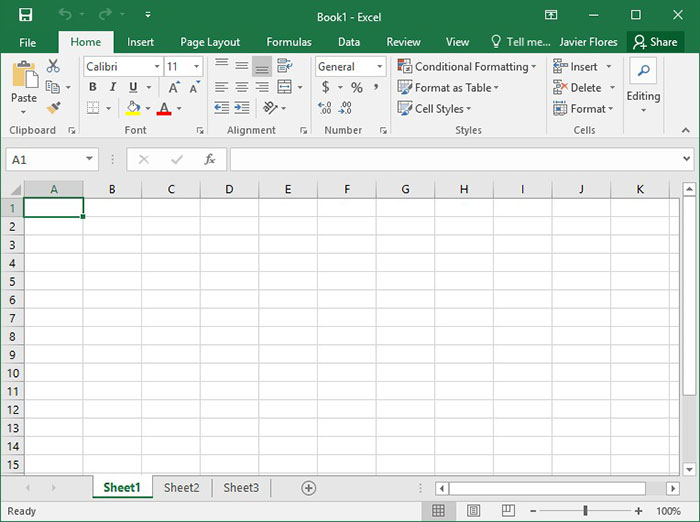
Workbook and worksheet shortcuts
| Action | Shortcut |
|---|---|
| Create a workbook | Ctrl+N |
| Open a workbook | Ctrl+O |
| Save the workbook | Ctrl+S |
| Close the active workbook | Ctrl+W or Ctrl+F4 |
| Exit Excel | Alt+F4 |
| Next / previous worksheet | Ctrl+Page Down / Ctrl+Page Up |
| Open the Data / View / Formulas tab | Alt+A / Alt+W / Alt+M |
| Search for a command | Alt+Q |
Edit and format cells
| Action | Shortcut |
|---|---|
| Edit the active cell | F2 |
| Copy / paste / cut | Ctrl+C / Ctrl+V / Ctrl+X |
| Undo / redo when available | Ctrl+Z / Ctrl+Y |
| Bold / italic | Ctrl+B / Ctrl+I |
| Open Format Cells | Ctrl+1 |
| Center cell contents | Alt+H, A, C |
| Choose a fill color | Alt+H, H |
| Open the Borders menu | Alt+H, B |
| Apply an outside border | Ctrl+Shift+& |
| Remove outside borders | Ctrl+Shift+_ |
| Find / replace | Ctrl+F / Ctrl+H |
| Insert a hyperlink | Ctrl+K |
| Insert today’s date | Ctrl+; |
| Insert the current time | Ctrl+Shift+; |
| Apply currency / percentage format | Ctrl+Shift+$ / Ctrl+Shift+% |
| Insert or edit a note | Shift+F2 |
| Open the context menu | Shift+F10 |
| Cancel a cell entry | Esc |
Date and time shortcuts insert fixed values. They do not update automatically like formulas. In current Excel versions, Shift+F2 works with notes; threaded comments use a different command.
Navigate and select data
| Action | Shortcut |
|---|---|
| Move one cell right / left | Tab / Shift+Tab |
| Go to cell A1 | Ctrl+Home |
| Go to the last used cell | Ctrl+End |
| Move to an edge of the current data region | Ctrl+Arrow key |
| Extend the selection toward a data boundary | Ctrl+Shift+Arrow key |
| Select the current region; expand selection with repeated presses | Ctrl+A |
| Select the active row / column | Shift+Space / Ctrl+Space |
| Open Go To | F5 |
| Toggle filter arrows for the selected range | Ctrl+Shift+L |
| Open a column’s filter menu from its header | Alt+Down Arrow |
Ctrl+Shift+Arrow does not always select to the end of a table: blank cells affect where it stops. Check the highlighted range before applying a format, deleting data, or filling a formula.
Rows, columns, and charts
| Action | Shortcut |
|---|---|
| Delete selected cells, rows, or columns | Ctrl+- |
| Delete a row | Shift+Space, then Ctrl+- |
| Delete a column using the ribbon | Alt+H, D, C |
| Hide selected rows / columns | Ctrl+9 / Ctrl+0 |
| Unhide rows around the selection | Ctrl+Shift+9 |
| Group / ungroup selected rows or columns | Alt+Shift+Right Arrow / Alt+Shift+Left Arrow |
| Create an embedded chart from selected data | Alt+F1 |
| Create a chart on a separate chart sheet | F11 |
To unhide a column reliably, select the columns on either side, then use Home > Format > Hide & Unhide > Unhide Columns. Windows settings can intercept Ctrl+Shift+0.
Avoid common shortcut mistakes
Ctrl+D fills down; it does not delete a table. Ctrl+R fills right; it does not rename a table. Ctrl+Page Up and Ctrl+Page Down switch worksheets in the normal workbook view. Power Pivot has its own context-specific shortcuts, so do not apply its navigation list to an ordinary worksheet.
If a function key controls brightness or volume, you may need to hold Fn as well. If a shortcut fails, finish editing the cell first and check whether a dialog, protected sheet, or browser is receiving the keystrokes.
For platform differences, see Excel shortcuts for Mac and Windows. For related ways to work with large sheets, see useful Excel features for everyday spreadsheets.
Related Articles
 Keyboard shortcuts in Illustrator are often used, keyboard shortcuts are commonly used in AI
 Windows Keyboard Shortcuts: A Practical Windows 11 and 10 Cheat Sheet
 Invaluable keyboard shortcuts in Excel
 Summary of the most useful Excel keyboard shortcuts you should know
 Useful keyboard shortcuts in Microsoft Word (Part 2)
 Merge keyboard shortcuts in Excel
Reader Comments 0
Sign in with email or Google to join the discussion.