Table of Contents
If Windows cannot get online after a PC reset, first check whether the network adapter is present and whether other devices can use the same connection. A reset can leave you needing to reconnect to Wi-Fi or reinstall the correct driver. Repeating a network reset is not always the answer.
Check the connection before changing drivers
- Restart the PC, turn off airplane mode, and turn Wi-Fi on. Select your network and enter its password again if needed.
- Test another device on the same network. If that device also has no internet, investigate the router or provider connection.
- For Ethernet, reseat the cable and try another router port or cable.
Run Windows network diagnostics
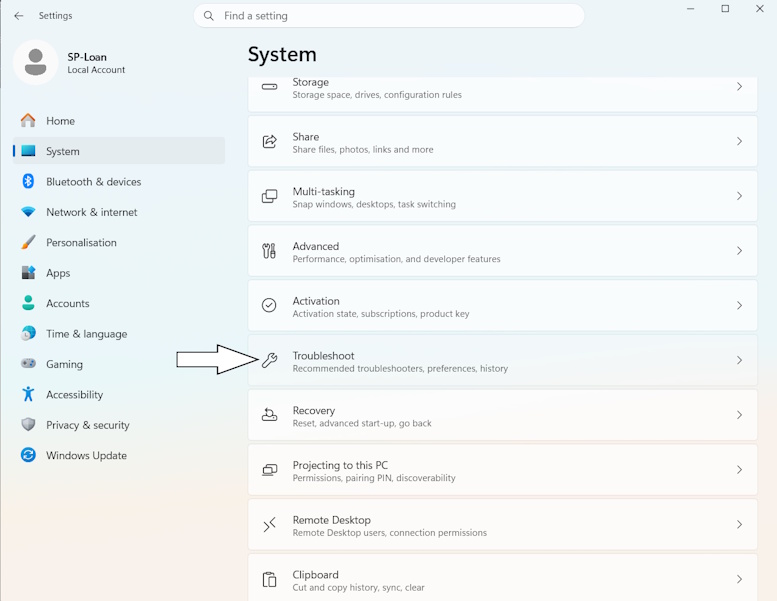
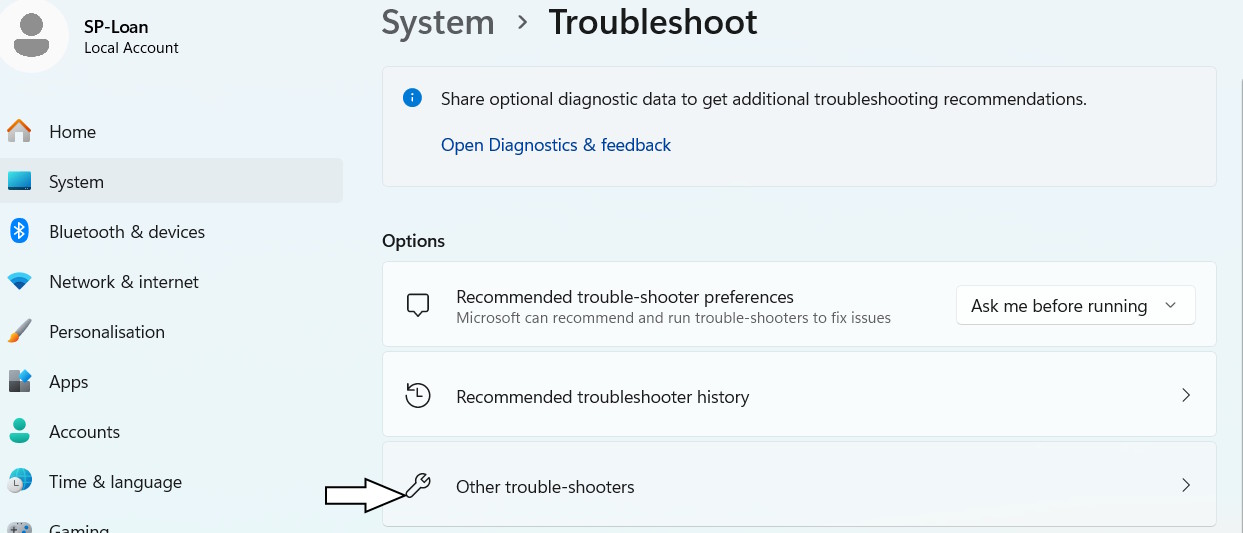
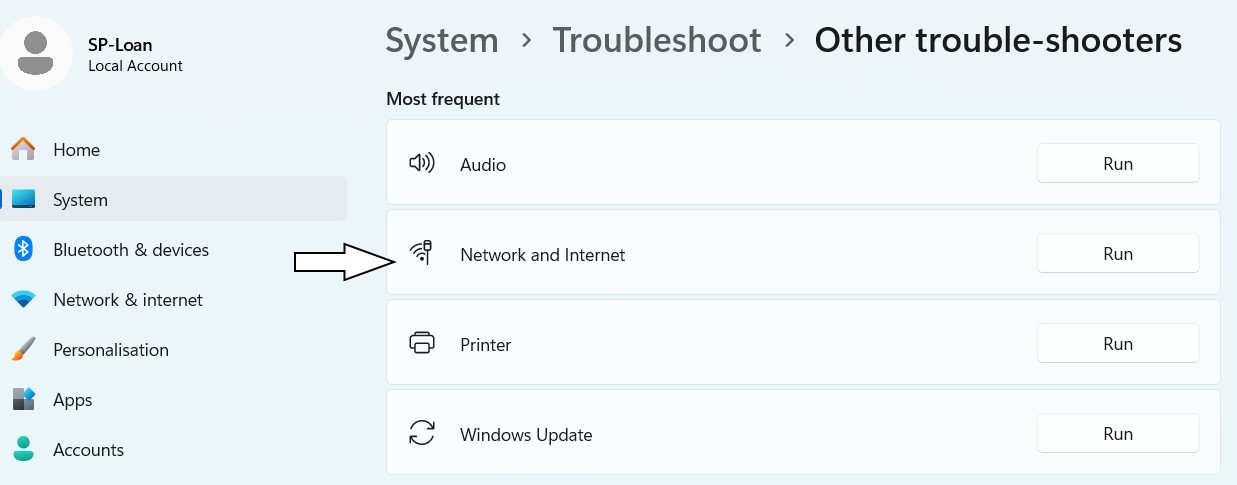
In Windows 11, open Settings > System > Troubleshoot > Other troubleshooters and look for Network and Internet. Recent versions may open the Get Help app. Older screens can use different names. Follow the diagnostic result rather than applying every suggested change at once.
Restore the correct network driver
- Open Device Manager and expand Network adapters. Also look under Other devices for an unidentified network controller. Note any error message in the device properties.
- If you need temporary internet access, try Ethernet or supported USB tethering from a phone. Tethering depends on the phone, cable, drivers, and mobile plan; it may use mobile data.
Download the Wi-Fi or Ethernet driver for your exact PC model and Windows version from the computer manufacturer. If the PC remains offline, use another device to download the installer and transfer it with a USB drive. Run the installer, restart, and test again.
Device Manager > Update driver can check for drivers, but a message that the best driver is already installed does not prove you have the latest manufacturer package. Avoid updating every adapter indiscriminately or using unrelated third-party driver tools.
Use network reset only after targeted checks
Before resetting, record any static IP, VPN, or virtual-network settings you need. Network reset removes and reinstalls adapters and restores their settings to defaults; VPN clients and virtual switches may need reconfiguration.
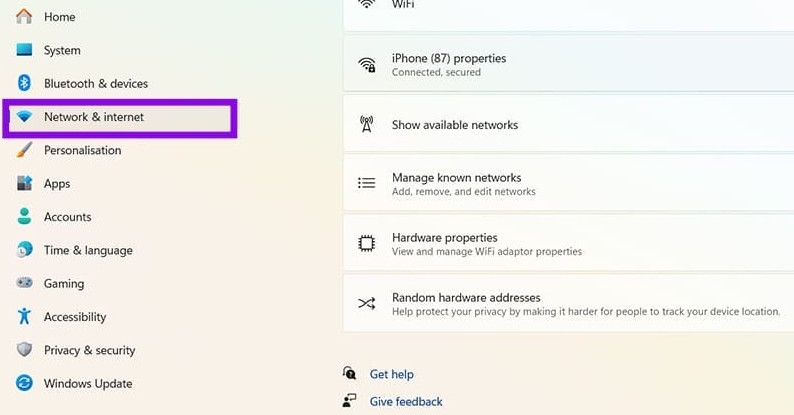
- Windows 11: Settings > Network & internet > Advanced network settings > Network reset.
- Windows 10: Settings > Network & Internet > Status > Network reset.
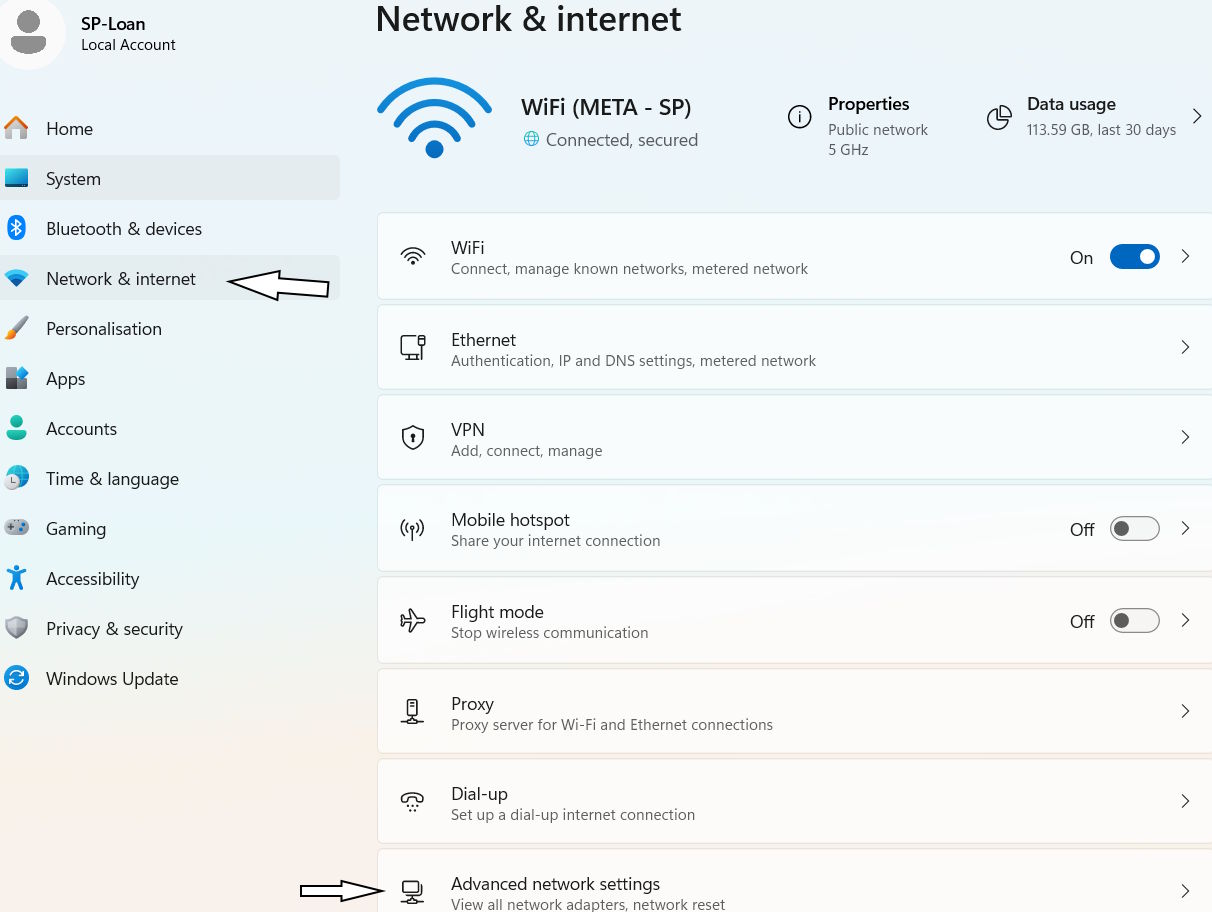
Save your work before choosing Reset now and confirming. After Windows restarts, reconnect and test a few sites. A reset may help, but it cannot guarantee a fix for a missing driver, failed adapter, or provider outage.
If Wi-Fi is still absent, use the missing Wi-Fi icon diagnostic guide. If the adapter appears but connections fail, continue with Windows 11 Wi-Fi troubleshooting, noting the exact error and which connections you tested.
Related Articles
 How to use the Reset feature on Windows 10
 Summary of some simple ways to Reset Windows 10
 How to reset TCP/IP on Windows 10 and Windows 11
 Instructions 2 simple ways Reset Windows 10 (The last part)
 iOS 15.2 allows you to reset locked iPhone without connecting to computer
 Instructions to reset Internet Explorer, set default settings for IE 11
Reader Comments 0
Sign in with email or Google to join the discussion.