Table of Contents
Explore 8 hidden spotify settings to enhance your podcast listening experience.
Just listen to the podcast audio pauses
If you only want to listen to audio and want to save data, you can use Spotify in audio-only mode.
Tap your profile picture, then tap Settings and Privacy , select Data Saving and Offline . Check the boxes for Download only audio from video podcasts and Stream only audio from video podcasts .
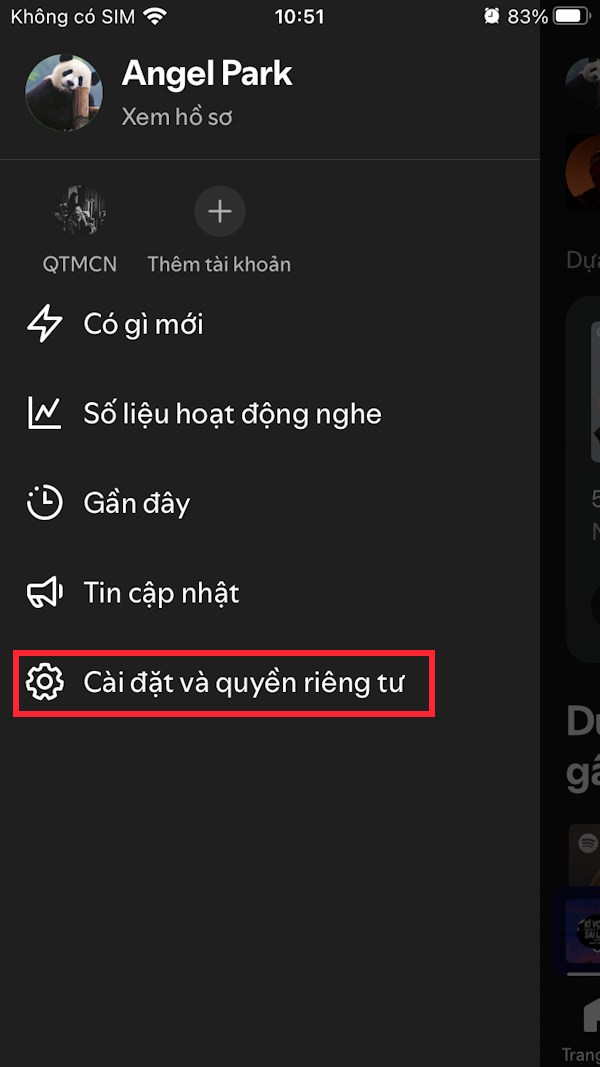
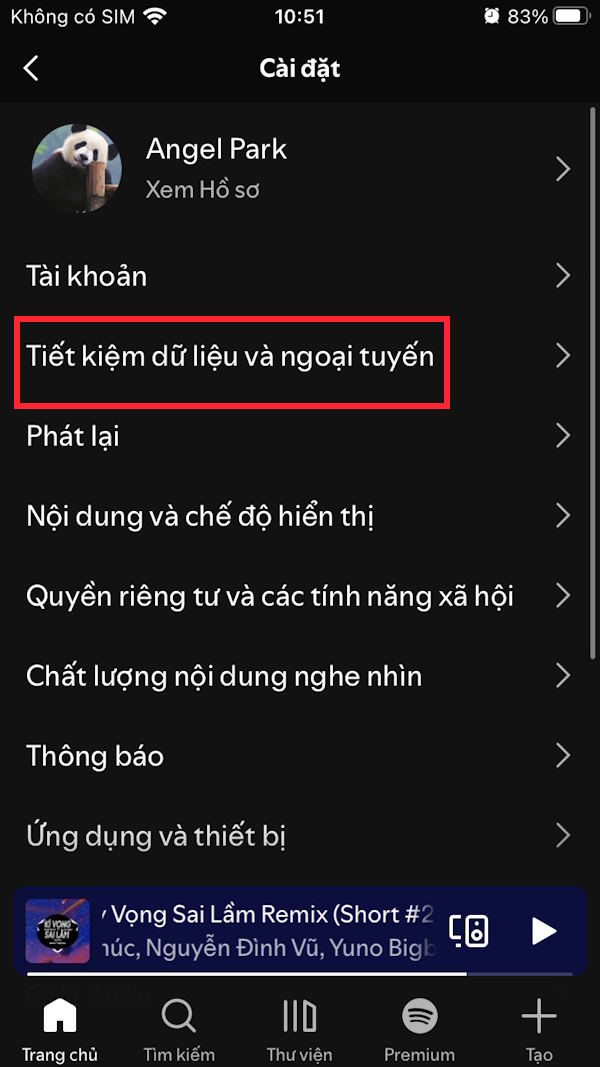

Enable automatic podcast downloads
Like other podcast apps, you can set it up to automatically download new episodes of shows you've subscribed to.
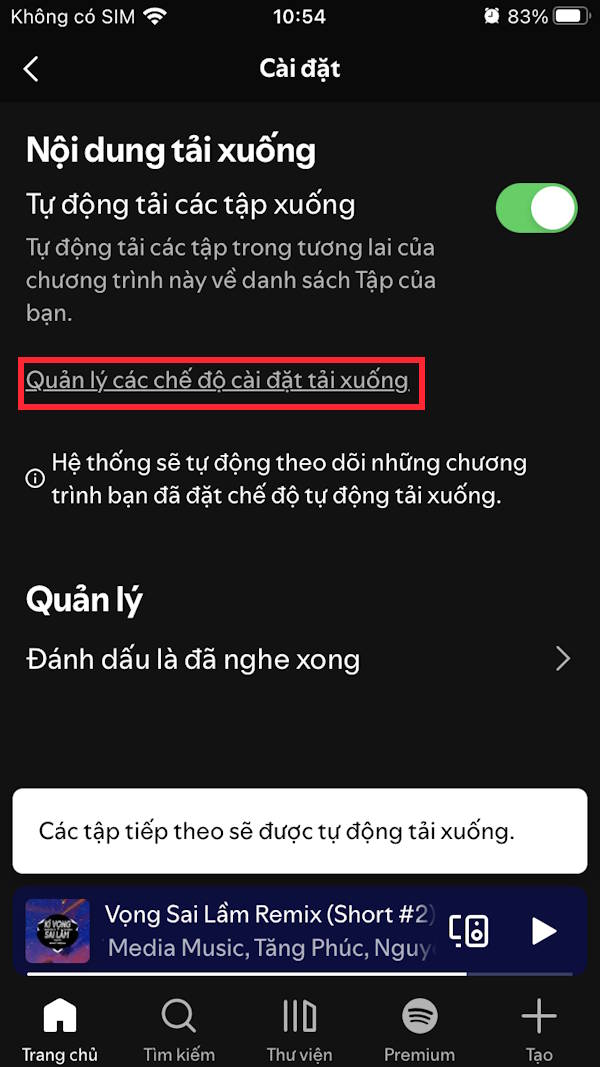
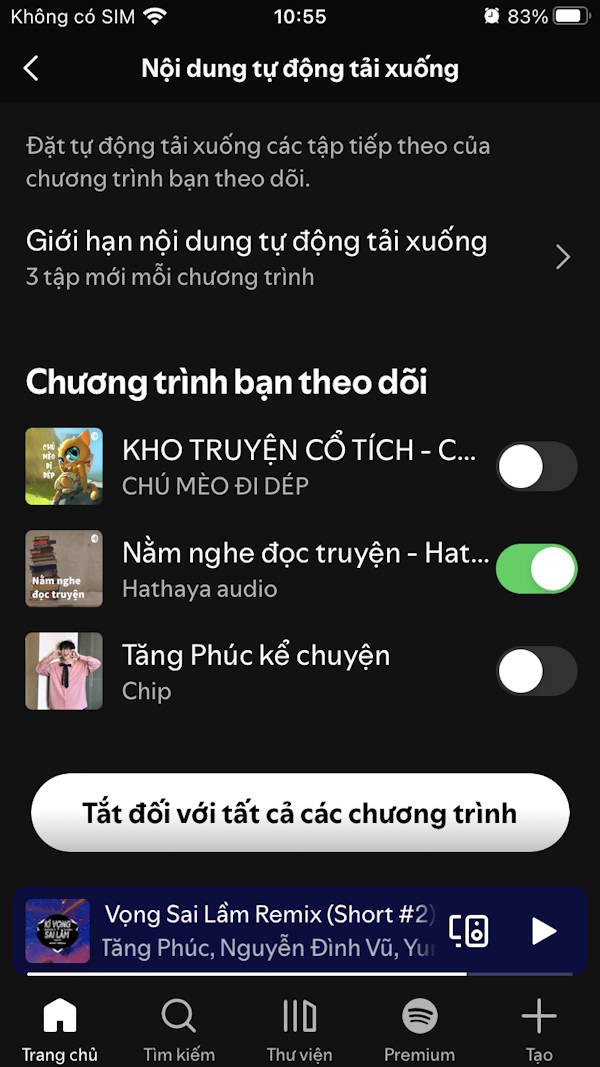
Tap on the Podcasts section , then select Following , and then tap on the podcast channel you want to download automatically. Tap the gear icon and activate Automatically download episodes . Then tap Manage download settings .
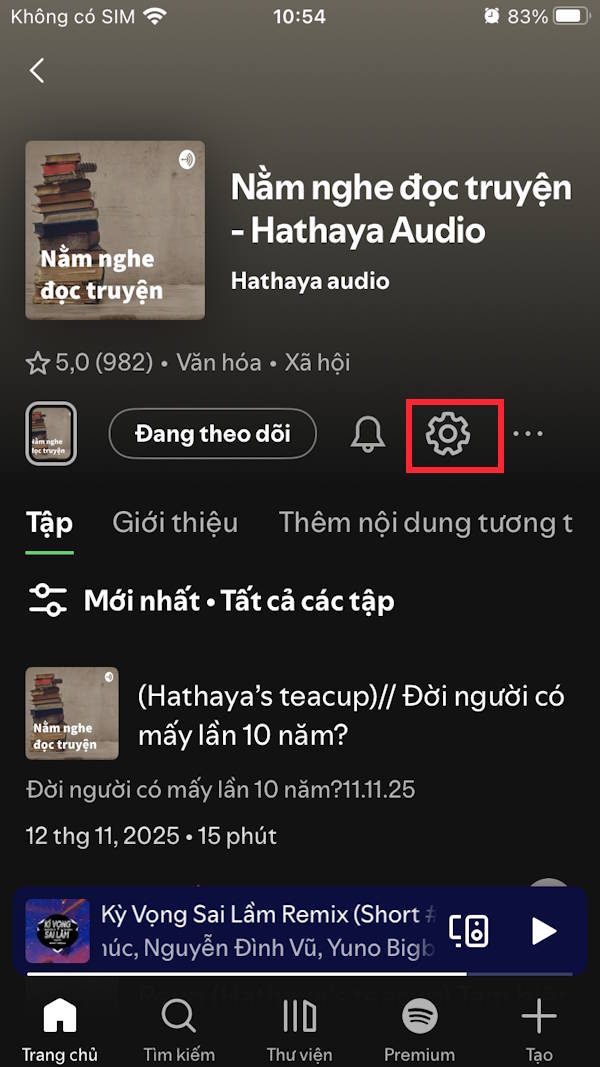
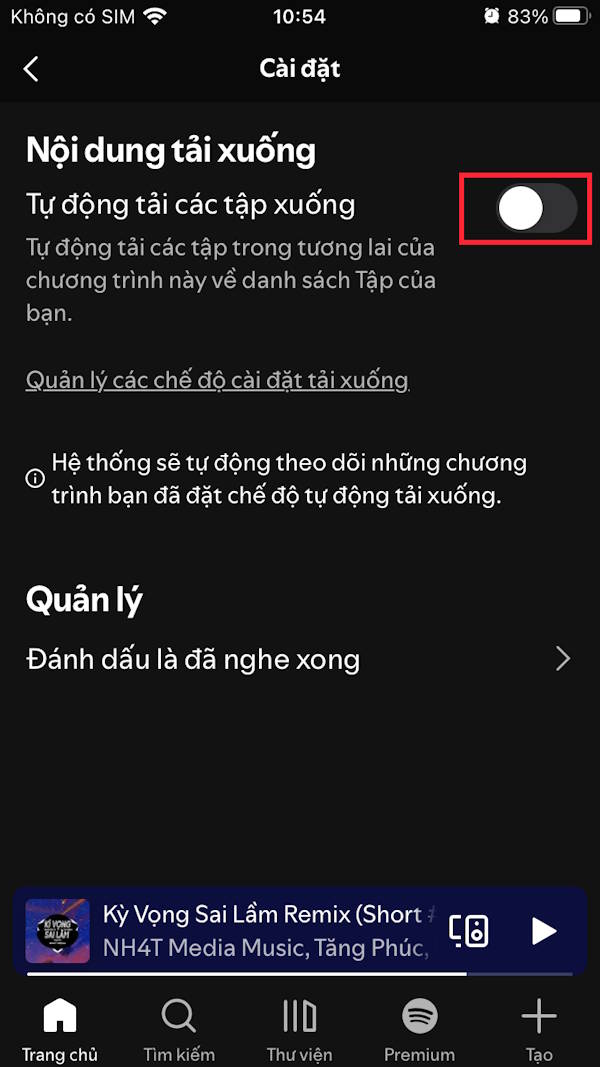
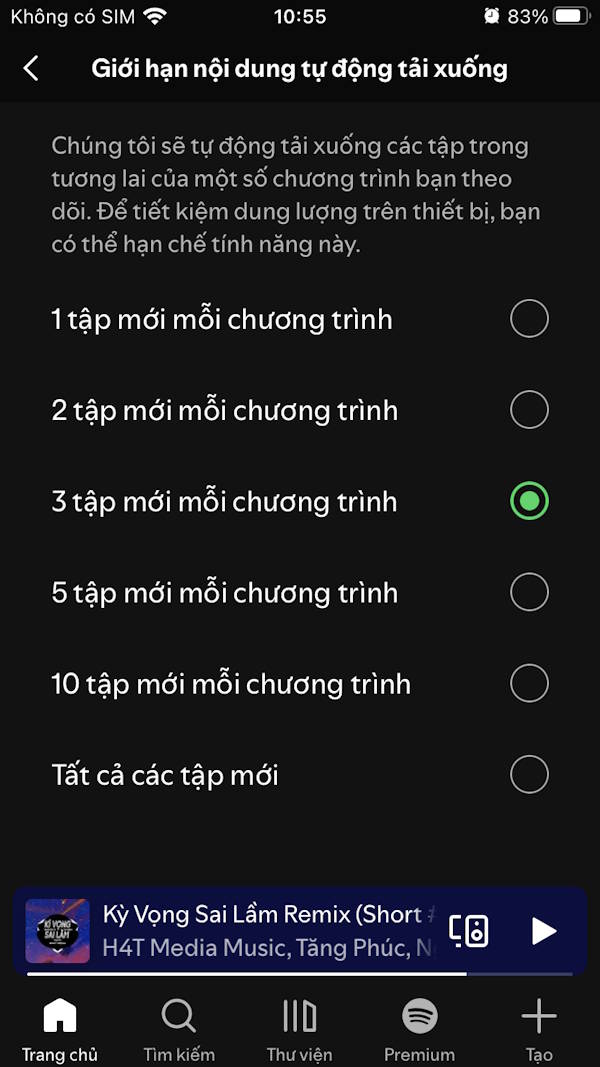
Here you can limit the content automatically scrolled down by the number of episodes per program.
Only download podcasts via WiFi
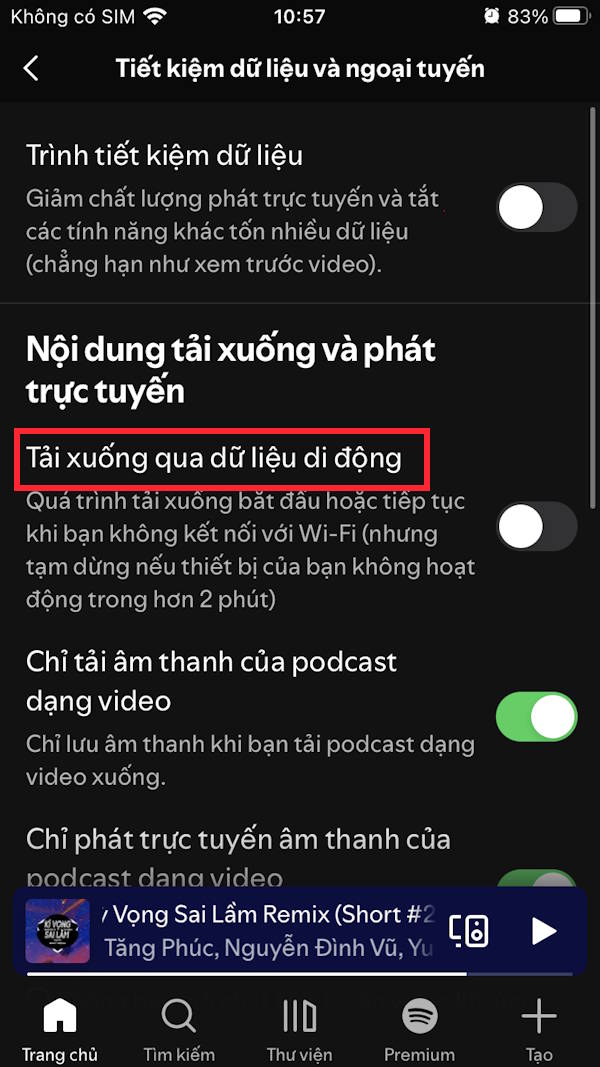
If you have enabled automatic downloads, adjust the settings to only download automatically when connected to WiFi.
In the Data Saver and Offline section of Settings, turn off Download via mobile data .
Change the download podcast quality
Another data-saving tip is to change the download quality of audio podcasts.
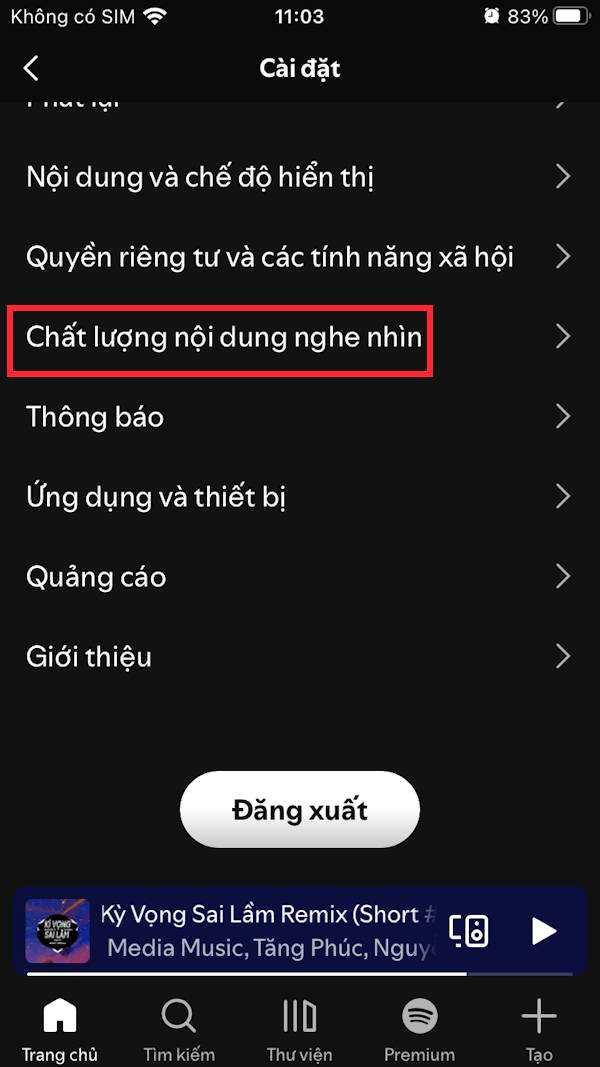
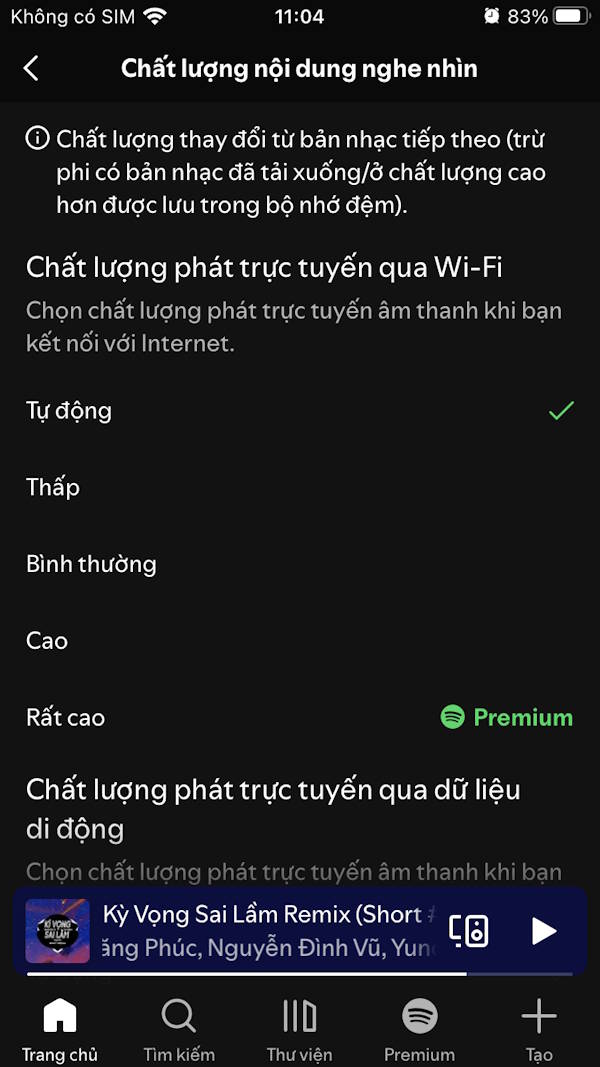
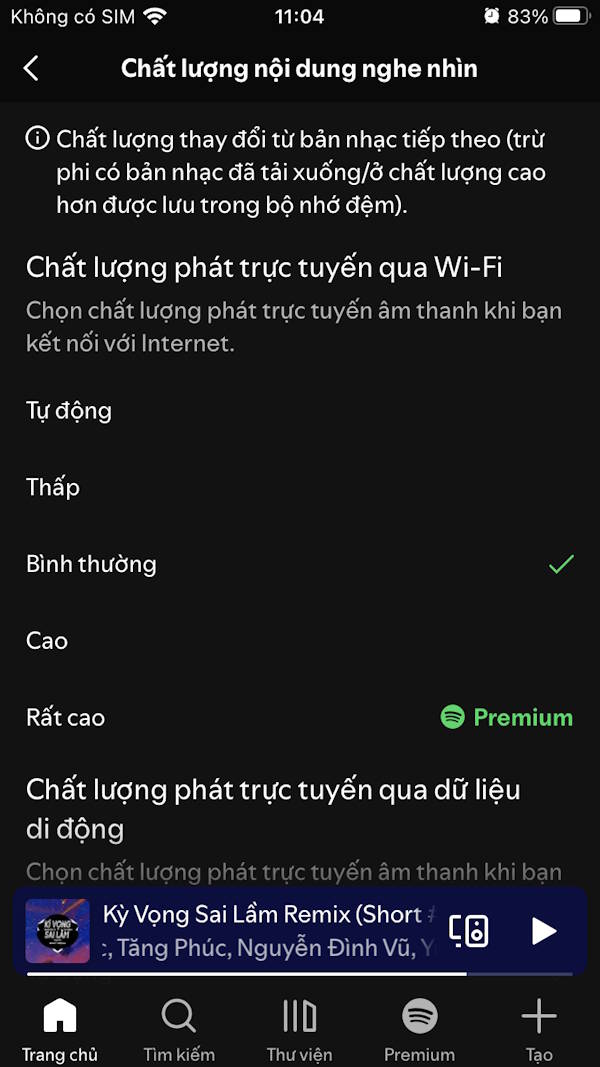
You tap Settings, then select Audio/Visual Content Quality . After that, choose Low or Normal .
Turn off podcast autoplay
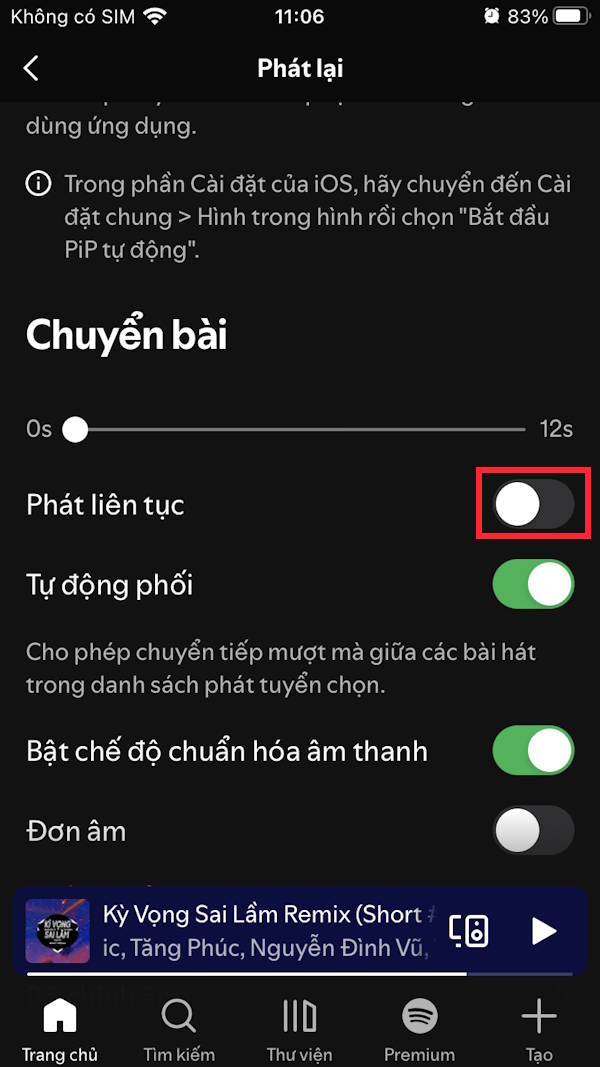
Spotify is set by default to continue playing music even after your chosen content has finished. The same applies to podcasts. You can tap Playback in Settings and then turn off Continuous Play .
Adjust podcast playback speed
One of the essential features many people need when listening to podcasts is the ability to adjust playback speed.
In the Spotify podcast playback interface, tap 1x and then adjust the speed to your liking.


Manage Spotify podcast notifications
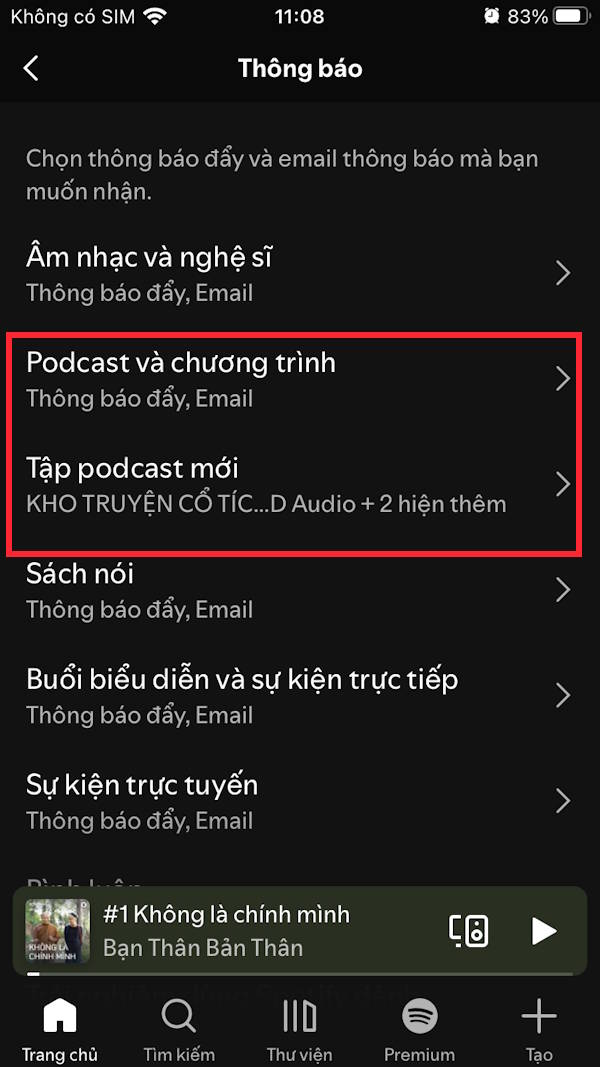
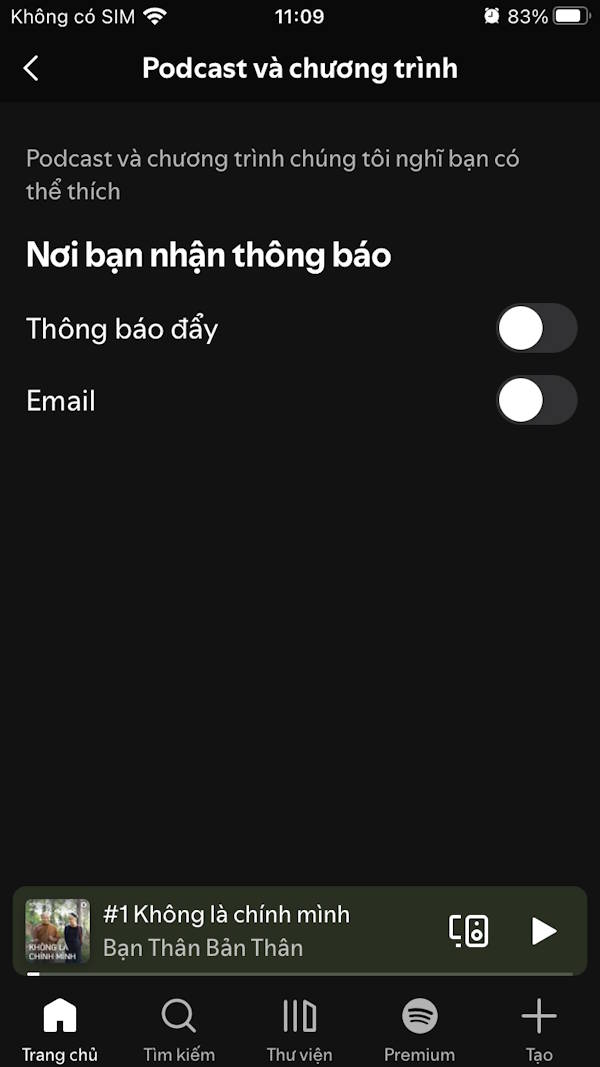
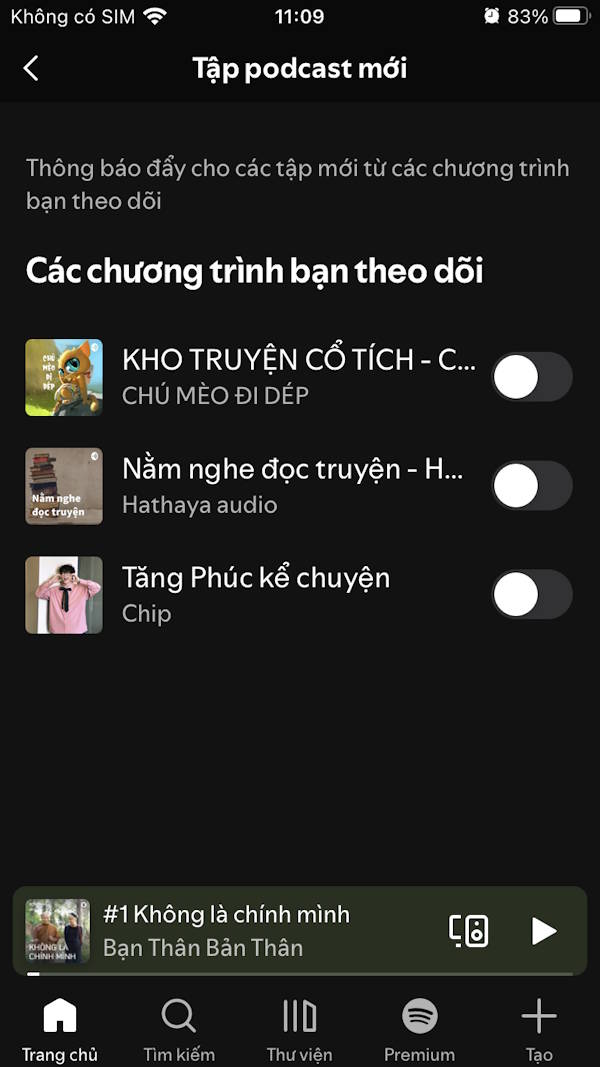
Tap Notifications , then select Customize Podcast and Show Notifications , and turn off all notifications. Next, tap New Podcast Episodes and turn off notifications for new episodes from channels you don't need, or turn off notifications for all episodes.
Clear Spotify cache
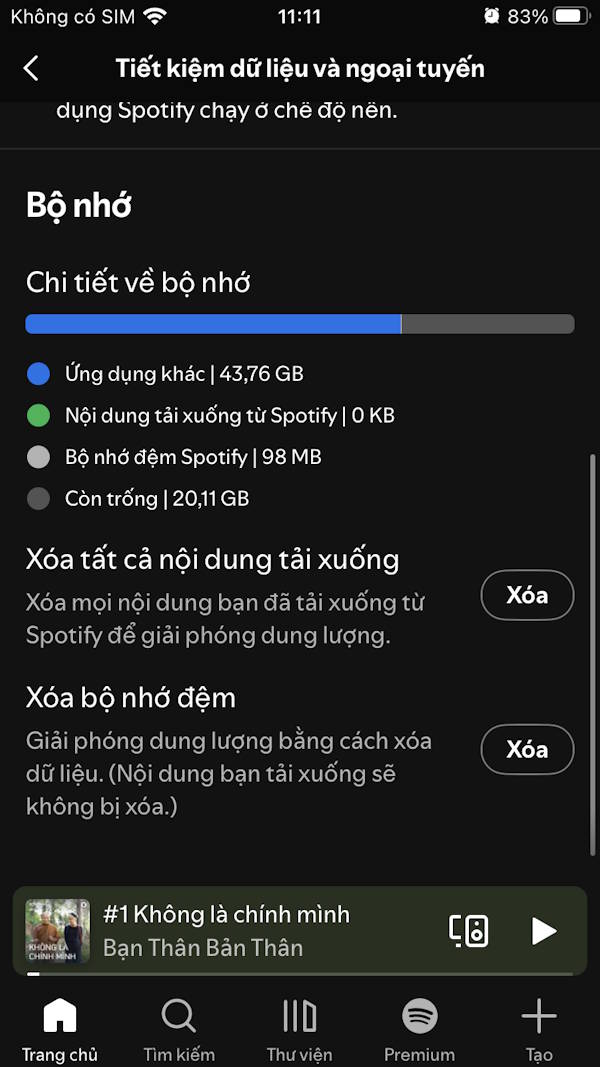
In the Data Saving and Offline section, we clear the cache under Clear all downloaded content when not needed and Clear cache.
Final Thoughts
Understanding 8 hidden spotify settings to enhance your podcast listening experience makes it easier to evaluate the information and apply the most relevant recommendations. Focus on the key points above and verify details that may change over time.
FAQ
What is 8 hidden spotify settings to enhance your podcast listening experience?
Explore 8 hidden spotify settings to enhance your podcast listening experience.
What key points does this article cover?
The article focuses on Just listen to the podcast audio pauses, Enable automatic podcast downloads, Only download podcasts via WiFi, with practical explanations and examples.
How can you use this information in practice?
Use the explanations to compare options, verify important details, and make a more informed decision. Apply the recommendations that best match your goals and situation.
Related Articles
 How to Improving Spotify Podcast Recommendations5 minutes read
 Spotify Is About to Have a Pretty Useful Ratings Feature3 minutes read
 15 Tips Spotify You Should Not Miss to Have a Better Listening8 minutes read
 What Is a Podcast: Learn About Podcasts9 minutes read
 How to Find the Best Podcasts on Spotify in Seconds6 minutes read
 Steps to Create a Podcast on Spotify for Free, Simple and11 minutes read
Reader Comments 0
Sign in with email or Google to join the discussion.