Table of Contents
Firefox has a bunch of features that you never use and that can even affect your concentration. Here are some settings that users should disable in Firefox to use the browser better.
Firefox has a bunch of features that you never use and they even affect your privacy when using the browser. Here are some settings that users should disable on Firefox to use the browser better.
Turn off autoplay video and audio on Firefox
If you want a distraction-free browsing experience, Firefox lets you disable autoplay of video and audio.
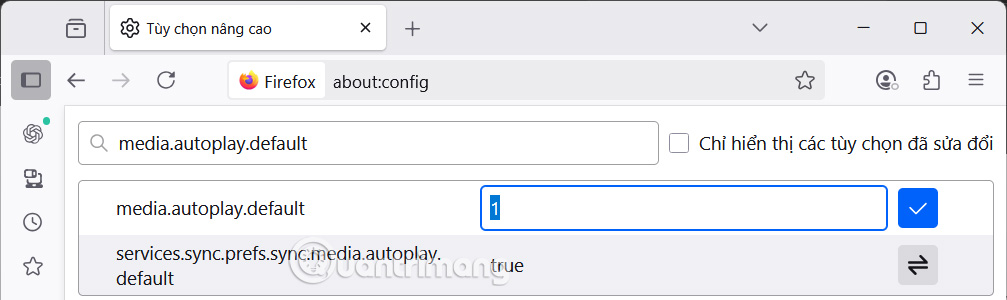
You Type about:config in the browser address bar , then you Type media.autoplay.default In the search box.
Click the pencil icon next to it and change the value from 1 to 5, this will immediately stop video and audio from autoplaying.
Turn off search suggestions on Firefox
Firefox shows search suggestions as you type keywords in the search bar. If you share a computer, this can reveal information about you.
Also go to about:config page and Enter browser.search.suggest.enabled . Now Change it to False To turn off search suggestions.

Remove redundant animations
Firefox has built-in effects and animations, but on low-end computers they can affect your experience. Type Toolkit.cosmeticAnimations.enabled And double-click it to Change the value from True to False .

Turn off telemetry and data collection
Firefox collects some diagnostic data, commonly known as telemetry, to help troubleshoot existing bugs. If you are a privacy-conscious user, you should disable this feature.
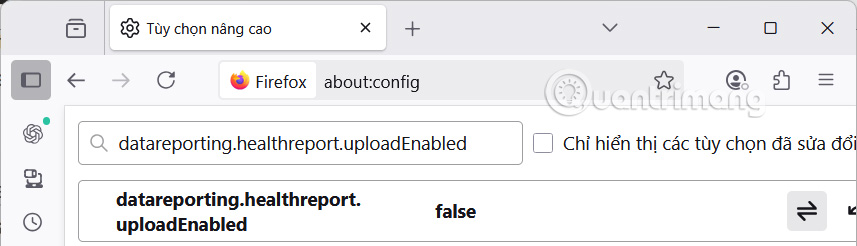
To disable telemetry and data collection in Firefox, find the following entries in about:config and Set their values from True to False .
- Toolkit.telemetry.enabled
- Toolkit.telemetry.unified
- Browser.ping-center.telemetry
- Datareporting.healthreport.uploadEnabled
Also, check the toolkit.telemetry.server option. If it contains any strings, delete them. This ensures Firefox is no longer sending tracking data.
Disable preloading of links
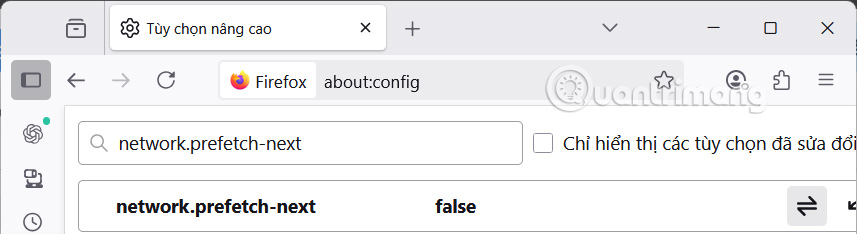
Firefox preloads pages in the background before you click, allowing them to open faster but slowing down your browser. Go to about:config and Search for network.prefetch-next , then double-click it and Change its value to False .
Disable web notifications on Firefox
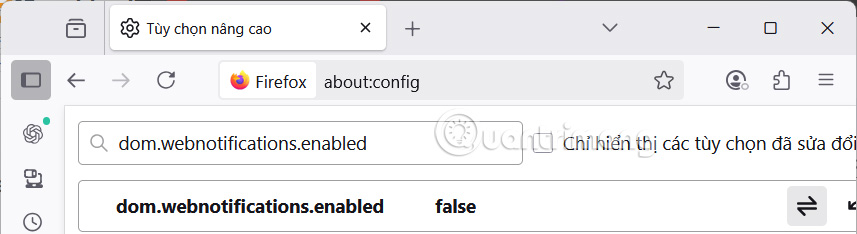
You find the dom.webnotifications.enabled Option and change its state To False .
FAQ
What should you know about the options in this guide?
In practical terms, Firefox has a bunch of features that you never use and that can even affect your concentration. Here are some settings that users should disable in Firefox to use the browser better.
Which option is the best choice?
The best choice depends on your priorities, compatibility, budget, and the specific features discussed in the comparison.
What should you compare before deciding?
Compare core features, limitations, ease of use, compatibility, and long-term value before making a decision.
Related Articles
 How to Use Firefox Focus: Private Browser6 minutes read
 How to Disable Chatbot AI Firefox3 minutes read
 How to Change Advanced Settings Hidden in the Browser5 minutes read
 How to Learn About Focus Cell: a Hidden Excel Setting That Makes Spreadsheets Instantly Easier to Read10 minutes read
 How to Play Hidden Games on Firefox3 minutes read
 7 Hidden Plex Settings You Should Use9 minutes read
Reader Comments 0
Sign in with email or Google to join the discussion.