Table of Contents
The fastest way to open Control Panel in Windows 11 or Windows 10 is to press the Windows key, type Control Panel, and press Enter. You can also press Windows + R, enter control, and choose OK. The methods below are useful when Search is unavailable or you want a reusable shortcut.
Quick methods
| Method | What to do |
|---|---|
| Windows Search | Press Windows, type Control Panel, and press Enter |
| Run | Press Windows + R, enter control, and press Enter |
| File Explorer | Enter control in the address bar |
| Command line | Run control in Command Prompt, PowerShell, or Terminal |
| Task Manager | Run a new task named control |
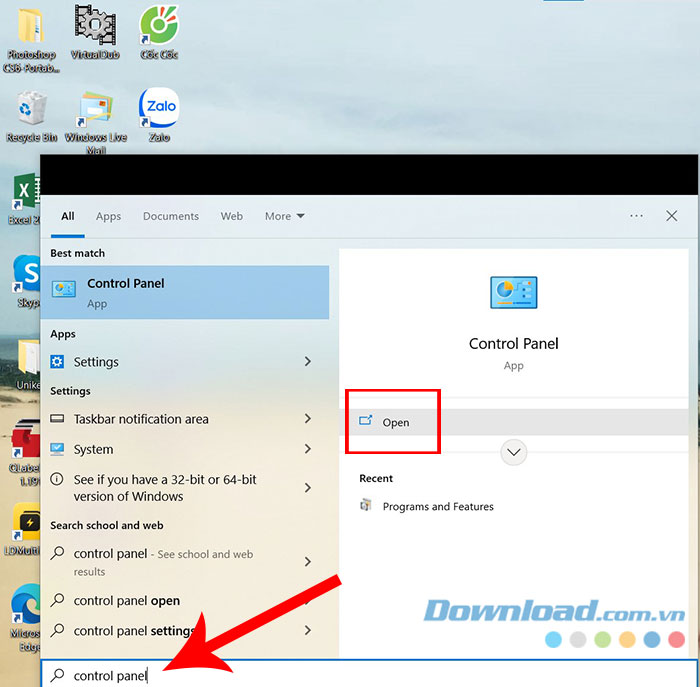
1. Open Control Panel with Windows Search
- Press the Windows key or select Start.
- Type Control Panel.
- Select the Control Panel result or press Enter.
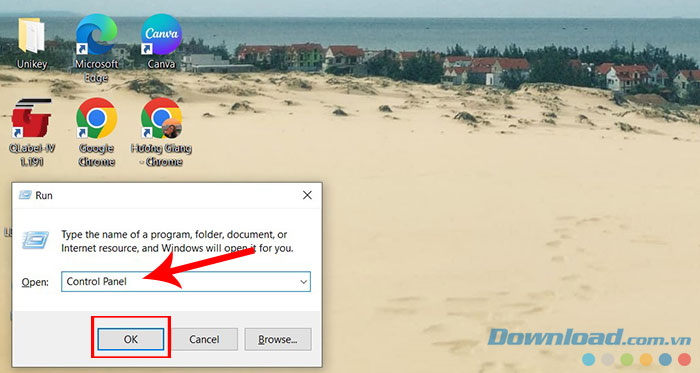
2. Use the Run command
- Press Windows + R.
- Enter
control. The commandcontrol.exealso works. - Press Enter or select OK.
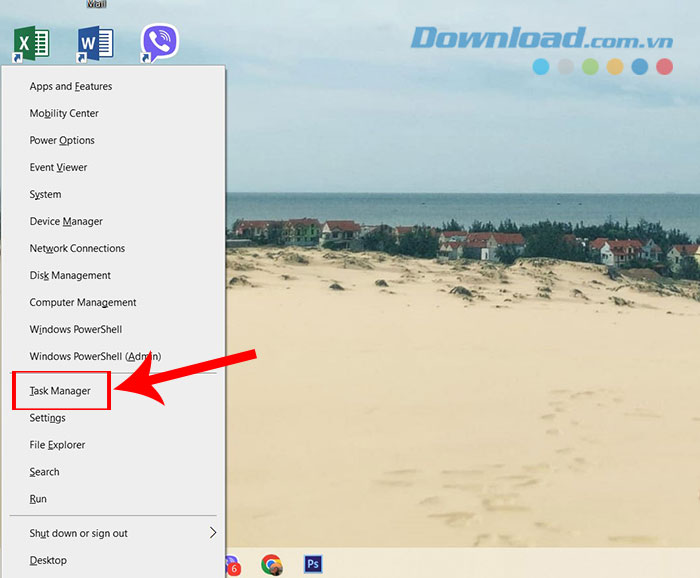
3. Open it from Task Manager
This method is helpful when the desktop or Start menu is not responding but Task Manager still opens.
- Press Ctrl + Shift + Esc to open Task Manager.
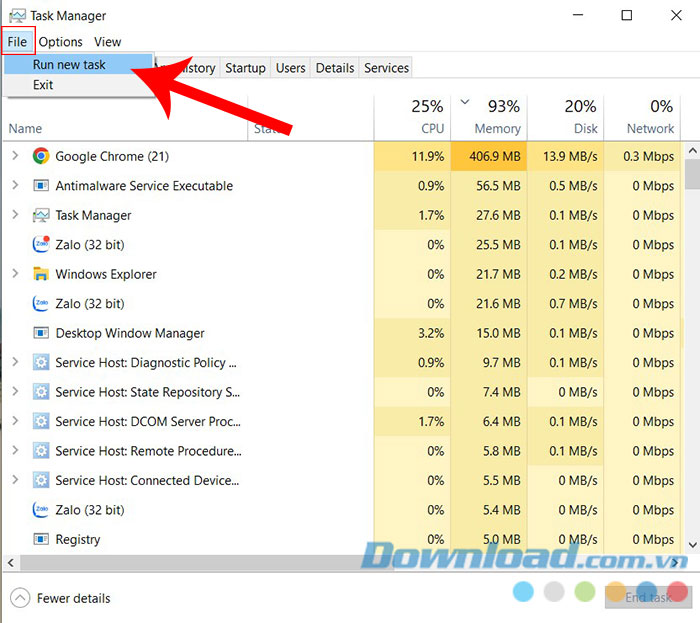
- Select Run new task. In some versions, this option is under the File menu.
- Enter
controland select OK.
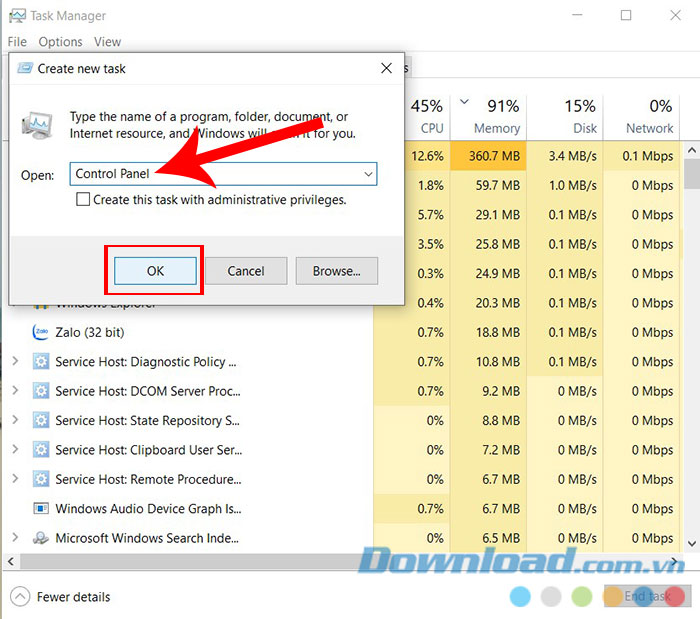
Administrative privileges are not required merely to open Control Panel. Individual settings may request elevation when you change them.
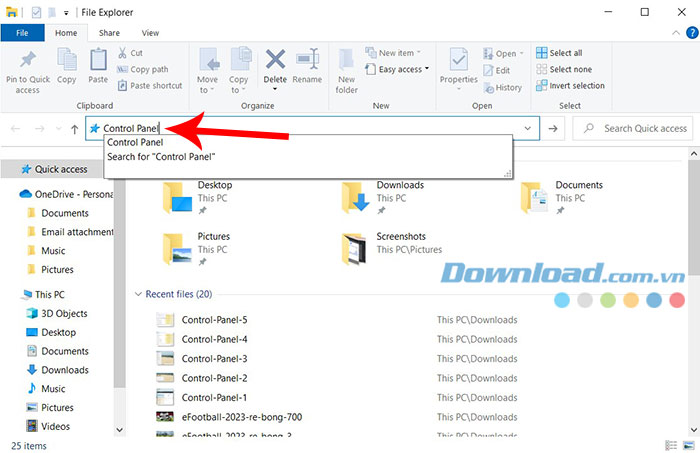
4. Use the File Explorer address bar
- Press Windows + E to open File Explorer.
- Select the address bar at the top—not the file-search box.
- Enter
controland press Enter.
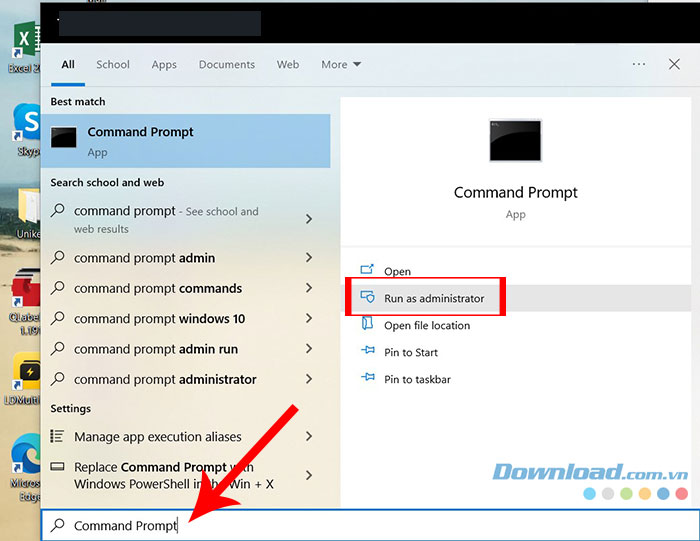
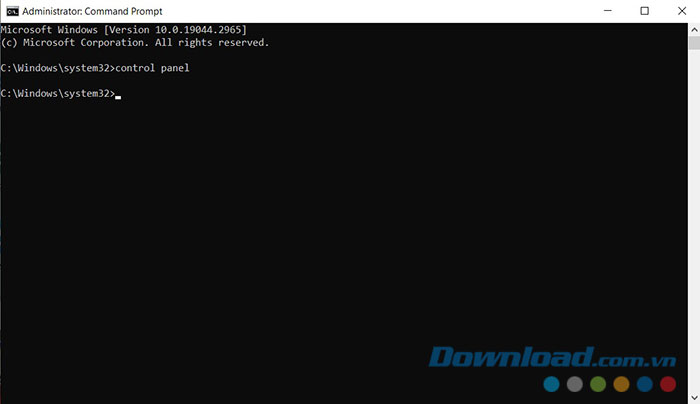
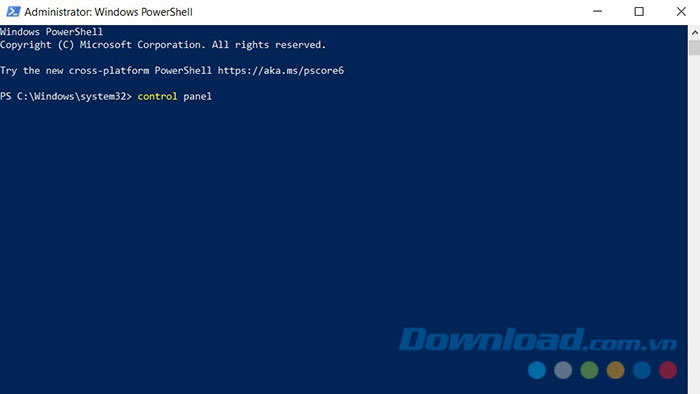
5. Use Command Prompt, PowerShell, or Windows Terminal
Open any command-line shell, enter control, and press Enter. Running the shell as administrator is unnecessary unless the task you open later requires elevation.
6. Find it through Settings
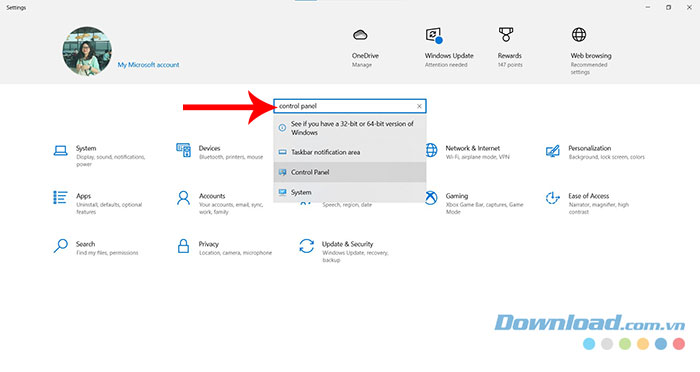
Press Windows + I and search for Control Panel. Depending on the Windows build and search result, Windows may offer the desktop Control Panel or route you to the equivalent Settings page. If it does not show the desktop app, use Windows Search or Run instead.
7. Create a desktop shortcut
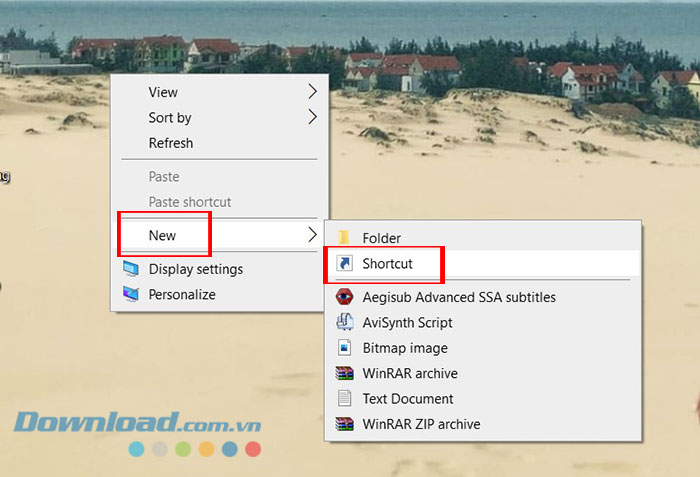
- Right-click an empty area of the desktop and choose New > Shortcut.
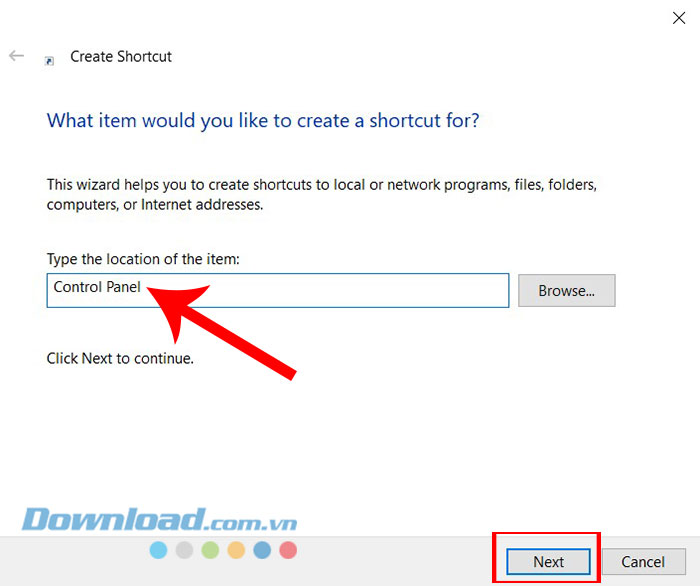
- For the location, enter
control.exe, then select Next. - Name the shortcut Control Panel and choose Finish.
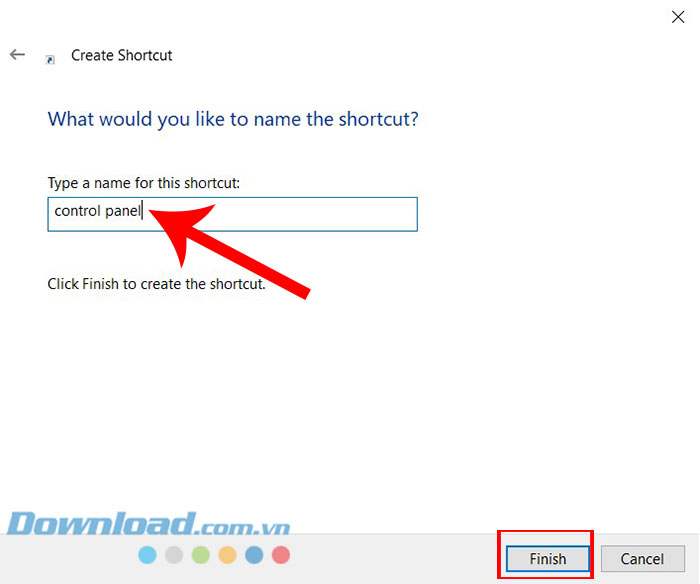
8. Pin Control Panel to Start or the taskbar
- Search for Control Panel from Start.
- Right-click the result.
- Choose Pin to Start or Pin to taskbar. If the taskbar option is not shown, open the result's additional options.
9. Open control.exe directly
Control Panel is launched by control.exe in the Windows system directory. In File Explorer, open C:WindowsSystem32 and double-click control.exe. Typing control into Run is quicker and avoids browsing a system folder, but both methods start the same program.
Open a specific Control Panel page
Some classic pages can be opened directly with a Control Panel file or command. Press Windows + R and try one of these:
| Command | Page |
|---|---|
appwiz.cpl | Programs and Features |
ncpa.cpl | Network Connections |
mmsys.cpl | Sound properties |
powercfg.cpl | Power Options |
control printers | Devices and Printers |
Windows is gradually moving settings into the modern Settings app, so a command may redirect to a newer page in future versions.
If Control Panel will not open
- Try both Windows Search and the
controlRun command. - Restart Windows if Explorer or Search is unresponsive.
- On a work or school PC, an administrator may hide Control Panel through policy. Contact the administrator instead of changing organizational restrictions.
- If multiple built-in Windows tools fail, install pending Windows updates and run the system's supported troubleshooting or repair options.
For most users, Windows Search is easiest and the Run command is the most dependable alternative.
Related Articles
 How to Open Control Panel on Windows 10, 8.1, 712 minutes read
 Quickly Open the Tools in Control Panel with Run4 minutes read
 Steps to Open Nvidia Control Panel3 minutes read
 Change the Default Control Panel View to a Windows Computer6 minutes read
 How to Open Control Panel on Windows 114 minutes read
 How to Access Control Panel on Windows 10/11 Quickly and Easily4 minutes read
Reader Comments 0
Sign in with email or Google to join the discussion.