Table of Contents
A short animated stomach character can make an abstract idea easy to visualize. In GeminiGen.AI, plan the script first, then generate a short Veo clip from a detailed visual prompt and review the result. If the video makes health claims, verify them with an appropriate source before publishing.
Plan one scene and its dialogue
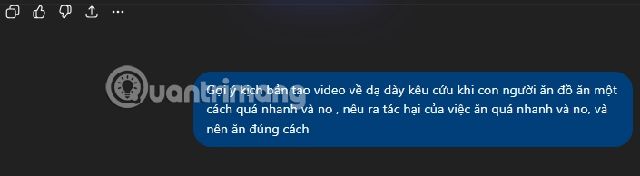
Write a simple storyboard: the stomach character appears at a table, reacts to a rapid sequence of food arriving, and speaks one short line. Decide whether the goal is humor or education. Keep the message modest; an animated character cannot establish a medical claim. For a short clip, one action and one spoken line are easier to check than a crowded script.
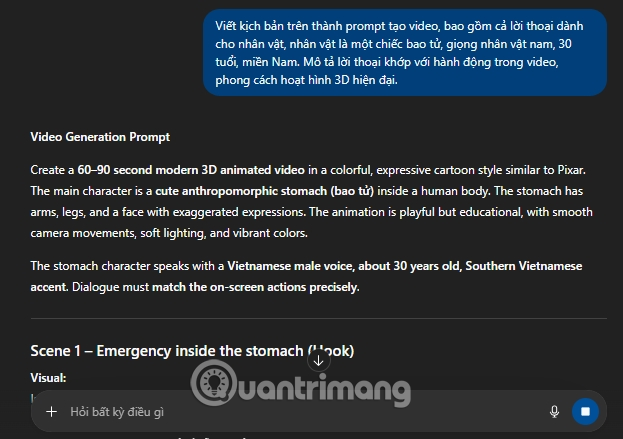
Try a prompt such as: “A friendly, stylized 3D stomach character sits beside a dinner table. Food arrives too quickly; the character pauses, looks overwhelmed, and says, ‘Let’s slow down.’ Warm lighting, medium shot, gentle motion, clear English dialogue, no labels or logos.” Specify a different language or voice only if the chosen model supports it. Review spoken words and visual continuity after generation.
Generate in GeminiGen.AI
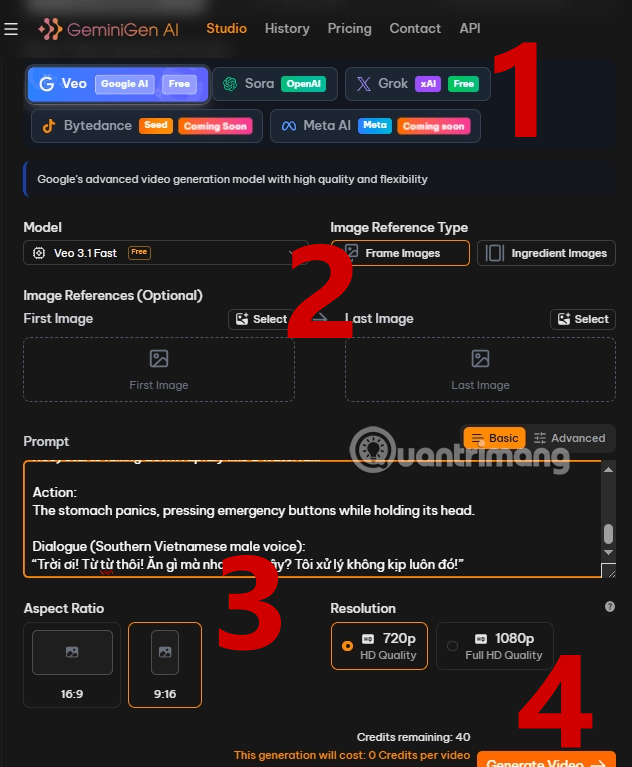
- Open GeminiGen.AI and choose a video model available in your account. Model choices and credits can change.
- Paste the prompt. If you have a character image you may use, add it as the first-frame reference where the selected model offers that option.
- Choose an aspect ratio for the destination, such as 9:16 for a vertical post or 16:9 for a landscape player. Check which resolutions the model actually offers.
- Generate one test clip. Examine character shape, motion, audio, subtitles if any, and the download before making more scenes.
Google's Veo documentation describes model capabilities, but a third-party interface may expose a different subset. Avoid assuming a fixed render time or that a reference image will keep every detail consistent.
Assemble and review
If you need a longer story, create separate shots with the same character description and reference, then combine them in a video editor. Review joins and audio levels, and make sure the final caption does not overstate a health message. For prompt structure, see TipsMake's AI video prompt workflow; for multi-scene continuity, see its animated video planning guide.
Related Articles
 How to Create a 3D Animated 'Stomach Crying for Help' Video with Veo 3 in Geminigen AI7 minutes read
 Creating Animated Videos Using Anijam AI Is Definitely Worth a Try4 minutes read
 GifCam - Create Animated Gifs from Videos Quickly and for Free4 minutes read
 How to Prevent Stomach Viruses After Exposure4 minutes read
 How to Create Animated Effects on iPhone7 minutes read
 How to Sleep with a Stomach Ulcer: Step-by-Step Guide14 minutes read
Reader Comments 0
Sign in with email or Google to join the discussion.