Table of Contents
Hiding a folder or adding an app password does not necessarily encrypt its contents. If you want to keep files private, choose a method based on the threat: use Windows encryption or an encrypted archive for confidentiality, and use folder-hiding tools only to reduce casual visibility.
Choose the protection you need
Encrypt files with Windows
Windows includes file and folder encryption features, but availability depends on the Windows edition, device configuration, and file location. Review Microsoft’s encryption instructions and confirm the option is available on your PC. Back up the recovery key or certificate somewhere safe: losing it can make encrypted files inaccessible.
Create a password-protected archive with 7-Zip
7-Zip can put files in an encrypted archive. Select the files, choose Add to archive, select the 7z format, enter a strong password, and choose AES-256. Use the option to encrypt file names if you do not want names visible without the password. Test the archive by opening it before deleting any originals. An archive is convenient for a group of files, but it is not a live folder: changes must be added to a new archive.

Use a hide or lock utility only for convenience
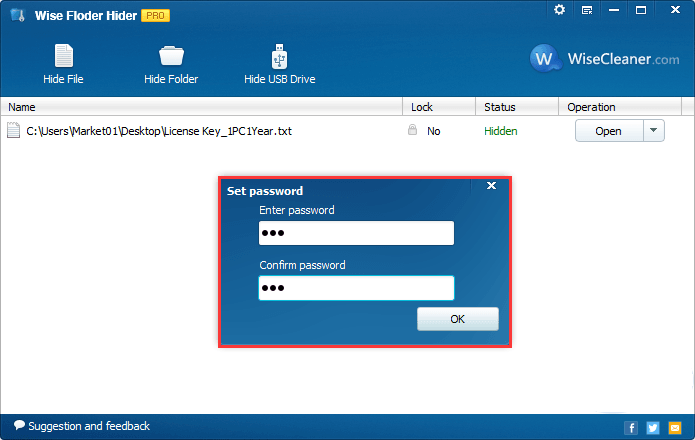
Tools such as Wise Folder Hider offer ways to hide or lock items. Check which features are free and how the tool protects the data. Hiding a folder can deter casual browsing, but it should not be treated as encryption against someone with access to the computer or its storage.

Protect yourself from lockout
- Keep an independent backup before changing encryption or security settings.
- Store recovery keys and archive passwords separately from the protected files.
- Use a long, unique password; a password manager can help you keep it.
- Test recovery on a copy before relying on the method for important documents.
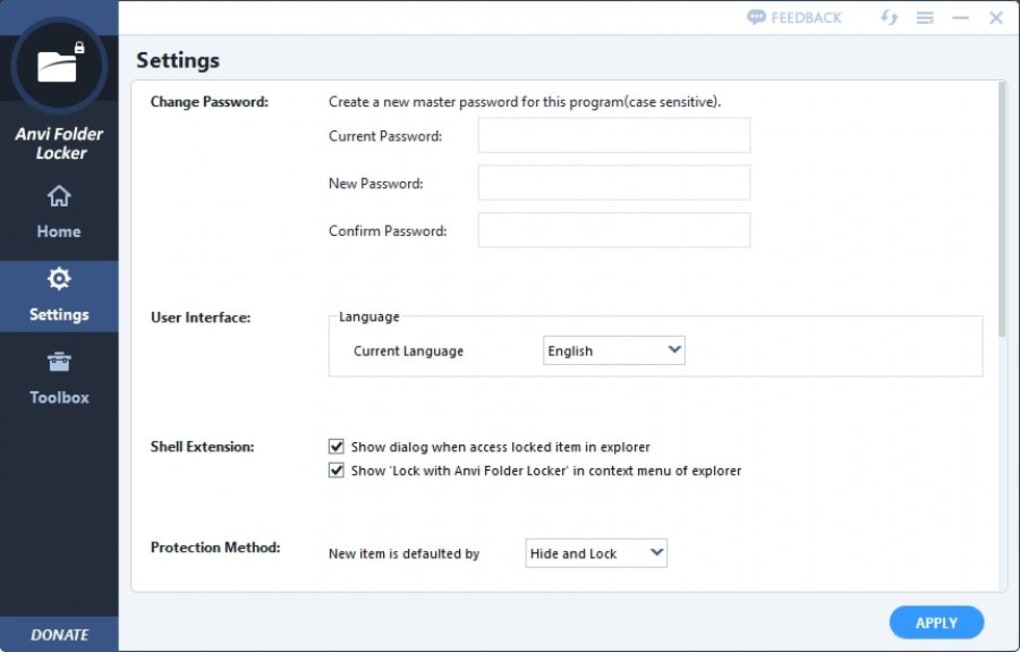
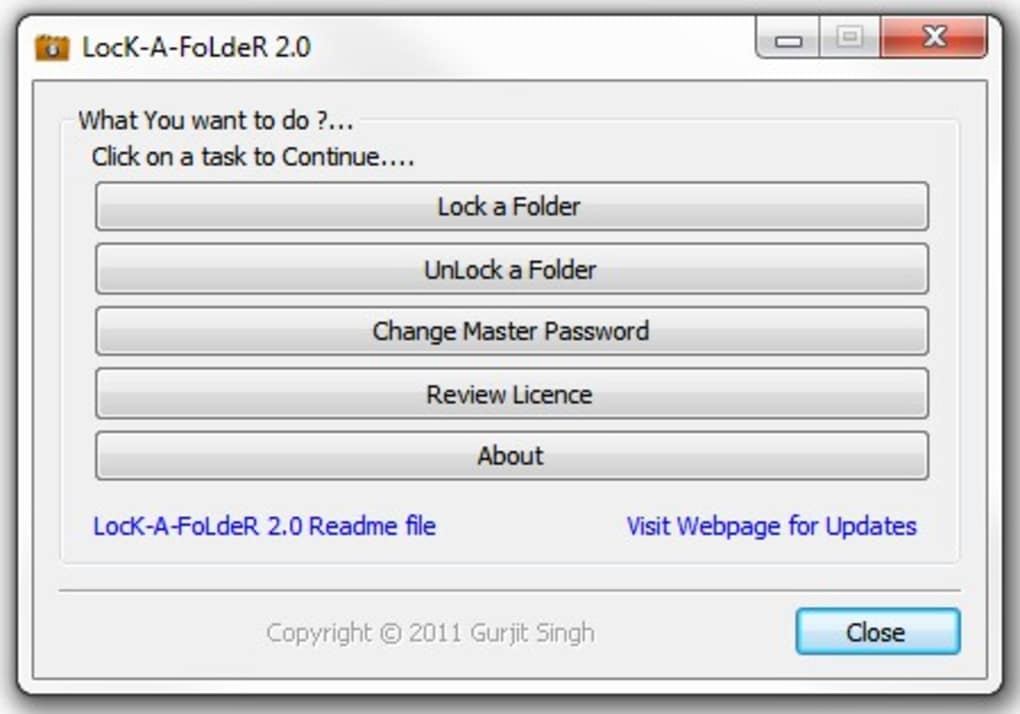
- Do not install old “folder lock” utilities from software download bundles. Use the developer’s official site and check that the app is maintained.
For a shared computer, separate Windows user accounts also help prevent other standard users from casually opening your files. They do not replace encryption if you need protection from someone who can access the drive directly.



Reader Comments 0
Sign in with email or Google to join the discussion.