Table of Contents
TeamViewer lets a trusted helper view or control a supported device over the internet. For a one-time support call, use an attended session: the device owner opens the app, verifies the helper, and approves access. Mobile support differs by platform; an iPhone screen can be shared, but it cannot be controlled like a Windows desktop.
Get the appropriate TeamViewer app
Use the official TeamViewer website or the official app store listing for your device. Select the supported desktop client or QuickSupport module for the task. Review the license terms for your use; do not assume that business support is covered by a personal-use offering.
The screenshots below show an older Windows client. They help identify the classic ID-and-password workflow, but button names and account requirements can differ in newer versions. For installation background, see installing TeamViewer on a computer or phone.
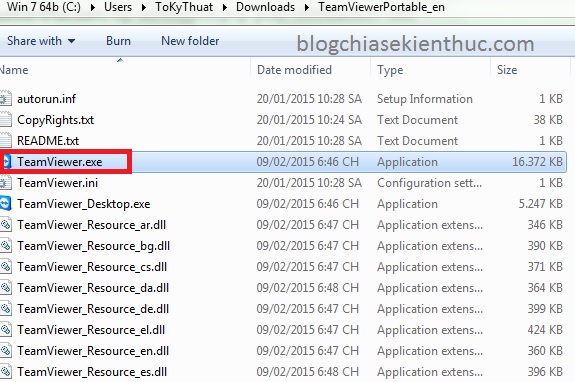
Connect to a computer with the classic interface
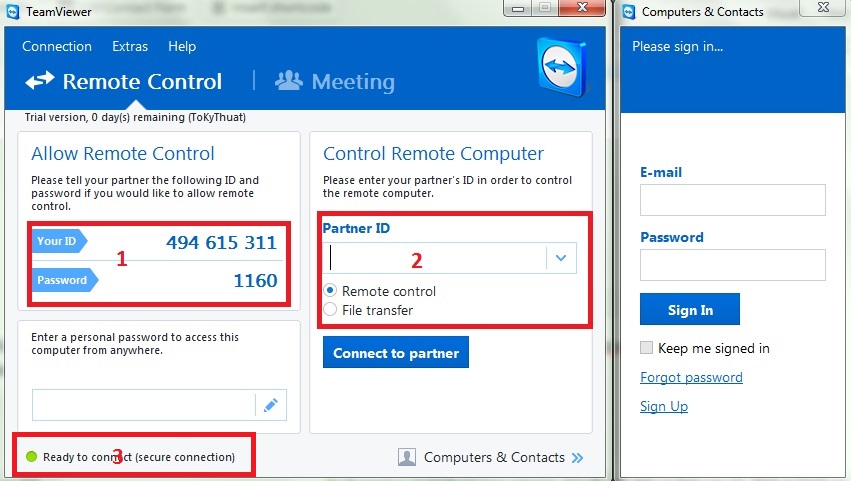
- Open TeamViewer on both devices. Confirm that both are online and that the remote owner wants your help.
- Ask the owner for the device ID shown in the application and, when required, its current session password. This is not their email or TeamViewer account password.
- Enter the remote device ID in the Partner ID or connection field and select Connect.
- Enter the session password when prompted. The owner should approve any additional access request only after verifying who is connecting.
- Wait for the remote desktop, explain the changes you intend to make, and end the session when the task is complete.
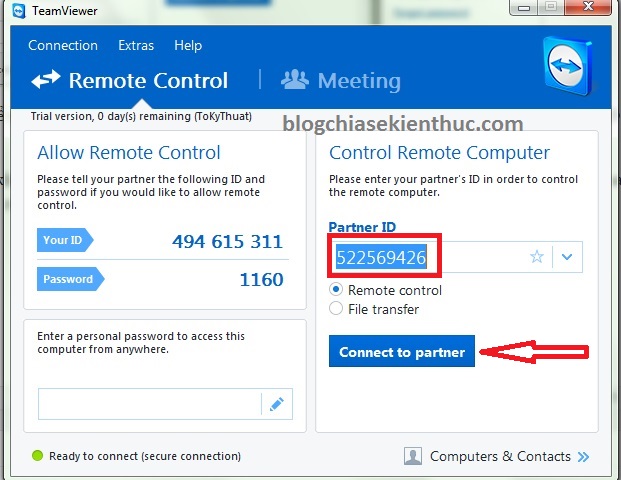
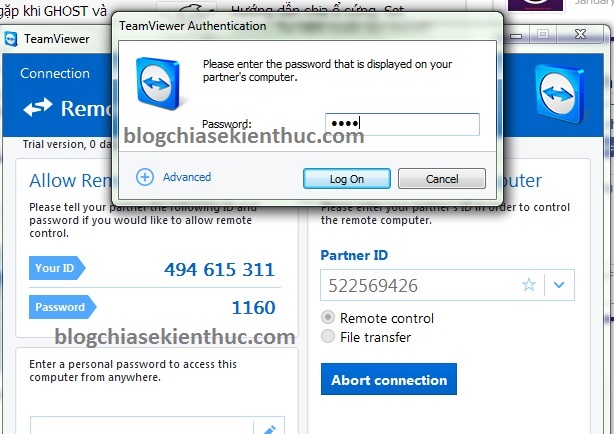
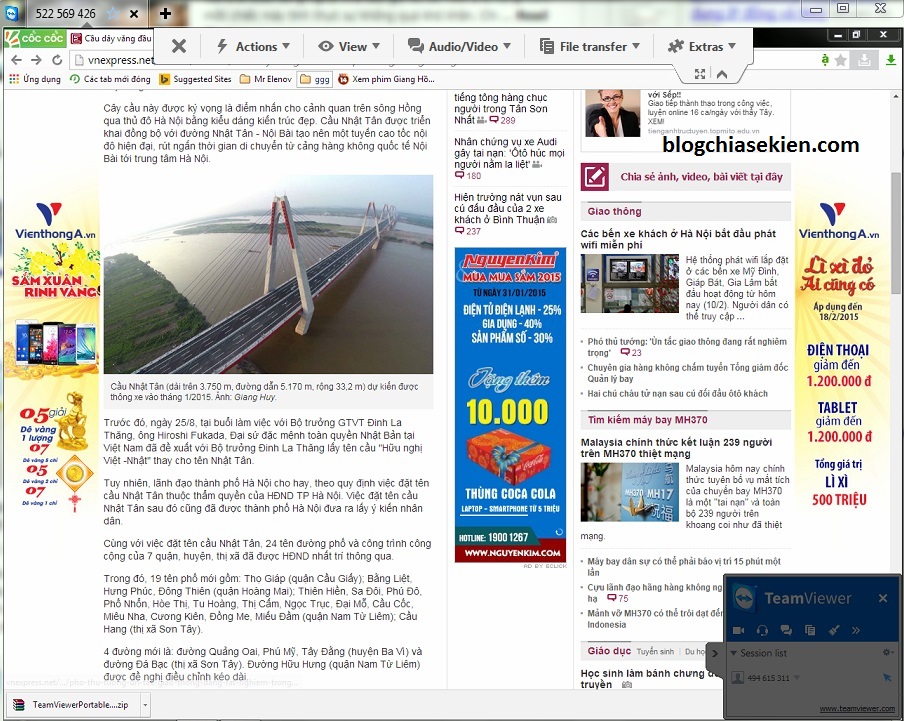
Share session details privately with the intended helper. Do not post them in a public forum or give remote access to an unsolicited caller claiming that your computer needs repair.
Use a session invitation when your interface offers it
Newer TeamViewer workflows may use a session link instead of the older Partner ID layout. Sign in when required, open Remote Support, and follow the session-creation options available to your account. The person receiving support opens the invitation, checks the supporter details, and approves the requested access.
Screen sharing and full remote control are distinct. TeamViewer’s browser screen-sharing guide describes a supported licensed workflow that can later prompt the user to run QuickSupport if control is needed. Availability depends on the product and license.
Support an Android phone or iPhone
For attended mobile support, install TeamViewer QuickSupport on the device receiving help. The helper connects using the ID displayed by that app; the device owner approves the request and the operating system’s screen-sharing prompt.
- Android: screen viewing and remote control depend on the device, software, permissions, and supported add-on. Do not assume all Android phones allow full control.
- iPhone and iPad: the owner starts a screen broadcast so the helper can see the display and explain what to tap. TeamViewer’s iOS documentation states that remote control is not supported.
Consult the official guides to attended mobile support and iPhone screen sharing for the current prompts. If you want to connect in the other direction, see controlling a laptop from a phone.
Limit access and end the session
Grant only the access needed. If the helper only needs to see a problem, use screen sharing or a view-only permission where available. Close private documents and avoid opening banking, password-manager, or other sensitive screens during support.
In the classic interface shown below, access settings are under Extras → Options → Advanced → Show advanced options. Look for Access Control and review what the selected mode permits. Current clients may place these settings elsewhere.
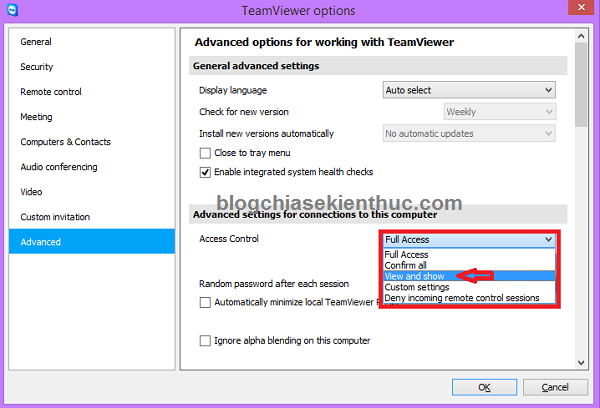
View-only access reduces what a helper can change but still exposes visible information; it is not a guarantee of complete safety. Stay present during an attended session. When finished, disconnect and close QuickSupport or the receiving client if you no longer need it. Stop a mobile screen broadcast separately if it is still active.
Do not enable unattended access merely to finish a one-time call. If access continues unexpectedly, end the connection and disconnect the device from the network if necessary, then investigate before reconnecting.
Update and troubleshoot TeamViewer
Keep both ends of a connection on supported software. In the older Windows client, open the application and use Help → Check for new version. The version number in the final screenshot is historical, not the version you should install today.
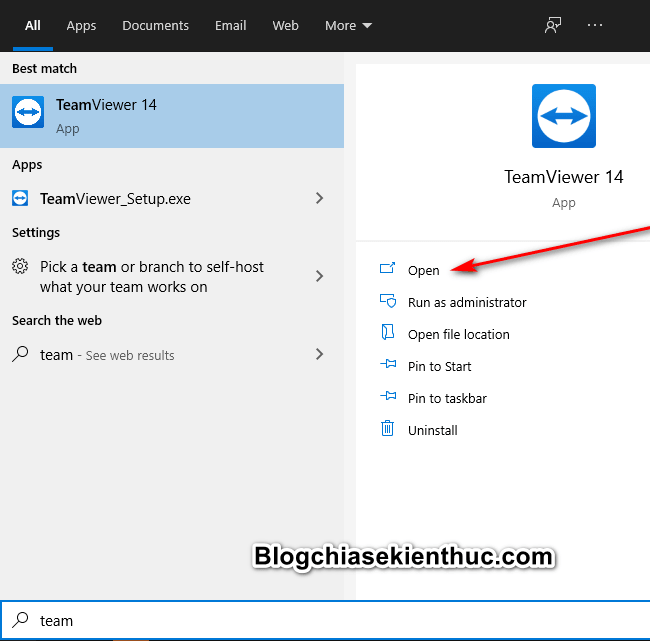
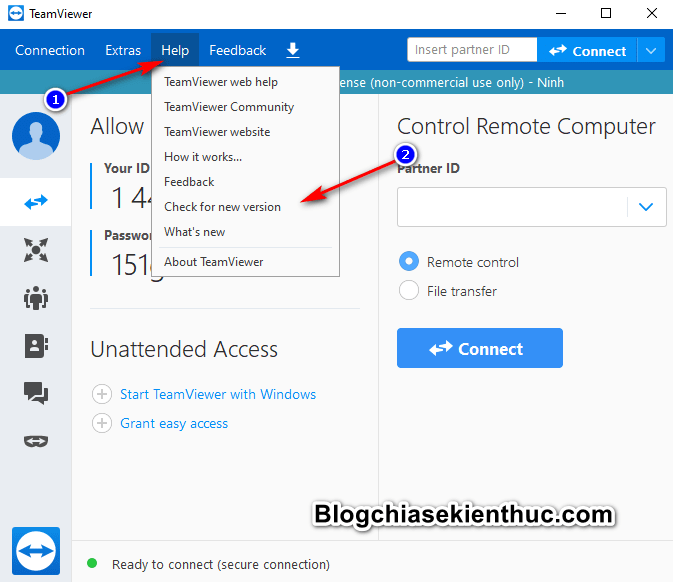
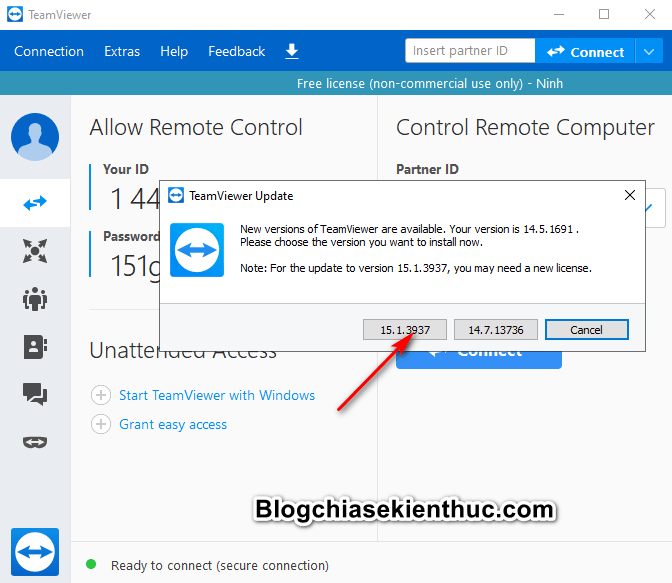
If a session fails, check the displayed error, internet connection, device ID, application updates, and required permissions. On managed computers, ask the administrator whether remote-support software is permitted. TeamViewer does not provide permission to bypass an organization’s firewall or security policy.



Reader Comments 0
Sign in with email or Google to join the discussion.