Table of Contents
To make a batch of images smaller, first decide whether you need fewer pixels, stronger compression, or both. Resize images to the dimensions you actually need, then adjust compression while checking the result. Always write the processed files to a separate folder.
Understand dimensions, compression, and quality
Resizing changes pixel dimensions, such as reducing a 4000-pixel-wide photo to 1600 pixels. Compression changes how image data is stored. Lossy JPEG compression can introduce artifacts; lossless optimization preserves decoded pixels but may produce smaller savings. A quality setting of 80 is not “80% of the original quality,” and results vary between programs.
Use JPEG for many ordinary photos and retain a format with transparency when needed. Do not convert a transparent logo to JPEG unless a solid background is acceptable. There is no reliable percentage saving that applies to every image.
1. Compress and resize with Caesium
Caesium Image Compressor provides free desktop batch compression. Download the appropriate version from its publisher. The screenshots below show an older interface; current labels may differ.
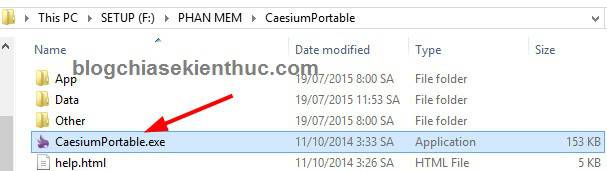
Add files and protect the originals
Create an input folder and a different output folder. Add pictures or open the input folder in Caesium, then verify the selected files.
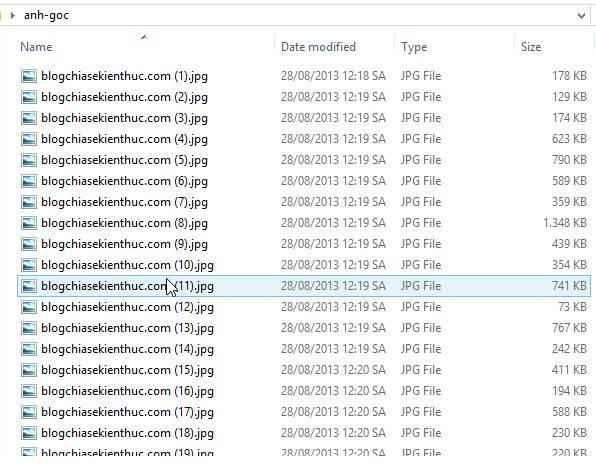
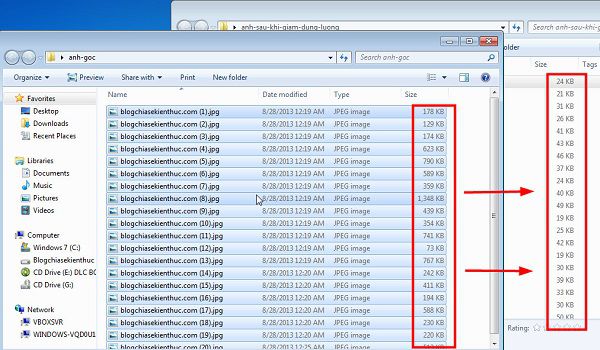
Check original file sizes before processing.
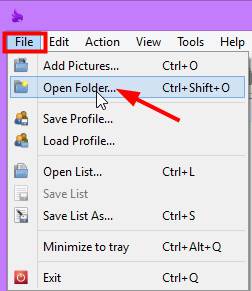
Add the images intended for the batch.
Choose compression settings
Choose an output format and use the quality control where that format supports it. Start with a moderately high quality setting, preview a detailed photograph, and lower it only as far as your intended use permits. Text and fine patterns may show damage before a smooth background does.
Select a common setting for the batch only when the images have similar requirements. Set the output folder explicitly and check overwrite behavior.
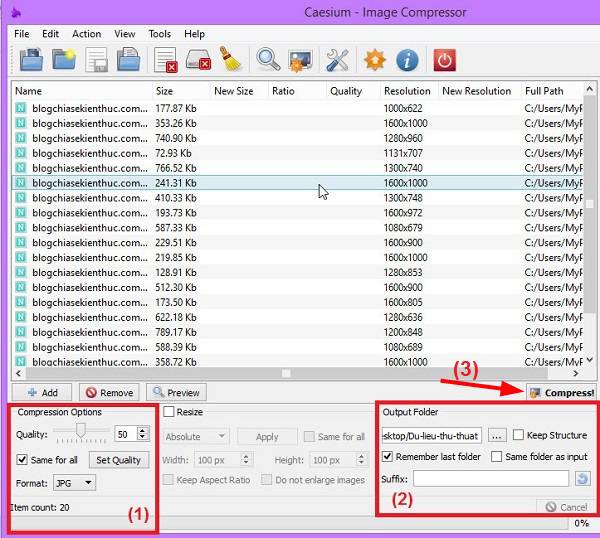
Resize only when needed
Enable resizing and choose pixel dimensions or a percentage. Preserve the aspect ratio so portraits and landscapes do not stretch. Avoid enlarging small originals merely to match a preset. For mixed orientations, a maximum-width-and-height box is often more suitable than forcing an exact shape.
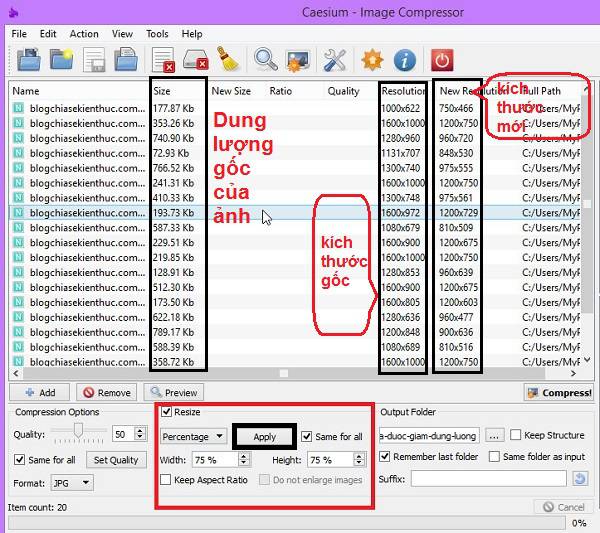
Process a small sample, open the output, and compare dimensions, file size, and visible detail. Once satisfied, process the full selection.
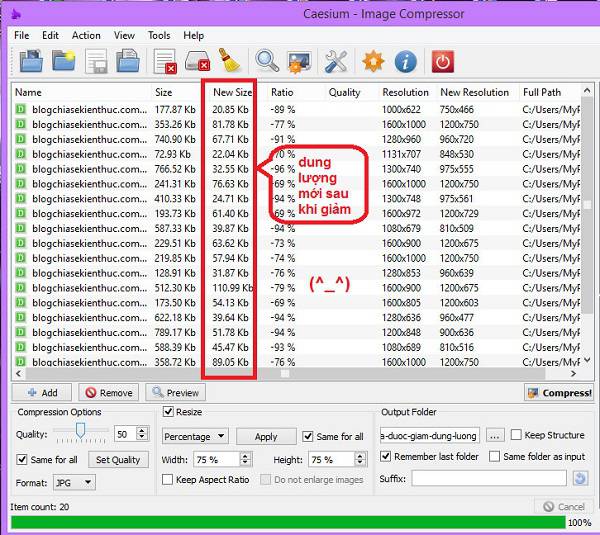
Example results; your savings depend on the source files and settings.
2. Compare output with RIOT
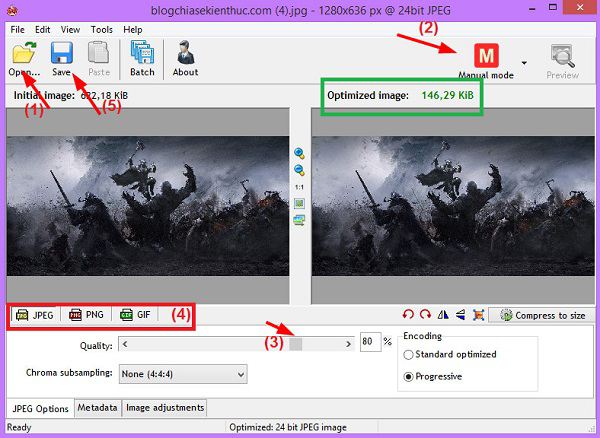
RIOT, or Radical Image Optimization Tool, offers controls for image optimization. Obtain it from the publisher's official distribution and check the license for your intended use. Open a sample, compare the original and optimized views, then choose format-specific compression settings. Verify the batch and output options available in your version before applying them to many files.
3. Use Light Image Resizer for saved batch profiles
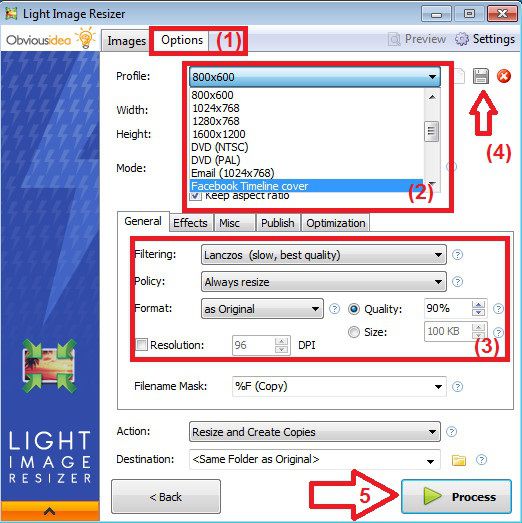
Light Image Resizer can combine dimensions, format, quality, and output location in a reusable profile. It is licensed software, so check its current trial and license terms rather than assuming every feature is free.
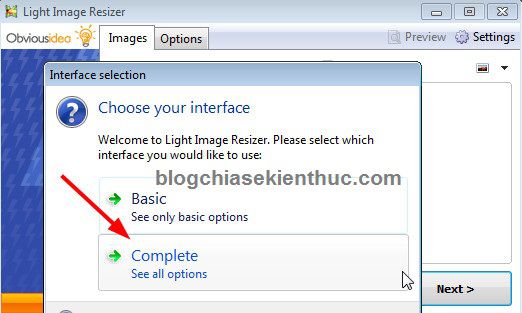
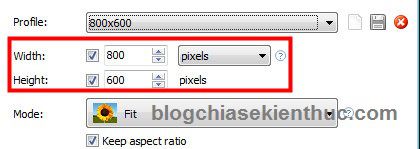
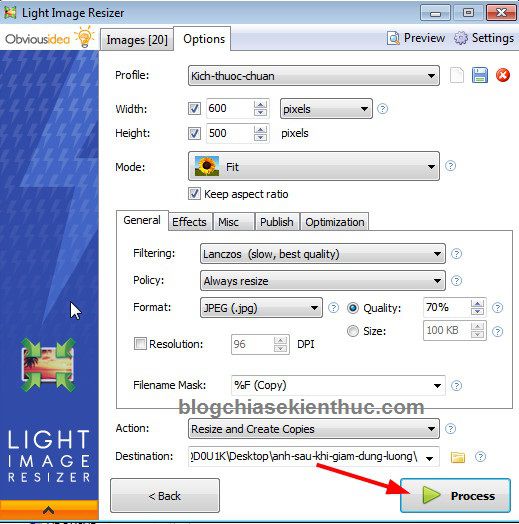
Open Options, choose a size preset or enter custom dimensions, and preserve the aspect ratio. Set the destination to a folder for new copies.
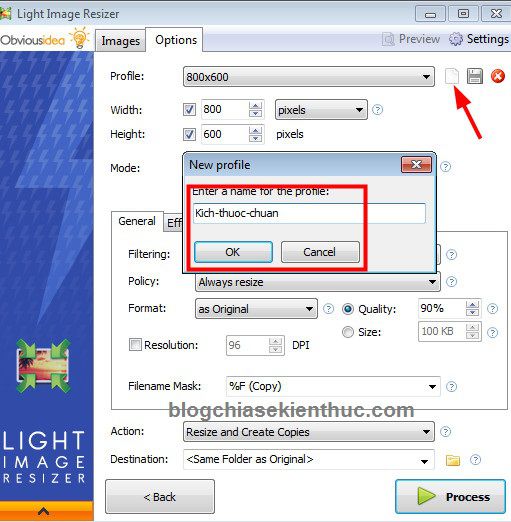
Create and reuse a profile
- Choose New Profile and give it a meaningful name.
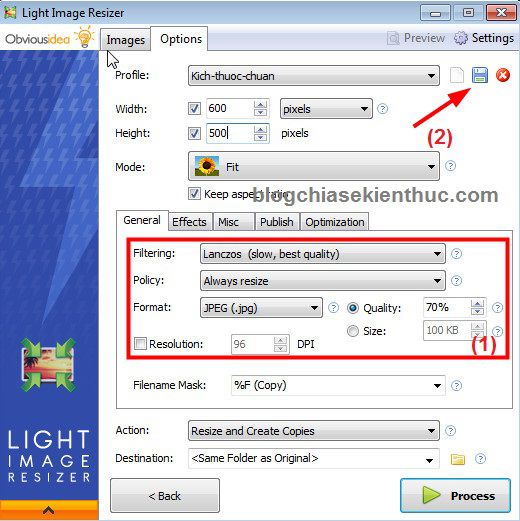
- Set the dimensions or bounding box, image format, and quality.
- Check the resize mode: a 600×500 box can preserve proportions, whereas forcing exactly 600×500 may distort or crop the photo.
- Save the profile after checking output and overwrite settings.
Return to the image-selection tab and add the folder or files. Confirm that the selection contains only the intended images.
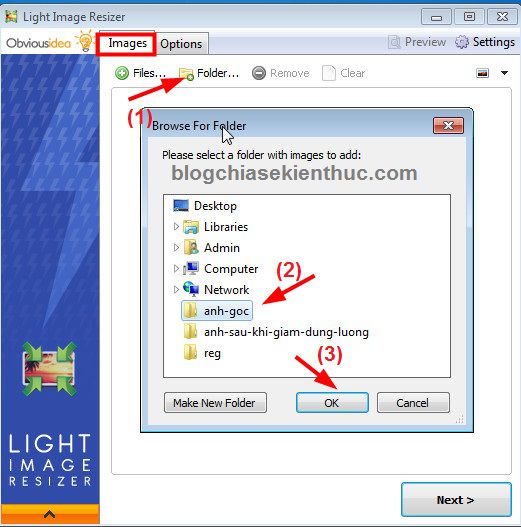
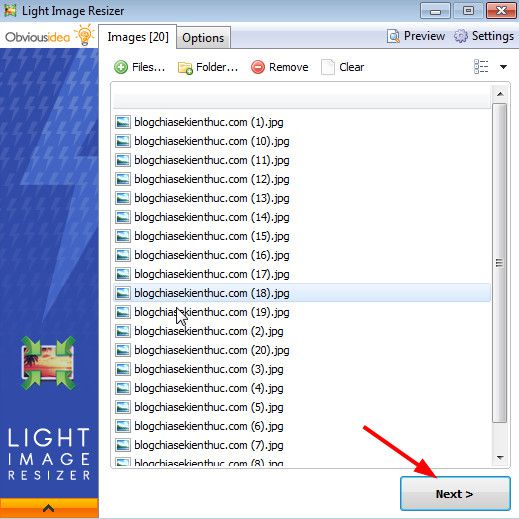
Review the settings and choose Process. Follow any save or completion prompt shown by your version.
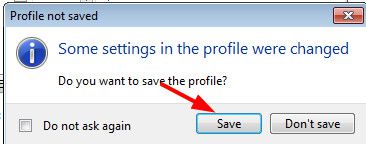
Inspect the resulting folder before removing any working copies.
4. Batch-process with Photoshop
If you already have Photoshop, its Image Processor can create resized JPEG copies from a folder. Choose a separate destination, set the fitting dimensions and format options, then test a few images. Follow our Photoshop batch-resizing tutorial for the illustrated workflow.
Online alternatives and final checks
For a small, non-sensitive batch, an online compressor may be convenient. Check whether processing happens locally or requires uploading, along with file limits and export conditions. Use a desktop tool when images are private or a large upload would be impractical.
For another desktop workflow, see batch resizing with XnConvert. Whichever tool you choose, check image orientation, transparency, readable text, metadata requirements, and the actual output size. Keep the originals so you can create a higher-quality version later.
Related Articles
 Reduce image size, how to compress images online for free
 How to reduce the capacity of free online images
 5 Image Compression and Resizing Tools for Windows
 Top 5 Free Image Compression and Image Size Reduction Software
 How to compress photos on Windows 10 Compressor image application
 3 Best photo compression software on computer for free
Reader Comments 0
Sign in with email or Google to join the discussion.