Table of Contents
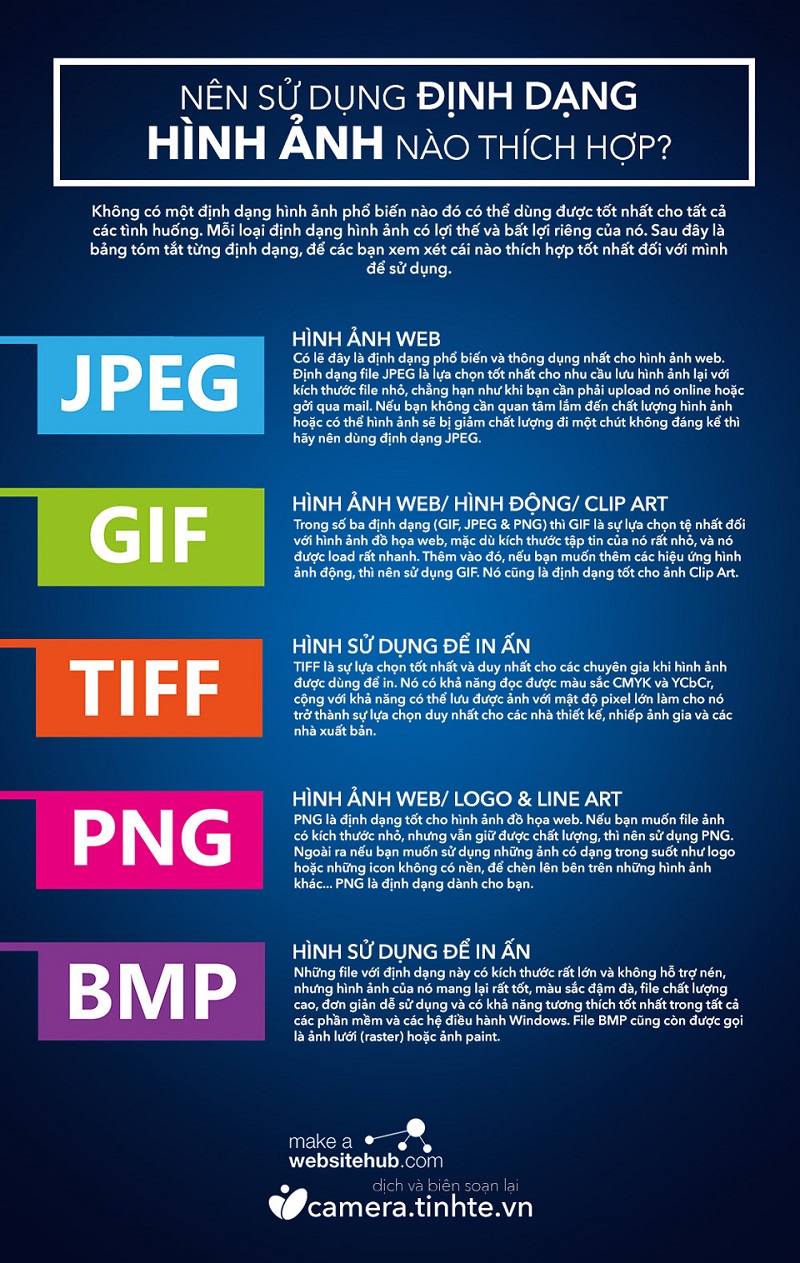
Choose an image format for the job: JPEG is a practical photographic format, PNG keeps sharp raster detail and transparency, GIF handles simple animations, and TIFF suits many scanning and print workflows. BMP is mainly useful for compatibility with software that specifically requires it.
WebP, AVIF, and SVG also matter for websites. The best choice depends on the image, required features, and the software that must open it—not just the extension.
JPEG: compact photographic copies
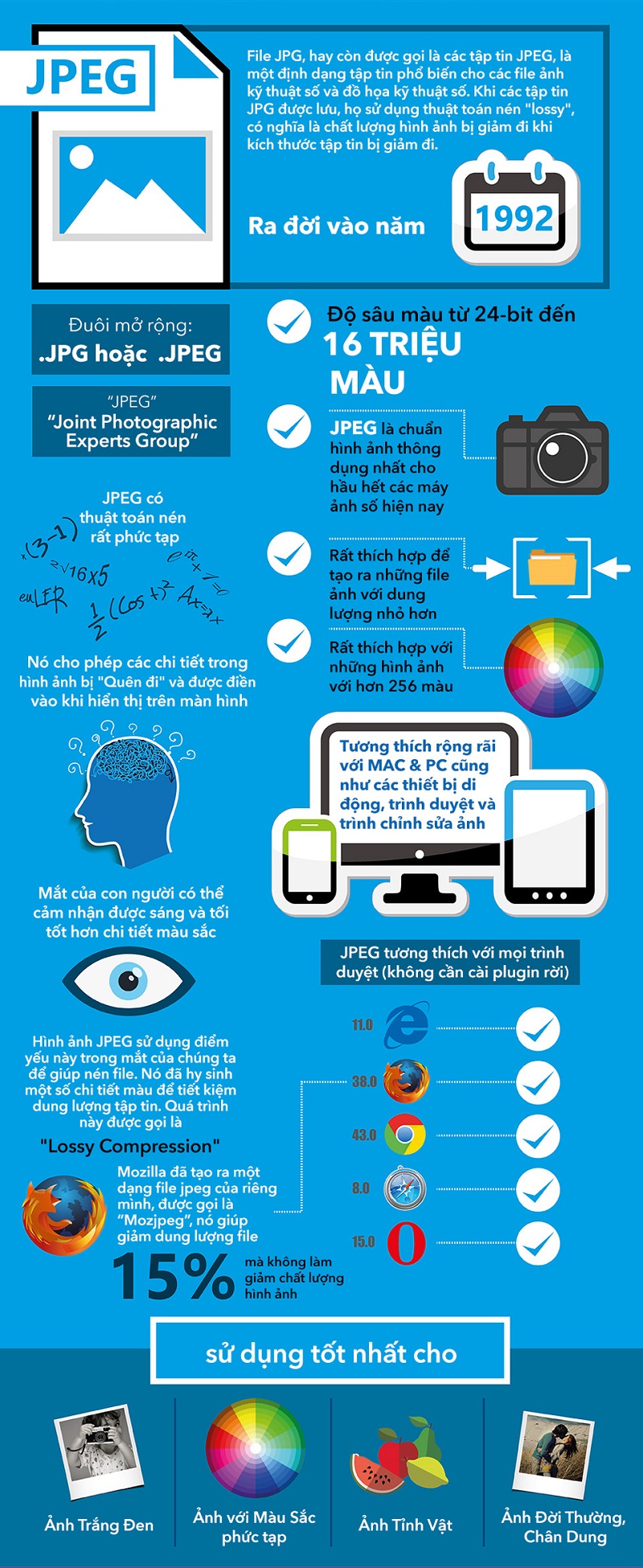
JPG and JPEG are names for the same common format. JPEG uses lossy compression to reduce file size. It works well for photographs with gradual tonal changes, but can produce halos or blocky artifacts around small text and sharp lines. It does not support a transparent background.
Export a JPEG copy for sharing, then retain the original or editable master. Repeatedly editing and re-saving a JPEG can accumulate quality loss. A larger file or maximum quality setting does not restore detail already discarded.
PNG: lossless raster detail and transparency
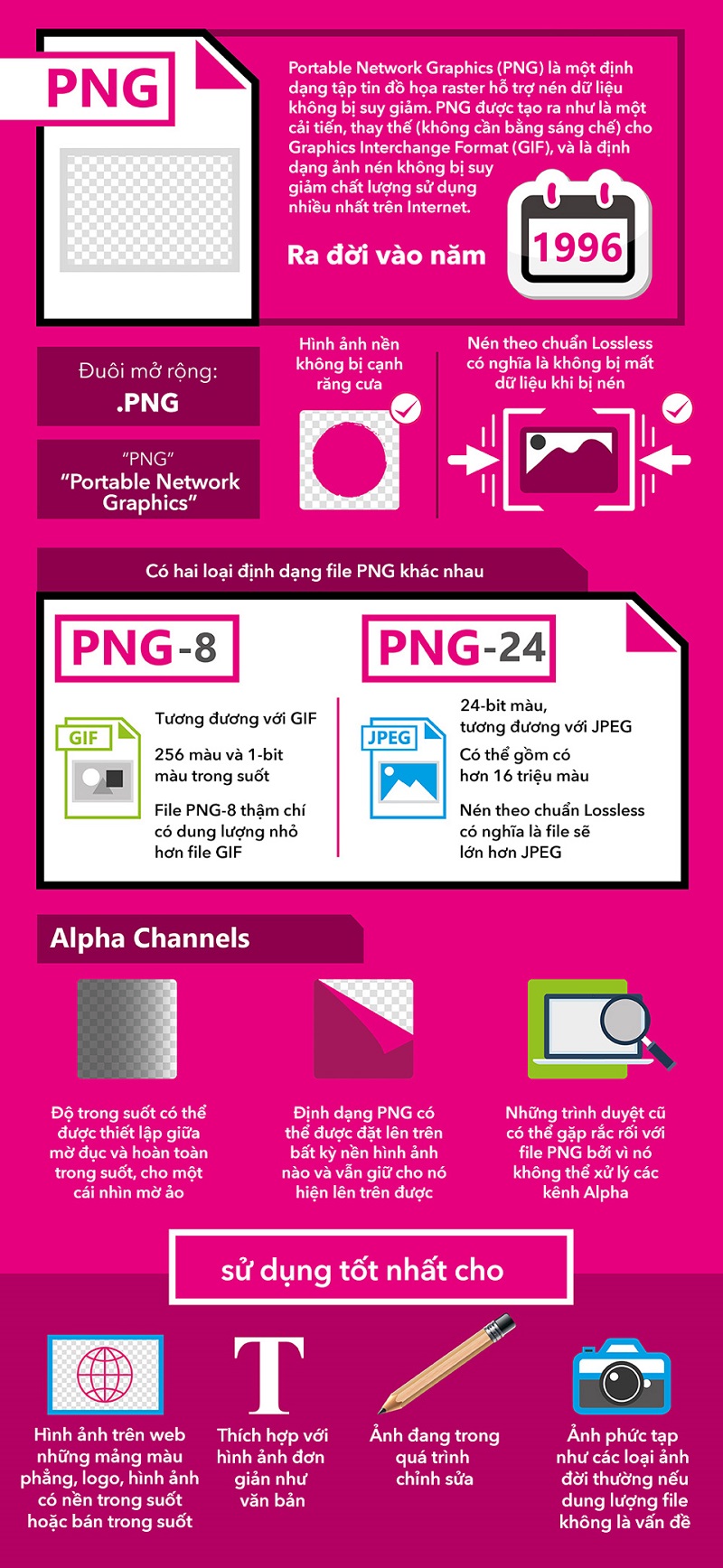
PNG uses lossless compression and supports transparency. It is often suitable for screenshots, line art, interface graphics, and raster logos. It does not make a low-resolution image sharp when enlarged.
Export labels such as PNG-8 and PNG-24 describe color-storage choices. An indexed palette can contain up to 256 colors; 24-bit RGB can represent about 16.7 million colors, with transparency handled separately. Palette reduction can discard colors even though the resulting file uses lossless compression.
For detailed photographs, a PNG may be much larger than a visually acceptable JPEG. Compare actual files instead of assuming one format is always smaller.
GIF: simple animation with a limited palette
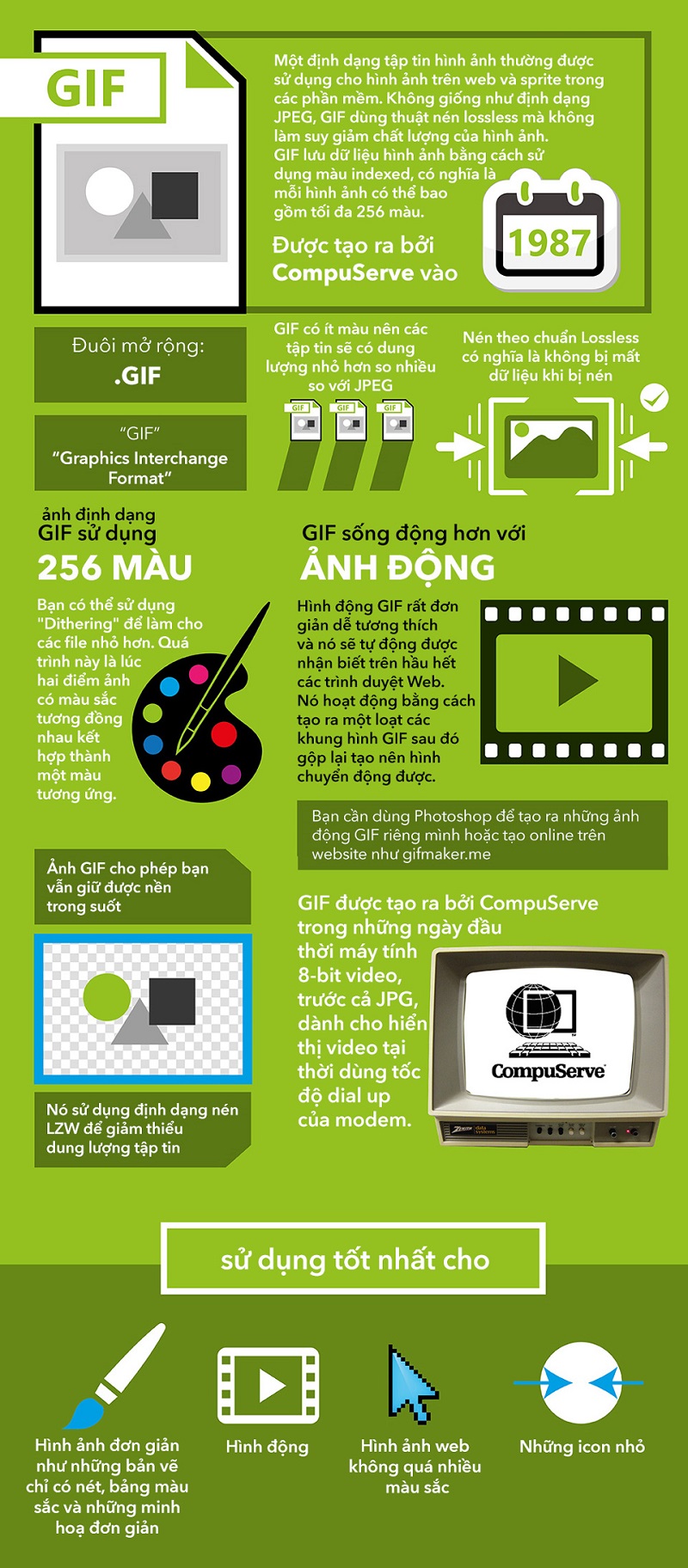
GIF supports animation and up to 256 palette entries per frame. Its compression preserves the indexed data, but converting a full-color photograph to that palette can lose color detail. Transparency is limited compared with PNG.
GIF remains useful for compatibility, but a long photographic animation can be large and look rough. Compare a modern animated format or video when your publishing platform supports it.
TIFF: flexible files for scanning and print workflows
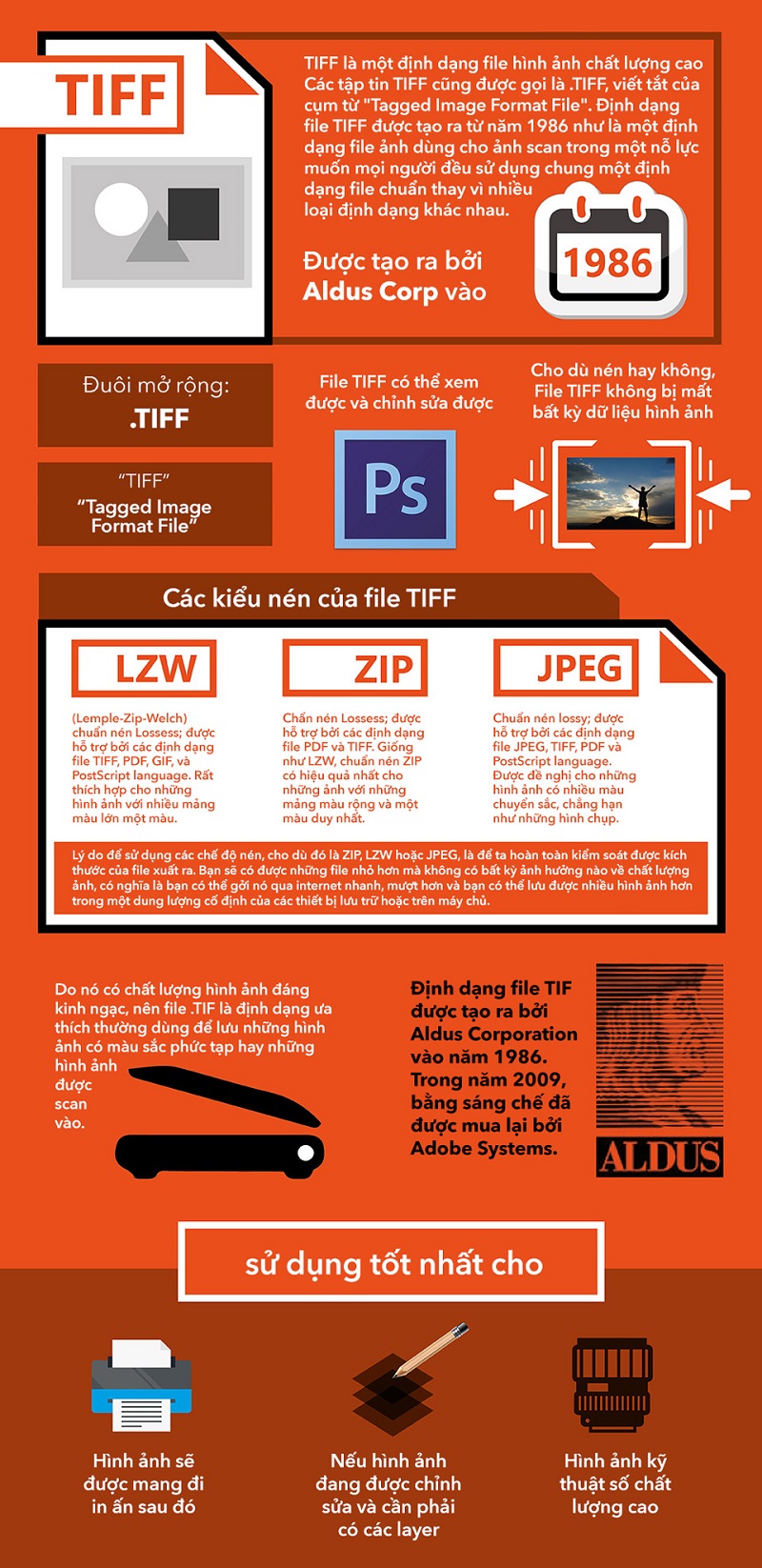
TIFF stands for Tagged Image File Format. It can store high-quality raster data, metadata, and, in some applications, layers. Compression options matter: LZW and ZIP are lossless, while JPEG compression inside a TIFF is lossy. A TIFF extension alone does not guarantee an uncompressed or lossless image.
Use the color profile, bit depth, compression, and layer options required by the receiving printer or editor. Confirm compatibility before transferring a large layered file. TIFF is not generally the best delivery format for a web page.
BMP: a compatibility format, not a layered master
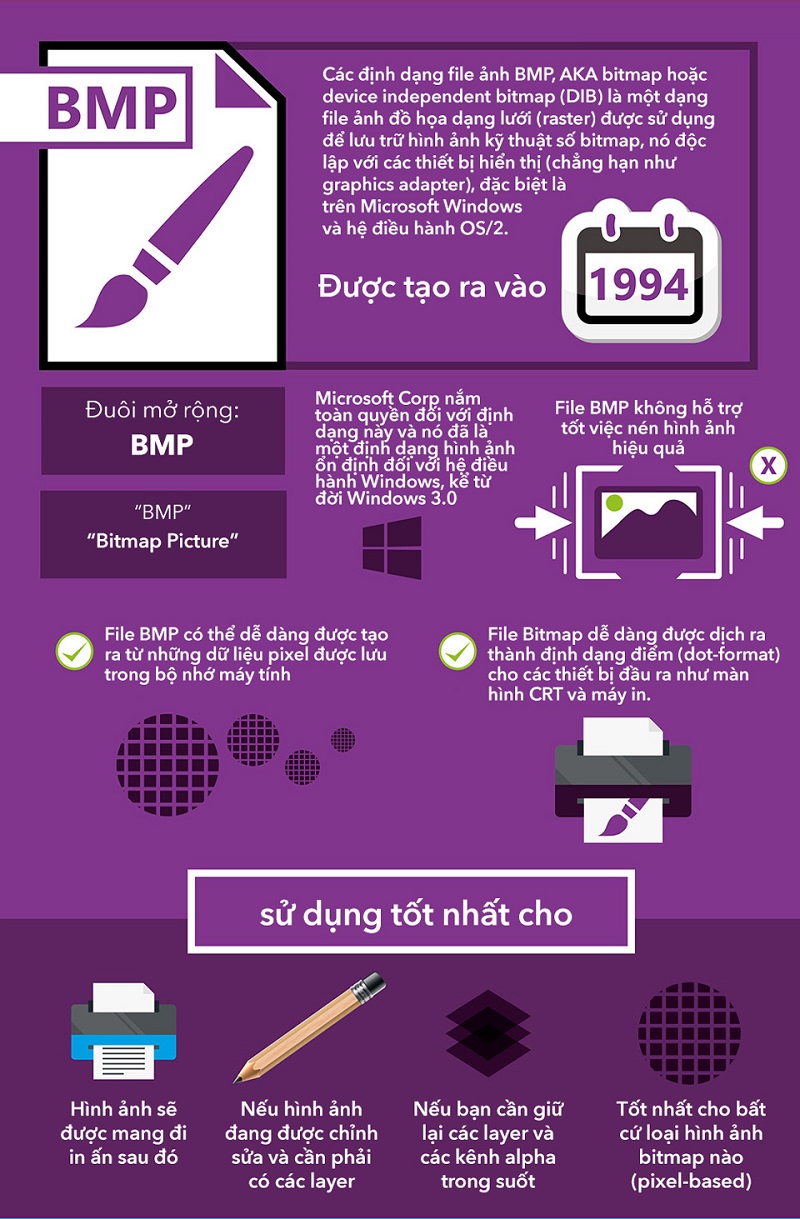
BMP stores bitmap image data and is associated with Windows workflows. Many BMP files are uncompressed and large, though the format has multiple variants. It is not a normal substitute for an editor's layered document format, and it is not automatically the best format for printing.
Use BMP when an application or device requires it; otherwise a more efficient format will often be easier to share.
A practical comparison
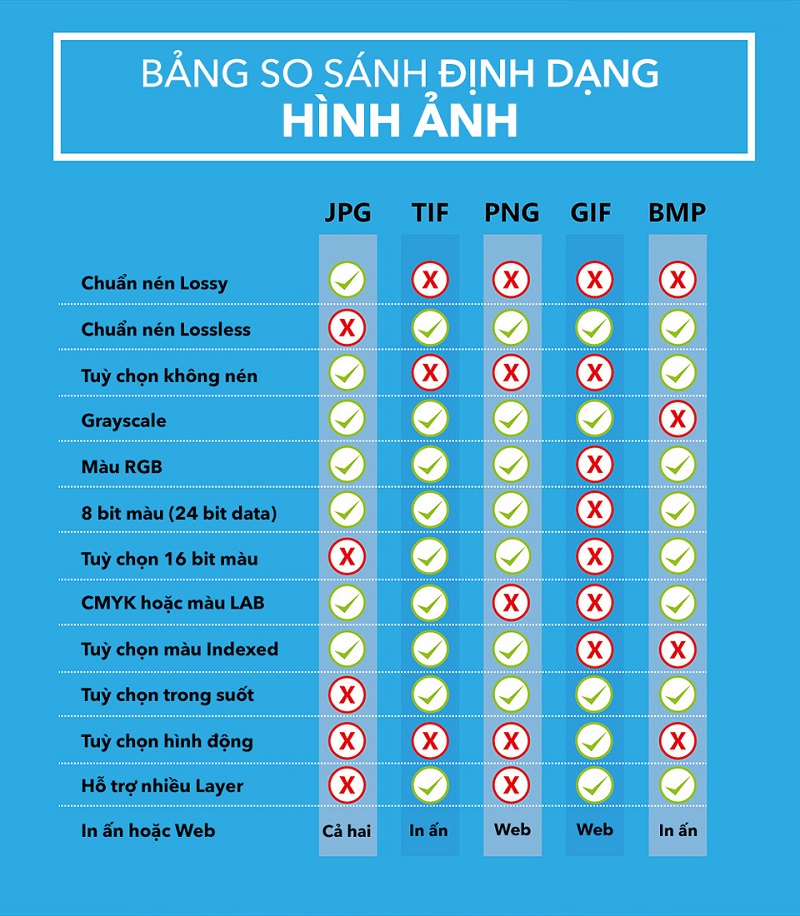
Legacy comparison graphic. Compression and transparency depend on format options; use the distinctions below when choosing an export.
| Format | Useful for | Main limitation |
|---|---|---|
| JPEG | Photographic sharing copies | Lossy; no transparency |
| PNG | Screenshots and transparent raster graphics | Can be large for photos |
| GIF | Simple compatible animation | Limited palette |
| TIFF | Scanning, editing, and print exchange | Large; options need agreement |
| BMP | Legacy or application-specific compatibility | Often inefficient storage |
| WebP / AVIF | Compressed web images | Check receiving software and export settings |
| SVG | Scalable vector logos and diagrams | Not the usual format for a photograph |
Export for the destination
Keep a full-quality source and create separate delivery files. For a website, resize raster images to suitable dimensions and compare WebP or AVIF against JPEG and PNG. For a logo, preserve an SVG vector original when available. For print, ask the printer which format and color settings it accepts.
See choosing image formats and sizes and exporting PNG and JPEG from Photoshop for practical workflows. Renaming a file's extension does not convert its underlying format.
The legacy illustrations in this article were credited by the original author to the Tinhte forum.




Reader Comments 0
Sign in with email or Google to join the discussion.