Table of Contents
To use this feature, your laptop needs to be running Windows and your TV must support the DLNA connection standard.
Connecting your computer to your TV elevates your entertainment experience, allowing you to enjoy movies, music, and more in a vivid and engaging way. However, how do you connect these two devices? Let's find the answer in this guide on how to connect your computer screen to your TV wirelessly via Bluetooth, HDMI, etc.
Benefits of connecting a computer to a TV
Beyond simply enlarging images, connecting a computer to a TV opens up many exciting experiences:
- Watch 4K movies and play games with a larger display area than a computer.
- Presenting slides and clear reports to the entire team is preferable to watching on a small screen.
- Turn your TV into a second monitor to expand your workspace.
- Easily share photos and videos of cherished memories with the whole family.
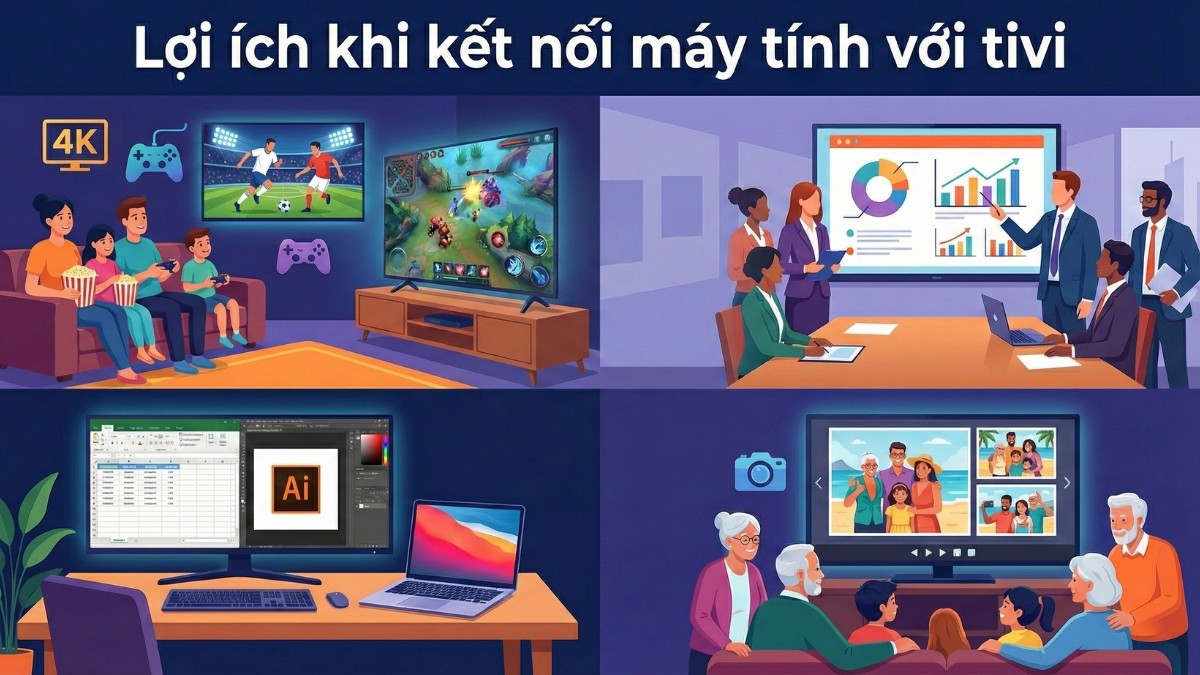
Connecting your computer to your TV not only enhances your experience but also gives you the flexibility to transform your home into a workspace or a home theater.
Ways to connect a computer to a TV
You don't necessarily need a cable to connect. Depending on your existing devices, choose the connection method that suits you best from the options below.
How to connect a computer to a TV via Bluetooth
Step 1: Open the Settings on your laptop and select Devices. In the Bluetooth and other devices section, enable Bluetooth. However, some people encounter problems with their laptops not supporting Bluetooth connectivity, severely impacting their usage and connectivity. Let's find out how to fix the problem of a laptop not having Bluetooth and how to install Bluetooth.
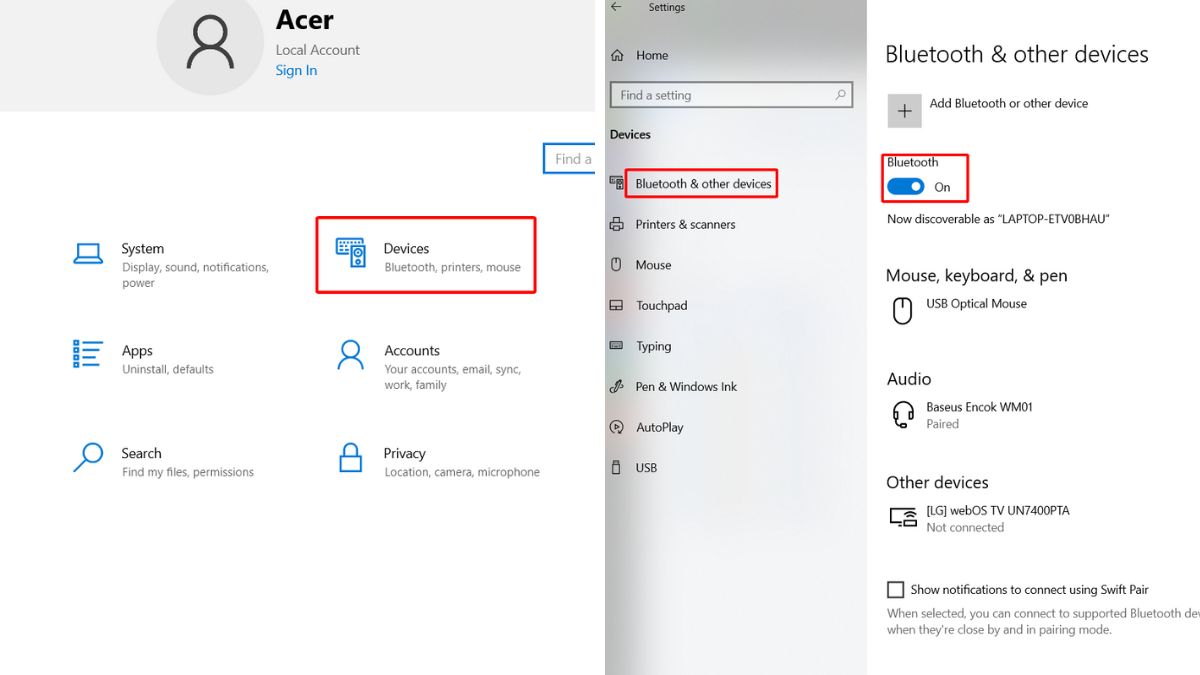
Step 2: Next, on your TV screen, go to Settings. Then, find and select Remote control and accessories.
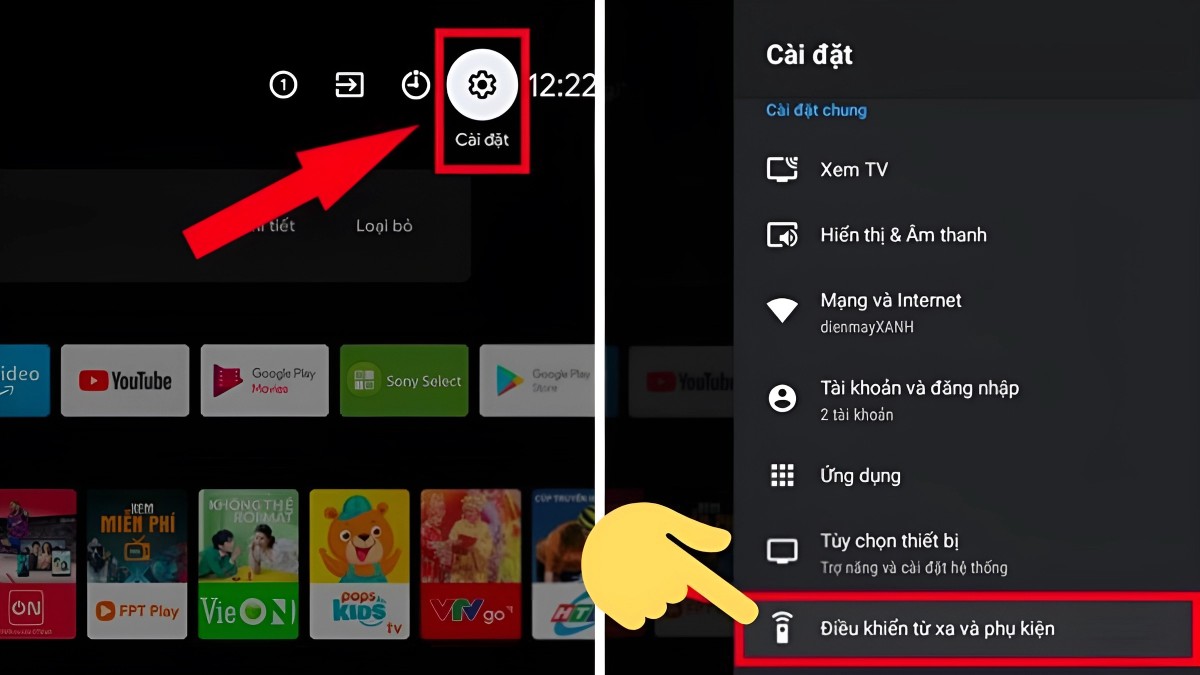
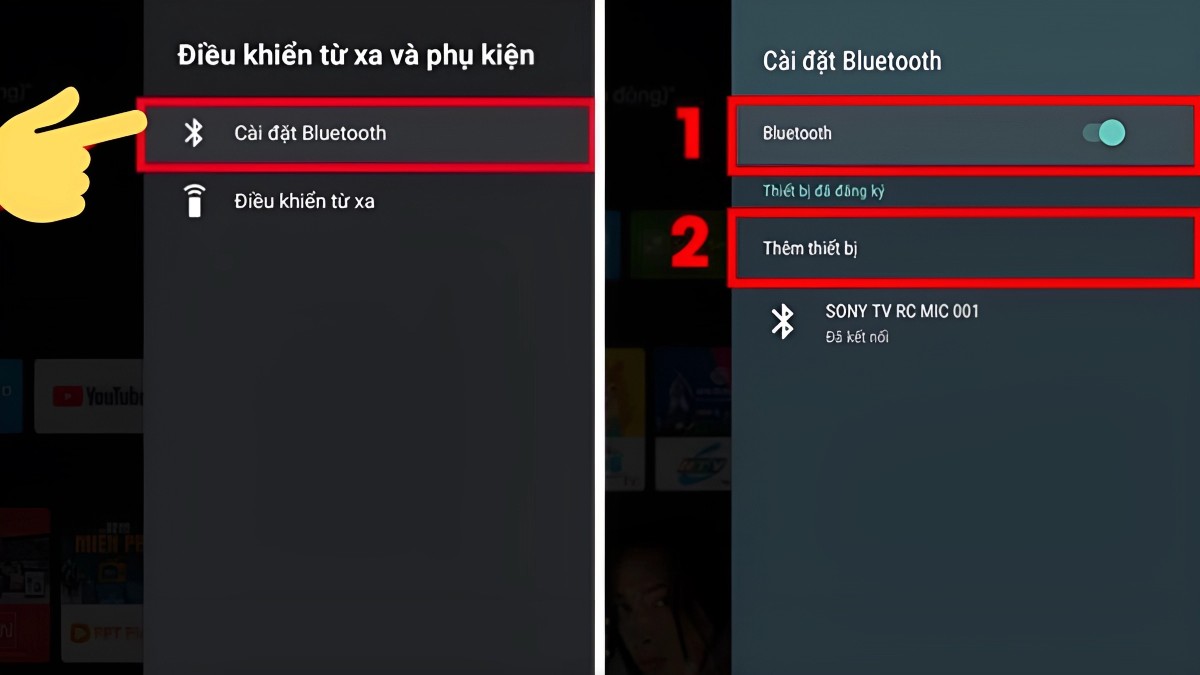
Step 3: A list will appear; find the Bluetooth settings. Finally, turn on Bluetooth on your TV and select "Find devices that can detect your laptop." That completes the process of connecting your computer to your TV via Bluetooth.
How to connect a computer to a TV via Wi-Fi Direct
Step 1: On your TV, open the Settings menu and then select All settings. Next, select Network and then WiFi Direct.
Step 2: On your laptop, open the Start menu. Select Settings and then select System.
Step 3: Finally, select Display, then select Connect to a wireless display. Then choose the TV you want to connect to, and you're done.
How to connect a computer to a TV using Wi-Fi Display
- Step 1: Open the 'Start' menu on your computer and select 'Settings'. In settings, navigate to 'Devices'.
- Step 2: Next, select 'Add Bluetooth or other device'.
- Step 3: Select 'Wireless display or dock'. Then, find and select the corresponding TV name on the screen, and you're done.
Note that the steps for connecting a computer monitor to a TV may vary depending on the operating system and software version of both devices.
How to connect a computer to a TV using DLNA
To use this feature, your laptop needs to be running Windows and your TV must support the DLNA connection standard. Once these conditions are met, you can connect your computer screen to your TV by accessing the internet and setting up a sharing connection.
Note: This method only applies to laptops running Windows and TVs capable of network connectivity. First, you need to check if your TV supports DLNA. Then, connect your TV and laptop to the same internet network and follow these steps to connect your computer to your TV wirelessly:
- Step 1: Open the Windows Media Player application on your laptop. Next, select the Sharing feature to enable sharing mode.
- Step 2: Next, select either the Images or the Videos option.
- Step 3: Right- click on the image you want to transfer, select "Play to Device," and then select your TV. A message will appear on your TV screen. Choose "Agree/Accept/OK" (depending on your TV). The image will then be transferred to your TV.
How to connect your computer to your TV via the Smart View app
The Samsung Smart View app , developed by Samsung, allows you to wirelessly connect your computer to your TV to stream images, music, and videos.
To establish the connection, you will need:
- Samsung Smart TV.
- Laptops running Windows 7 or later (Note: MacBooks do not support this feature).
Specifically, to easily use the Smart View app, a prerequisite is that you need to own a Samsung smart TV. Samsung TVs , with their high resolution and many convenient functions, are guaranteed not to disappoint you. Here are some Samsung TV models for your reference:
How to connect a computer to a TV using a USB port
USB (Universal Serial Bus) ports are commonly used on televisions, allowing you to easily experience high-quality movie viewing and music playback. The process of connecting a laptop to a TV via USB can be done in the following steps:
- Step 1: You need to use a USB cable to connect your laptop to the TV.
- Step 2: Turn on both the laptop and the TV.
- Step 3: On the TV screen, use the remote control to select the source corresponding to the connected USB port.
How to connect a computer to a TV using an HDMI port
HDMI (High Definition Multimedia Interface) is considered the highest quality connection standard currently available. It allows content to be transmitted from source devices such as laptops and phones to display devices such as televisions and projectors. With HDMI support, not only images but also sound can be transmitted, offering exceptional convenience.
To connect your computer to your TV via HDMI, you need to prepare the following steps:
- Make sure your laptop is equipped with an HDMI connection.
- Check if your TV has an HDMI port. If your TV doesn't support HDMI, you can use an HDMI-to-VGA adapter cable.
- Prepare an HDMI cable or an HDMI-VGA adapter cable, depending on the specific situation.
- If necessary, use a 3.5mm audio cable to transmit sound, especially if your TV does not support HDMI.
How to connect a computer to a TV via VGA port
The VGA port allows connection between laptops and display devices such as projectors, external monitors, or televisions. This port supports various resolutions including 1280x1024px, 640x400px, 1920x1080px, and 2048x1536px.
To connect your laptop to your TV via VGA port, you need to ensure the following:
- The TV is equipped with a VGA port.
- The laptop has a VGA port.
- It has a VGA cable.
- Use a 3.5mm audio cable.
How to connect your computer to your TV using Chromecast
Chromecast is a Google technology product designed to stream online entertainment content from Wi-Fi-connected devices to a TV screen.
For those using TVs that don't have built-in Chromecast, you'll need to purchase a Chromecast device and connect it to your TV. Then, you can perform the setup steps on your laptop. However, this process can take a considerable amount of time.
If you're using a smart TV with built-in Chromecast, connecting your computer screen to the TV is as simple as this:
- Step 1: Connect your TV and laptop to the same WiFi network. Open the Chrome browser on your laptop (make sure it's updated to the latest version) and click the three-dot icon in the upper right corner of the browser.
- Step 2: Next, select Save and Share. Then select Cast.
- Step 3: Select the desired TV device to stream to. In the Source section, you can choose to mirror the screen or select specific content you want to stream.
Which method of connecting a computer to a TV is the most suitable?
To find the optimal way to connect your TV and computer, consider the following summary table:
|
Connect |
Matching needs |
Outstanding advantages |
HDMI port |
Watch 4K movies, play games, do graphic design. |
Detailed images, realistic sound. |
WiFi Display, WiFi Direct |
Meetings, presentations |
No wires, neat and tidy, setup is incredibly quick. |
Bluetooth |
Listen to music, connect speakers |
Convenient audio transmission. |
Smart View |
Use the Samsung ecosystem. |
Smooth TV controls with many extended features. |
VGA port |
Use an old computer. |
An alternative solution when the device doesn't have HDMI. |
|---|
Mastering how to connect your laptop and TV will not only help you work faster but also ensure optimal image and sound transmission performance.
Common errors when connecting a computer to a TV
Even if you've followed the correct steps to connect your computer to your TV, you may still encounter the following problems:
- The image is distorted or has edge-to-edge display due to incorrect resolution. Go to Display Settings on your computer and change it to Recommended (usually 1920x1080).
- There's a picture but no sound (HDMI) because you forgot to switch the audio on your computer. Right-click on the speaker icon > Open Sound settings > Select your TV as the output.
- The connection is choppy and laggy due to a weak WiFi signal. Try switching to a 5GHz network or plugging in an HDMI cable for a more stable signal.
Proactively understanding these troubleshooting methods will ensure a seamless audiovisual experience, free from interruptions caused by minor technical issues.
The above article provides instructions on how to connect your computer screen to a TV wirelessly via Bluetooth, HDMI, etc. Hopefully, this guide will help you easily project your laptop screen onto a TV. Also, don't forget to follow us for more useful information.
Related Articles
 5 Simple Ways to Connect Your Phone to a Samsung Tablet8 minutes read
 Instructions for Connecting Your HTC One Phone to Your Computer4 minutes read
 How to Install Printer for Computer, Laptop Simple and Fast11 minutes read
 5 Simple Ways to Connect Microphone to PC6 minutes read
 Top Most Popular Ways to Connect Laptop to TV8 minutes read
 2 Ways to Quickly Connect a Wireless Mouse to a Laptop: Recommended Choices7 minutes read
Reader Comments 0
Sign in with email or Google to join the discussion.