Table of Contents
No single status can prove that a drive will not fail. A useful health check combines three kinds of evidence: the device's SMART or NVMe health data, Windows error and reliability information, and a current diagnostic from the drive manufacturer. Back up important files immediately if the disk disconnects, makes abnormal sounds, reports critical errors, or contains the only copy of valuable data.
1. Read SMART data with CrystalDiskInfo
Download CrystalDiskInfo from the official CrystalDiskInfo page. It supports many SATA, NVMe, and USB-connected drives, although some RAID controllers and enclosures do not expose complete health data.
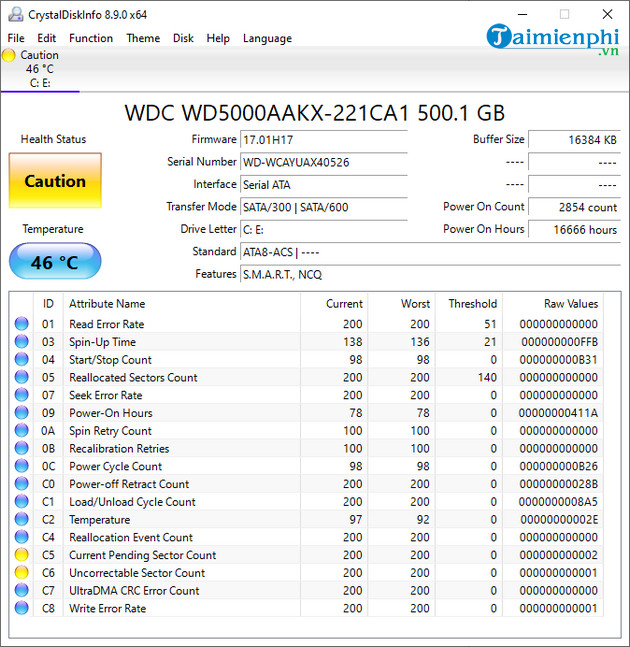
For each physical drive:
- Match the model and capacity to Disk Management.
- Read the overall status, but also inspect the attributes that caused it.
- For an HDD, pay particular attention to reallocated, current pending, and uncorrectable sector counts.
- For an NVMe SSD, review Critical Warning, Available Spare, Percentage Used, Media and Data Integrity Errors, and Error Information Log Entries.
- Record temperature and compare it with the drive manufacturer's operating guidance.
- Save a text or screenshot baseline so you can identify changes later.
A “Good” status is not a guarantee. Some failures occur without enough warning for SMART to predict them, and a USB bridge can hide fields. Conversely, a warning requires interpretation: confirm it with the manufacturer diagnostic and a backup, not a random “repair” utility.
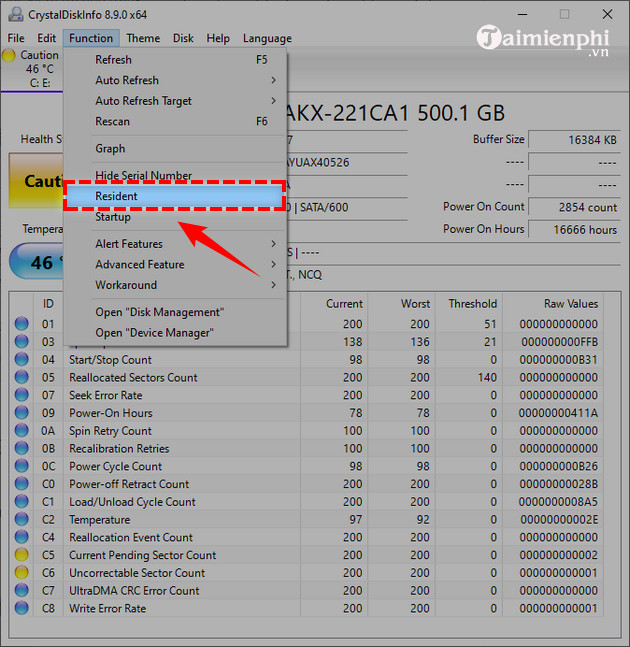
CrystalDiskInfo can remain resident and start with Windows if you want ongoing monitoring. In the Function menu, review the Resident and Startup options and configure alerts you will actually notice.
For a more detailed walkthrough, see TipsMake's CrystalDiskInfo health guide.
2. Query Windows storage information with PowerShell
Open Terminal or PowerShell as administrator. First list the physical disks:
Get-PhysicalDisk |
  Format-Table FriendlyName, MediaType, HealthStatus, OperationalStatus, Size
Then request reliability counters that the storage provider exposes:
Get-PhysicalDisk | Get-StorageReliabilityCounter |
  Format-List DeviceId, Temperature, Wear, PowerOnHours,
              ReadErrorsTotal, WriteErrorsTotal
Fields may be blank when a controller, driver, virtual disk, RAID layer, or USB bridge does not provide them. “Healthy” in this view means Windows has not flagged the Storage Management object; it does not replace SMART details or a vendor test. Microsoft's Get-StorageReliabilityCounter reference describes the available counter class.
Why the old WMIC command is not enough
Older guides open Command Prompt and run:
wmic diskdrive get status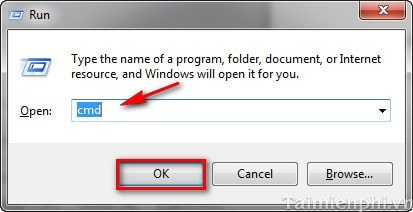
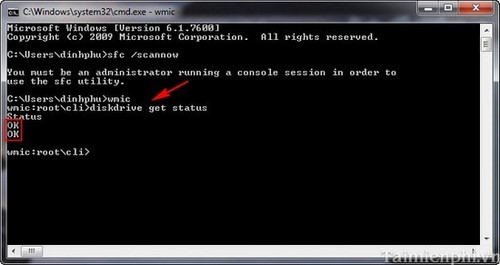
WMIC is deprecated and may be absent from current Windows installations. Its simple “OK” response exposes only a coarse status and can miss important attribute changes. Do not treat “OK” as proof that the drive is reliable, and do not infer failure from a blank result on an unsupported controller.
3. Check the file system and run a manufacturer diagnostic
A drive can be physically healthy while its NTFS metadata is inconsistent. After backing up, open an elevated Terminal and run an online scan for the intended volume:
chkdsk D: /scanReplace D: with the verified drive letter. This checks the file system; it is not a complete hardware diagnostic. Repair modes such as /f modify metadata, while /r performs a lengthy readable-sector search. Do not start with those options on a drive that may be failing or contains unprotected data.
Next, use the current diagnostic utility or bootable test from the SSD or HDD manufacturer. Run its short test first, save any failure code, and consider an extended read test only after the data is safe. A manufacturer failure code is usually the clearest route for warranty replacement.
SFC checks Windows files, not disk health
The old article used an elevated Command Prompt and sfc /scannow as a drive-quality test.
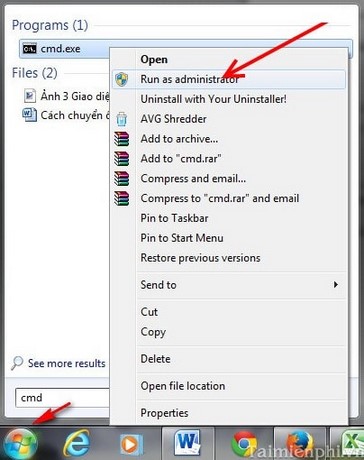
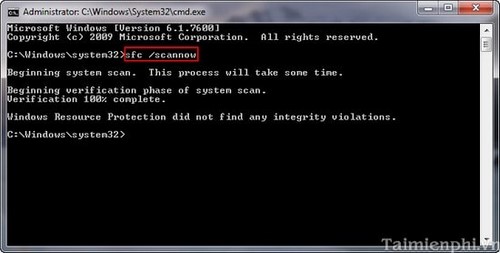
System File Checker verifies protected Windows system files and replaces corrupt copies when possible. It can help repair Windows after file corruption, but its result does not assess SSD wear, platter damage, SMART attributes, or the health of a separate data disk.
Interpret the combined evidence
| Finding | Recommended response |
|---|---|
| No warnings, stable counters, and vendor test passes | Keep normal backups and monitor periodically; no tool can guarantee future reliability. |
| File-system errors only, hardware tests pass | Back up, repair the file system, investigate unsafe shutdowns, and watch for recurrence. |
| Rising pending, uncorrectable, reallocated, or media-error counts | Back up or image the drive and replace it; do not rely on a temporary remap. |
| Critical SMART/NVMe warning or failed vendor test | Minimize use, preserve data, save the diagnostic code, and start warranty or replacement steps. |
| Drive clicks, vanishes, or repeatedly resets | Stop stress tests. Check connection once, then use recovery-oriented imaging or professional recovery for valuable data. |
Learn why software cannot physically repair damaged media in the guide to bad sectors and unreadable data. For continuous logging and alerting, the Hard Disk Sentinel setup guide provides another monitoring option.
Related Articles
 5 Ways to Check Hard Drive Effectively to Help Periodically Check11 minutes read
 8 Effective Ways to Check Your Hard Drive to Periodically Check18 minutes read
 3 How to Check the Working Status of the Hard Drive4 minutes read
 Check the Health Status of Your Hard Drive3 minutes read
 Hard Drive Check: How to Check Hard Drive Health in 3 Ways4 minutes read
 Steps to Check SSD Status on macOS5 minutes read
Reader Comments 0
Sign in with email or Google to join the discussion.