Table of Contents
Your old phone can still handle a lot of useful tasks, so instead of letting your devices collect dust, turn them into something practical: a security camera.
Most of us upgrade to newer models for better cameras, better performance, or better software support—but the truth is, our older phones can still handle plenty of useful tasks. They have good cameras, good processors, and Wi-Fi connectivity, making them perfect candidates for smart home roles. So instead of letting your devices collect dust, turn them into something practical: a security camera.
Planning
Select specialized tools
To start this project, the author decided to choose the Galaxy A15, since the iPhone 11 occasionally has reboot problems, which, as you can see, is not at all suitable for a security camera.
The next step is to find the right apps to help get the job done, otherwise it will take many work. As you might expect, there are many apps that can help turn your phone into a security camera. After trying out a few different options, AlfredCamera finally stood out as the perfect app to meet the needs.
- Get Alfred for Android | iOS (Free, in-app purchases available)
Plan to reuse old phones
How to recycle old phones
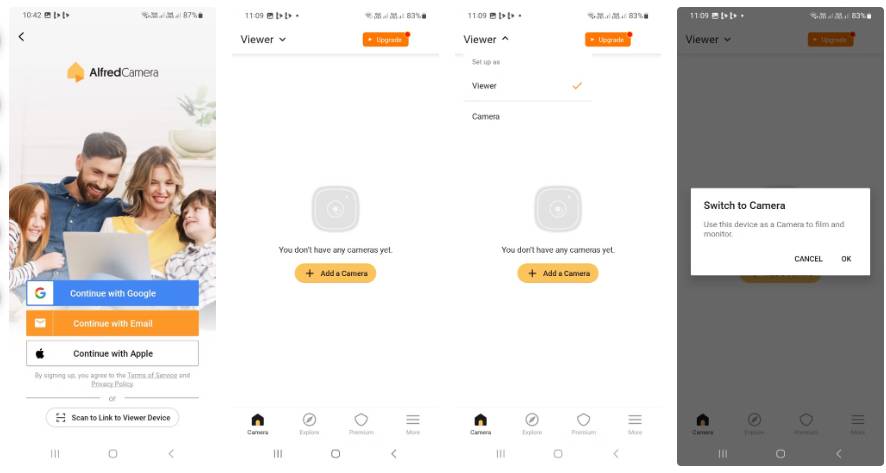
Once you've completed the above steps, setting up AlfredCamera is easier than it sounds. It's essentially a two-step process: You set up a camera device, and then a secondary device to access the camera feed. Your old phone is being used as a security camera, so launch the app and sign up for an account using your email. Some people avoid social logins whenever possible, but you can use it for convenience.
Once you've logged in and completed the login screen, you'll be taken straight into the app. The default mode after logging in is Viewer , so you'll need to tap the top left corner to switch to Camera , then tap OK To confirm the action.
Next, grant AlfredCamera the necessary permissions, including microphone and camera. Tap Continue , then select While using the app From the pop-up window to give the app access to your camera and microphone. Finally, you'll be asked to grant the app permission to display over other apps (this is important, as it ensures AlfredCamera can work even when the screen is locked).
Tap Give access And enable AlfredCamera in the Settings App, then go back. When you go back to the app, you'll be able to see whatever's in front of your phone through the app. However, with AlfredCamera, you can also switch the app to use the selfie camera instead of the rear camera.
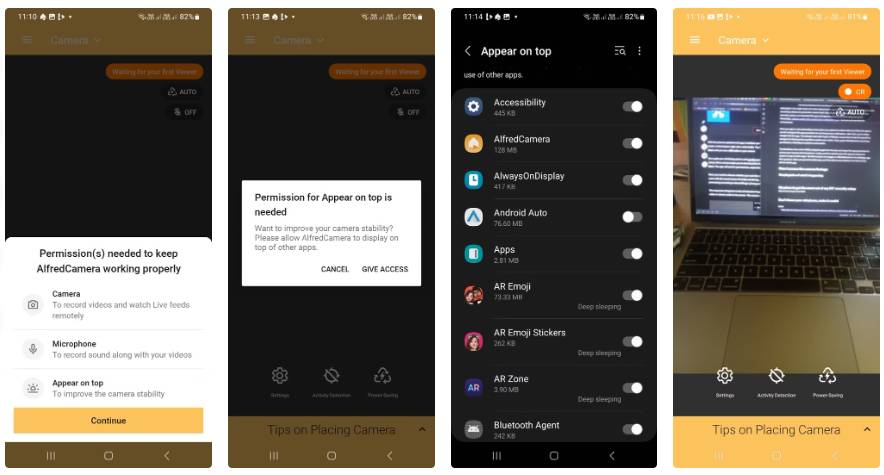
Once you've set up your camera, you can enable Activity Detection From the live video feed screen to ensure you get alerts whenever an object moves in your field of view.
Find the perfect position for the camera
This is a little harder than you might expect.
The next challenge is where to place the device after setting up AlfredCamera. After all, there are many places you can install a smart camera. If you want to keep an eye on things going on outside, especially around the gate, it is recommended to place it on a windowsill facing out. That way, you can monitor any movement or cargo without stepping outside.
The hardest part is finding the right angle to minimize glare from the sun and reflections on the glass. It is recommended to have it tilted slightly. This also solves the problem of night vision because there is a security light right above the window where the device is located.
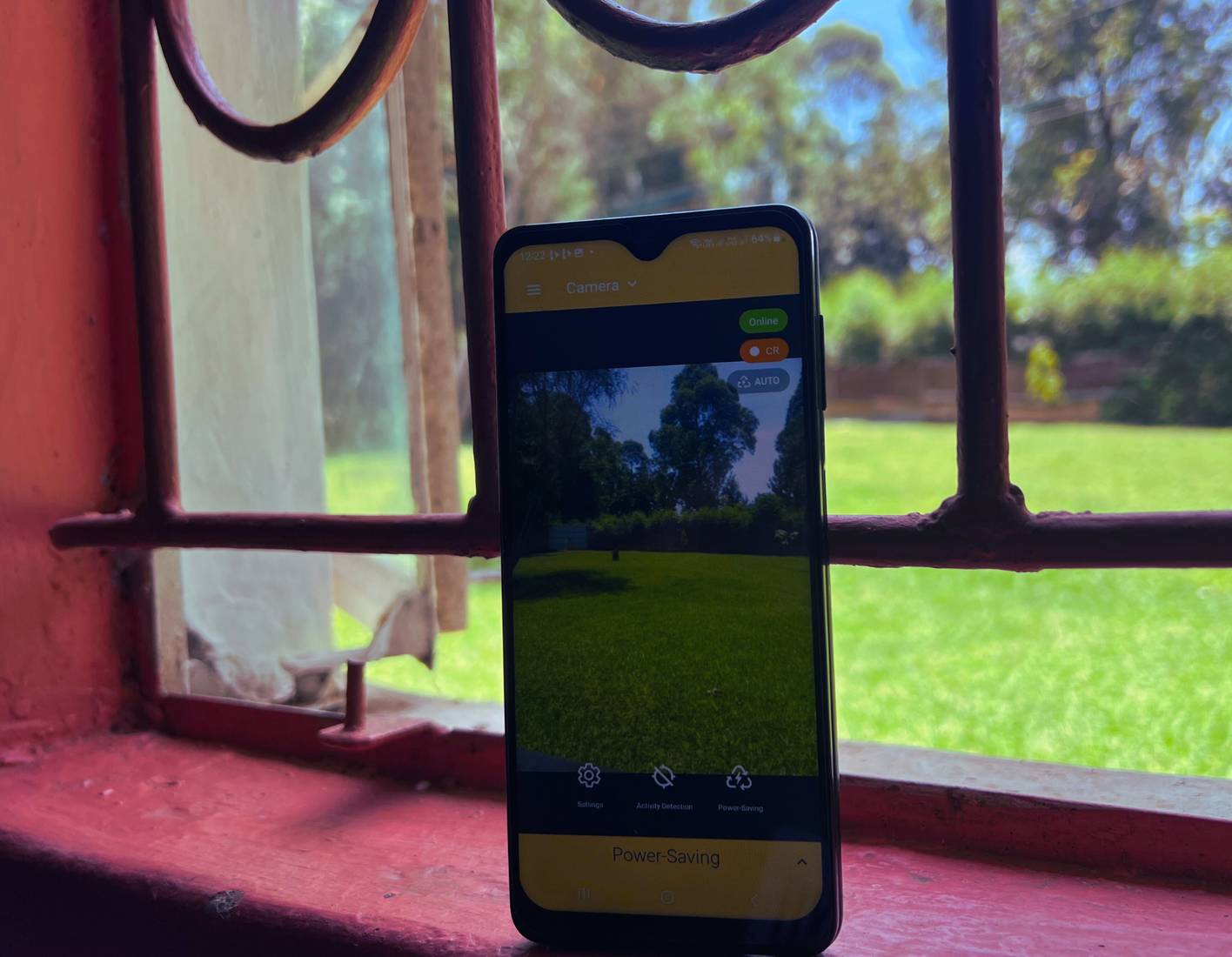
The final challenge is charging. For security cameras, You should make sure they always work. To do this, use a power bank to ensure the device always has power, if there is no power outlet nearby to plug in the charger. It is not perfect, but it works well.
Access footage from camera
Use AlfredCamera to keep an eye on what's going on
Once the camera device is ready, the next step is to set up a secondary device so that you can access the camera feed. Similar to the Galaxy A15, You should download the AlfredCamera app to the viewing device. For the viewing phone, you just need to log in with your email and password. Once logged in, the app will prompt you to allow it to find the device on the local network.
After tapping Allow , the app automatically receives your security feed. However, you don't need to be in the same location as your security camera to view your feed - you can view it from anywhere as long as the primary device is connected to the internet. Once connected, you can open the app at any time to view the live feed in the Camera Tab.
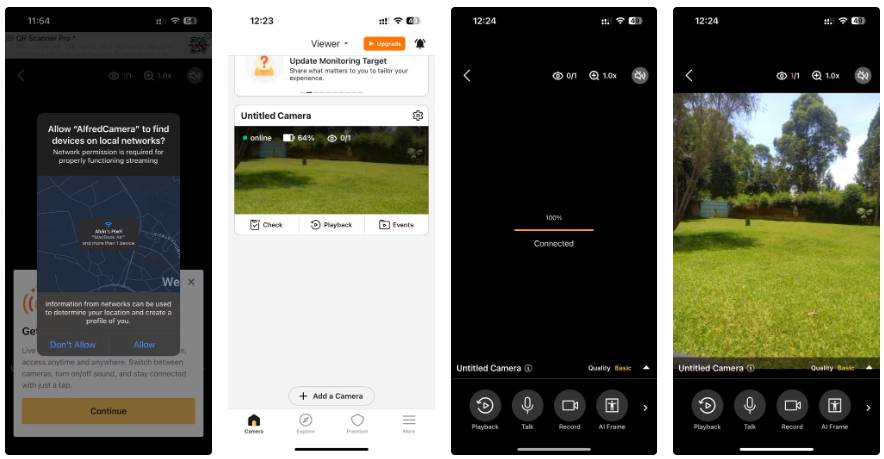
In the Camera Tab, you can view the camera feed in thumbnail mode. You can see whether the camera device is online and its battery percentage. Below the thumbnail camera feed is a strip of three buttons: Check, Playback, and Events. The Check Option shows the camera's status, including network connection reports and charging status. The Events Option shows recorded events, such as animals, moving vehicles, sounds, etc., while the Playback Button shows you a playback of up to 8 hours of recorded footage.
You can tap on the camera thumbnail at any time to view the live feed. While viewing the live feed, AlfredCamera gives you a variety of options. You can view recordings, turn on the security camera phone's flashlight, talk through the camera device, play a siren sound, switch camera views, record the current feed, and more. However, keep in mind that while the app is free to download, some features like playback and HD camera feed will require a fee.
FAQ
How do you turn your old phone into a security camera: step-by-step guide?
In practical terms, your old phone can still handle a lot of useful tasks, so instead of letting your devices collect dust, turn them into something practical: a security camera.
What should you check before getting started?
Review the requirements, compatible device or software version, and any warnings described in the guide before making changes.
What should you do if the steps do not work?
Repeat the steps in order, confirm that your app or system is up to date, and review the troubleshooting details provided above.
Related Articles
 How to Turn Your Android Phone into a Surveillance Camera?6 minutes read
 How to Set Up Security Cameras That Can Be Accessed Remotely7 minutes read
 How to Turn Off the Camera Shutter Sound on Samsung Phones5 minutes read
 How to Use IVCam Turns Your Phone Into a Computer Webcam3 minutes read
 How to Install a Wired Security Camera System11 minutes read
 How to Turn Off Audio Capture on iPhone Lock iOS 104 minutes read
Reader Comments 0
Sign in with email or Google to join the discussion.