Table of Contents
Explore 3 built-in Windows file repair tools you need, including the key concepts, practical examples, important considerations, and useful guidance.
Using SFC to fix basic file errors
When you suspect corrupted system files, you can immediately use the SFC (System File Checker) tool. You need to open Command Prompt as administrator , then type sfc /scannow and press Enter .
- Use the SFC scannow command to fix system file errors
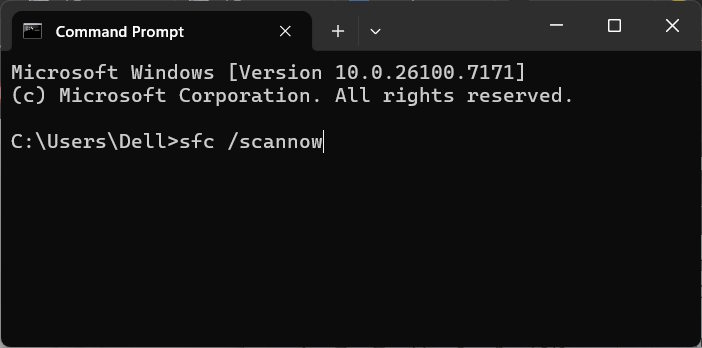
The scan will complete with a message saying no problems, errors found and fixed, or some errors that could not be fixed.
Use DISM to fix Windows component store errors
Windows component store is a folder that contains important Windows system files, used to repair, update, and install operating system components.
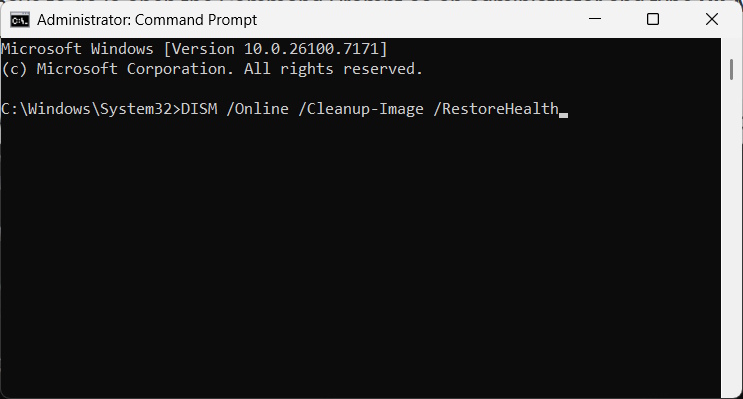
In case you use SFC but it reports an error and no problem is found, you can use DISM.
We open Command Prompt as Admin then enter DISM /Online /Cleanup-Image /RestoreHealth .
- Instructions for using DISM to fix Windows 11 errors
Fix computer boot file errors
Windows 11 has a feature called Windows Recovery Environment (WinRE) . You don't need to do anything to access it if your computer won't boot. WinRE will launch automatically after three failed boot attempts. All you have to do is click the Startup Repair option and follow the instructions.
This will determine what is causing Windows to fail to boot and fix the problem.
- What is Windows Recovery Environment? How does WinRE work?
Final Thoughts
Understanding 3 built-in windows file repair tools you need makes it easier to evaluate the information and apply the most relevant recommendations. Focus on the key points above and verify details that may change over time.
FAQ
What is 3 built-in windows file repair tools you need?
Explore 3 built-in Windows file repair tools you need, including the key concepts, practical examples, important considerations, and useful guidance.
What key points does this article cover?
The article focuses on Using SFC to fix basic file errors, Use DISM to fix Windows component store errors, Fix computer boot file errors, with practical explanations and examples.
How can you use this information in practice?
Use the explanations to compare options, verify important details, and make a more informed decision. Apply the recommendations that best match your goals and situation.
Related Articles
 10 Best Tools to Repair Corrupted Windows Files13 minutes read
 Top 5 Best Kits for Professional Car Mechanics6 minutes read
 8 Tools Built Into Windows You May Not Know Yet11 minutes read
 How to Use Windows Repair to Fix Windows Errors6 minutes read
 How to Recover a Corrupted Zip File with ZIP Repair from5 minutes read
 Where to Buy Motorcycle Repair Tools Cheap, Quality?5 minutes read
Reader Comments 0
Sign in with email or Google to join the discussion.