Table of Contents
Explore Windows update rolled back? here's how to fix it, including the key concepts, practical examples, important considerations, and useful guidance.
Error from Windows update itself
Microsoft sometimes releases updates that are faulty and can cause system problems. When this happens, your computer installs the update, fails after it has been installed, and then reverts the changes every time you restart.
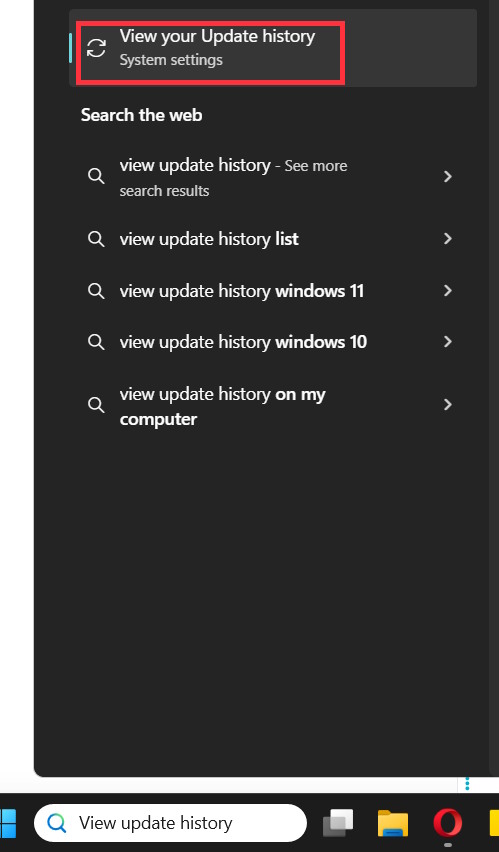
Type View update history into the search bar and write down the KB number of the update that is being installed and causing the error.
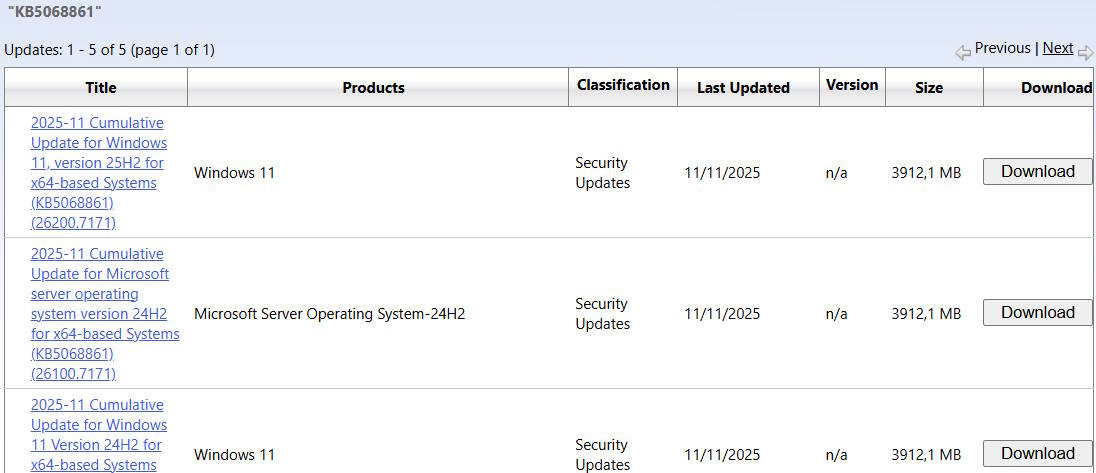
Next, go to the Microsoft Update Catalog and find the update version you noted to see if anyone else has this error. If there is an error, you can pause Windows Updates until Microsoft releases a fix.
Use some preliminary repairs
Before diving into the system, you can use some preliminary fixes below:
- Temporary error from the update then try reinstalling to check if the error occurs again.
- Low storage space can also cause updates to fail or repeatedly cancel.
- Start your computer in Safe Mode and perform the update in this mode.
Fix corrupted system files from Windows update
Windows has two built-in tools to check system files for corruption or missing files.
SFC scans your system for corrupted or changed files and restores them to their correct versions.
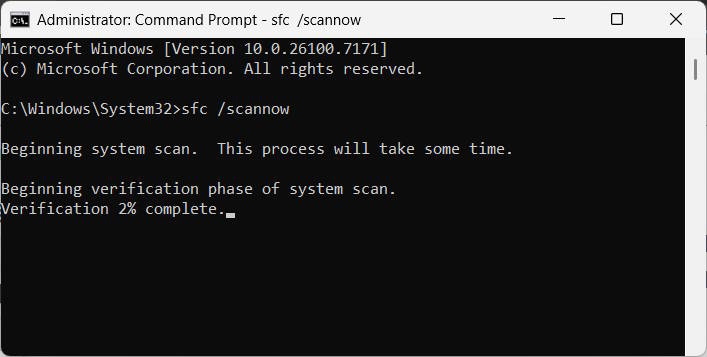
We type Command Prompt in the search bar and open it with Run as Administrator .
We enter the command sfc /scannow then wait for the process of searching for corrupted files to complete and follow the instructions displayed on the computer.
If SFC doesn't completely resolve the issue, use DISM.
We enter the command below to check the system.
DISM /Online /Cleanup-Image /RestoreHealth
After these scans are complete, restart your computer and try installing the update again. If corrupted files were the cause of the problem, this should fix the problem.
- Instructions for using DISM to fix Windows 11 errors
Update or remove problematic drivers
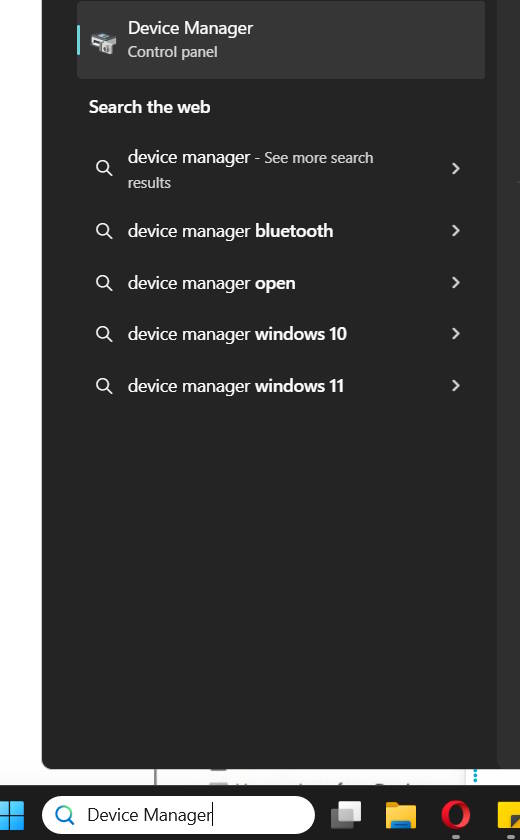
Driver conflicts can also cause Windows updates to fail. Type Device Manager in the search bar, then find the faulty driver and update it.
If updating the driver doesn't fix the problem, select Uninstall Device. Then restart your computer and Windows will automatically install a compatible driver.
Reset Windows updates
Sometimes, Windows updates can be canceled, rolled back if the update components are faulty. We need to run PowerShell as Admin. Then enter the following commands one by one to stop the update services.
net stop wuauserv
net stop cryptSvc
net stop bits
net stop msiserver
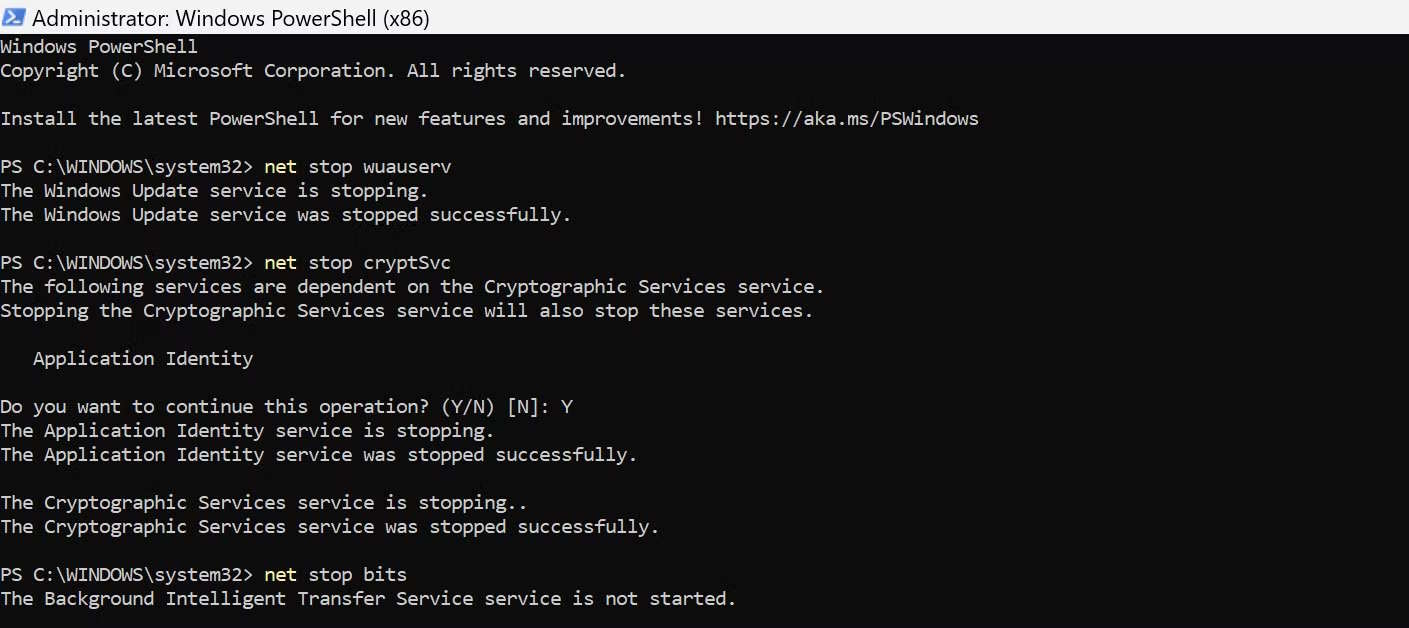
Then, restart the update service using the following commands:
net start wuauserv
net start cryptSvc
net start bits
net start msiserver
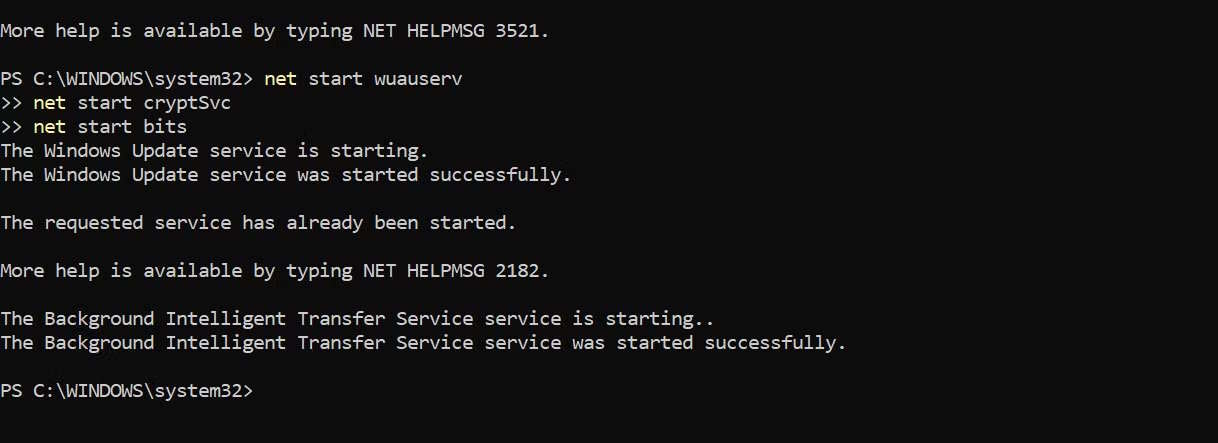
Using Clean Boot Windows
Sometimes third-party services interfere with Windows updates, causing them to fail or be rolled back. Clean Boot will start your system with essential Microsoft services and temporarily disable any other services that might be causing conflicts.
- How to Run and Stop Clean Boot on Windows 11
Final Thoughts
Use this guide as a practical checklist for windows update rolled back? here's how to fix it. Work through the steps in order, verify each result, and adjust the options to match your needs.
FAQ
What do you need before following this Windows Update Rolled Back? Here's How to Fix It guide?
Review the required tools, accounts, settings, or materials mentioned in the article. Explore Windows update rolled back? here's how to fix it, including the key concepts, practical examples, important considerations, and useful guidance.
What are the main steps for windows update rolled back? here's how to fix it?
Follow the sections in order, especially Error from Windows update itself, Use some preliminary repairs, Fix corrupted system files from Windows update. Complete each step before continuing and verify the result as you go.
What should you do if the process does not work as expected?
Recheck the prerequisites, update the relevant app or service, review the settings, and repeat the step that caused the issue. Use any troubleshooting notes included in the guide.
Related Articles
 How to Roll Back to Windows 11 23H2 Update3 minutes read
 Steps to Roll Back to Windows 10 from Windows 11 Insider4 minutes read
 Google Has Rolled Out a Complete Desktop Page Experience Update2 minutes read
 Windows Media Player Disappears on Windows 10? This Is How to3 minutes read
 How to Roll Back Windows 11 Updates3 minutes read
 Microsoft Releases Windows 11 Update to Fix Error KB50124634 minutes read
Reader Comments 0
Sign in with email or Google to join the discussion.