Table of Contents
This updated guide explains how to roll back Windows 11 updates with clear steps, practical tips, and useful context. Windows updates can affect your computer's performance, causing it to run slower or applications to stop working. If your computer has just installed a Windows 11 update but there are some errors, you can completely restore the Windows 11 update.
Restore Windows 11 Updates via Settings
Step 1:
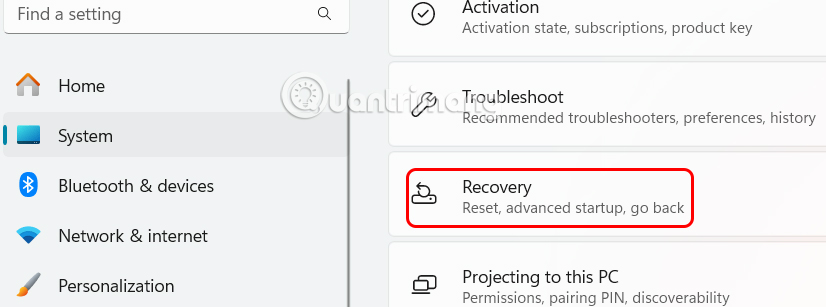
You press the Windows + I key combination to open Settings , then you select System . Look at the content next to it, you choose Recovery to use.
Step 2:
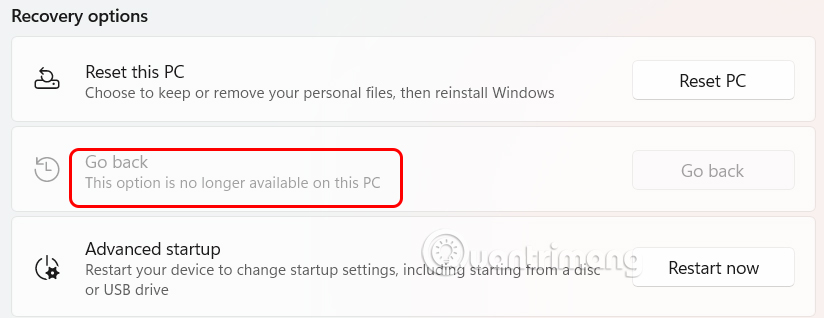
Switch to the new interface, find the Recovery options group and find Previous version of Windows. If the Go Back button is lit, just press it to restore the Windows 11 update .
Windows will ask why you want to roll back to the previous update, we enter the reason to perform the restore according to the instructions.
Restore Windows 11 Update via Recovery Mode
If the 10 day limit has passed or the Go Back button is greyed out, You need to use Recovery Mode. This is useful if the system will not boot properly.
Step 1:
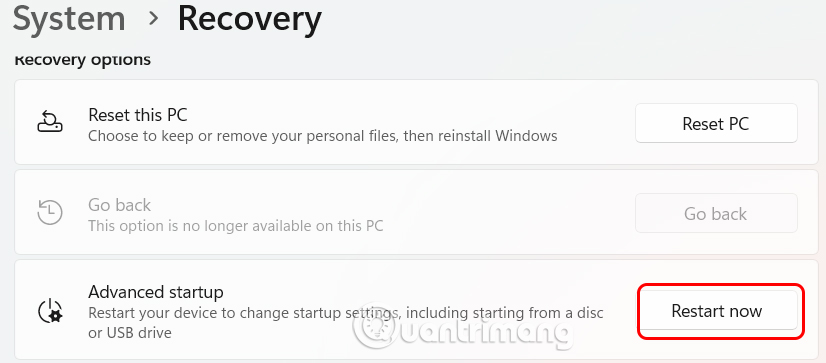
You also access Settings on Windows 11, then select System and select Recovery . If the computer does not boot normally, turn it on and off quickly three times. This will activate recovery mode.
Step 2:
Click Restart now in the Advanced startup option. Then choose Troubleshoot to fix the error and choose Advanced options. Now you select Uninstall Updates to uninstall the update.
The system will have 2 options to uninstall the update including Uninstall Latest Quality Update and Uninstall Latest Feature Update.
FAQ
What should I prepare before I roll back windows 11 updates?
Review the requirements and options in the guide first. Having the correct device, app version, account access, or materials ready helps prevent avoidable errors.
How long does it take to roll back windows 11 updates?
The time depends on the task and your setup. Most basic steps can be completed quickly, while downloads, updates, scans, or troubleshooting may take longer.
What should I do if the steps do not work?
Repeat the instructions in order, confirm that your software or device is supported, and check permissions, connectivity, and available updates before trying again.
Related Articles
 How to Roll Back to Windows 11 23H2 Update3 minutes read
 Steps to Roll Back to Windows 10 from Windows 11 Insider4 minutes read
 How to Stop Windows Updates on Your PC10 minutes read
 Click: How to Downgrade from Windows 104 minutes read
 Microsoft Unexpectedly Extended the Vacation Time for Some3 minutes read
 How to Disable Windows 10 Updates9 minutes read
Reader Comments 0
Sign in with email or Google to join the discussion.