Table of Contents
This practical guide explains how to roll back to Windows 11 23h2 update. Follow the steps in order, review the requirements first, and use the troubleshooting notes when a setting or option does not work as expected.
Instructions to roll back to Windows 11 23H2 update
It is important to back up all important files, accounts, and login information before proceeding.
Restoring the system software requires booting and installing the previous version from a USB or external drive. To find the ISO for Windows 11 23H2, click the link below.
- Download Windows 11 23H2 ISO
Next, you need to create a bootable USB or DVD (if you have a drive). You can do this through the Diskpart program or the PowerShell utility, with scripts that can be found on the Microsoft website at the link below.
- Create installation USB or DVD
Finally, restart your computer and press the required key (F2, F11, F12 or Del) to enter BIOS and boot from USB or DVD. Select your USB and BIOS will boot and reinstall 23H2 into your computer.
Back to Windows 11 23H2 in 10 days
Microsoft allows Windows users to roll back to the previous version within 10 days.
Step 1:
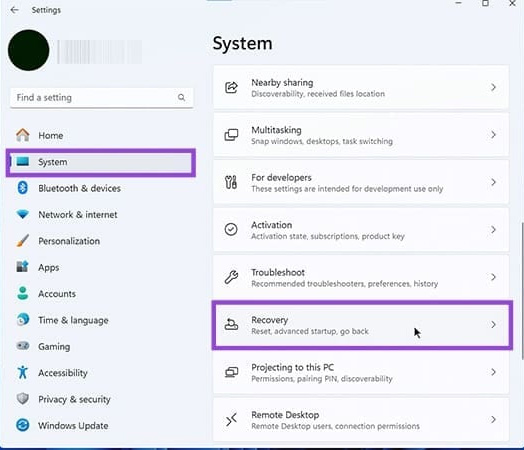
Press Windows + I to open Settings , then select System , then look to the side and click Recovery in the content next to it.
Step 2:
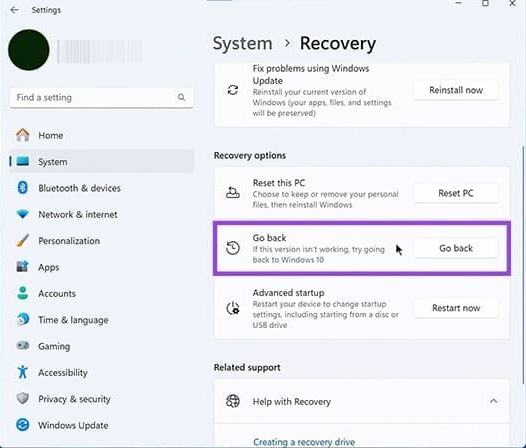
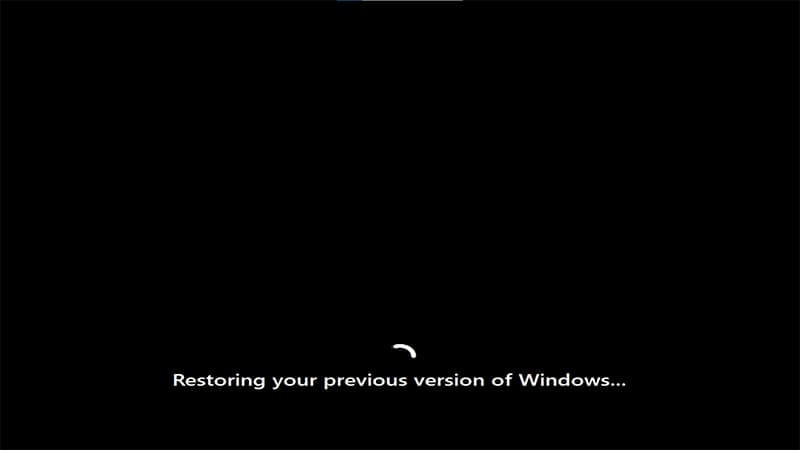
Switch to the new interface, click Go Back to return to the most recent software version, which can be Windows 10 or 23H2. Then enter the reason for wanting to return to the previous version. Confirm your choice one last time and the restore process will begin.
Be careful not to turn off the machine or interrupt the process during this time.
FAQ
What should you know about instructions to roll back to Windows 11 23H2 update?
It is important to back up all important files, accounts, and login information before proceeding.
What should you know about back to Windows 11 23H2 in 10 days?
Microsoft allows Windows users to roll back to the previous version within 10 days.
What does this guide cover?
This guide explains roll back to Windows 11 23h2 update, including the main steps, important details, and practical considerations.
Related Articles
 Ghost Windows 11 23H2 NoSoft and Full Soft, Update November 2023 Explained4 minutes read
 File Explorer: Complete Guide4 minutes read
 Download Ghost Windows 11 23H2 Update 2024: Key Facts4 minutes read
 Microsoft May Stop Supporting Windows 11 Version 23H2 (Sun Valley 3)3 minutes read
 How to Roll Back Windows 11 Updates3 minutes read
 The First Information About Windows 11 23H2 (Sun Valley 3) Appeared3 minutes read
Reader Comments 0
Sign in with email or Google to join the discussion.