Table of Contents
Windows 11 dark mode has historically been inconsistent because several legacy dialogs continued to use bright backgrounds even when the system theme was set to dark. Recent Dev and Beta test builds reportedly extend dark styling to more file-operation dialogs, creating a more consistent experience when copying, moving, deleting, or viewing file properties.
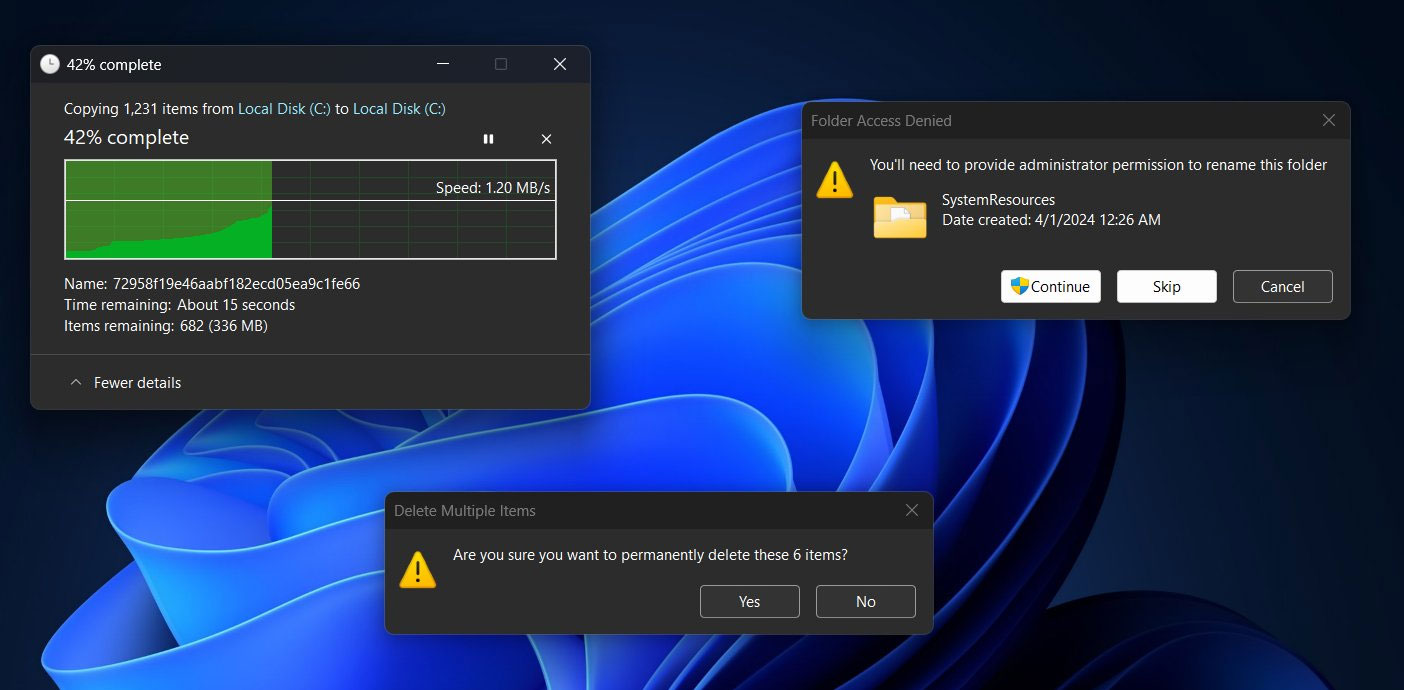
What changed in Windows 11 dark mode
Technology researcher @phantomofearth reported that newer Windows 11 preview builds include dark mode support for additional legacy file dialogs. Microsoft may continue adjusting buttons, controls, and visual details before releasing the change broadly.
How to enable the experimental dark dialogs with ViVeTool
Warning: ViVeTool exposes experimental Windows features that may be incomplete or unstable. Create a restore point and back up important data before changing feature IDs.
- Download ViVeTool from its official GitHub repository and extract it to an easy-to-find folder, such as
C:ViveTool. - Open Command Prompt as an administrator.
- Navigate to the extracted folder, for example:
cd C:ViveTool. - Run the following command:
vivetool /enable /id:57857165,57994323,48433719- Restart the computer.
If the feature IDs are still supported by your build, additional Windows 11 dialogs should follow the dark theme after the restart. Because preview features change frequently, the command may stop working or the feature may become available through Windows Update instead.
What Windows 11 dark mode still needs
A more consistent theme across legacy components is an important improvement. Many users would also benefit from a built-in schedule that automatically switches between light and dark themes without requiring a third-party application.
Final Thoughts
The development covered in this article is worth following, but specifications, dates, and feature details may change until the relevant company or organization publishes an official confirmation.
FAQ
What is the main development covered in this article?
Windows 11 dark mode has historically been inconsistent because several legacy dialogs continued to use bright backgrounds even when the system theme was set to dark.
What should you know about What changed in Windows 11 dark mode?
Technology researcher @phantomofearth reported that newer Windows 11 preview builds include dark mode support for additional legacy file dialogs. Microsoft may continue adjusting buttons, controls, and visual details before releasing the change broadly.
Is every reported detail officially confirmed?
Not necessarily. Product leaks, preview builds, research reports, and early announcements can change. Confirm important specifications, dates, and availability through an official source before making a decision.
Related Articles
 How to Activate Dark Mode on Windows 10?4 minutes read
 Why Doesn't Dark Mode Help Improve Battery Life on Your Laptop?6 minutes read
 How to Use Mojave's Dark Mode on Mac Right Now?5 minutes read
 What Is the Dark Mode (Dark Mode)? Benefits and Harms That Dark8 minutes read
 How to Turn on, Activate the Dark Mode on Windows 10 Dark Mode2 minutes read
 How to Turn on Dark Mode on Chrome?4 minutes read
Reader Comments 0
Sign in with email or Google to join the discussion.