What you will learn
- Check Windows Update status and identify pending actions.
- Distinguish quality, feature, driver and optional updates.
- Set active hours and restart timing without permanently disabling updates.
- Capture an update error code and prepare safe first-line troubleshooting evidence.
What you need
- A Windows 10 or Windows 11 PC with internet access.
- The device connected to reliable power for installation and restart.
- At least several gigabytes of free space before a large feature update.
Understand what Windows Update may deliver
Microsoft describes Windows Update as the supported service for installing quality and feature updates. Quality updates commonly include security and reliability fixes, while feature updates can introduce a new Windows release. Driver and other optional updates may appear separately and should be installed for a specific need rather than selected automatically.
An update can be downloaded, pending installation, pending restart, paused or failed. Those states require different actions. Repeatedly clicking Check for updates does not solve a restart requirement or a storage shortage. Read the status line and any error code before changing settings.
Run a controlled update cycle
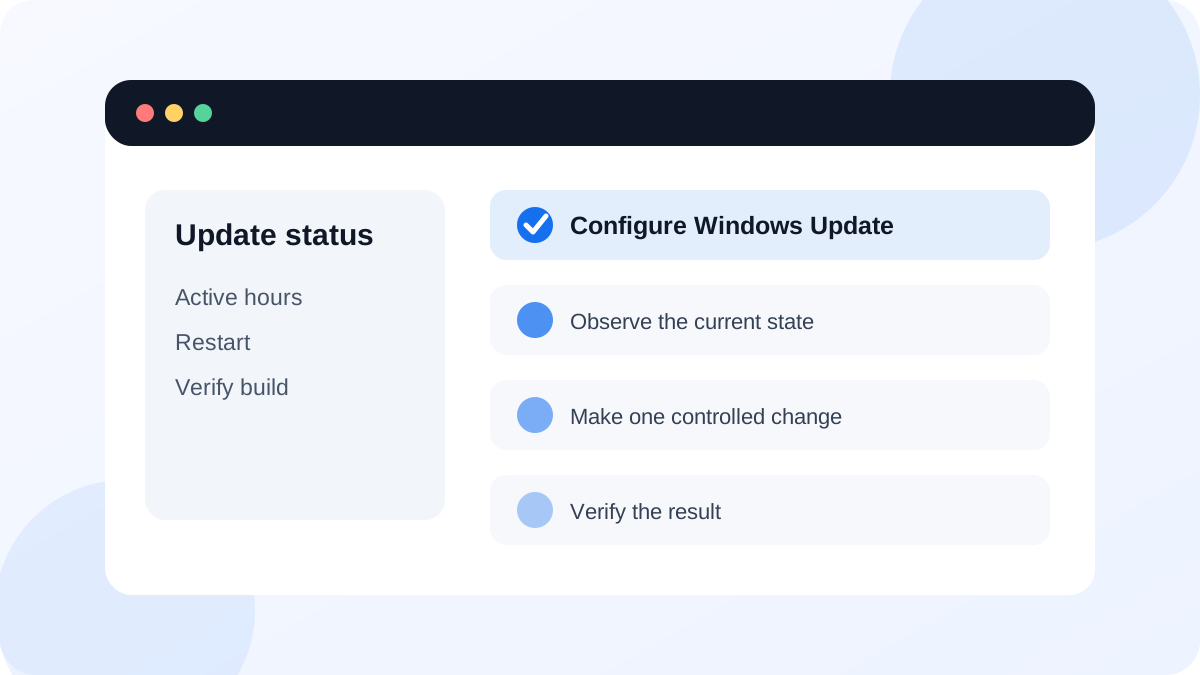
Open Settings > Windows Update. Note the last checked time, current status and whether a restart is required. If updates are available, keep the PC connected to power and a stable network. Save open work before installation because the device can restart more than once.
Active hours help Windows avoid automatic restarts during your usual working time. They are a scheduling control, not an update blocker. Microsoft also provides restart options so you can choose a suitable time after an update is ready.
- 1
Press Windows + I and open Windows Update.
- 2
Record the status, last checked time and any displayed update name or error code.
- 3
Confirm the system drive has adequate free space and the device is connected to power.
- 4
Open Advanced options and review Active hours.
- 5
Install normal security and quality updates, then save all work before restarting.
- 6
After restart, return to Windows Update and confirm the status is current.
Treat optional updates as targeted tools
Optional driver updates can help when a known device problem matches the offered driver, but a working device does not need every optional driver immediately. Prefer the PC or hardware manufacturer's supported driver when Microsoft or the manufacturer specifically identifies it for your model. Create a restore point before a driver change that could affect display, storage, network or input.
Preview or optional non-security updates can contain fixes that will later arrive more broadly. On a production or essential PC, read the description and release notes before installing them. Do not install a list of optional items simultaneously when troubleshooting because you will lose the ability to identify which change mattered.
- Windows Update reports no required restart or clearly schedules one.
- Active hours match the device's normal use.
- Optional drivers were selected only for a documented reason.
- The Windows edition and version are still within an appropriate support path.
Troubleshoot from the exact failure state
Microsoft's Windows Update FAQ and troubleshooting guidance recommend checking connectivity, free space, restart state and the specific error before escalating. Update history can show which item failed and when.
Start with one restart, a stable connection and adequate storage. Run the built-in Windows Update troubleshooter where available. If the same error returns, record the hexadecimal or numeric code, update identifier, timestamp and recent system changes. Avoid registry edits, service-disabling scripts and cache-deletion commands copied from unknown websites until official steps for that exact error have been reviewed.
Complete and document one update cycle
Update a non-critical PC or review its current status, then create a record that can support future troubleshooting.
- 1
Record Windows edition, version and OS build.
- 2
Capture the Windows Update status before making changes.
- 3
Review active hours and restart timing.
- 4
Install required quality updates and restart if requested.
- 5
Return to Windows Update and record the final status and new build.
Common mistakes to avoid
- Pausing updates indefinitely instead of solving a scheduling or compatibility issue.
- Installing every optional driver at once on a working PC.
- Starting a feature update with low battery, unstable power or insufficient space.
- Troubleshooting without recording the exact code and failed update name.
Key takeaways
- Windows Update status tells you whether to download, install, restart or troubleshoot.
- Active hours manage restart timing; they do not replace security updates.
- Optional updates should solve a specific documented need, and support lifecycle must be checked.
Frequently asked questions
Should I install optional driver updates?
Install one when it addresses a known device problem or is recommended for your exact model. A stable device usually does not need every optional driver immediately.
Can I keep using Windows 10 after October 14, 2025?
The system can still run, but free security support ended. Evaluate Windows 11 eligibility, Microsoft's available extended-security options or device replacement based on risk and business needs.
Sources and further reading
- Install Windows updatesMicrosoft Support
- Keep your PC up to date with active hoursMicrosoft Support
- Windows Update FAQMicrosoft Support
Ready to continue?
Mark the lesson complete so your Learning Path progress stays current on this device.