Table of Contents
Microsoft Store has replaced its permanent automatic-update Off switch with a temporary pause option. Microsoft's current instructions allow a pause of one to five weeks, after which eligible Store app updates resume automatically.
This is a Microsoft Store app setting. It is separate from the Windows Update controls for the operating system, and it does not describe every desktop application's updater.
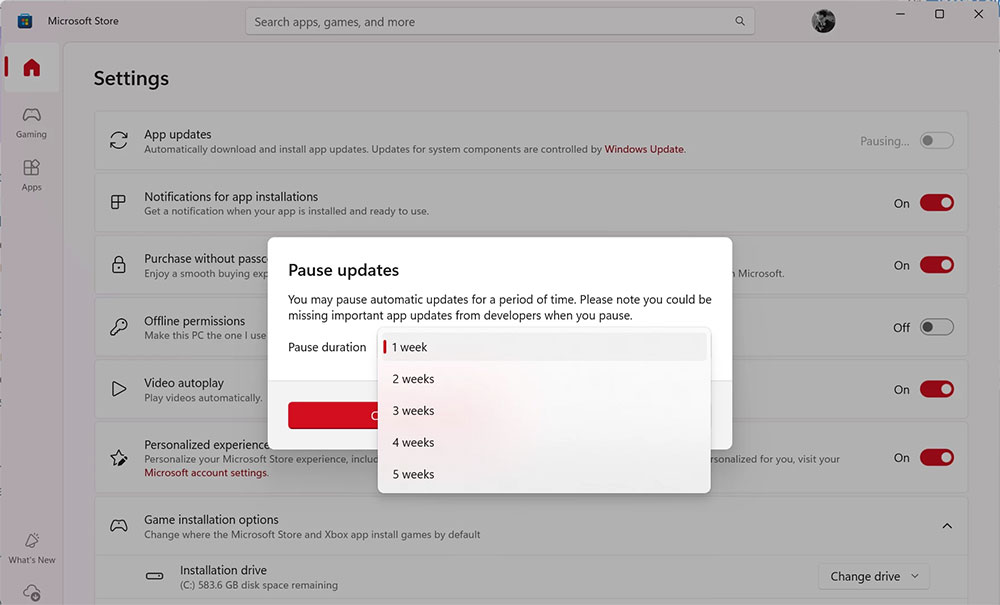
How to pause Store app updates
- Open Microsoft Store.
- Select your profile picture, then Store Settings.
- Find App updates and select the pause option.
- Choose the available duration and note when updates will resume.
You can still check for and install an update manually while automatic updates are paused. Look in the Store's Downloads or Library area; the wording can vary with the installed Store version.
These steps follow Microsoft's Store update guidance. It also notes that an organization's administrator may control the settings, and some publishers update their apps directly.
When a pause is useful
A short pause can help when traveling with limited connectivity or avoiding an app change immediately before a presentation. Set a reminder to review the app afterward instead of leaving an important update indefinitely unattended.
If you previously disabled updates, inspect the current setting rather than assuming the old preference remains in force. On a managed PC, ask the administrator about the policy instead of trying to bypass it.
Do you need to download apps outside the Store?
No. A different download source is not automatically a better way to manage updates. A publisher's installer may have its own automatic updater, and moving between editions can affect settings, licensing, or app data.
Choose a distribution channel based on the application's requirements and a verified source. See how to download apps safely before switching installers.
If an update fails
A pause control cannot repair a failed download or licensing error. Record the exact error and confirm the account that owns the app. For example, Store error 0x803F8001 calls for a licensing-focused check rather than repeatedly toggling updates.
Avoid disabling Store services or scheduled tasks as a routine workaround; it can interfere with installation and maintenance without addressing the cause.
Related Articles
 How to turn off automatic app updates in Microsoft Store
 Windows Phone 8.x and Windows 8 are no longer receiving application updates
 The Windows Store will be renamed to Microsoft Store in Windows 10
 Notepad will be moved to Microsoft Store, no longer 'lying' with Windows
 How to Turn Off Microsoft Updates in Windows XP
 Even if support is discontinued, you can still hack Windows 7 to continue receiving updates from Microsoft
Reader Comments 0
Sign in with email or Google to join the discussion.