What you will learn
- Find Windows edition, version and OS build using Settings and the winver command.
- Identify whether the system is 32-bit or 64-bit.
- Explain why edition, version and build are different and when each matters.
- Record system details without sharing a product key, device ID or other sensitive data.
What you need
- A Windows 10 or Windows 11 PC.
- Access to the desktop and Start menu.
- No administrator account is required for the checks in this lesson.
Understand the four values you are looking for
Windows edition describes the product family and feature set, such as Windows 11 Home, Pro, Enterprise or Education. Version identifies the feature release, while OS build identifies the exact servicing level installed. System type tells you whether Windows and the processor use a 64-bit or 32-bit architecture.
These values answer different questions. An app may require 64-bit Windows, a troubleshooting article may apply only to a specific version, and Microsoft support documentation may identify a known issue by OS build.
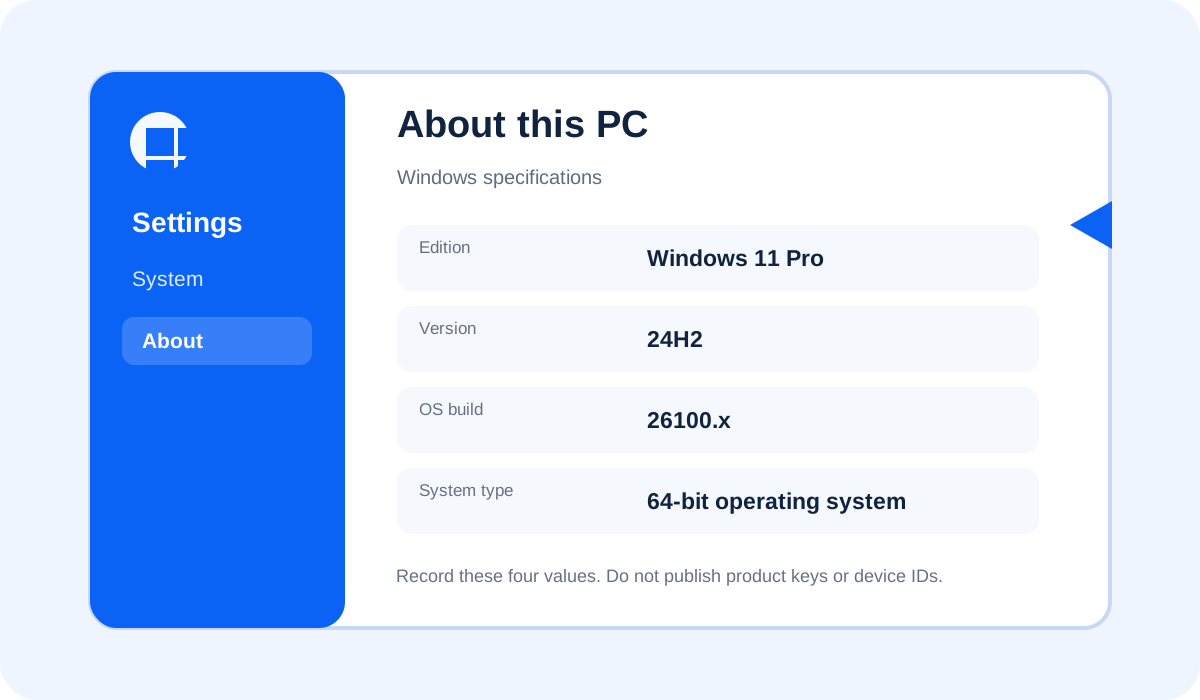
Method 1: Check in Settings
Microsoft lists Settings > System > About as the primary place to find the Windows version, edition and device specifications.
- 1
Right-click the Start button and choose Settings. You can also press Windows + I.
- 2
Select System, then scroll to the bottom and open About.
- 3
Under Windows specifications, record Edition, Version and OS build.
- 4
Under Device specifications, record System type. It will normally say 64-bit operating system, x64-based processor on a modern PC.
- 5
Do not copy Device ID or Product ID into a public forum. Those values are not normally needed to identify the Windows release.
- You can state the edition, such as Windows 11 Pro.
- You can state the version and OS build as separate values.
- You know whether the operating system is 64-bit or 32-bit.
Method 2: Use winver for a fast confirmation
The winver dialog is useful when you need a quick screenshot or want to confirm the version and build without navigating Settings. It does not show all hardware details, so use it as a confirmation method rather than a complete system report.
- 1
Press Windows + R to open Run.
- 2
Type winver and press Enter.
- 3
Read the Windows edition at the top of the dialog.
- 4
Record the version and OS build shown in the text below.
- 5
Close the dialog with OK. The command does not change the system.
Interpret the result before following instructions
Microsoft maintains a Windows 11 release information page that maps versions to supported builds and servicing dates. Build numbers change through monthly cumulative updates, so do not assume an old screenshot represents the current build.
When a guide says it applies to Windows 11, check whether it also names a version or build. Interface labels can move between releases. If your screen differs, search the official documentation for your version instead of forcing a step that does not match.
- 1
Compare the version with the requirement stated by the app or guide.
- 2
Check whether the guide is for Windows 10 or Windows 11.
- 3
For update failures or newly introduced bugs, compare the OS build with Microsoft release information.
- 4
If the PC is managed by a company or school, ask the administrator before changing update channels or editions.
When the information looks inconsistent
A PC can show a Windows 11 desktop theme while actually running another release, and compatibility tools can report different labels from the operating system itself. Trust Settings and winver before third-party utilities.
- Settings and winver show the same version and build.
- The edition matches the activation page under Settings > System > Activation.
- The recorded system type matches the installer you plan to download.
Create a safe Windows identification record
Record the minimum information needed for software compatibility and troubleshooting.
- 1
Open Settings > System > About.
- 2
Write down edition, version, OS build and system type.
- 3
Open winver and confirm the version and build.
- 4
Save the four values in a text file named windows-system-info.txt.
- 5
Review the file and remove any device ID, product ID, email address or product key before sharing it.
Common mistakes to avoid
- Calling the edition, version and build the same thing.
- Downloading a 64-bit installer without checking System type.
- Sharing a product key or full device identifier in a public screenshot.
- Assuming the newest version number is automatically available or appropriate for every managed PC.
Key takeaways
- Settings > System > About is the most complete built-in check.
- winver is the fastest way to confirm version and OS build.
- Edition, version, build and system type answer different compatibility questions.
Frequently asked questions
Does checking the Windows version require administrator access?
No. Settings and winver can normally be opened from a standard user account.
Is the OS build the same as the Windows version?
No. The version identifies the feature release; the OS build identifies the exact cumulative servicing level.
Should I post my Product ID or product key?
No. They are not required for ordinary version identification and should not be posted publicly.
Sources and further reading
- Find information about your Windows deviceMicrosoft Support
- Windows 11 release informationMicrosoft Learn
Ready to continue?
Mark the lesson complete so your Learning Path progress stays current on this device.