Table of Contents
A thermal receipt printer is a good choice when you need fast, quiet, compact point-of-sale output without ink or toner. It is not automatically the best printer for every label or document: direct-thermal receipts can fade with heat, light, friction, oils, and time, and ordinary receipt printers are not designed for full-page office work.
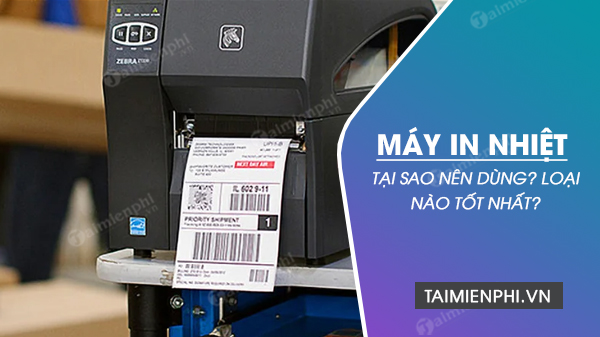
Direct thermal and thermal transfer are different
| Method | How it works | Typical use |
|---|---|---|
| Direct thermal | A heated printhead darkens coated paper; no ribbon is used. | Receipts, tickets, queue slips, and short-life shipping labels |
| Thermal transfer | Heat transfers material from a ribbon onto a label. | Longer-life inventory, product, asset, cable, chemical, and outdoor labels |
A point-of-sale receipt printer is usually direct thermal. If a barcode label must remain readable for years or withstand sunlight, chemicals, or abrasion, compare a thermal-transfer label printer instead.
Why businesses use thermal receipt printers
- No liquid ink or laser toner supply
- Fast line-by-line receipt output
- Compact mechanism and relatively quiet operation
- Easy roll loading on many models
- Support for text, logos, 1D barcodes, and often QR codes
- Cash-drawer control on compatible POS configurations
These benefits do not make operation free. Thermal paper, cutters, printheads, platen rollers, cleaning, power adapters, and downtime still contribute to total cost.
58 mm or 80 mm?
| Paper width | Advantages | Trade-offs |
|---|---|---|
| 58 mm | Smaller printer and narrower, cheaper rolls; useful for short simple receipts | Less room for product names, columns, logos, and wide barcodes |
| 80 mm | More readable columns, larger logos and codes, and a common retail/hospitality format | Larger mechanism and wider paper rolls |
Verify printable width as well as nominal roll width. An 80 mm printer does not print across the full 80 mm because margins and mechanism design reduce the image area.
Eight buying checks
- POS software and commands: confirm the application supports the printer, driver, or ESC/POS-compatible command set you will actually use.
- Interface: choose the exact USB, serial, Ethernet, Wi-Fi, or Bluetooth configuration. Product families often have different ports under similar names.
- Cash-drawer port: an RJ11/RJ12-style socket may be a powered drawer-control port, not Ethernet or a general telephone connection. Match its voltage and pinout.
- Auto-cutter: useful for high transaction volume, but it adds a service component. Confirm partial/full cut options and rated life.
- Paper roll: check width, maximum roll diameter, core, thickness, top coating, and availability of compliant paper.
- Barcode and character support: test real 1D/2D codes, language characters, fonts, and logos from your POS.
- Operating-system support: confirm current drivers or SDKs for every Windows, macOS, Linux, Android, or iOS device in the workflow.
- Service: price the printhead, cutter, platen, power adapter, and local warranty before deployment.
Representative receipt-printer classes
Xprinter XP-58IIH: basic 58 mm USB class
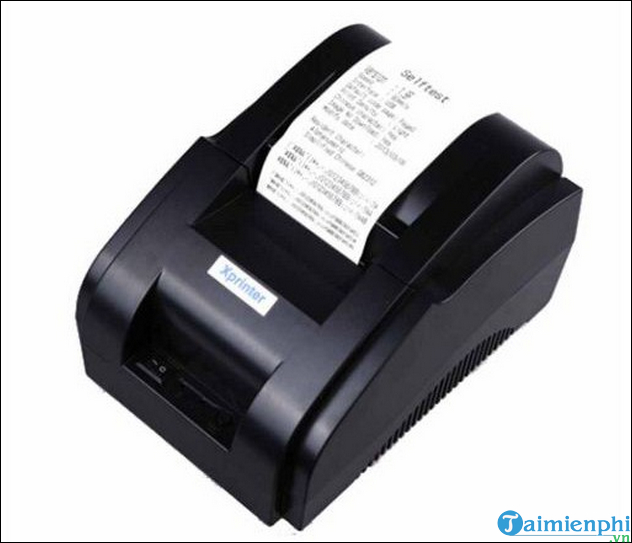
The XP-58IIH represents a low-cost, narrow direct-thermal receipt printer. Common documentation lists roughly 58 mm paper, 203 dpi-class output, ESC/POS compatibility, and versions with different interfaces.
Best fit: a small counter with short receipts and a tested USB POS application.
Verify: the exact port configuration, printable width, roll diameter, character set, driver source, cash-drawer compatibility, and whether the chosen variant has a cutter. Do not assume every listing supports macOS, Linux, Ethernet, or Bluetooth.
Epson TM-T82III: established 80 mm POS class
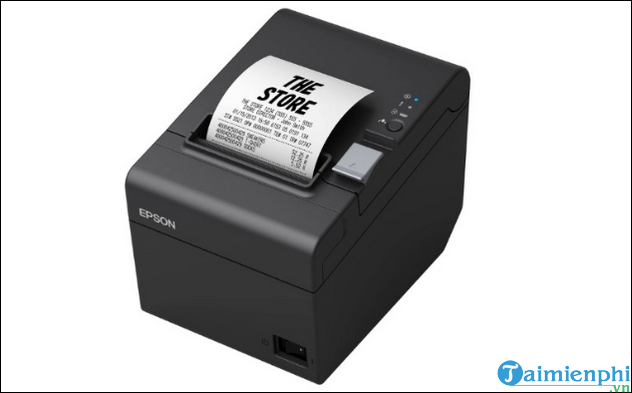
Epson specifies the TM-T82III as an 80 mm direct-thermal POS printer with up to 250 mm/s print speed in supported configurations, an auto-cutter, and interface options that vary by SKU. It suits businesses that value established POS drivers, documentation, and service.
Best fit: retail or hospitality counters with sustained transaction volume and a need for predictable integration.
Verify: whether the purchased configuration contains USB, Ethernet, serial, parallel, or an optional wireless accessory; also confirm warranty terms in your country and current OS support.
BIXOLON SRP-E302: compact 80 mm cutter class
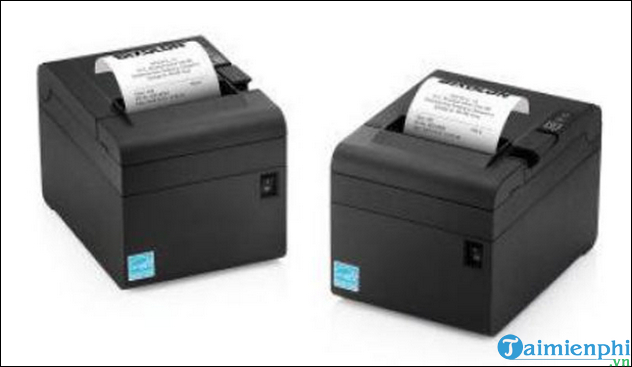
The SRP-E302 is the 203 dpi variant in BIXOLON’s SRP-E300/E302 family. Manufacturer literature describes an 80 mm direct-thermal receipt printer, print speeds up to 220 mm/s, barcode support, and an auto-cutter, with interface configurations that should be checked by full SKU.
Best fit: a compact retail, hospitality, or banking counter that needs 80 mm receipts and automatic cutting.
Verify: USB/serial/Ethernet option, wall-mount accessories, paper-saving settings, cutter specification, and the exact code-page support needed for your language.
Xprinter N160II: value 80 mm POS class
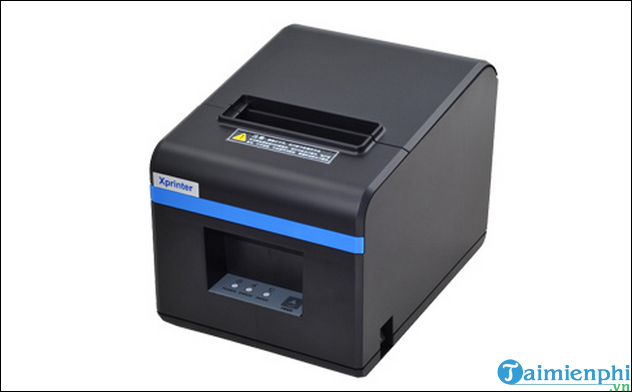
The N160II represents a lower-cost 80 mm direct-thermal receipt printer, commonly sold in USB and network or wireless variants. Listings and manuals disagree on speed and interfaces, so treat the full label on the unit—not a generic marketplace title—as the authority.
Best fit: a small business that has verified the exact model with its POS software and can obtain local support.
Verify: true interface set, cutter, roll diameter, command compatibility, driver signing, language output, warranty, and replacement power supply. Test a long receipt and a QR code before rollout.
Test before buying several units
- Install the printer using the supported driver or POS integration method.
- Print the longest real receipt with taxes, discounts, non-English text, logo, barcode, and QR code.
- Scan every code using the checkout scanner and a representative phone.
- Open the cash drawer from the POS and confirm the voltage/pinout are correct.
- Disconnect and restore power and network, then verify automatic recovery.
- Measure a busy transaction batch and check that the cutter, roll loading, and queue behavior meet expectations.
If the printer uses Ethernet, find its IP address in Windows and reserve it appropriately on the local network. For barcode-label needs rather than receipts, use the barcode and label printer buying guide. To create POS or inventory templates, see the BarTender barcode setup guide.
Thermal paper and maintenance
- Store rolls away from heat, sunlight, plasticizers, oils, solvents, and high humidity.
- Use paper approved for the printer and any food-contact, healthcare, archival, or regulatory requirements.
- Clean the printhead and platen only after cooling and only with the manufacturer’s procedure.
- Do not scrape the printhead or use sharp tools to remove adhesive.
- Keep a spare roll and, for critical counters, a tested backup printer or routing plan.
A thermal receipt printer is the right choice when its paper life, width, POS compatibility, interfaces, and service plan match the transaction. It is not a general replacement for a document printer or a durable-label system.
Related Articles
 What Is Thermal Paste?4 minutes read
 Printer Is Blurred: Causes and Solutions for Blurry Printer Problems8 minutes read
 3 Ways to Prevent GPU Thermal Throttling8 minutes read
 Inkjet (Inkjet) and Laser Printers: Which Type Is Right for You?13 minutes read
 Steps to Recheck Thermal Paste for Computer CPU10 minutes read
 Common Printer Errors and How to Fix Them15 minutes read
Reader Comments 0
Sign in with email or Google to join the discussion.