Table of Contents
UEFI (Unified Extensible Firmware Interface) is the modern firmware interface that initializes hardware and starts an operating-system bootloader. It replaces many limitations of the legacy PC BIOS model, but features and menu designs depend on the motherboard manufacturer.
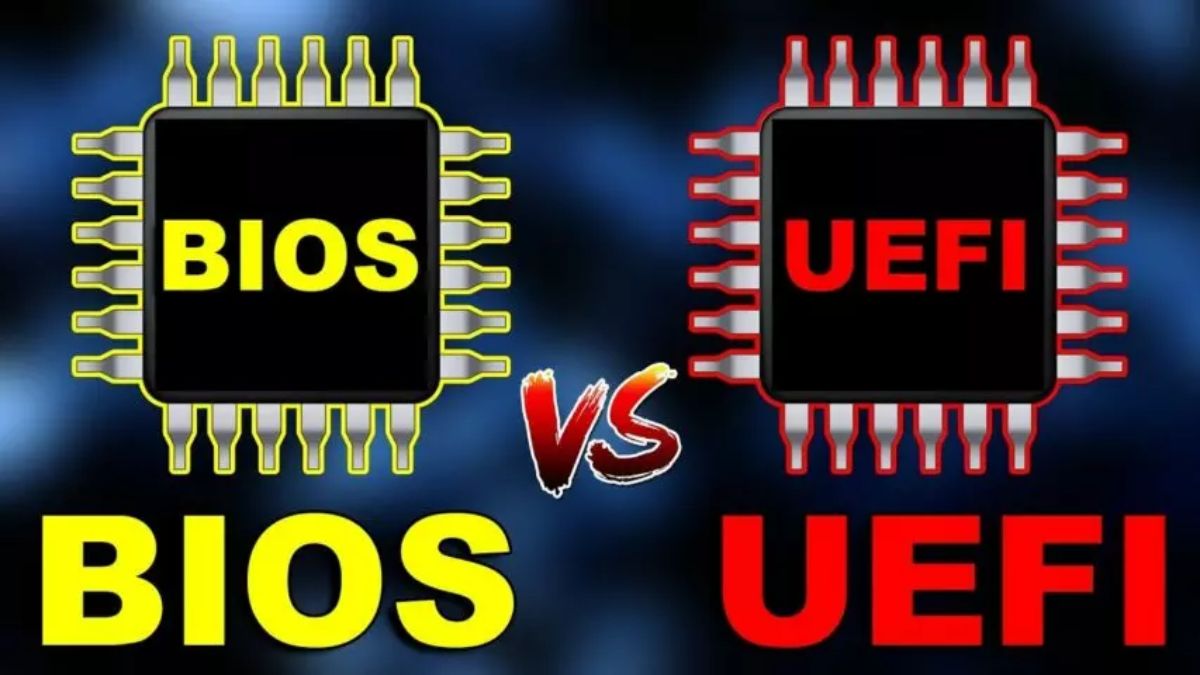
UEFI versus legacy BIOS
| Area | UEFI | Legacy BIOS |
|---|---|---|
| Boot method | Loads an EFI application from an EFI System Partition | Executes boot code from legacy disk structures |
| Typical partition scheme | GPT | MBR |
| Large boot drives | Supports GPT and drives beyond MBR's practical 2 TiB boot limit | Commonly limited by MBR addressing |
| Security | Can provide Secure Boot and measured-boot integration | No native Secure Boot standard |
| Interface | May be graphical and mouse-capable | Usually text-oriented and keyboard-driven |
A graphical interface and faster startup are possible UEFI benefits, not guarantees. Some UEFI menus look like old BIOS setup, and total boot time depends on firmware, hardware initialization, storage, and operating-system settings.
GPT and large drives
UEFI systems commonly boot from GUID Partition Table (GPT) disks. GPT supports more partitions and much larger addressable storage than the traditional Master Boot Record (MBR) scheme. The often-quoted limit is about 2 TiB for an MBR boot disk with 512-byte sectors; exact behavior depends on sector size, OS, controller, and whether the disk is used for boot or data.
Secure Boot
Secure Boot verifies signatures in the pre-OS boot chain and blocks untrusted boot components according to firmware policy. It reduces some bootkit and rootkit risk but is not an antivirus replacement. Windows 11 requires UEFI firmware with Secure Boot capability; hardware and edition requirements should be checked with Microsoft's current compatibility tools.
Disabling Secure Boot can affect BitLocker, device security, anti-cheat software, and some operating systems. Record current settings and save recovery keys before changing it.
Check whether Windows booted in UEFI mode
- Press Windows + R, enter
msinfo32, and press Enter. - Under System Summary, find BIOS Mode.
- UEFI means Windows booted in UEFI mode; Legacy means it used legacy/CSM mode.
- Also review Secure Boot State, which is a separate setting.
Disk Management can show an EFI System Partition, but System Information is the clearer boot-mode check.
How to enter firmware settings
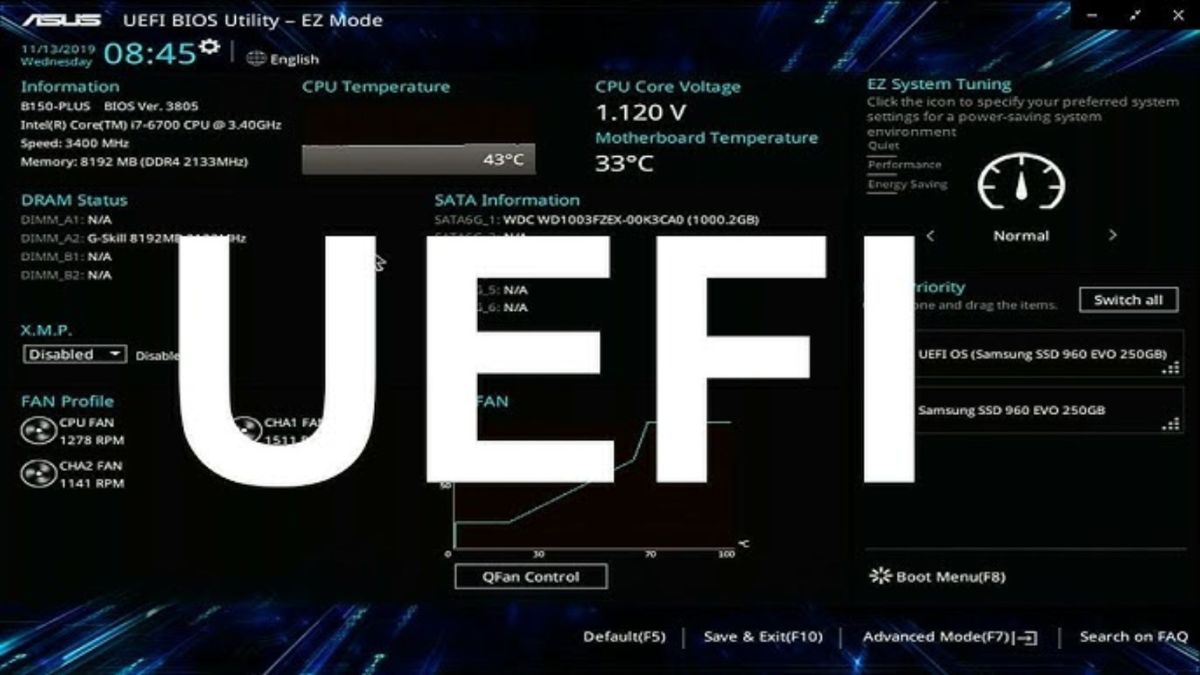
In Windows, open Settings > System > Recovery > Advanced startup > Restart now, then choose Troubleshoot > Advanced options > UEFI Firmware Settings. You can also use the manufacturer's startup key, often Delete, F2, Esc, or F10.
Do not change storage mode, TPM, Secure Boot keys, boot order, or firmware-update settings without understanding the effect. A wrong change can prevent Windows from starting or trigger an encryption recovery prompt.
Do not simply switch Legacy to UEFI
An existing Windows installation may use an MBR disk and legacy bootloader. Switching firmware mode without preparing the disk and boot files can make it unbootable. Back up data, save the BitLocker key, confirm hardware support, and follow a validated MBR-to-GPT migration or clean-install process. See how to prepare an MBR-to-GPT conversion.
Can an older PC be upgraded?
UEFI is motherboard firmware, not a Windows app. A BIOS-only motherboard generally cannot gain full UEFI through a normal software install. Some manufacturers provide firmware updates, but flash only an image for the exact model and revision with reliable power. A failed or mismatched flash can render the board unusable.
Dual boot and gaming
Windows and Linux can dual boot on UEFI systems when installed and configured correctly, often sharing the EFI System Partition while keeping separate bootloaders. UEFI itself does not directly increase game frame rates; any benefit is in boot, security, device initialization, and platform features. For setup basics, see UEFI firmware settings explained and what Secure Boot does.
Related Articles
 What Is Uefi: Differences Between Uefi and Bios4 minutes read
 What Is Uefi: Concept of Uefi Standard in Computers5 minutes read
 5 Tips for Using the BIOS to Help You Master Your Computer8 minutes read
 How to Check a Computer Using UEFI or BIOS3 minutes read
 How to Check the Computer That Supports Efi // Uefi or Legacy4 minutes read
 Set BIOS and UEFI Password to Protect Data on Your Windows 108 minutes read
Reader Comments 0
Sign in with email or Google to join the discussion.