Table of Contents
Learn what BIOS in a computer is, how it works, why it matters, and the key features or considerations to understand before using it.
What is BIOS?
BIOS (Basic Input/Output System) is a type of firmware (low-level system software) stored on a ROM chip (usually Flash ROM) located on the motherboard.
The BIOS is responsible for booting the system and managing basic I/O functions before the operating system is loaded.
To put it simply, BIOS acts as an intermediary between the hardware and software of a computer system. Without BIOS, the PC components wouldn't know how to communicate with the operating system, and the operating system wouldn't be able to find the hardware installed in your computer case.
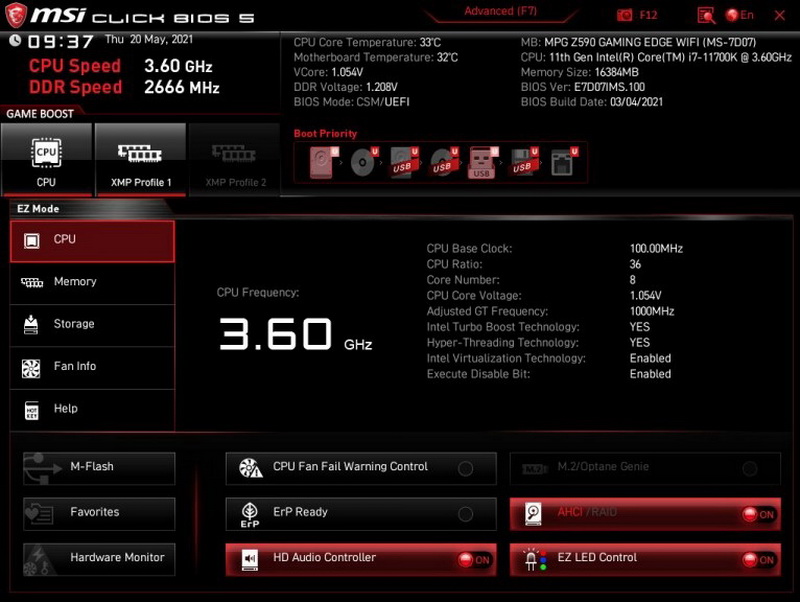
Incorrect BIOS settings can slow down your PC or prevent you from using certain features (for example, CPU virtualization to run Android emulators, or TPM2.0 to install Windows 11). Worse, they can render your PC completely inoperable, forcing you to perform a BIOS reset to factory settings.
However, with the increasing number of new CPUs and chipsets being released, BIOS settings are becoming increasingly complicated. The same feature can be called by two or three different names, plus all sorts of slang and abbreviations that can make even professionals dizzy. Not to mention that resetting the BIOS on a laptop is often much more difficult.
This is why many manufacturers of pre-built PCs, such as Dell, HP, Gateway, etc., hide some features in the BIOS to prevent users from tampering with it and needing technical support. Therefore, if you are using a pre-built machine, you may not find many of the options mentioned in online tutorials. You should only access the BIOS if you know exactly what you need to do, or have sufficient knowledge of its features to avoid making mistakes.
BIOS functions
When a computer is first turned on, the BIOS is one of the first components to become active. Although often hidden during use, the BIOS plays a fundamental role in ensuring the computer's stable operation. Some of the functions of the BIOS include:
- Quickly check if components like RAM, hard drive, fan, etc., are working properly.
- Activate the necessary components to prepare for the startup process.
- Choose where to start the computer, such as from the hard drive, USB drive, or disk.
- It supports adjusting basic information such as the date and time, or turning certain connection ports on/off.
- Set a password to restrict access right from the moment you turn on the device.
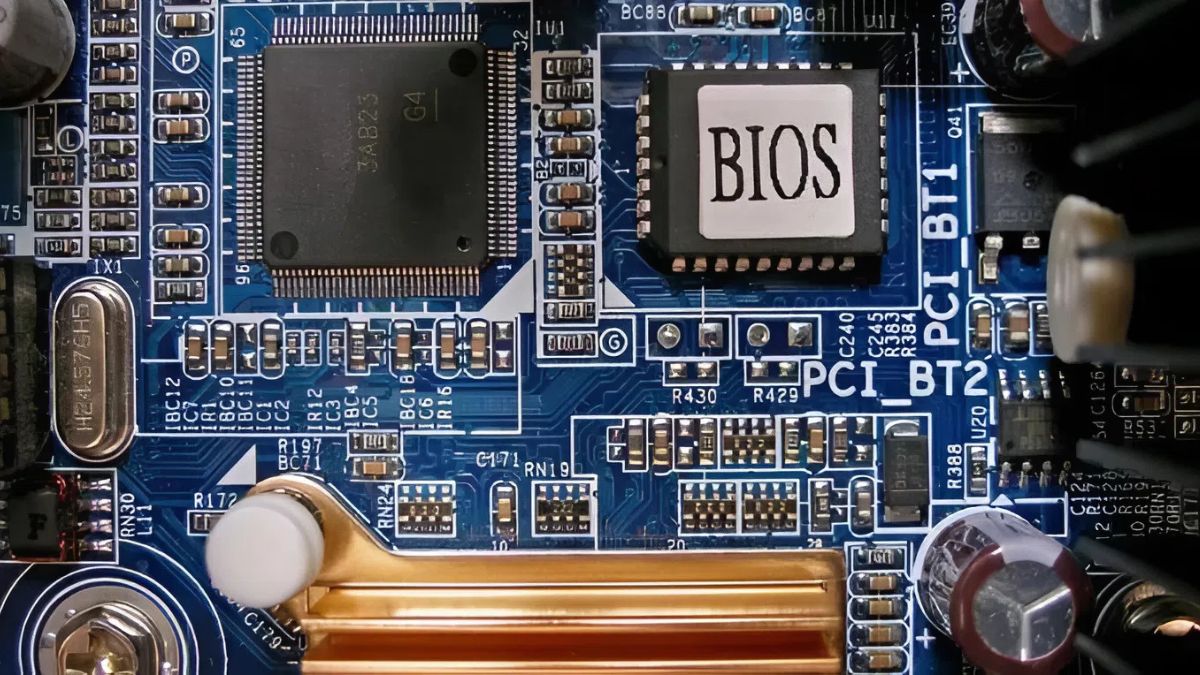
The BIOS plays a fundamental role in ensuring the computer operates stably.
How do I access the BIOS?
There are several different methods to do this, and This guide walks you through them all in order from easiest to most difficult, to help you access the BIOS in any situation.
Press a certain button when turning on the PC
The simplest way is to follow the instructions displayed on the screen each time you turn on your PC. It will be a short message like, "Press this button or that button to enter 'BIOS settings' or 'setup'" – both mean entering the BIOS. Unfortunately, there's no standard for the chosen button – each motherboard manufacturer uses a different one, which can be confusing for users. Besides, modern PCs boot up incredibly fast thanks to SSDs, so you might not even have time to press the button.
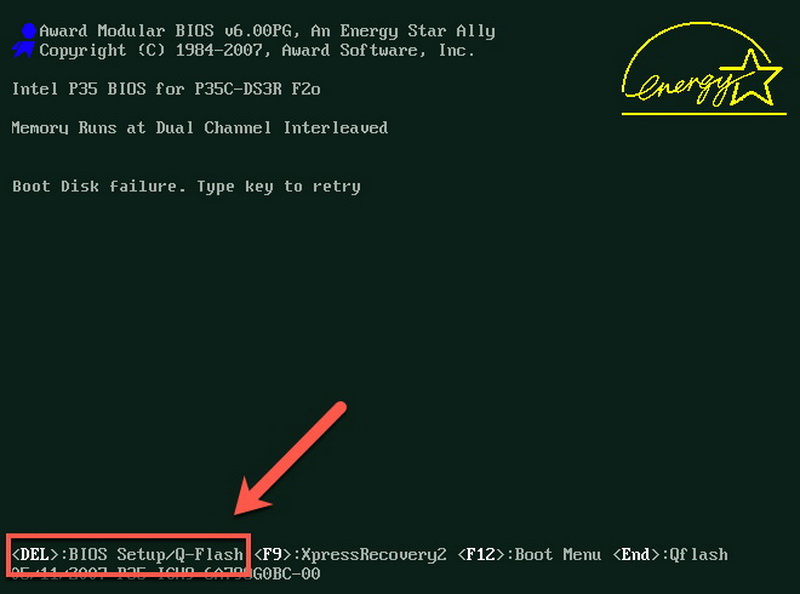
Here is a list of the buttons used by manufacturers to access the BIOS:
| Manufacturer | Shortcut key to access BIOS | ASRock | F2 or DEL | ASUS | F2 for PC, F2 or DEL for motherboard | Acer | F2 or DEL | Dell | F2 or F12 | ECS | DEL | Gigabyte / Aorus | F2 or DEL | HP | F10 | Lenovo (Consumer Laptops) | F2 or Fn + F2 | Lenovo (Desktops) | F1 | Lenovo (ThinkPads) | Press Enter then F1 | MSI | DEL | Tablet Surface | Press and hold the volume up button. | Origin PC | F2 | Samsung | F2 | Toshiba | F2 |
|---|
Use the Advanced Start menu in Windows 10/11
Sometimes you can't use the above method – some computers don't receive a signal from a USB keyboard until the POST process is complete (they still receive signals from the old standard P/S2 keyboard). Or if the computer is already on, or if it boots up too quickly and you don't have time to press a button, this second method will be very useful.
Here's a detailed guide on how to access the BIOS using the Windows 10/11 Advanced Start menu:
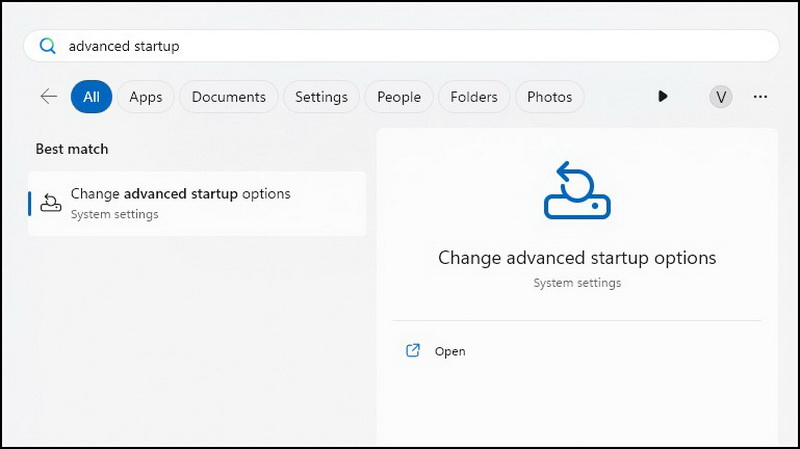
1. Find Change advanced startup options in the Start menu:
Click the Start menu and type 'advanced startup' in the search box. Select 'Change advanced startup options'.
2. Select Restart now:
In the newly opened Recovery window, select Restart now in the Advanced startup box. Your computer will restart immediately; remember to save any unfinished tasks.
3. Select Troubleshoot Advanced options UEFI Firmware Settings:
The computer won't boot directly into Windows as usual; instead, you'll see a blue 'Choose an option' menu appear. Select 'Troubleshoot Advanced options UEFI Firmware Settings' in sequence.
4. Click Restart to enter the BIOS:
Click Restart to confirm. The computer will automatically restart again and go straight into the BIOS for you.
If you are using a Linux operating system (such as Ubuntu), type the command 'sudo systemctl reboot –firmware' (without quotation marks) into the command prompt.
Use an external drive
This method lets you access the BIOS in situations where you cannot power on your computer and press the BIOS button, such as when both the hard drive containing the operating system and the bootloader are damaged. To force the BIOS to open in this situation, you can use a bootable drive – for example, a USB drive containing a Windows 11 installation.
Causes hardware failure
This is the last resort when you can't even use a boot drive to turn on your computer and access the BIOS. It sounds risky, but it's actually a simple and safe method: just remove all hard drives, or detach the keyboard from the computer. Most PCs will display an error message in this case, allowing you to access the BIOS to troubleshoot if necessary.
Whatever you want to do with your BIOS, remember that it's a very important part of your computer, and making a mistake can have serious consequences. Nowadays, the risk of turning your motherboard into junk by tampering with the BIOS isn't as high as it used to be thanks to various safe methods, but you should still equip yourself with the necessary knowledge, plus excellent Google skills and a technician's phone number for help when needed!
FAQ
What is Bios Date?
The BIOS Date is the release date of the BIOS version your computer is using. Based on the date in the BIOS, you can determine whether your system is using an older or newer version and consider whether an upgrade is necessary for optimal compatibility with your current hardware.
Does updating the BIOS have any effect?
Yes. Updating the BIOS can help your computer become more compatible with new hardware, fix software bugs, and improve performance. However, if the update fails or is interrupted by a power outage, your computer may freeze permanently and be unable to restart.
Where is the BIOS located in a computer?
The BIOS is stored on a small chip mounted on the motherboard, usually near the CMOS battery. This is where the BIOS operates independently of the operating system and retains data even when the computer is powered off.
Related Articles
 Display BIOS Information on Windows 10 Using Command Prompt4 minutes read
 How to Enter Bios for All Motherboard and Laptop Lines7 minutes read
 How to Change Computer Bios Settings5 minutes read
 How to Access BIOS on Various Computer Models6 minutes read
 5 Tips for Using the BIOS to Help You Master Your Computer8 minutes read
 How to Access and Configure BIOS on Your Computer3 minutes read
Reader Comments 0
Sign in with email or Google to join the discussion.