Table of Contents
Troubleshooting is the process of defining a problem, collecting evidence, testing the safest likely causes, and confirming the result. Windows includes automated troubleshooters, but they are only one part of that process and may not detect hardware faults, intermittent problems, or every configuration issue.
Use the built-in tools in Windows 11
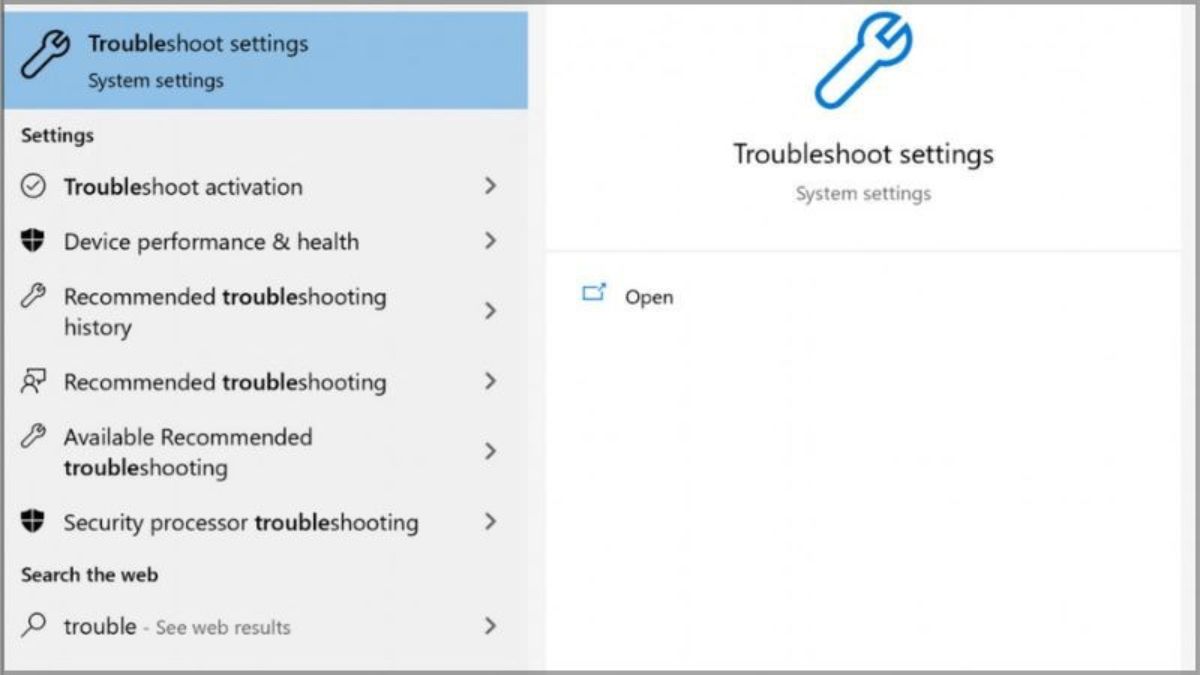
- Open Settings > System > Troubleshoot.
- Select Other troubleshooters.
- Find the category that matches the symptom and choose Run.
- Review each proposed change before applying it, then test the original symptom.
Microsoft is moving many older troubleshooters to the Get Help app, so Windows may open Get Help instead of the legacy wizard. Available categories vary by Windows version.

Use troubleshooters in Windows 10
- Open Settings > Update & Security > Troubleshoot.
- Select Additional troubleshooters.
- Choose the relevant item, then select Run the troubleshooter.
- Read the result and note what Windows changed.
Because normal Windows 10 support ended in 2025, use a supported update path while diagnosing a Windows 10 PC.
Choose the category from the symptom
| Symptom | Start with |
|---|---|
| No internet on one PC | Network/Internet and adapter checks |
| No sound | Audio output, volume, device, and driver checks |
| Printer queue or detection issue | Printer/Get Help and Print Spooler status |
| Update failure | Windows Update history and troubleshooter |
| Bluetooth device missing | Bluetooth, radio state, pairing, and driver checks |
A better troubleshooting workflow
- Define the failure: record the exact message, code, time, and action that triggers it.
- Scope it: determine whether it affects one app, user, device, network, or the whole PC.
- Check recent changes: updates, drivers, peripherals, settings, and new software.
- Test reversible causes: restart the app, reconnect the device, try a known-good cable, or test another account.
- Change one thing at a time: otherwise you cannot tell which action helped.
- Verify: reproduce the original task, not merely the absence of an error popup.
- Document and reverse: restore temporary changes that did not help.
If Windows finds no problem
- Check Event Viewer, Reliability Monitor, Device Manager, and the affected app's logs for time-matched evidence.
- Install stable updates and official drivers for the exact hardware.
- Test in Safe Mode or a clean boot when a background service may be involved.
- Run hardware diagnostics for memory, storage, battery, or the manufacturer's components when symptoms point there.
- Use System Restore, repair installation, or reset only after backing up and exhausting narrower fixes.
Safety boundaries
Do not use registry cleaners, random command bundles, or driver-update sites as generic fixes. Back up important data and save encryption recovery keys before storage, boot, firmware, or recovery work. On a managed computer, record results and contact IT rather than bypassing policy.
For isolation steps, see how to perform a Windows clean boot and how to use Reliability Monitor.
Related Articles
 20 Useful Troubleshooting Tools for Windows 1014 minutes read
 Tcp // IP Troubleshooting: Structural Methods -- Part 11 minutes read
 Part 2 -- Troubleshooting Tcp // IP: Structure Method13 minutes read
 Troubleshooting Forefront Tmg10 minutes read
 4 Ways to Return to the Previous Version of Windows 10 Without Losing Data8 minutes read
 Troubleshoot Network Connectivity Problems (Part 1)9 minutes read
Reader Comments 0
Sign in with email or Google to join the discussion.