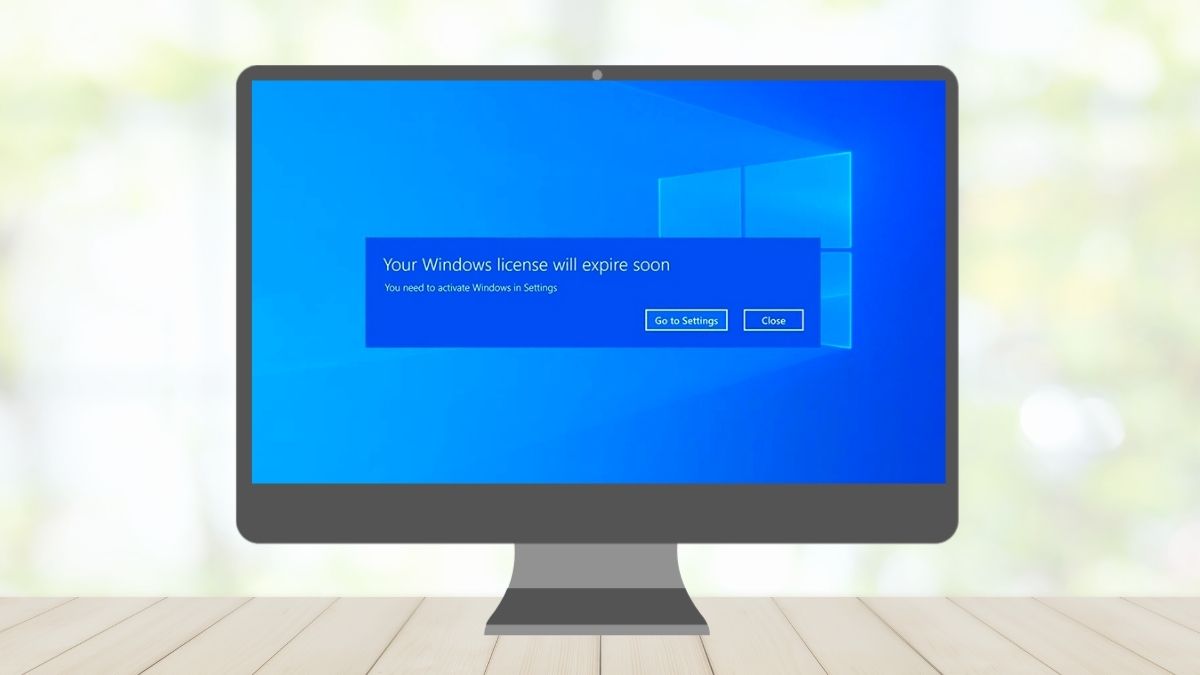
16 common Windows 10 errors and effective solutions.
This article compiles 10 common Windows 10 errors and the most effective solutions. Learn how to identify and fix these errors. Check it out now!
- Common Windows 10 errors and how to identify them.
- Troubleshooting Windows 10 not being able to access the home screen.
- How to fix Windows 10 update failure
- How to fix the "Preparing Automatic Repair" error in Windows 10.
- Fixing Windows 10 Blue Screen of Death
- Troubleshooting Windows 10 black screen/unreturnable error.
- How to fix Windows 10 internet connection issues.
- How to fix Windows 10 not recognizing the printer.
- Fixing Windows 10 keyboard malfunctions where keys don't work.
- Fixing Windows 10 application not opening issues.
- Troubleshooting Windows 10 not recognizing USB devices.
- How to fix the Windows 10 "Open with" option error.
- How to fix Windows 10 Recovery error 0xc00000e
- How to fix the Windows 10 headphone not being recognized error.
- Fixing Windows 10 disk full error
- When should you take your Windows 10 computer to a repair center?
- Frequently Asked Questions
Encountering technical problems and troubleshooting Windows 10 is unavoidable during the use of this software. This article will help you learn computer tricks to fix and resolve blue screen errors , keyboard malfunctions, or issues with the computer not opening on Windows 10.
Common Windows 10 errors and how to identify them.
Before learning how to fix Windows 10 errors, you need to recognize common Windows 10 problems. Early detection and handling of these issues can help prevent bigger problems and maintain the performance of your Windows 10 system.
- Slow startup: The computer takes a long time to start up or shut down.
- Application unresponsive: Programs do not open or respond to mouse clicks or key presses.
- Blue Screen of Death (BSOD): The computer displays a blue screen with an error message and restarts unexpectedly.
- Unstable network connection: Wi-Fi or Ethernet connections are interrupted or lost suddenly.
- Performance degradation: The computer runs slowly and is unresponsive when using applications or accessing files.
- Error messages: Error messages or warnings about system problems appear.
- Audio or video interruption: Problems with audio playback or unclear video display.
- Corrupted or lost files: Data loss or inability to access files on the computer.
- Update issue: Errors during the Windows update process or inability to install new updates.
- Insufficient disk space: The computer reports an error indicating insufficient storage space.
Troubleshooting Windows 10 not being able to access the home screen.
One of the common problems with Windows 10 is that the computer cannot access the home screen (destroyer). You can fix this Windows 10 error using the following methods:
- Use the Windows Startup Repair troubleshooting feature.
- First, prioritize booting from an external drive by disconnecting any removable drives or USB devices, then access the boot menu to adjust the settings.
- To fix the error, you can try using the command 'bootrec /fixmbr'.
How to fix Windows 10 update failure
Fixing the Windows 10 update failure is a very common concern because this issue is frequently encountered. The solution can be implemented through the following simple steps.
- Check and remove corrupted files from the system. This may include using a System File Checker (SFC) tool to scan and repair corrupted system files.
- Make sure that Windows updates are enabled. You can check this by going to Windows Update settings and ensuring that all the necessary settings are turned on.
- Sometimes, the Pause Update feature on your system may be enabled, preventing automatic updates. Check if this feature is turned off, and if necessary, disable it to allow updates to work normally again.
How to fix the "Preparing Automatic Repair" error in Windows 10.
During the use of Windows 10, the "Preparing Automatic Repair" error is also common. You can fix this Windows 10 error by using the Check Disk Utility following these steps:
- Connect your device to the [Recovery Drive] / [System Repair Disc], then select your language and press Next when prompted.
- On the main screen, select "Repair your computer" at the bottom.
- Next, select Troubleshoot, then Advanced Options, and finally Command Prompt.
- In the Command Prompt window, type the command chkdsk /f /r C: and press Enter to execute it.
- After the check is complete, type 'exit' and press Enter to exit the Command Prompt.
- Finally, restart your computer to complete the process.
Fixing Windows 10 Blue Screen of Death
The blue screen error on Windows 10 usually occurs due to hardware, driver, or software conflicts and operating system errors. To fix the Windows 10 blue screen error, you can try the following methods:
- Use antivirus software to scan and remove malware that is causing the errors.
- Perform a Clean Boot to remove unnecessary software and services that cause conflicts and lead to the blue screen of death.
- Uninstall and reinstall the hardware-related drivers on your computer, as driver errors can cause this problem.
- Use the System Restore feature to restore Windows 10 to a previous working state when the blue screen does not appear.
- Make sure you have installed all the most important Windows updates to protect your system from security vulnerabilities that can lead to problems like the blue screen.
Troubleshooting Windows 10 black screen/unreturnable error.
There are many reasons why your computer screen might go black on Windows 10. Some possible causes include a virus infection, a malfunctioning graphics card, errors after a Windows update, or hard drive-related issues. To fix the Windows 10 black screen error, you can try the following methods:
- Turn off fast startup mode.
- Uninstall the Windows 10 update.
- Disconnect any devices that are not being used.
- Reset Windows Explorer.
- Check your monitor settings.
- Update your computer's BIOS and graphics drivers to the latest versions.
How to fix Windows 10 internet connection issues.
To fix the Windows 10 network connection error, you can follow these steps:
- Make sure your Ethernet cable or Wi-Fi connection is securely plugged into your computer and your router/modem.
- Occasionally, network devices may need to restart to refresh the connection. Try turning off your router/modem for about 30 seconds, then turning it back on and waiting until the network connection is restored.
- Ensure that your network settings on Windows 10 are correct. Check whether your computer is using a fixed IP address or an IP address automatically assigned by DHCP.
- If you are using a proxy to connect to the network, make sure that the proxy settings are correct.
How to fix Windows 10 not recognizing the printer.
A common problem users encounter with Windows 10 is the inability to connect to a printer. When this error occurs, you can use some of the following Windows 10 troubleshooting methods to quickly resolve the issue.
- You can restart both the printer and the computer.
- In the Control Panel or Settings, check if the printer is added to the list of printing devices. If not, add the printer and wait for Windows to install the driver automatically, or install the driver from the printer's installation disc.
- Ensure that the printer driver is installed and functioning correctly on Windows 10. If necessary, you can update the printer driver from the printer manufacturer's official website.
- Windows 10 comes with a Printer Troubleshooter tool, which you can run to automatically detect and fix printer errors.
- If the printer is connected via a network, ensure that the network connection is working properly and that the printer's IP address is not already taken.
Fixing Windows 10 keyboard malfunctions where keys don't work.
When using Windows 10, the keyboard not typing is a fairly common problem. Below are some ways to fix the keyboard not typing issue on Windows 10 that you can apply.
- Make sure the keyboard is properly connected to the computer. If you are using a wireless keyboard, try replacing the batteries or recharging the keyboard.
- In Device Manager, check for any issues with your keyboard drivers. If there are any, update or uninstall and reinstall the drivers.
- If the problem started after you installed new software or performed an update, try uninstalling the software or restoring your computer to a point before you installed the update.
- In some cases, features like Sticky Keys or Filter Keys can cause the keyboard to malfunction. You can find and disable these features in Windows Accessibility settings.
Fixing Windows 10 application not opening issues.
When using Windows 10, you may encounter situations where applications cannot be opened. In such cases, you can use the following methods to fix the issue of applications not opening on Windows 10:
- If only a specific app isn't opening, try opening another app to determine if that's the problem. If that app still doesn't work, you may need to reinstall it or contact the developer for support.
- Ensure your Windows 10 is up-to-date by checking for and installing any available updates.
- Windows 10 comes with several special boot options, such as Safe Mode or Boot Repair Mode. Try booting into one of these modes and see if the application works.
- Use the Windows disk diagnostic and repair tool to identify and fix potential problems that may be causing the issue.
Troubleshooting Windows 10 not recognizing USB devices.
To fix the Windows 10 not recognizing USB devices, you can follow these steps:
- Make sure that the USB ports on your computer are working properly and that the USB drive is securely and correctly plugged into the port.
- Try connecting the USB to a different port on your computer to determine if the problem lies with the USB port itself.
- Connect a different USB device to check if the computer recognizes it. If the computer recognizes the other device but not the specific USB, your USB may be damaged.
- Open Device Manager and check for any icons with yellow exclamation marks or question marks next to the USB drive. If so, you may need to update or uninstall and reinstall the USB driver.
- Windows 10 comes with a USB Troubleshooter tool that you can run to automatically detect and fix USB errors.
How to fix the Windows 10 "Open with" option error.
When your Windows 10 computer malfunctions and the 'Open with' option doesn't appear, the cause is often a system conflict, a Registry error, or interference from third-party software. To fix this, you can run the `sfc /scannow` command in Command Prompt or re-enable the 'Open with' option through the Registry.
However, before trying the above methods, try restarting Windows Explorer to see if that fixes the error.
- Step 1 : Press Ctrl + Shift + Esc to open Task Manager .
- Step 2 : Find and right-click on Windows Explorer .
- Step 3 : Press Restart to refresh the interface and right-click menu.
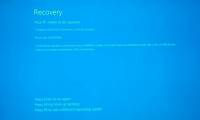
How to fix Windows 10 Recovery error 0xc00000e
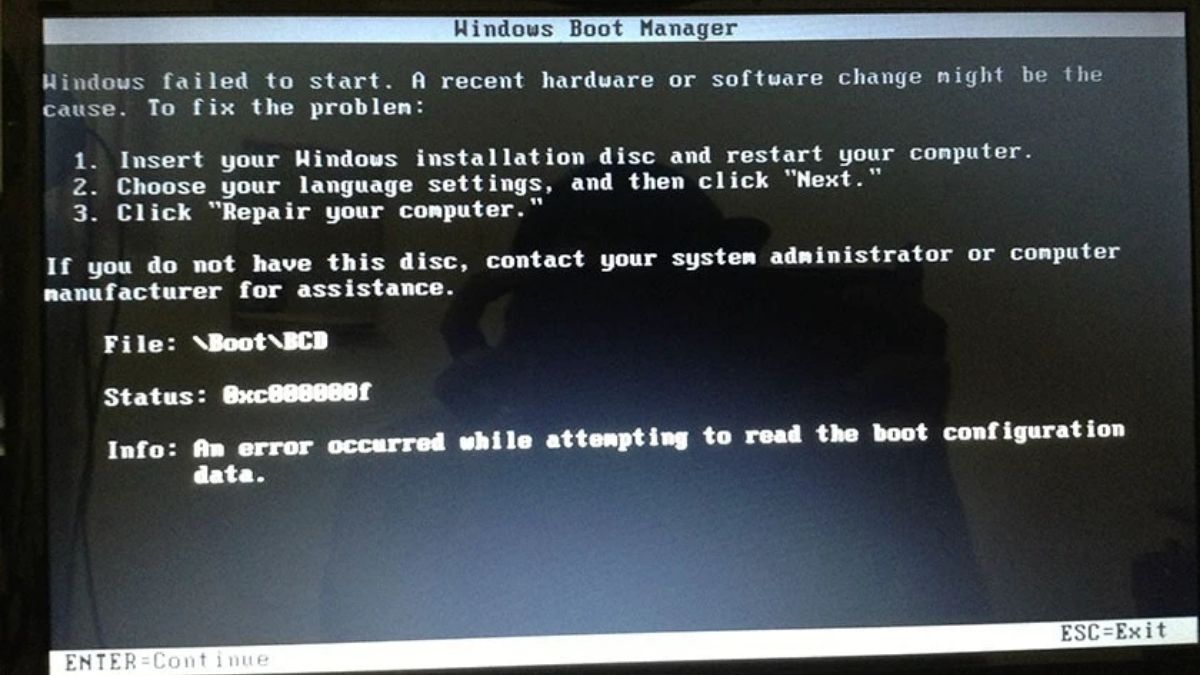
The Recovery 0xc00000e error occurs when Windows cannot load the Boot Configuration Data (BCD). This is often caused by a corrupted boot file, a lost EFI partition, bad sectors on the hard drive, or the BIOS being set to the wrong UEFI/Legacy mode. Below is a common and effective way to fix this Windows 10 error, especially when the error is directly related to the system boot area:
1. Boot from the USB drive:
- Plug the USB drive containing the Windows installation files into the computer.
- Press the power button and continuously press the F2/F10/F12/Del/Esc keys (depending on the model) to enter the Boot Menu .
- Select USB .
2. Go to WinRE:
- Select your language and other necessary options → Press Next .
- Click Repair your computer .
3. Run Startup Repair:
- In WinRE, select Troubleshoot → Advanced options → Startup Repair .
- Select the version you want to repair ; if successful, the machine will start and run normally.
If Startup Repair doesn't fix it, you can use Command Prompt and run:
bootrec /scanos
bootrec /fixmbr
bootrec /fixboot
bootrec /rebuildbcd
How to fix the Windows 10 headphone not being recognized error.
When Windows 10 doesn't recognize your headphones , it could be a sign of a faulty audio driver, incorrect playback settings, a damaged jack, or audio application conflicts. To fix this, first check the connection port and try different headphones to rule out hardware issues. If the Windows 10 problem persists, try checking your audio settings.
- Step 1 : After plugging in your headphones, right-click on the volume button .
- Step 2 : Select Open Volume Mixer .
- Step 3 : Ensure the device is not muted; if it is, adjust the volume.
Another way is to update the driver:
- Step 1 : Press Windows + R to open Run → Type devmgmt.msc → OK .
- Step 2 : Click the arrow next to Sound, video and game controllers → Right-click on the driver and select Update driver .
- Step 3 : Select "Search automatically for updated driver software" or "Browse my computer for driver software" to update.
Fixing Windows 10 disk full error
A full hard drive in Windows 10 can cause your laptop to run slowly, freeze, crash, or constantly display errors. This is often due to the system containing too many temporary files, Windows Updates, or excessively large virtual memory (pagefiles). An effective way to fix this Windows 10 error is to use the Storage Sense feature.
- Step 1 : Press Windows + I to open Settings → select System.
- Step 2 : Select Storage → click Configure Storage Sense or run it now .
- Step 3 : Open Storage Sense → select Temporary files and customize the time settings. Once complete, Storage Sense will automatically free up space, helping to prevent the drive from becoming full and improving system speed.
General note: The above instructions are for reference only; procedures may vary depending on the model and brand. If you need to modify the system, please back up your data beforehand!
When should you take your Windows 10 computer to a repair center?
Consider taking your device in for repair in the following cases:
- When you've tried basic Windows 10 troubleshooting methods but your computer still freezes, slows down, or keeps showing errors.
- When a hard drive makes strange noises, it's a sign of potential hardware failure.
- When you encounter boot-related errors, data loss, or failure to boot into Windows.
- When the system experiences severe driver conflicts, it can cause blue screen errors or continuous crashes.
- When you're unsure about the technical aspects and worried that attempting repairs yourself might further damage the components.
Dien Thoai Vui is a reputable address for inspection and repair services with a team of highly skilled technicians. If you are not confident in repairing your device at home or lack knowledge of technology, bring your device to our store right away!
Above are some effective ways to fix common Windows 10 errors. Hopefully, this article will help you effectively resolve blue screen errors, keyboard malfunctions, and application opening issues in Windows 10. Follow us for more computer tips and tricks !
Computers - Laptops - Tablets
Frequently Asked Questions
How to fix a frozen or unresponsive Windows 10?
A common problem when using Windows 10 is freezing or becoming unresponsive. In this case, you can try some of the following methods to fix the Windows 10 freezing or unresponsive issue:
- Try pressing Ctrl + Alt + Delete to open Task Manager and close unresponsive applications.
- Restart your computer by pressing Ctrl + Alt + Delete and then selecting Restart.
- If the problem persists, try restarting your computer in Safe Mode and checking for the issue from there.
What software is available to fix Windows 10 errors?
There are many different software programs that can be used to fix Windows 10 errors, but some popular ones include CCleaner, Advanced SystemCare, and Microsoft's System File Checker (sfc). However, note that using error-fixing software requires caution and should only be used from trusted sources to avoid causing further problems.
How to fix non-working sound on Windows 10?
To fix the Windows 10 sound not working issue, you need to check or re-run some settings. Below are some ways to fix the Windows 10 no sound problem that you can try:
- Check that the speakers or headphones are connected correctly.
- Check that the sound is turned on and the volume is adjusted correctly.
- Update your audio drivers from the manufacturer's official website or via Device Manager.
- Check the audio settings in the Control Panel and make sure that the audio device is selected as the default device.
- Run the Windows Audio Troubleshooter to automatically detect and fix errors.
You've just finished reading the article "16 common Windows 10 errors and effective solutions." edited by the TipsMake team. You can save 16-common-windows-10-errors-and-effective-solutions.pdf to your computer here to read later or print it out. We hope this article has provided you with many useful tech tips and tricks. You can search for similar articles on tips and guides. Thank you for reading and for following us regularly.
- Common errors in Excel and effective ways to fix them
- 10 Common Windows 10 Errors And The Most Effective Way To Fix It
- Common errors during OneNote synchronization on Windows 10 and how to fix them.
- The most common Zalo errors and effective solutions
- How to effectively fix the blue screen error on Windows 11, 10, 8, and 7 computers.
- 7 common errors during Windows installation and how to fix them