Table of Contents
Learn how to install and using Perfect Keylogger with clear steps, practical tips, and troubleshooting guidance for common issues.

Install and use Perfect Keylogger
With the Perfect Keylogger installation guide that TipsMake will provide below, you will automatically have a silent supervisor monitoring and recording your computer's activities. This lets you easily review your work history when needed.
Instructions on installing and using Perfect Keylogger on your computer.
How to install Perfect Keylogger on your computer
First, users need to download the Perfect Keylogger installer to their computer. Currently, the publisher BlazingTools Software offers two versions: a full-featured version of Perfect Keylogger and a smaller, streamlined version.
Interested users can download the Perfect Keylogger version to their computer immediately from the following link:
- Download Perfect Keylogger software for Windows here: Download Perfect Keylogger for Windows
- Download Perfect Keylogger software for Mac here: Download Perfect Keylogger for Mac
Download the simplified version of Perfect Keylogger Lite for Windows and Mac.
- Download Perfect Keylogger Lite software for Windows here: Download Perfect Keylogger Lite for Windows
- Download Perfect Keylogger Lite software for Mac here: Download Perfect Keylogger Lite for Mac
Note: Your computer's firewall or antivirus software may mistakenly identify Perfect Keylogger as containing malicious code. Therefore, please disable or pause these programs to ensure a smooth installation process.
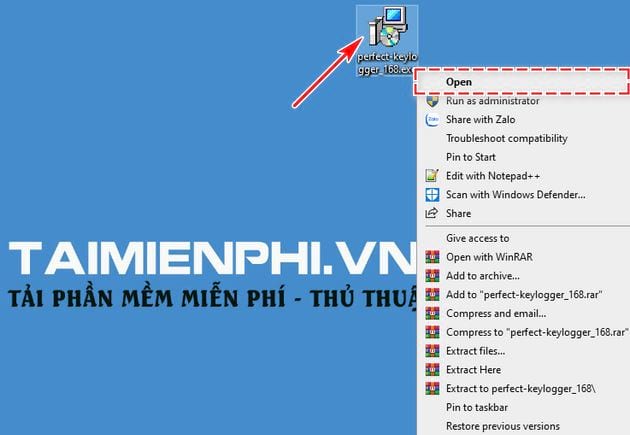
Step 1: Double-click or right-click the Perfect Keylogger installation file ( . exe ) on your device and select Open .
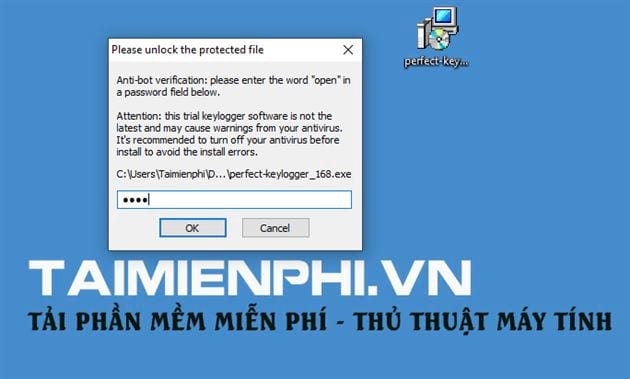
Step 2: Perfect Keylogger will ask you to enter "Open" in the information field; follow the instructions to confirm the installation.
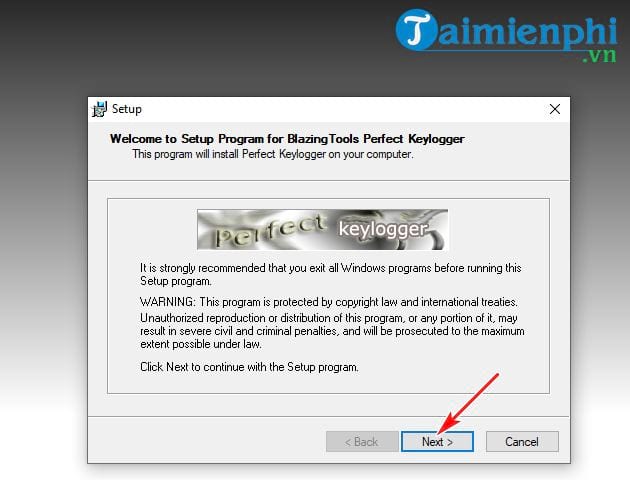
Step 3: A welcome window will appear; click Next to proceed to the next step.
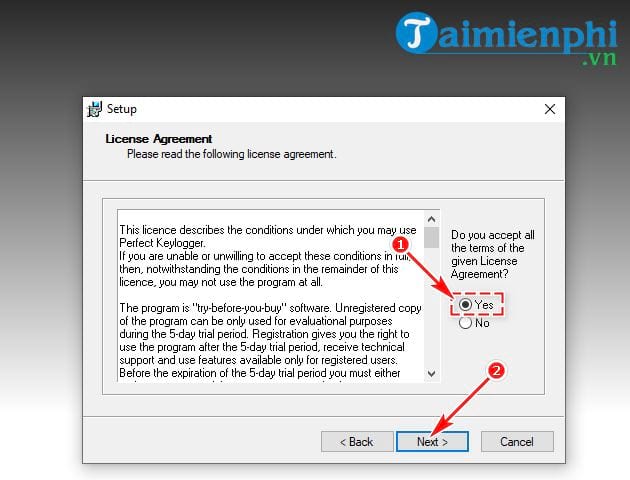
Step 4: Perfect Keylogger will present the Terms of Use . Users should select Yes , then continue by selecting Next .
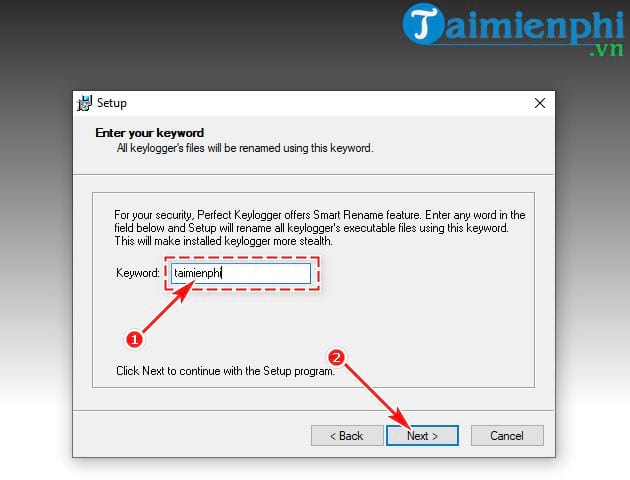
Step 5: The system will ask you to type any phrase to set the display name for the Perfect Keylogger program on your system. Then, click Next to proceed to the next step.
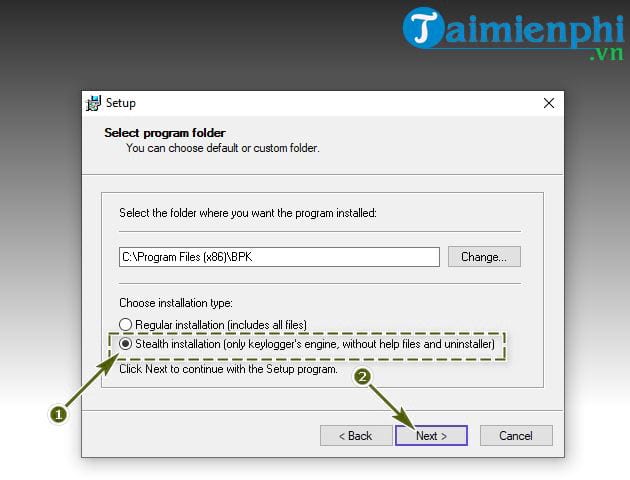
Step 6: At this step, the system will ask you where you want to install the program. Click Change and choose the installation location or leave it as default.
Perfect Keylogger offers users two additional options:
Regular installation: The system will install Perfect Keylogger according to the basic standard procedure;
Stealth installation: Install and activate stealth mode for the program;
After you have made your selections, click Next .
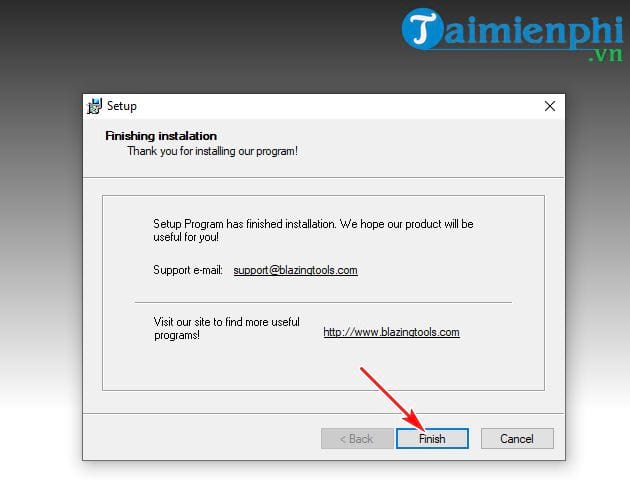
Step 7: You have now completed the installation process. Click Finish to end and learn how to use Perfect Keylogger in the next guide.
How to use Perfect Keylogger on a computer
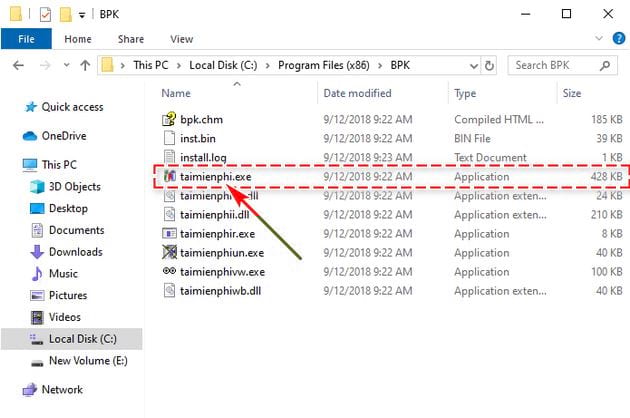
Step 1: Now, go to the program's installation folder , which is usually located at: C:Program Files (x86)BPK on 64-bit Windows or C:Program FilesBPK on 32-bit Windows.
Step 2: If you selected Stealth installation during setup, the program will run invisibly and will not be visible. Press CTRL + ALT + L to disable the stealth mode for Perfect Keylogger.
Next, right-click the Perfect Keylogger icon in the Taskbar and select Options to optimize the settings.
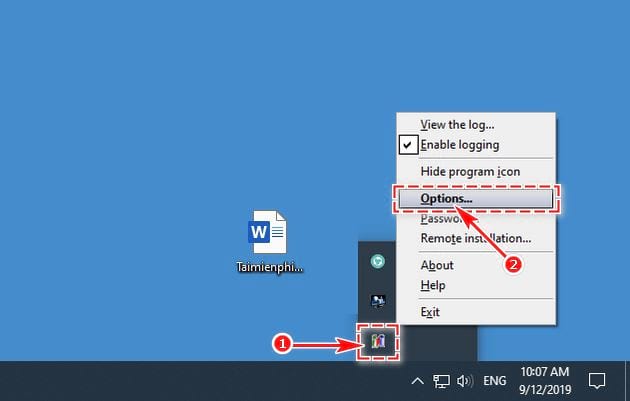
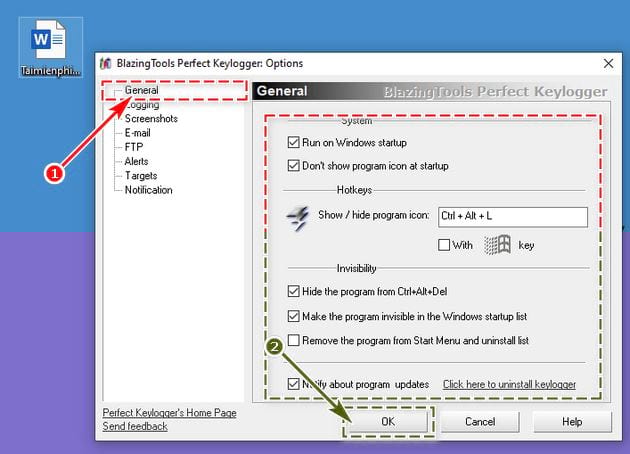
Step 3: In the new Options windowthat appears, click the General folder. Here you will find several features to choose from, such as:
- Hide the program from CTRL + ALT + Del: Hides the program when you press the CTRL + ALT + Del key combination;
- Make the program invisible in the Windows startup list : Hide the program from the Windows startup list;
- Remove the program from the Start Menu and Uninstall list: Remove the program from the Start menu and the system's uninstaller list.
Press OK to save the settings.
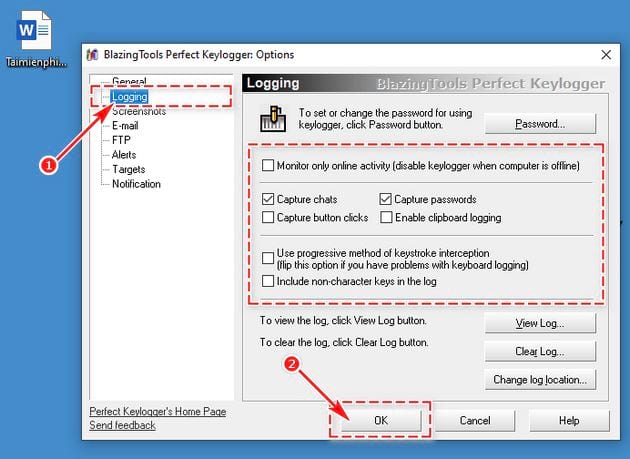
Step 4: Next, click the "Logging" option in the list on the left side of the screen and configure the relevant features.
- Monitor only online activity: Only operates when the computer is online;
- Capture chats: Monitor information during chats;
- Capture passwords: Monitor passwords;
For added security, you can also tap Password to set a password to protect your notes. Once finished, tap OK to save the settings.
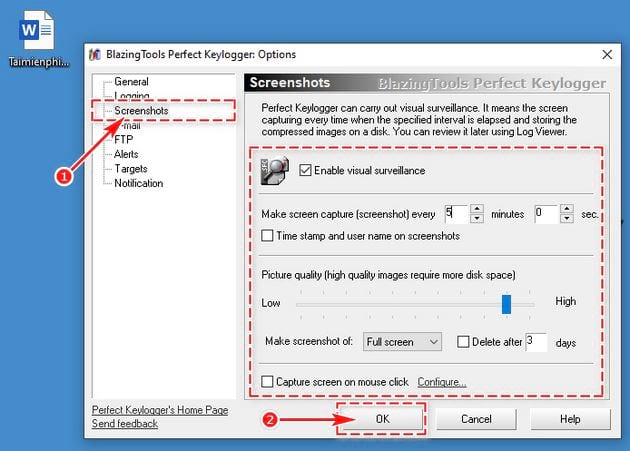
Step 5: In the Screenshot section, you can edit the screenshot functions. To activate this feature, select Enable visual surveillance, then set the capture frequency and image quality.
Press OK after you have finished the setup.
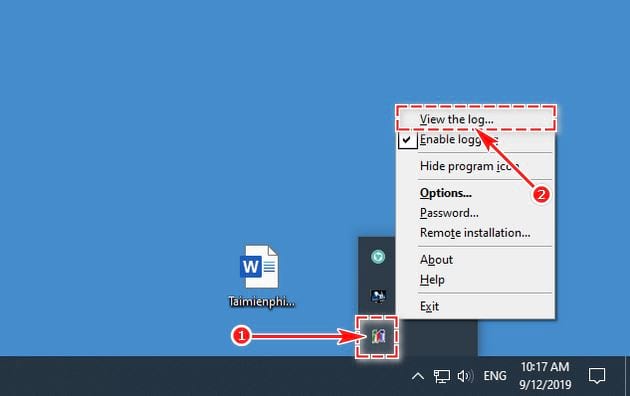
Step 6: The above are the necessary steps to optimize Perfect Keylogger during use. To view the information recorded by the software, right-click the Perfect Keylogger icon on the Taskbar and select "View the log" .
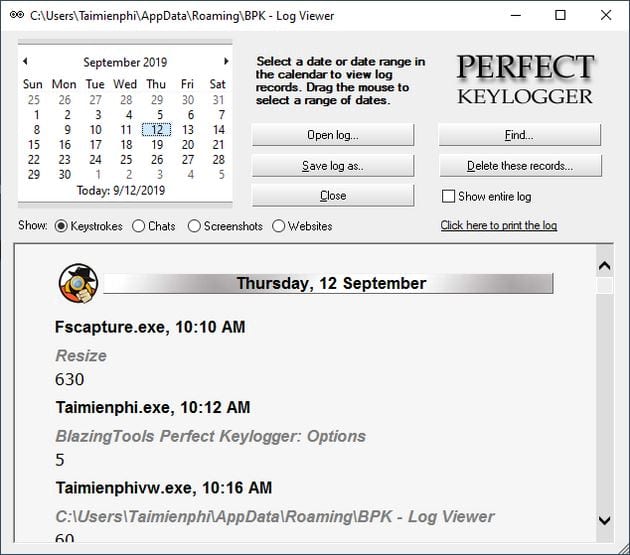
The Perfect Keylogger Log View window will open, allowing you to easily review all your own or others' activity on the device.
In summary, TipsMake has provided detailed instructions on how to install and use Perfect Keylogger on your computer. If you have any questions during the installation or use of Perfect Keylogger, such as how to check for keylogger issues, please quickly send your questions to TipsMake in the comments below for prompt assistance.
FAQ
How can you install and using Perfect Keylogger?
Learn how to install and using Perfect Keylogger with clear steps, practical tips, and troubleshooting guidance for common issues.
How do you install and use Perfect Keylogger?
With the Perfect Keylogger installation guide that TipsMake will provide below, you will automatically have a silent supervisor monitoring and recording your computer's activities.
What should you know about instructions on installing and using Perfect Keylogger on your computer?
How to install Perfect Keylogger on your computer First, users need to download the Perfect Keylogger installer to their computer.
Related Articles
 Top 10 Best Free Keylogger Software with Windows12 minutes read
 3 Free Anti Keylogger Tools4 minutes read
 How to Detect Keyloggers on Smartphones: Practical Guide7 minutes read
 Instructions: 'Battle' Between Keyscrambler and Keylogger5 minutes read
 Download Free Keylogger 5.4: the Software to Record All4 minutes read
 How to Checking and Deleting Keyloggers on Hp3 minutes read
Reader Comments 0
Sign in with email or Google to join the discussion.