Table of Contents
32-bit and 64-bit Windows use different processor architectures and memory-addressing models. For most current Intel or AMD PCs, 64-bit x64 Windows is the normal choice. The important practical questions are whether your processor supports it, whether drivers are available, and whether your applications are compatible.
“64-bit” does not mean every program runs twice as fast. It mainly allows a larger address space and supports software built for that architecture. Arm64 is also 64-bit, but it is a different architecture from x64.
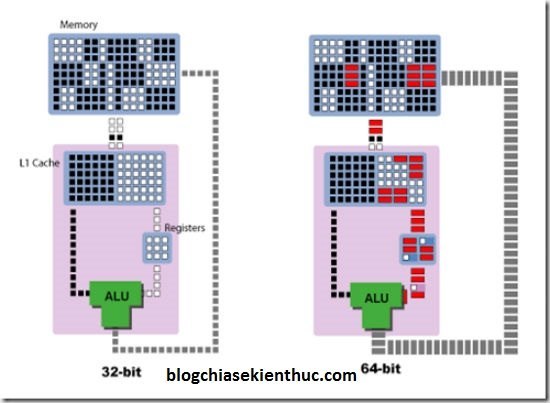
Windows architecture affects software, driver, and memory compatibility.
Check the installed Windows architecture
On Windows 10 or 11, open Settings > System > About and read System type under Device specifications. It describes the installed operating system and the processor type.
An x64-capable processor can be running 32-bit Windows, so processor capability and installed Windows architecture are separate facts. On older Windows, right-click Computer and open Properties to find the system information.
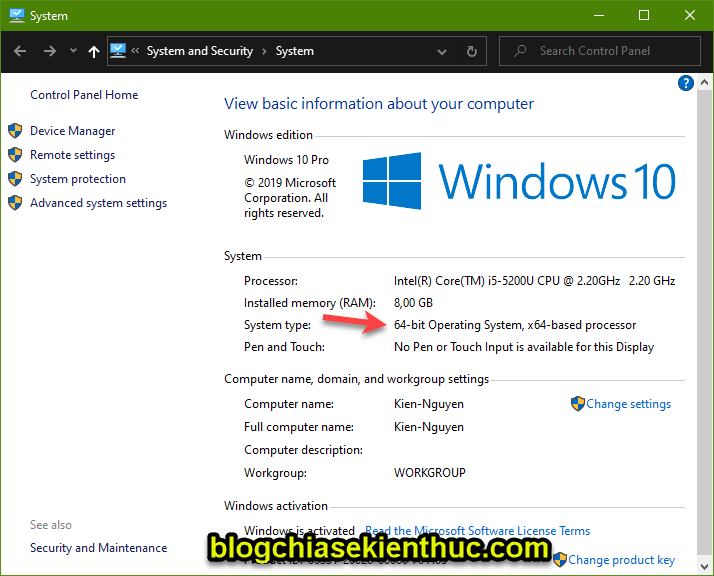
See the Windows version and system-type guide if you also need to identify the release and build.
Compare 32-bit x86 and 64-bit x64 Windows
| Feature | 32-bit x86 Windows | 64-bit x64 Windows |
|---|---|---|
| Processor | Runs on compatible x86 or x64 processors, subject to the Windows version's requirements | Requires a compatible x64 processor; cannot run on a 32-bit-only CPU |
| Physical RAM | Common 32-bit client editions have a 4GB addressable limit, with usable RAM often lower because hardware reserves address space | Supports larger amounts; the actual limit depends on Windows edition, release, and hardware |
| Applications | Runs compatible 32-bit applications; cannot run x64 applications | Runs x64 applications and many 32-bit applications through compatibility support |
| Drivers | Needs drivers for the operating system's architecture | Needs compatible 64-bit drivers; a 32-bit driver is not interchangeable |
| Performance | Can be constrained by limited address space | Can benefit memory-heavy workloads, but speed still depends on the app and hardware |
Understand the RAM limits
The often-quoted “3.4GB maximum” is not a fixed rule for every 32-bit PC. Usable memory varies with hardware reservations and Windows edition. Server editions and architectural extensions also have different rules from ordinary desktop client editions.
Physical RAM and an application's virtual address space are different limits. Per-process limits depend on the application's architecture, build flags, and Windows configuration; there is no single universal “2GB versus 8TB” comparison for all programs.
For exact values, use Microsoft's Windows memory-limit tables. A large theoretical CPU address range is not the amount of RAM your PC or Windows edition supports.
Choose the right application and driver
On x64 Windows, choose the publisher's supported x64 build where appropriate. Many ordinary x86 applications still work, but legacy installers, plug-ins, and hardware drivers may have special requirements. Match plug-ins to the application architecture when the publisher requires it.
On a typical x64 installation, 64-bit applications commonly use C:Program Files and 32-bit applications commonly use C:Program Files (x86). Folder names alone are not a definitive compatibility test.
The Windows software installation guide explains further installation considerations.
Can you switch from 32-bit to 64-bit?
Changing from 32-bit Windows to 64-bit Windows requires a clean installation rather than an in-place architecture upgrade. Back up files, obtain compatible installation media, confirm licensing, and prepare drivers and application installers first.
Check Microsoft's architecture guidance before proceeding. Supporting x64 instructions is only one requirement; the target Windows version has additional hardware requirements.
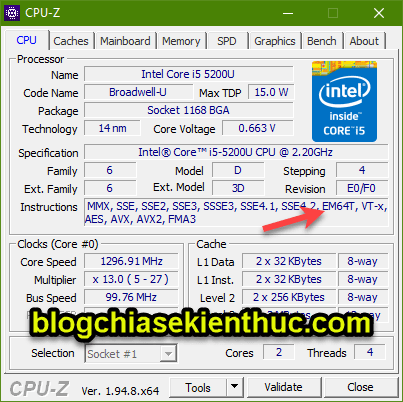
The older CPU-Z screenshot below illustrates an instruction-set check. It is supplementary information, not a complete Windows compatibility assessment. Intel and AMD may label 64-bit capability differently.
Which should you use?
For a supported modern PC, use the architecture required by its hardware and Windows release; Windows 11 has no 32-bit x86 edition. Keep an older 32-bit installation only when there is a specific supported compatibility need, rather than assuming it will always be faster on low-memory hardware.
Before replacing an older system, check hardware-driver availability and essential application requirements. More addressable memory helps only when the hardware and workload can use it.
Related Articles
 How to Change Your Windows Account Password
 How do Private Network and Public Network on Windows differ?
 HyperOS or One UI 6.1 is the best customized Android version available today
 Simple trick to know how long laptops last after each charge
 Instructions on how to format the USB simple and safest
 The difference between iPhone 6S and iPhone 6S Plus?
Reader Comments 0
Sign in with email or Google to join the discussion.