Table of Contents
In supported desktop versions of Word, turn off Copilot through File > Options > Copilot, clear Enable Copilot, and restart Word. This setting is available for supported personal Microsoft accounts; work and school accounts can have different controls managed by an administrator.
You do not need to change your subscription merely to use this app setting. Disabling Copilot in Word, hiding its ribbon button, and changing your Microsoft 365 plan have different effects.
Turn off Copilot in Word for Windows
- Open Word and a document.
- Select File > Options.
- Open Copilot in the options list.
- Clear Enable Copilot and select OK.
- Close and restart Word, then check that Copilot is disabled.
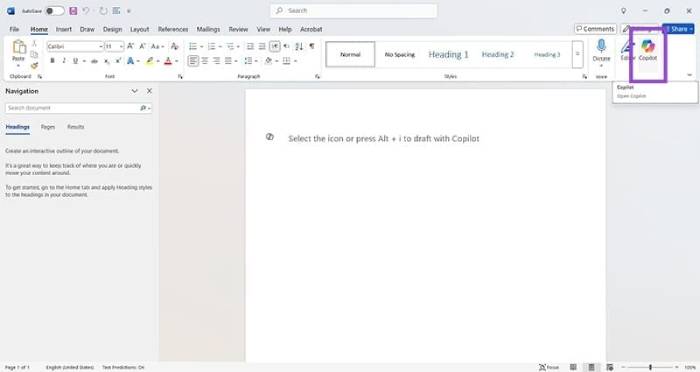
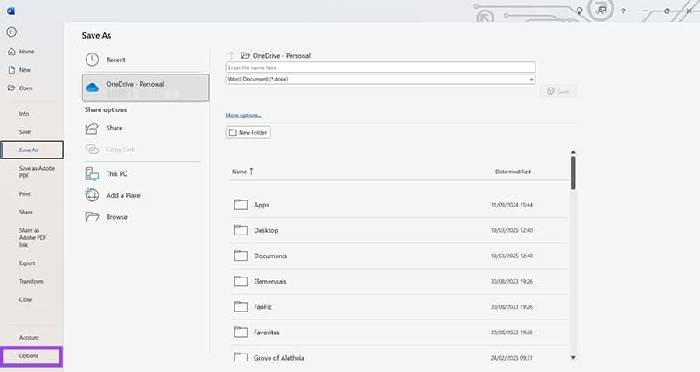
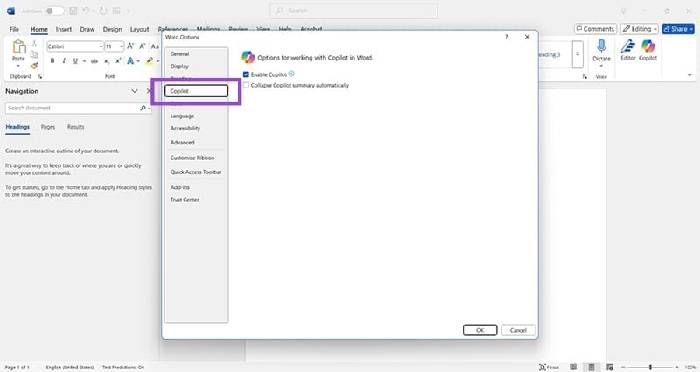


To restore it later, return to the same setting, select the checkbox, and restart. Removing only the ribbon icon does not disable all ways of opening Copilot.
Mac, other apps, and multiple devices
On a supported Mac version, open Word > Preferences > Authoring and Proofing Tools > Copilot, clear Enable Copilot, then restart Word.
The checkbox applies to that app on that device. Repeat the process separately for supported Excel or PowerPoint installations and for other computers where you want it disabled. The setting affects other people using the app on the same device too.
If you do not see it, check your signed-in account, Word version, and available updates. Do not assume the desktop path exists in mobile or web versions. For managed work or school accounts, ask your administrator which controls are supported. Microsoft’s Copilot disablement instructions describe the platform limits and broader privacy-setting alternative; that alternative can also disable other connected features.
Review subscription changes separately
Older Microsoft 365 offers included plan-switch options labeled Classic. The following screenshots illustrate that earlier account-management flow. They are not evidence that the same offer, price, or terms are available to every subscriber today.
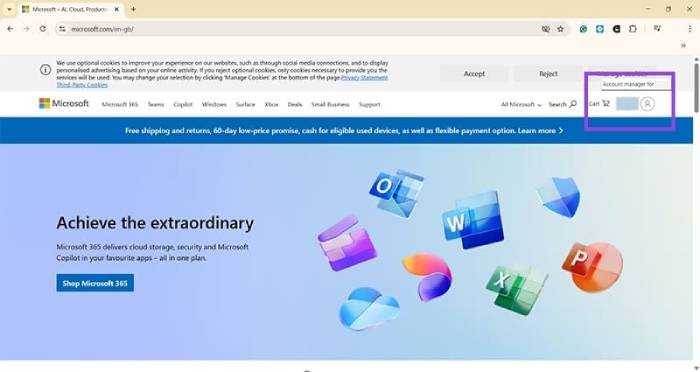
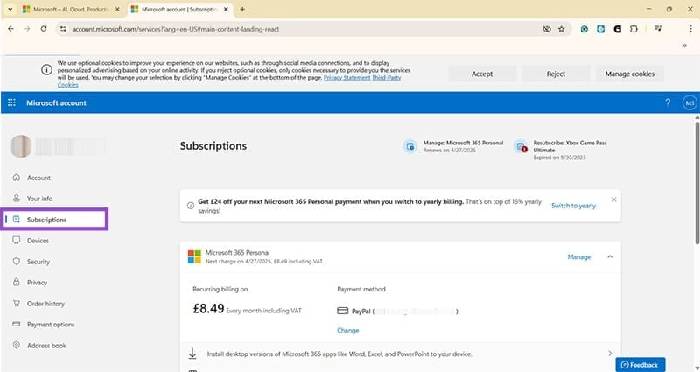
If you are considering a different plan for billing reasons, sign in to the account that owns your subscription and open its subscription-management page. Review the actual offers shown to that account.
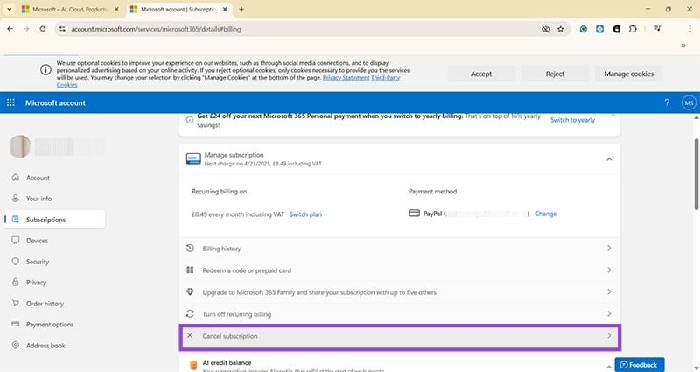
“Cancel subscription” can start a cancellation process. It must not be treated as a harmless downgrade button or a guaranteed way to reveal another plan. If you only want Copilot out of Word, use the app setting above.
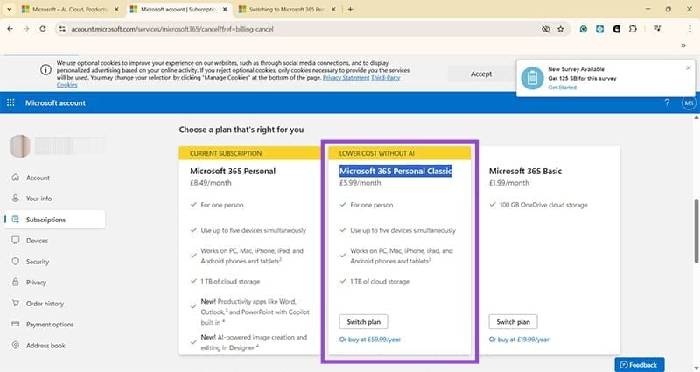
Proceed with a plan switch only if the account explicitly offers a suitable alternative and you want its terms. Check the effective date, next charge, storage allowance, app access, sharing benefits, and any lost features before confirming. A final button labeled Buy or Confirm may create a billing change.
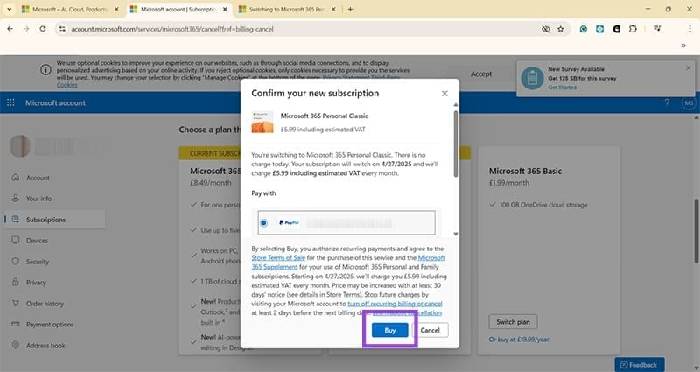
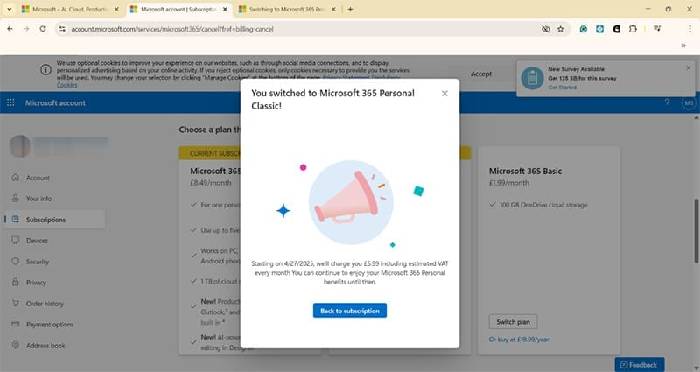
Keep any confirmation and verify the resulting subscription details. Changing Microsoft 365 entitlements does not necessarily remove every standalone Copilot service or entry point.
If suggestions remain visible
Spelling, grammar, and text predictions are separate features, so identify what you are seeing before changing more settings. Windows-level suggestions have their own text suggestion controls. For other Copilot entry points, see Copilot controls in Windows and related apps.
Related Articles
 How to disable Copilot in Microsoft Edge
 How to Hide or Disable Copilot in Microsoft Edge
 How to Turn Off Copilot in Word, Excel, and PowerPoint
 How to Turn Off Formatting and Copilot in Windows 11 Notepad
 Instructions on how to completely uninstall Copilot on Windows 11
 How to Turn Off Copilot in Windows 11
Reader Comments 0
Sign in with email or Google to join the discussion.