Table of Contents
Fire TV can do more than play streaming video. Depending on your model, you can mirror a compatible device, stream games, display photos and widgets, or pair Bluetooth accessories. Some options need an app, a controller, or a subscription, so check compatibility before setting them up.
1. Install additional apps on compatible models
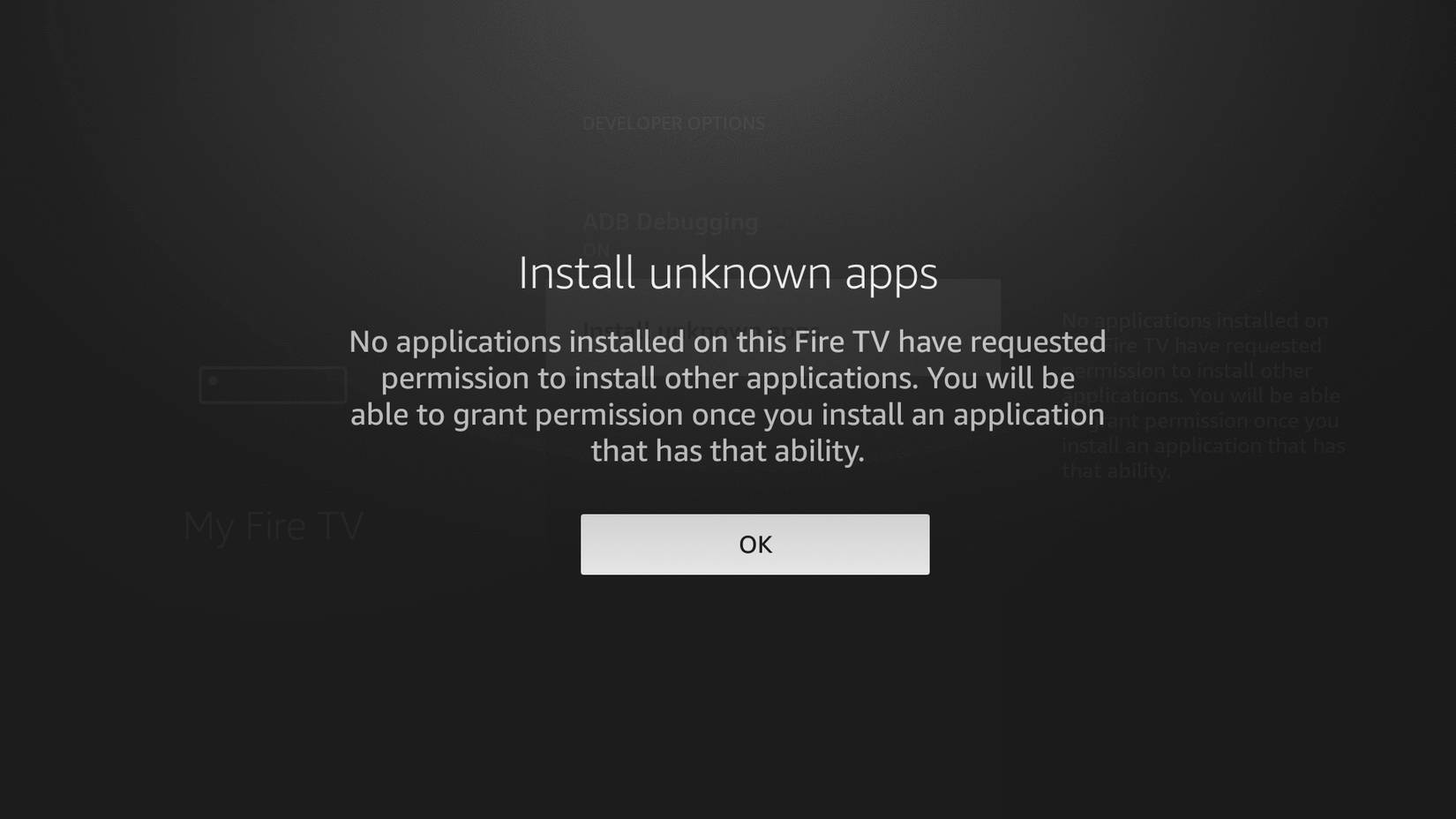
Start with the Amazon Appstore and look for an app that supports your Fire TV model. Fire OS models are based on Android and can support sideloaded APKs, but this does not mean every Android app works on a TV or with its remote.
Some newer Fire TV devices run Vega OS instead. Android APK instructions do not apply to those models. Check your device’s operating system and the developer’s supported platforms before downloading anything.
For Fire OS devices, TipsMake’s Fire TV sideloading guide describes the installation workflow. Use an app’s official developer source, check its permissions, and enable installation permission only for the tool you need. Sideloading does not make paid services free.
2. Mirror a compatible phone or computer
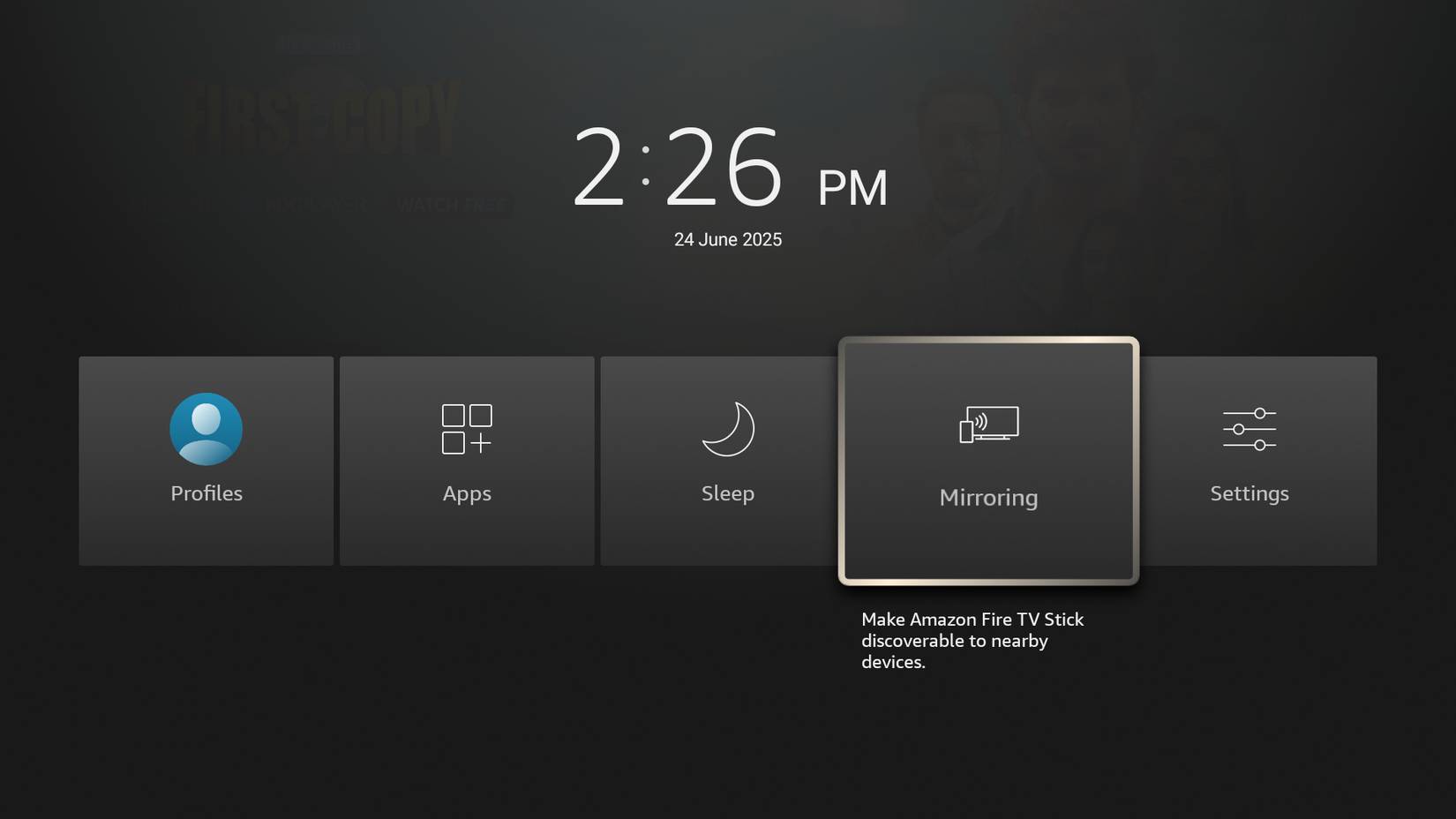
On a supported Fire TV, open Settings > Display & Sounds > Display Mirroring, or look for Enable Display Mirroring in the menu shown when holding the remote’s Home button. If the option is absent, check the model’s specifications rather than assuming it is hidden.
Use a source device that supports Miracast and follow Amazon’s guidance to connect both devices to the same Wi-Fi network. On a compatible Windows PC, press Windows + K and select the Fire TV. On some Android phones, the feature is called Smart View or Wireless Display. A Cast button alone does not establish Miracast support.
iPhones and iPads use AirPlay, so native Miracast instructions do not apply. A compatible receiver app, such as AirScreen where available, may provide another route. TipsMake’s Fire TV app roundup covers this and other utilities. Check app limits and charges before installing; protected video may not mirror.
3. Stream games without a console
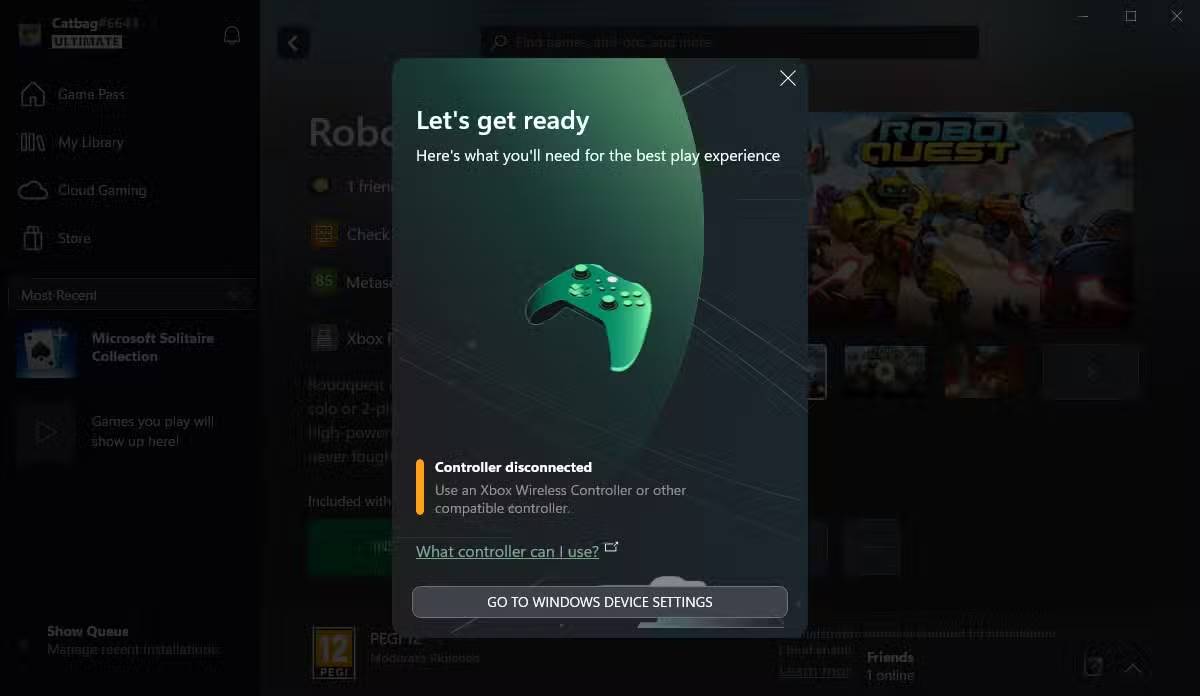
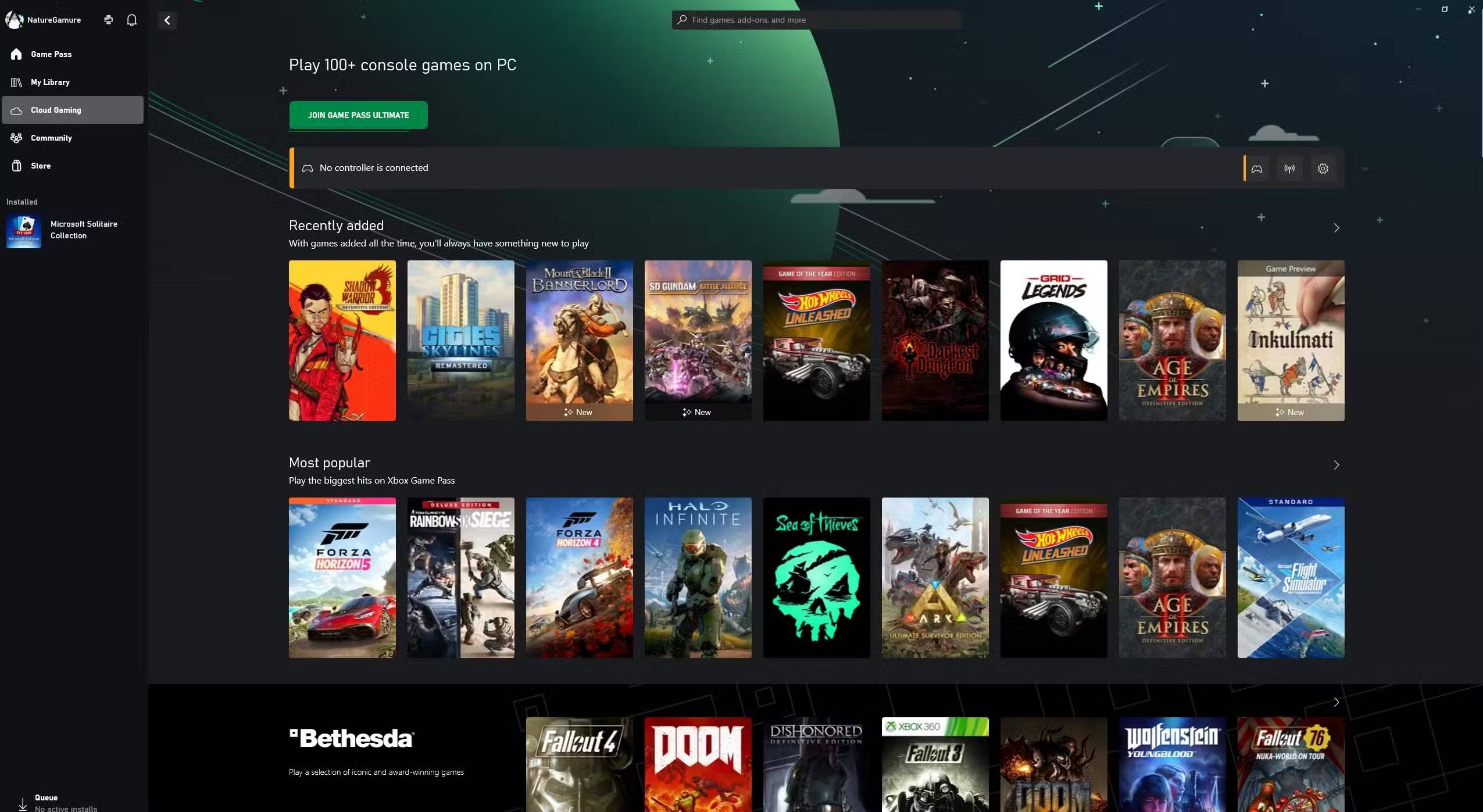
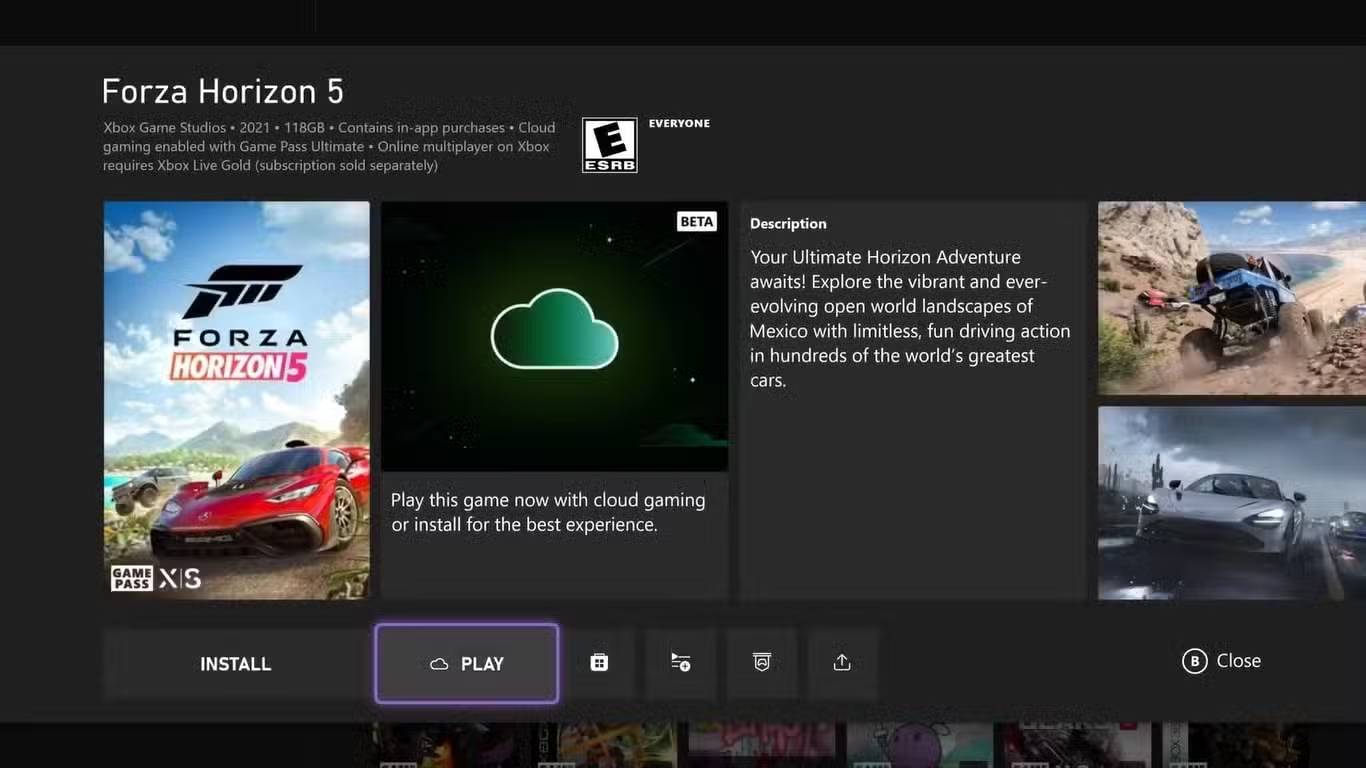
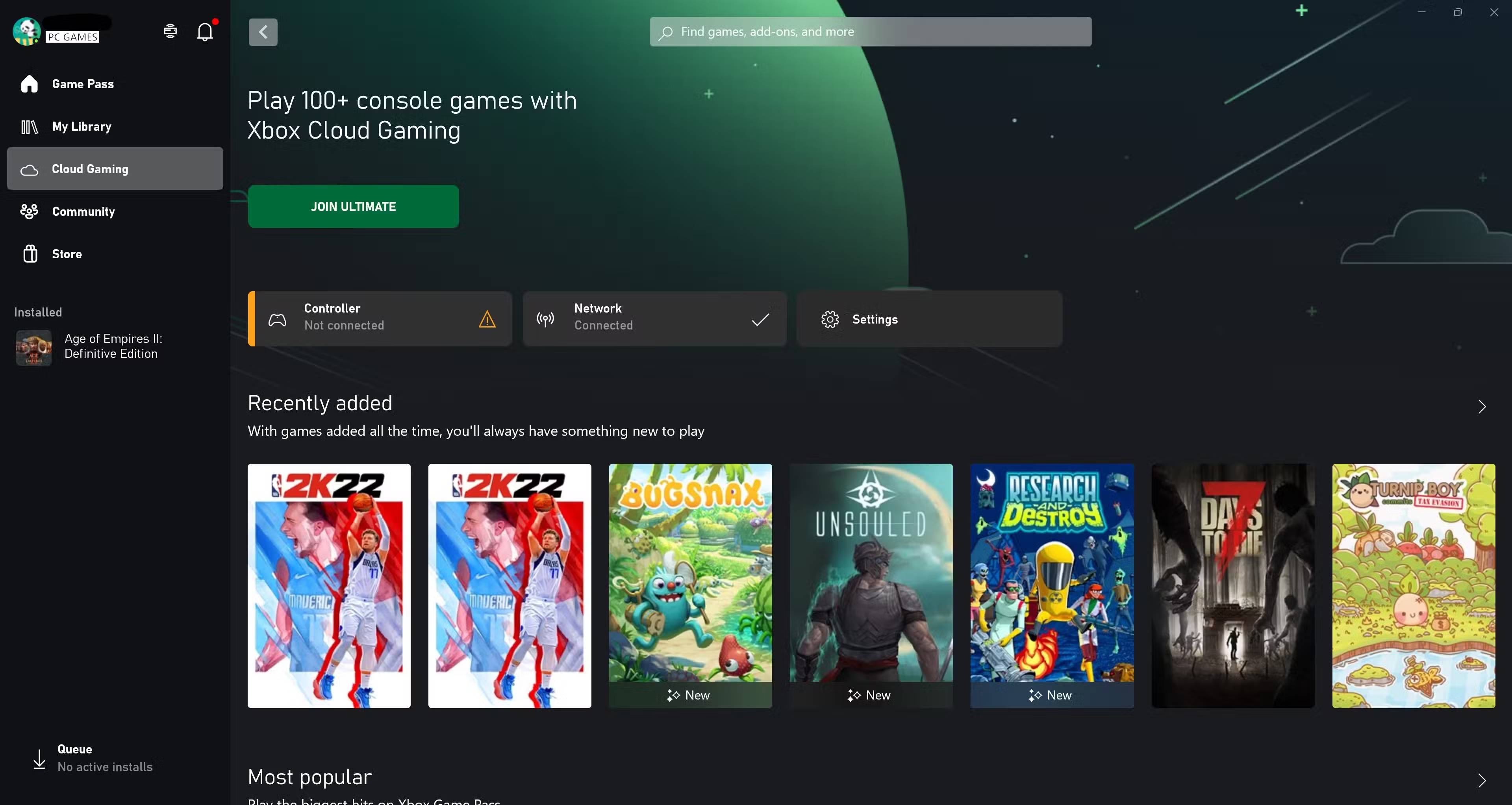
On a supported model and in a supported region, install the Xbox app from the Appstore, sign in, and pair a compatible controller. Most cloud games require an eligible Game Pass subscription; check the current Xbox TV compatibility information for your device and game.
Cloud gaming streams the game rather than installing it locally. Input delay depends on the connection, so use a stable network and enable your television’s Game Mode if available. Ethernet may require a compatible adapter. Amazon Luna is another possibility where the service, device, and required membership are supported; it is not a universal fallback for every Fire TV.
4. Display photos and widgets
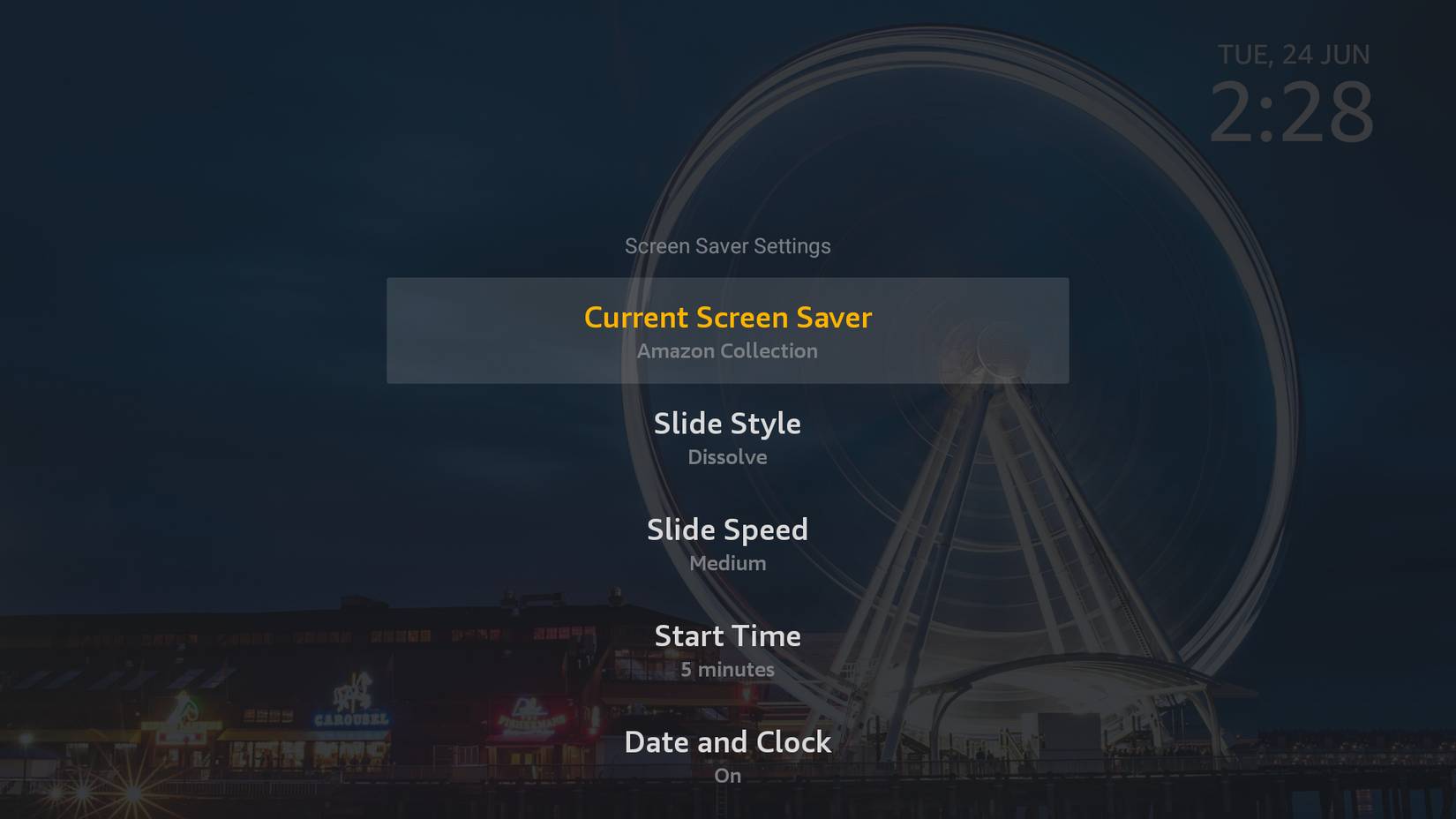
Supported models offer Ambient Experience, which can show artwork, personal photos, and widgets while you are not watching video. Look under Settings > Display & Sounds for the feature. A standard screensaver and Ambient Experience are not the same thing.
Within Ambient Experience, use its preferences to choose available widgets and whether they appear at startup. Weather, calendar, and photo features depend on the device, region, and connected account. Consider which personal information will be visible to anyone in the room.
5. Pair headphones, keyboards, or controllers
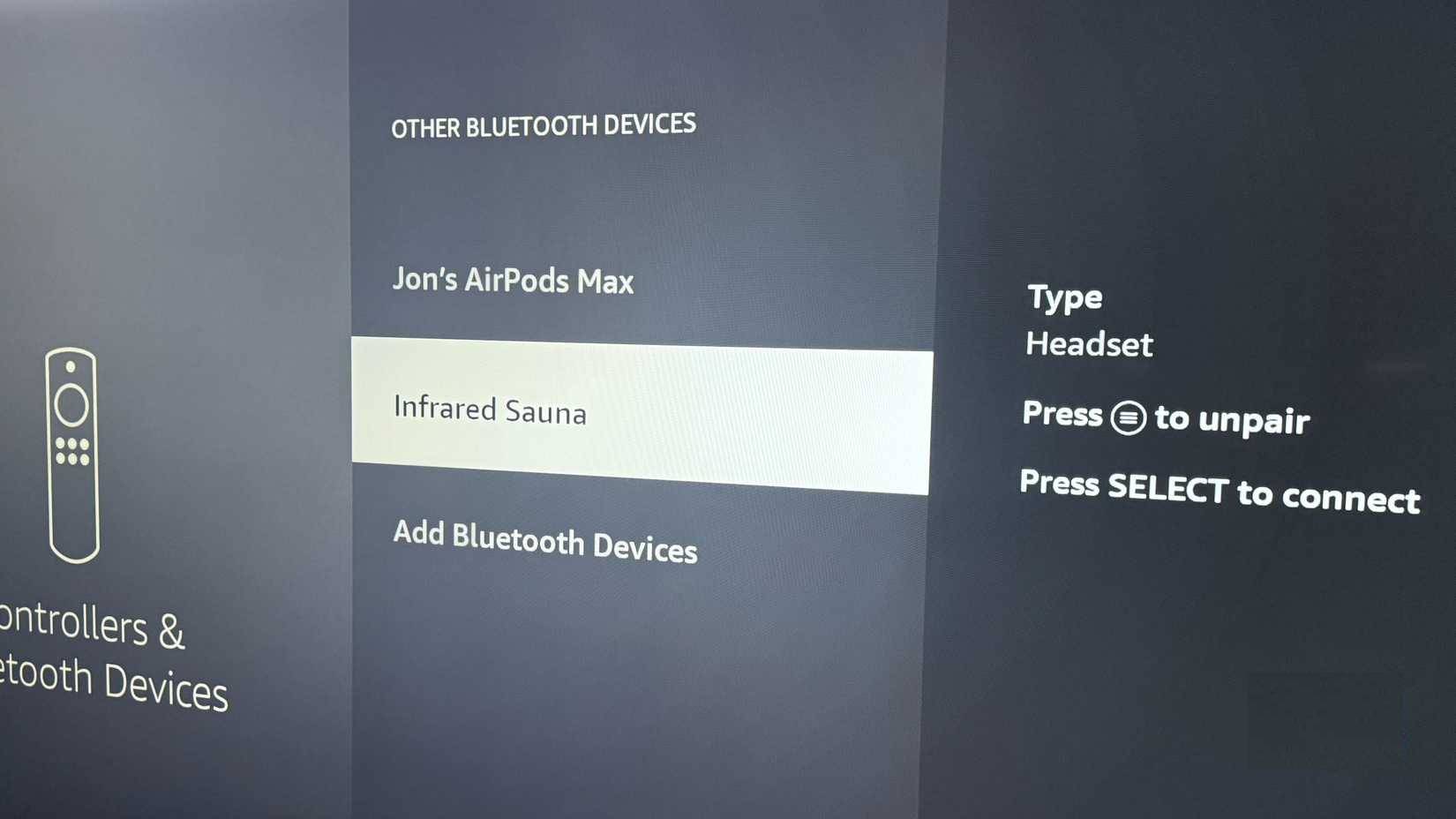
Open Settings > Controllers & Bluetooth Devices. For headphones and many keyboards, select Other Bluetooth Devices > Add Bluetooth Device, put the accessory in pairing mode, and select it. Game controllers may have a separate menu.
Headphones can be useful for private listening, and a keyboard can simplify text entry. Accessory and app support vary, so pairing successfully does not guarantee that every button or mouse function will work. If an accessory is missing from the list, disconnect it from its previous device and retry pairing.
Related Articles
 How Fast Can a Fire Spread2 minutes read
 Want to Escape When the Fire Needs to Remember 10 Things Clearly10 minutes read
 5 Ways to Create Fire from Simple to Unexpected Items5 minutes read
 How to Setting up Auto-Fire of Fire VNG4 minutes read
 Details of Update Free Fire OB274 minutes read
 Admire the Magic Dancing Pillar of Fire in the Rare Sulfur Fire3 minutes read
Reader Comments 0
Sign in with email or Google to join the discussion.