Table of Contents
AI image-to-video tools can add camera movement, subject motion, ambient sound, and short narrative beats to a still image. The best choice depends less on a single “most realistic” label and more on the controls you need: reference-image consistency, motion direction, generated audio, social publishing, or a full editing timeline.
This guide compares six current options and explains how to get cleaner results without overstating what generative video can do. Access, credits, output limits, and regional availability change often, so confirm those details before committing to a workflow.
Quick comparison
| Tool | Best fit | What to check before choosing |
|---|---|---|
| Gemini Omni | Conversational image-to-video creation and editing | Plan and regional availability; whether you need multiple photo references |
| Grok Imagine | Fast experimentation with motion, sound, and references | Account access, generation limits, and rights for uploaded faces or voices |
| Kling AI | Controlled movement and character-focused clips | Which controls and output resolutions are included in your plan |
| Runway | Iterative creative production and professional workflows | Credit cost, model choice, and the amount of post-production required |
| Meta AI Vibes | Creating and remixing short social videos | Availability in your market and whether you want a public, feed-centered workflow |
| Filmora | Generating a clip and finishing it in one video editor | AI credit use, export options, and the selected generation model |
1. Google Gemini Omni
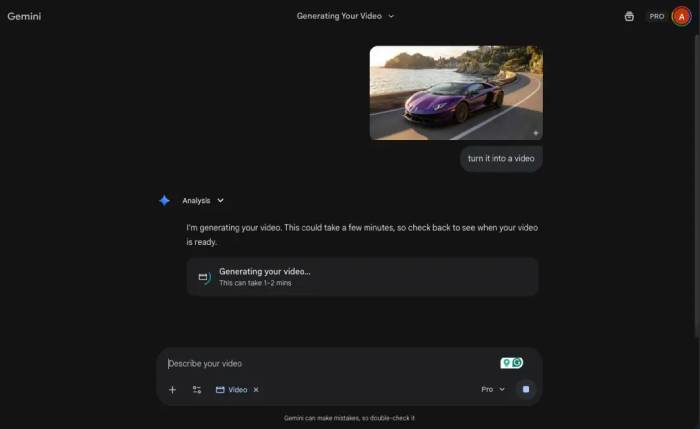
Google’s current consumer video experience is Gemini Omni, which replaces Veo in the Gemini app. It can turn text, photos, or video into a short video and supports conversational revisions instead of requiring every change to start from scratch. Google says the current consumer experience can use up to five photo references and generate native audio.
Choose Gemini Omni when you want to build a clip through back-and-forth instructions—for example, animate a product photo, then change the camera move or revise the scene. Google still offers Veo 3.1 through developer products, but consumers should not rely on old instructions or free-generation quotas written for earlier Gemini releases.
2. Grok Imagine
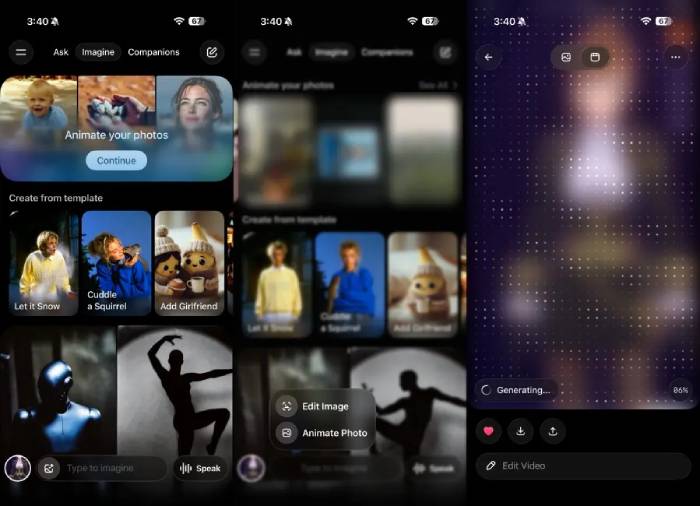
Grok Imagine Video supports image-to-video generation and can create synchronized audio. Newer reference controls can use images or voice as guidance, which is useful when a project needs a recurring subject or a particular vocal character.
It is a practical option for rapid variations, but do not assume access is free or unlimited: quotas and plan requirements may differ by account and can change. Review faces, hands, text, logos, background continuity, and audio synchronization before publishing. A visually polished clip can still contain small identity or motion errors.
3. Kling AI
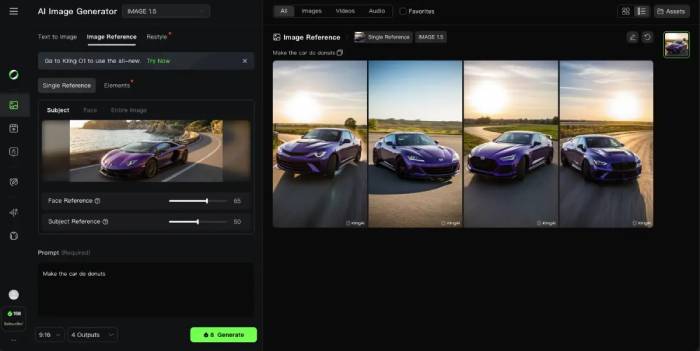
Kling AI’s image-to-video tools are aimed at animating a supplied frame while giving the creator control over movement and visual continuity. Depending on the active model and plan, the service may offer motion controls, start-and-end-frame workflows, or references for a character or object.
Kling is worth considering when subject motion matters more than a one-click effect. Start with a clean, high-resolution image and request one clear action at a time. Complex prompts that combine several people, rapid camera movement, and precise object interactions are more likely to introduce visual mistakes.
4. Runway
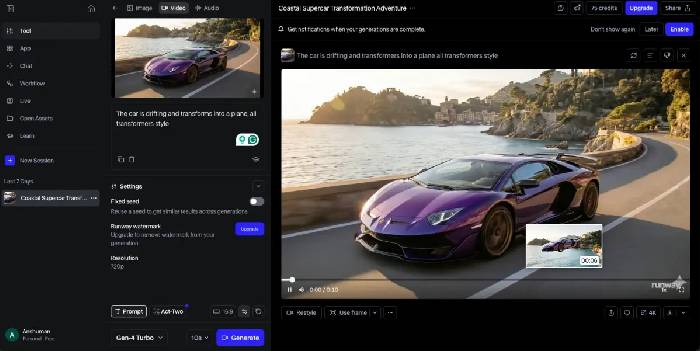
Runway’s current generative video workflow supports image-to-video creation with a text prompt. The image establishes the composition, subject, lighting, and style; the prompt should mainly describe what changes over time, such as the subject’s movement, camera direction, or environmental motion.
Runway is a strong fit for creators who expect to generate multiple takes and assemble the selected clip into a larger production. Its model selector and broader creative toolset are more useful than a simple preset library, but that flexibility also makes credit budgeting and shot planning important.
5. Meta AI Vibes
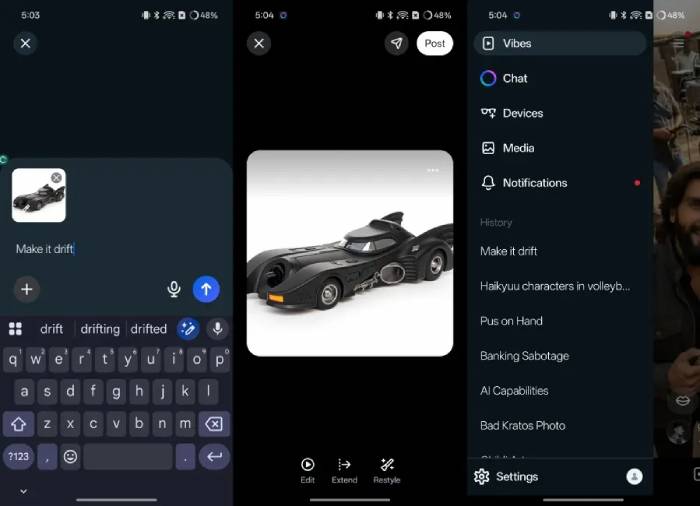
Vibes in the Meta AI app is designed around discovering, creating, remixing, and sharing short AI videos. It can be convenient when the final destination is a social feed and you want to change a clip’s style or music without moving through a traditional desktop editor.
Vibes is less suitable when you need a private production pipeline, detailed timeline editing, or predictable cross-shot continuity. Check whether the feature is available in your region and review the sharing controls before uploading personal photographs.
6. Wondershare Filmora
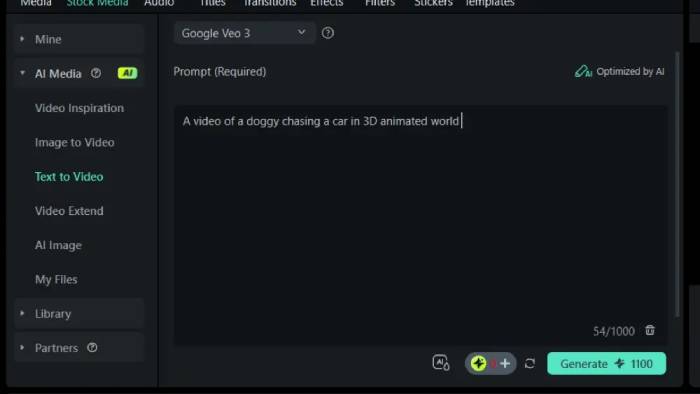
Filmora’s Image to Video feature combines generation with a conventional editing timeline. You can generate motion from an image, then trim the result, adjust timing, add captions or music, correct color, and export from the same application.
This makes Filmora useful when the generated shot is only one part of the final video. Pay attention to which underlying model is selected, how many AI credits a generation consumes, and whether the source media and music are licensed for your intended use.
Sora is no longer a current option
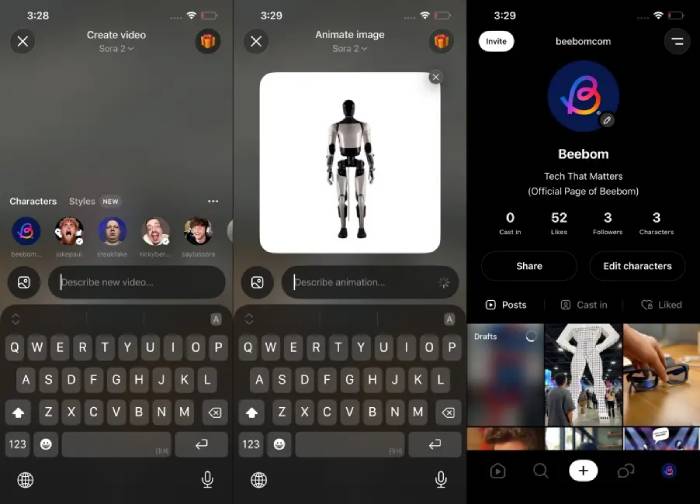
Older comparisons may recommend OpenAI Sora for image-to-video creation. However, OpenAI discontinued the Sora web experience and mobile app on April 26, 2026. The Sora API is also scheduled to be discontinued on September 24, 2026. Do not begin a new workflow that depends on it.
How to prompt an image-to-video model
Describe motion, not information the model can already see in the image. A useful prompt separates the action into a few concrete parts:
- Subject movement: “The cyclist looks over her shoulder and begins pedaling slowly.”
- Camera movement: “A gentle forward dolly with no sudden zoom.”
- Environmental motion: “Leaves move lightly in the breeze; distant traffic passes.”
- Pace and mood: “Natural speed, restrained movement, calm documentary style.”
- Audio, if supported: “Quiet street ambience and a soft bicycle chain sound; no dialogue.”
Keep the first attempt simple. If it fails, change one variable at a time so you can identify whether the problem comes from the source image, the requested motion, or the selected model. Runway’s guidance likewise recommends focusing image-to-video prompts on motion rather than redescribing the frame.
How to choose the right tool
- For conversational revisions and several references: start with Gemini Omni.
- For fast reference-based experiments with generated audio: compare Grok Imagine with the alternatives available to your account.
- For controlled subject movement: test Kling with a simple action before attempting a complex scene.
- For an iterative production pipeline: Runway offers a broader set of generative video workflows.
- For social remixing: Meta AI Vibes is built around discovery and sharing.
- For generation plus timeline editing: Filmora reduces the need to move files between separate tools.
If you prefer local control over cloud services, see TipsMake’s comparison of open-source AI video models. For broader options, compare these tools with the site’s AI video creation tools and mobile AI video editors.
Consent, copyright, and quality checks
Only animate a recognizable person when you have permission, especially when using a face or voice reference. Never create deceptive impersonations or non-consensual intimate media. Treat photographs of children, private individuals, and deceased relatives as sensitive material, and avoid uploading them to a service unless you understand its privacy and retention terms.
Before commercial use, verify the rights to the source image, music, logos, characters, and generated output under the provider’s current terms. Disclose synthetic or materially altered media when viewers could otherwise mistake it for a real event. TipsMake’s guide to checking suspicious AI video can help with a broader verification workflow, but no detector should replace human review.
Finally, inspect every export at full size. Look for identity drift, warped hands, unstable text, duplicated objects, impossible reflections, abrupt background changes, and audio that does not match the action. Preserve the original photo and the prompts used so you can reproduce or revise the result later.
Related Articles
 How to Create AI Timelapse Videos9 minutes read
 TOP AI Tools for Realistic Face Swapping in Photos and Videos7 minutes read
 How to Create AI Videos for Real-life Situations (Without a Production Team)8 minutes read
 Top Best AI Tools to Create Videos from Photos and Text Today: What You Need to Know10 minutes read
 Detailed Instructions on How to Create a Video from Photos in the Simplest Way6 minutes read
 6 AI Image Creation Tools for the Most Realistic Results: Expert Selection Guide7 minutes read
Reader Comments 0
Sign in with email or Google to join the discussion.