Table of Contents
ProShow Producer can turn a folder of photos into a timed slideshow with transitions, motion effects, captions, and music. This guide is for users who already have a working, licensed installation and need to finish or recover an older project.
Legacy software warning: Photodex closed and ProShow Producer is no longer supported. Do not download cracked or repackaged installers from third-party sites. For a new project, use a maintained slideshow or video editor. Photopia provides an official ProShow-to-Photopia migration path and says it can import ProShow shows and effects, although every imported item should be checked.
Prepare the photos and music
- Copy all project photos and audio into a dedicated folder before starting.
- Rotate and rename images first so they sort in the intended order.
- Choose a target aspect ratio, such as widescreen, before adjusting crops and motion.
- Use music you created, licensed, or have permission to publish.
- Keep the original media and the ProShow project file together for backup.
1. Start a blank show
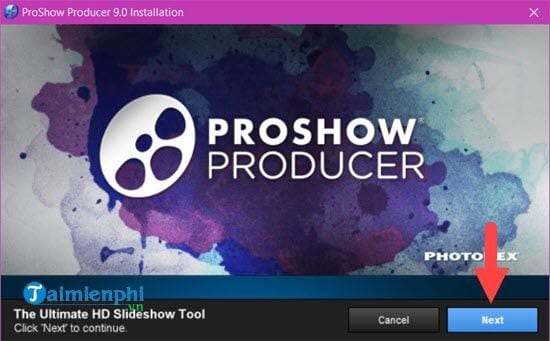
Open your existing ProShow Producer installation.
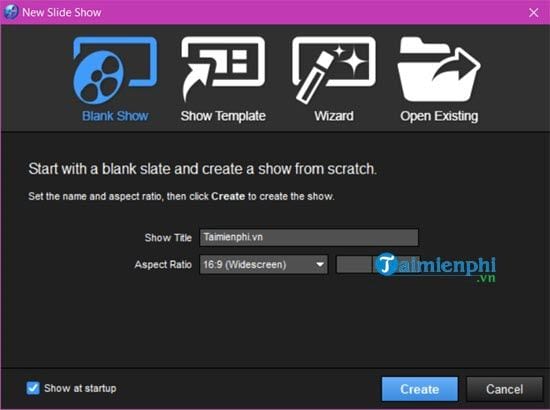
Select Blank Show when you want full control over photo order, timing, and effects instead of using an automatic wizard.
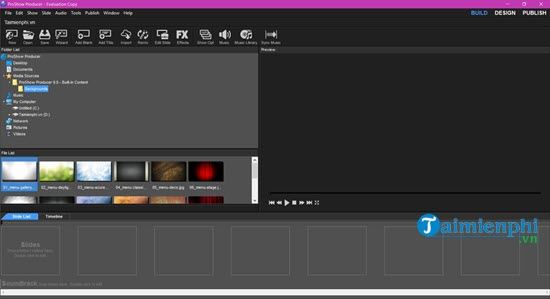
The main workspace contains the folder and file browsers, the slide list or timeline, soundtrack area, and preview window.
2. Add and arrange photos
- In Folder List, open the folder containing the project media.
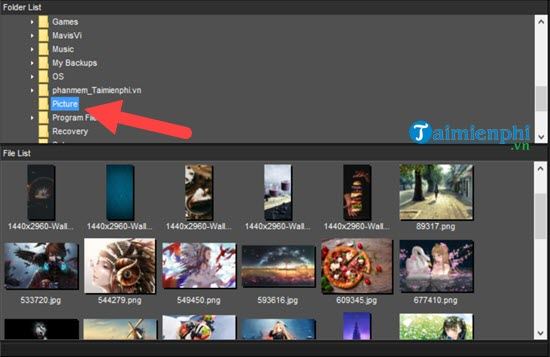
- Select photos in File List and drag them to the slide list or timeline.
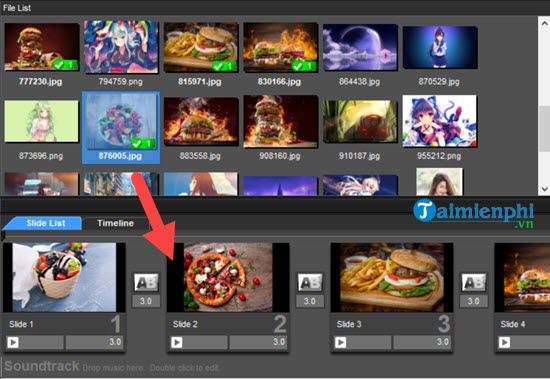
- Drag slides left or right to correct the sequence. Preview the order before adding detailed effects.
- Click a slide's duration value and set how long the photo remains visible.
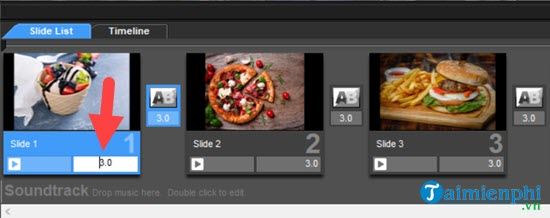
To give several slides the same duration, select them together and change the timing once.
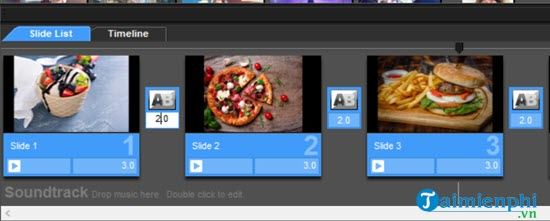
Keep text-heavy photos on screen longer. For a fast event montage, shorter timing may work, but viewers still need enough time to understand each image.
3. Add transitions and slide effects
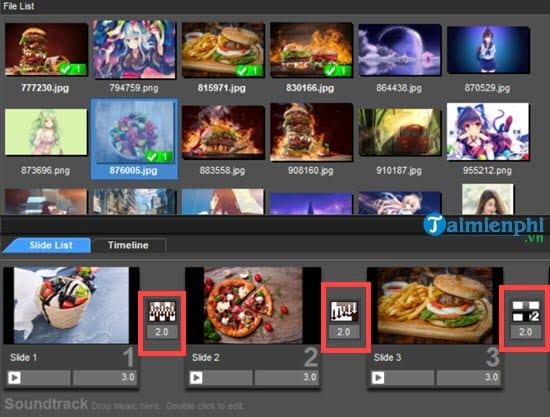
Click the transition icon between two slides to choose how one image changes to the next.
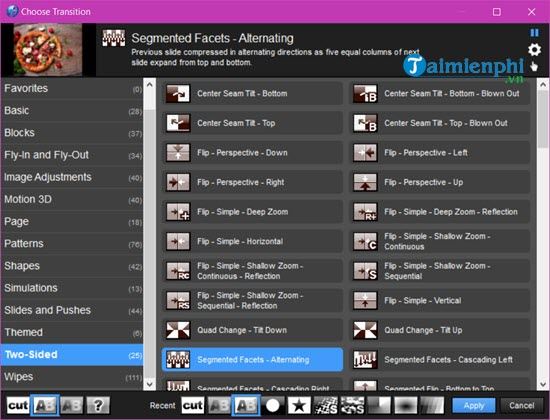
Use a small, consistent set of transitions. Assigning a different random effect to every photo often distracts from the images and can make a slideshow feel dated.
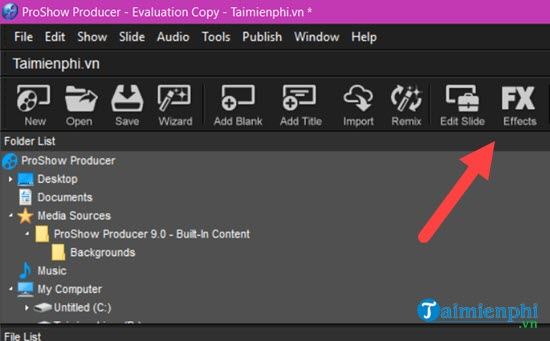
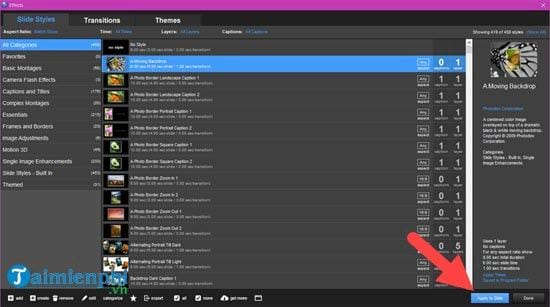
Open a slide's options to adjust layers, motion, captions, or other slide-level effects.
Choose an effect that supports the subject. A slow pan or zoom can add movement to a still image; aggressive rotations and flashes are harder to watch and may obscure important details.
After applying motion, check the first and last frame of the slide. Make sure faces, captions, and the main subject are not cropped at either end.
4. Add a soundtrack
- Use the folder browser to locate a supported audio file.
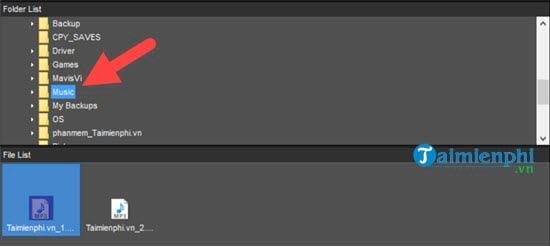
- Drag the track to the soundtrack area beneath the slides.
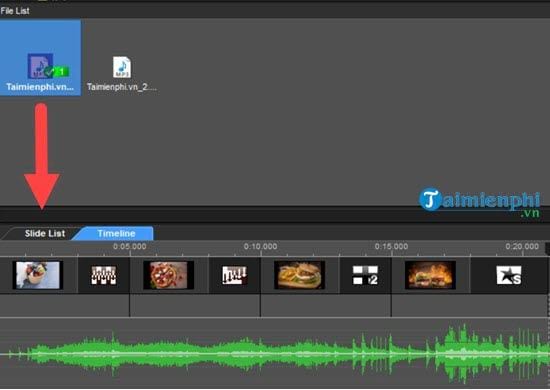
- Trim or reposition the track so it starts and ends cleanly. Add a short fade rather than ending music abruptly.
- Adjust music volume if the slideshow includes narration or video clips with speech.
- Do not assume that owning a song file gives permission to publish it in a video.
5. Preview the complete show
Play the slideshow from beginning to end before exporting.
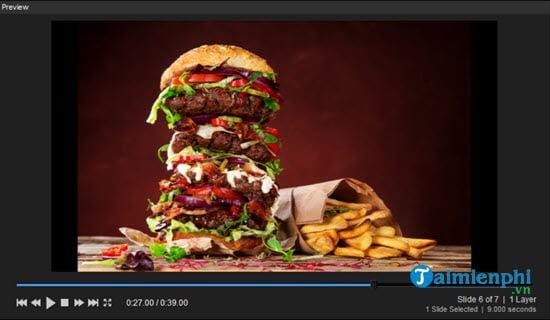
Watch for photos displayed too briefly, repetitive transitions, black borders, unreadable captions, clipped subjects, sudden volume changes, and audio that ends before or after the images. Save the project after making corrections.
6. Publish a video file
- Open the Publish workspace.
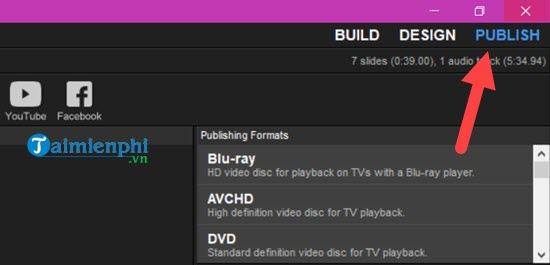
- Select the video-file output option rather than disc or online publishing when you want a reusable local file.
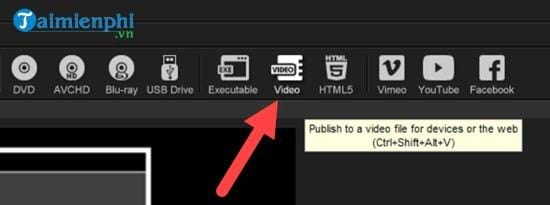
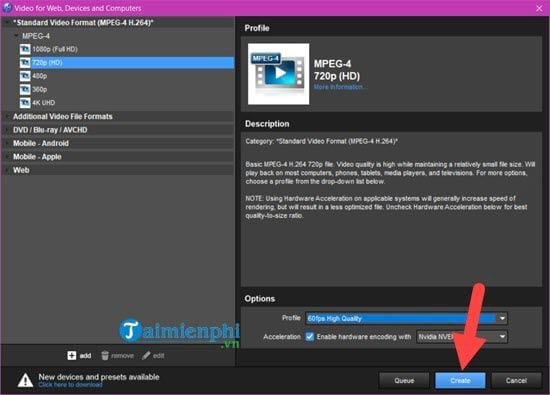
- Choose an MP4/H.264 preset when available and compatible with the destination. Select a resolution that matches the show aspect ratio and source quality; exporting beyond the useful resolution of small photos does not create more detail.
- Review the frame rate, audio, and quality settings, then click Create.
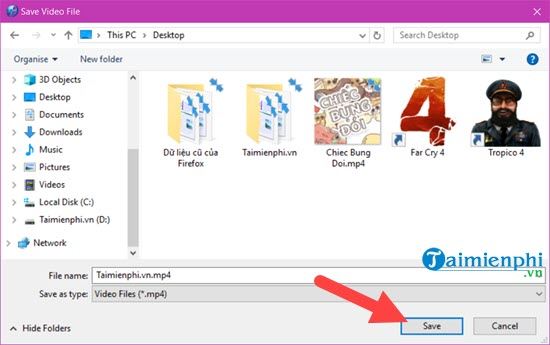
- Enter a clear filename, select an output folder, and save.
Check the exported video
- Play the first and last minute, then sample several transitions in the middle.
- Confirm that photos are sharp and correctly framed.
- Listen for distorted, missing, or out-of-sync audio.
- Check the file on the television, phone, browser, or projector where it will be shown.
- Keep the project file and source folder even after export.
Moving away from ProShow Producer
Because the software is unsupported, a working installation may break after a Windows or hardware change. Export important shows now, back up their media, and test project migration before the old PC fails. Photopia can import ProShow content, while general video editors may require rebuilding the timeline.
For more ProShow workflow advice, see these ProShow Producer tips. For a new project, compare maintained free video editors and photo-to-video software.
Related Articles
 The Simplest Way to View Photos on iCloud Using Your Phone or Computer Explained6 minutes read
 Google Photos Integrates Veo 3: Upgraded AI Photo-to-video Feature4 minutes read
 How to Create a Video That Beats Photos to Music on Tiktok4 minutes read
 Create Cute Drawings from Photos Using AI6 minutes read
 How to Make Video from Photos with Proshow Gold Is Extremely Simple6 minutes read
 Creating Videos from Photos Using Grok9 minutes read
Reader Comments 0
Sign in with email or Google to join the discussion.