Table of Contents
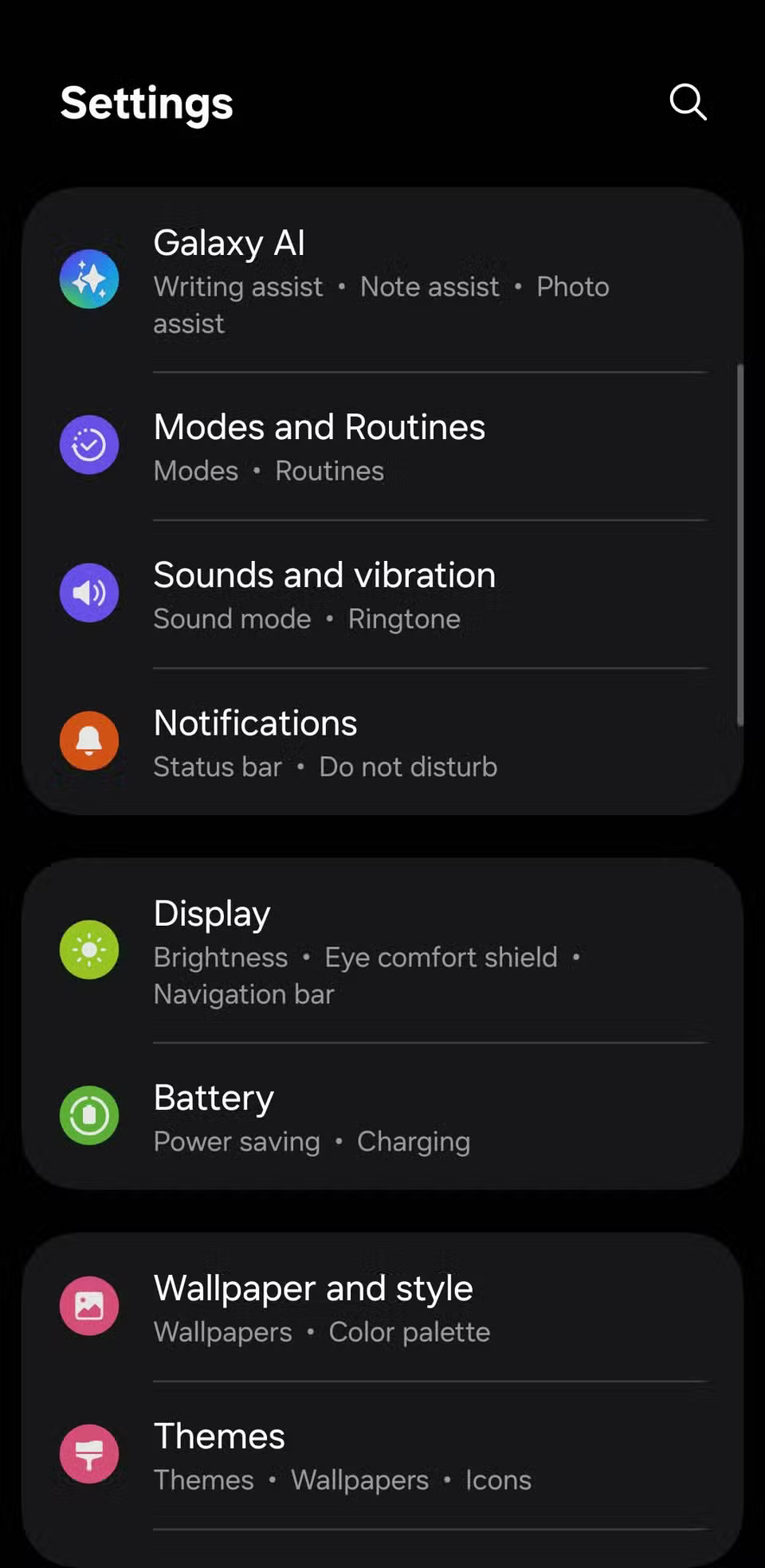
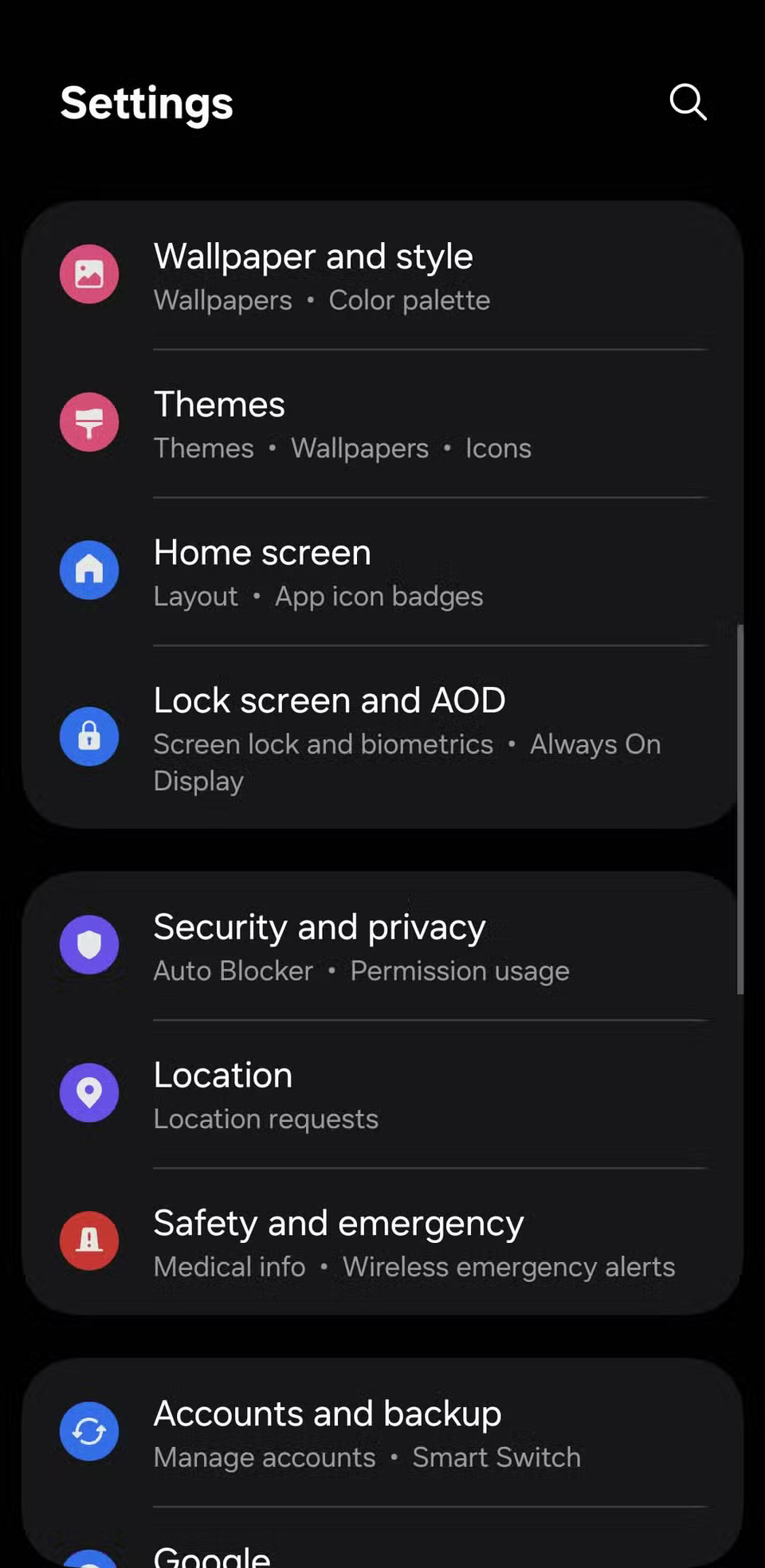
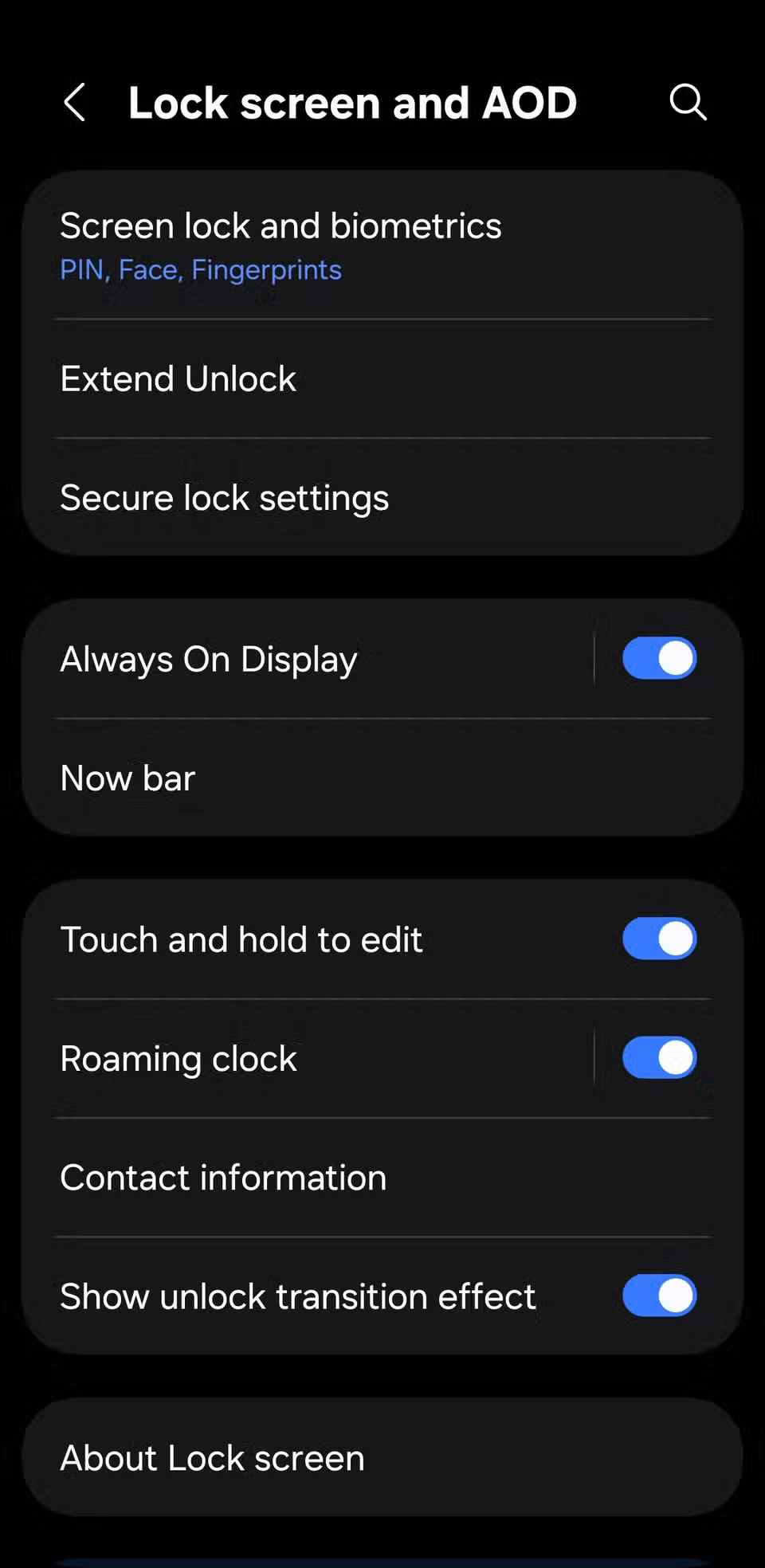
Start with a strong screen lock, a short delay before it takes effect and private message previews. These changes address what someone can see or do when they pick up your phone. The screenshots show a Samsung Galaxy. Menu names and available controls differ on other Android phones.
1. Use a PIN you haven’t reused
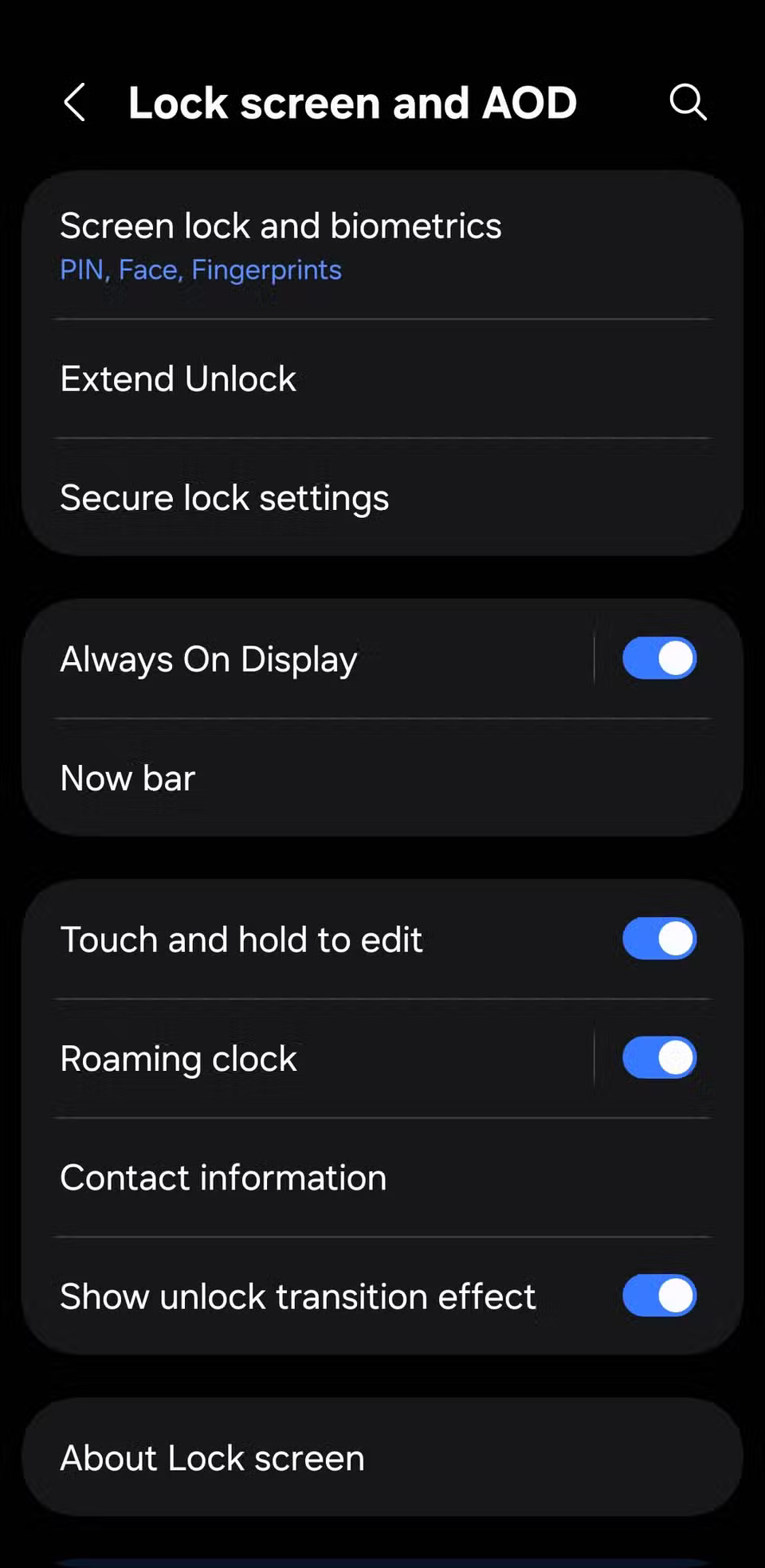
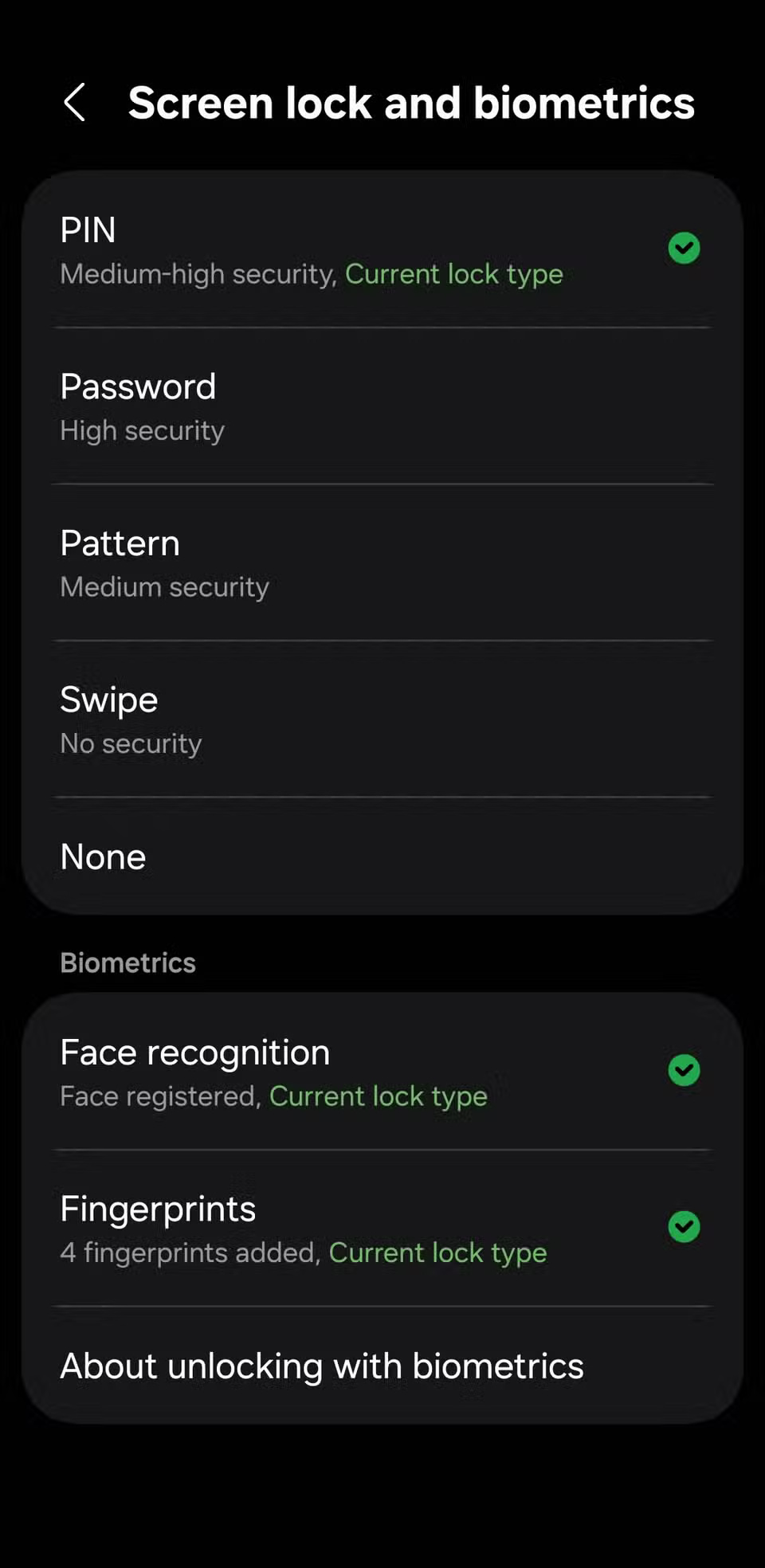
Open your Screen lock settings. Google recommends a PIN with six or more digits. Avoid birthdays and simple patterns. A longer password is another option. A fingerprint can make routine unlocking easier, but keep the primary credential somewhere safe in your memory.
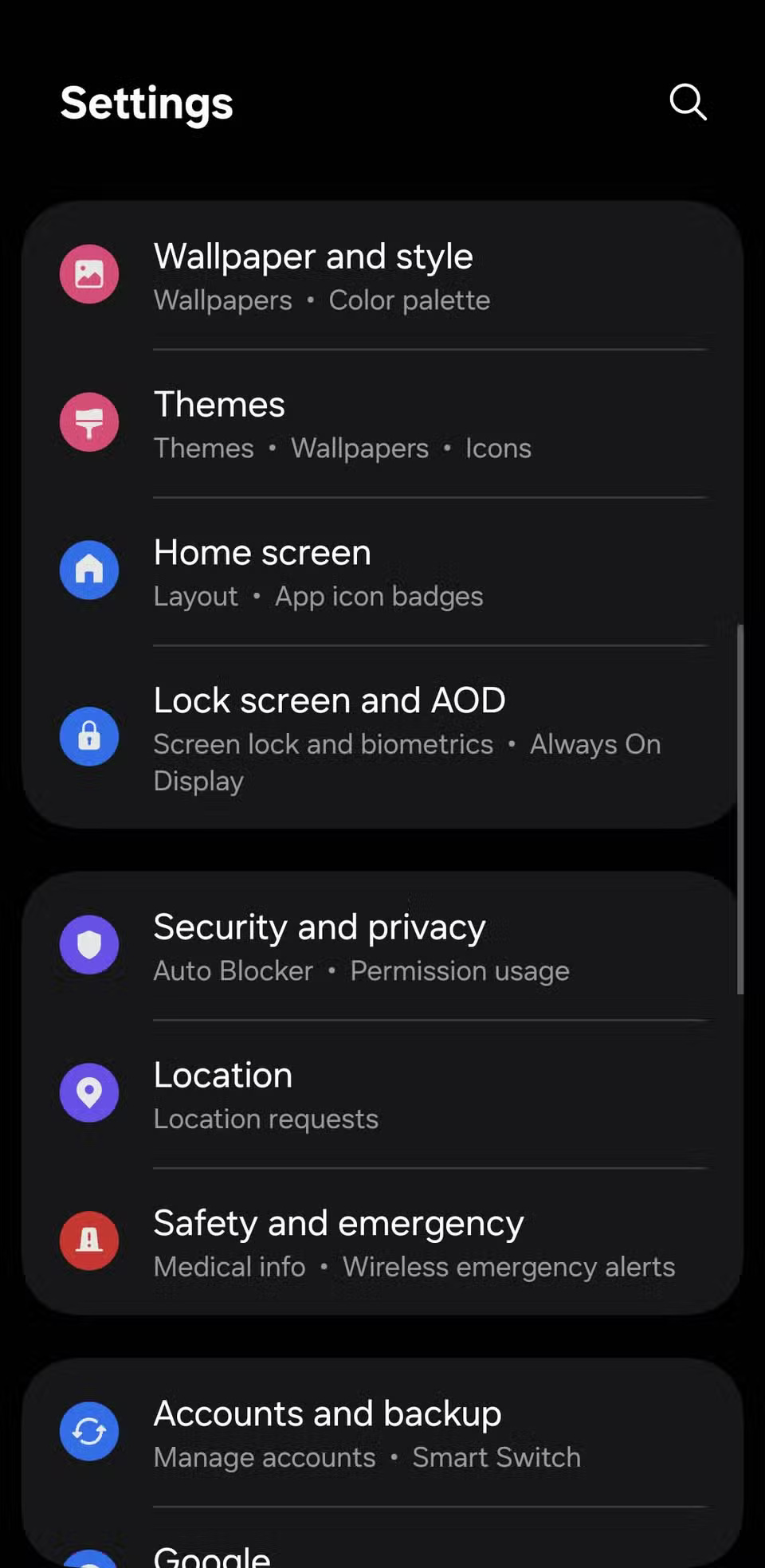
2. Check when the screen actually locks
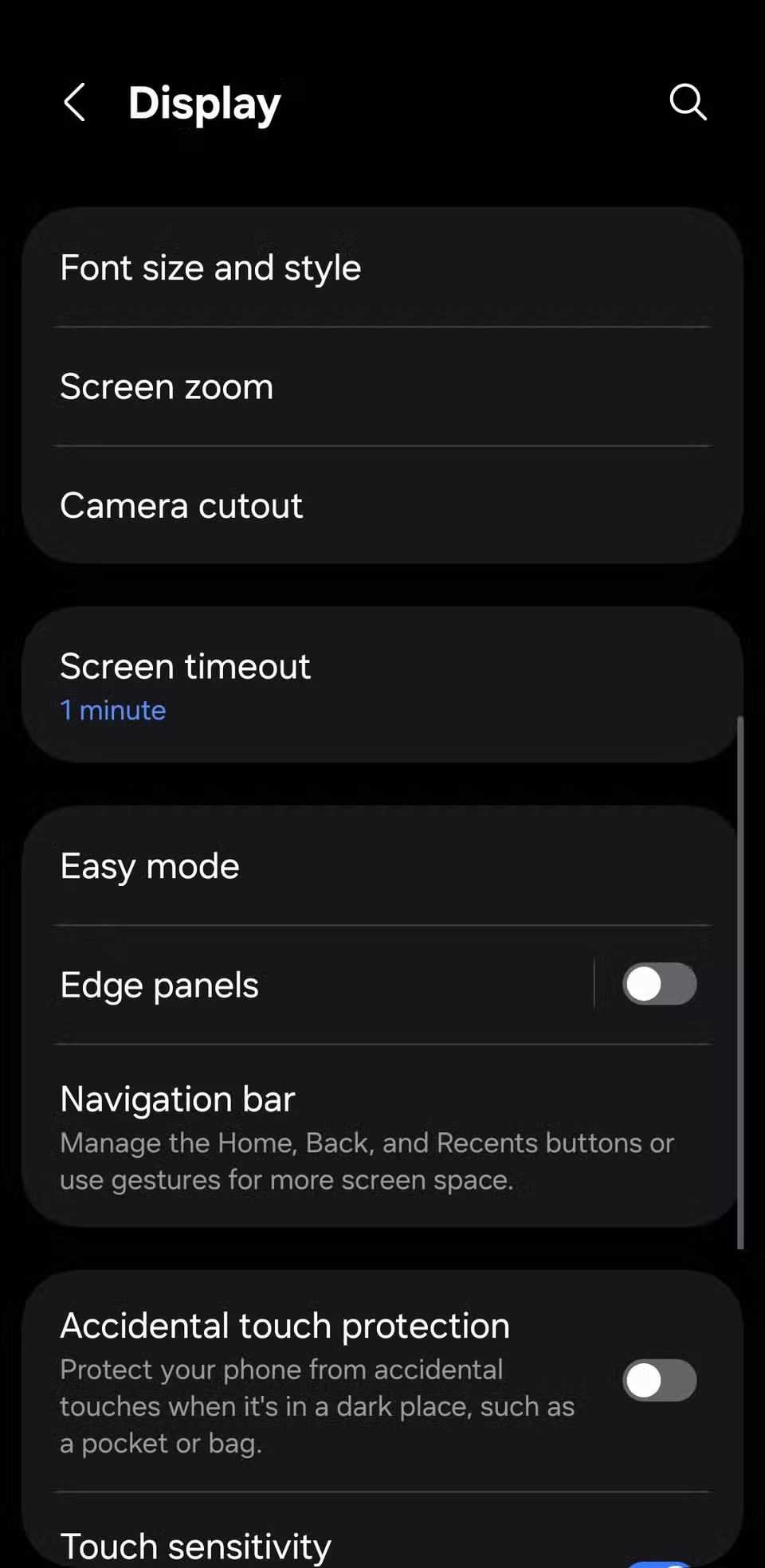
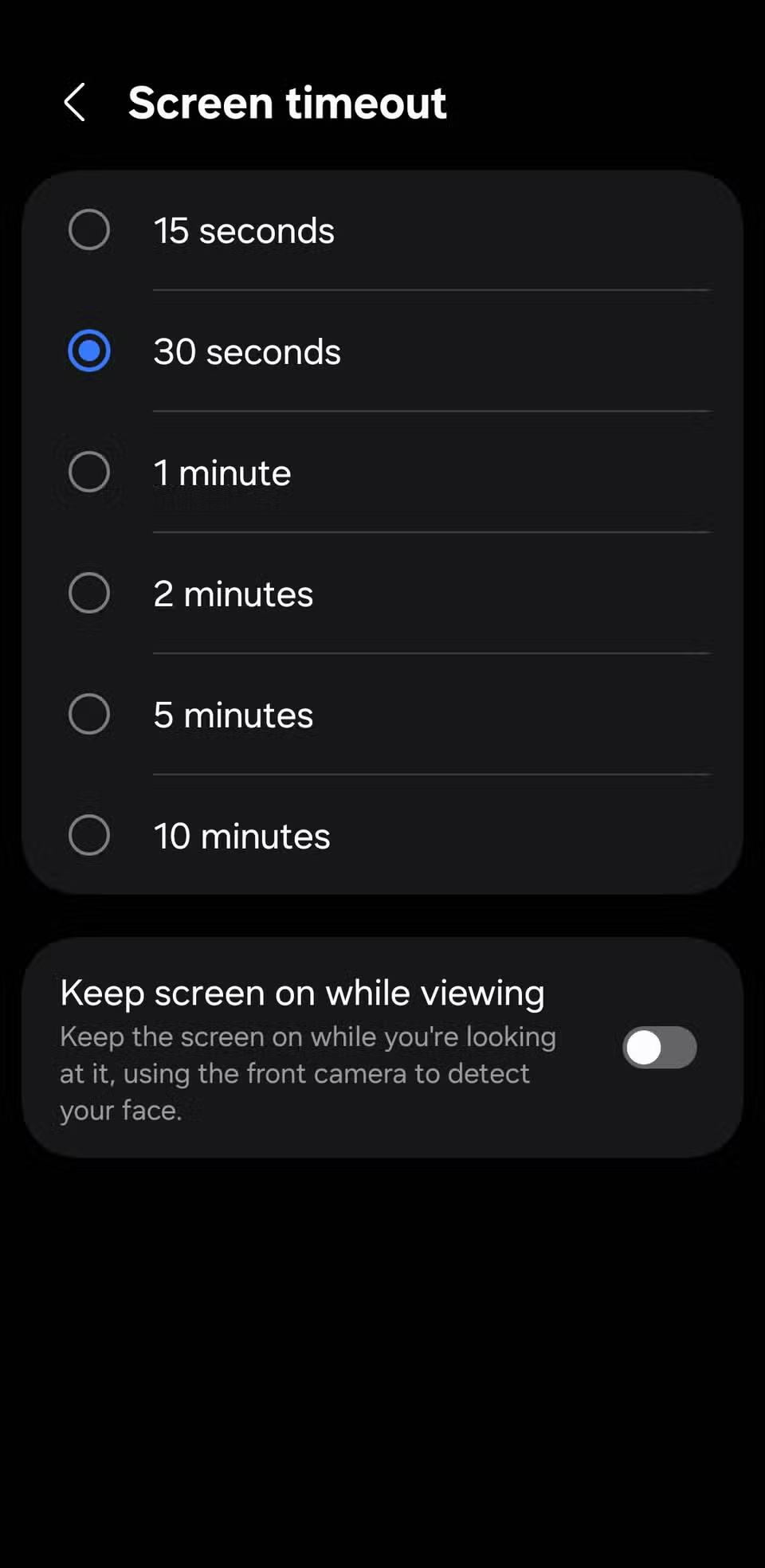
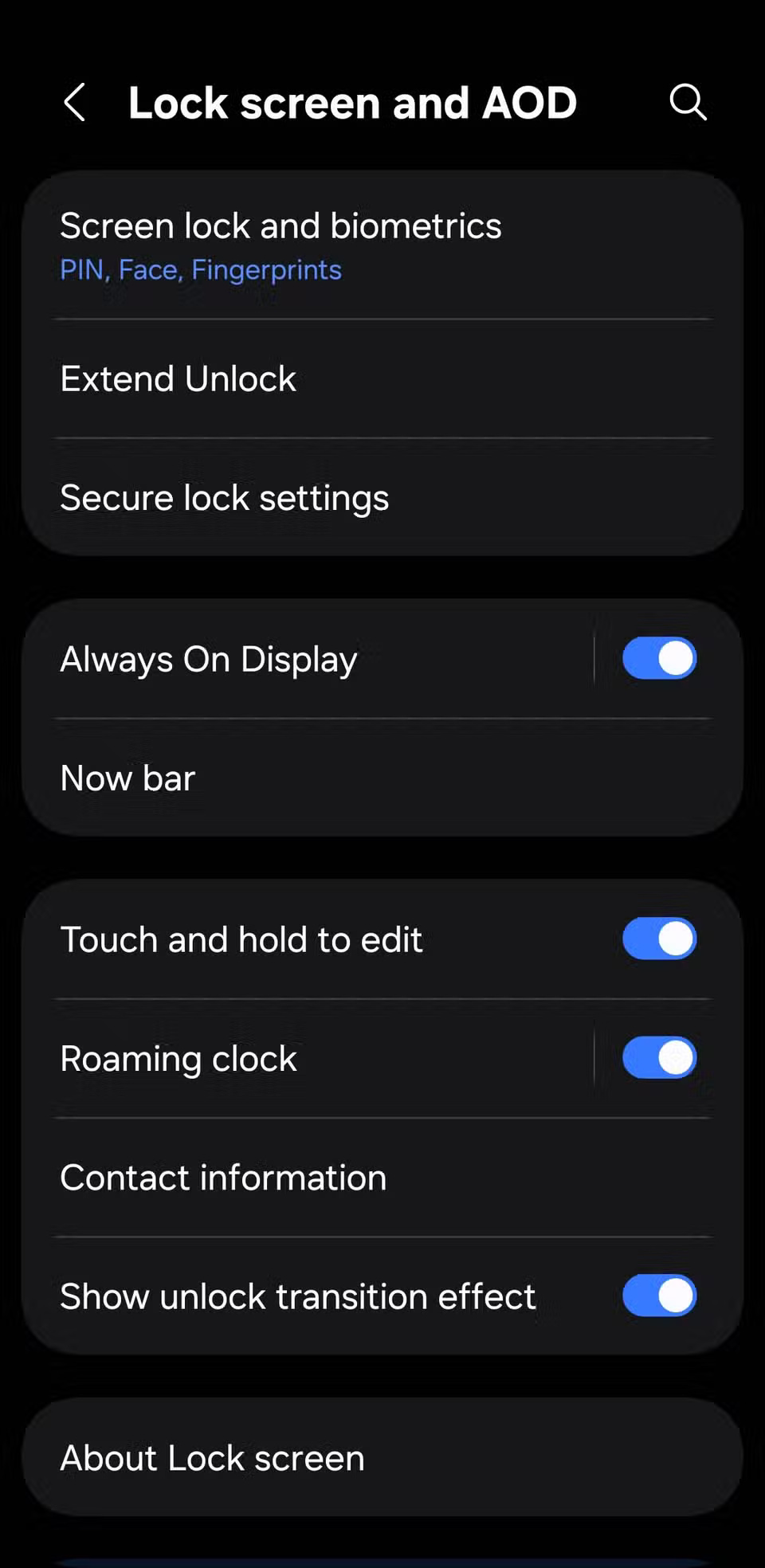
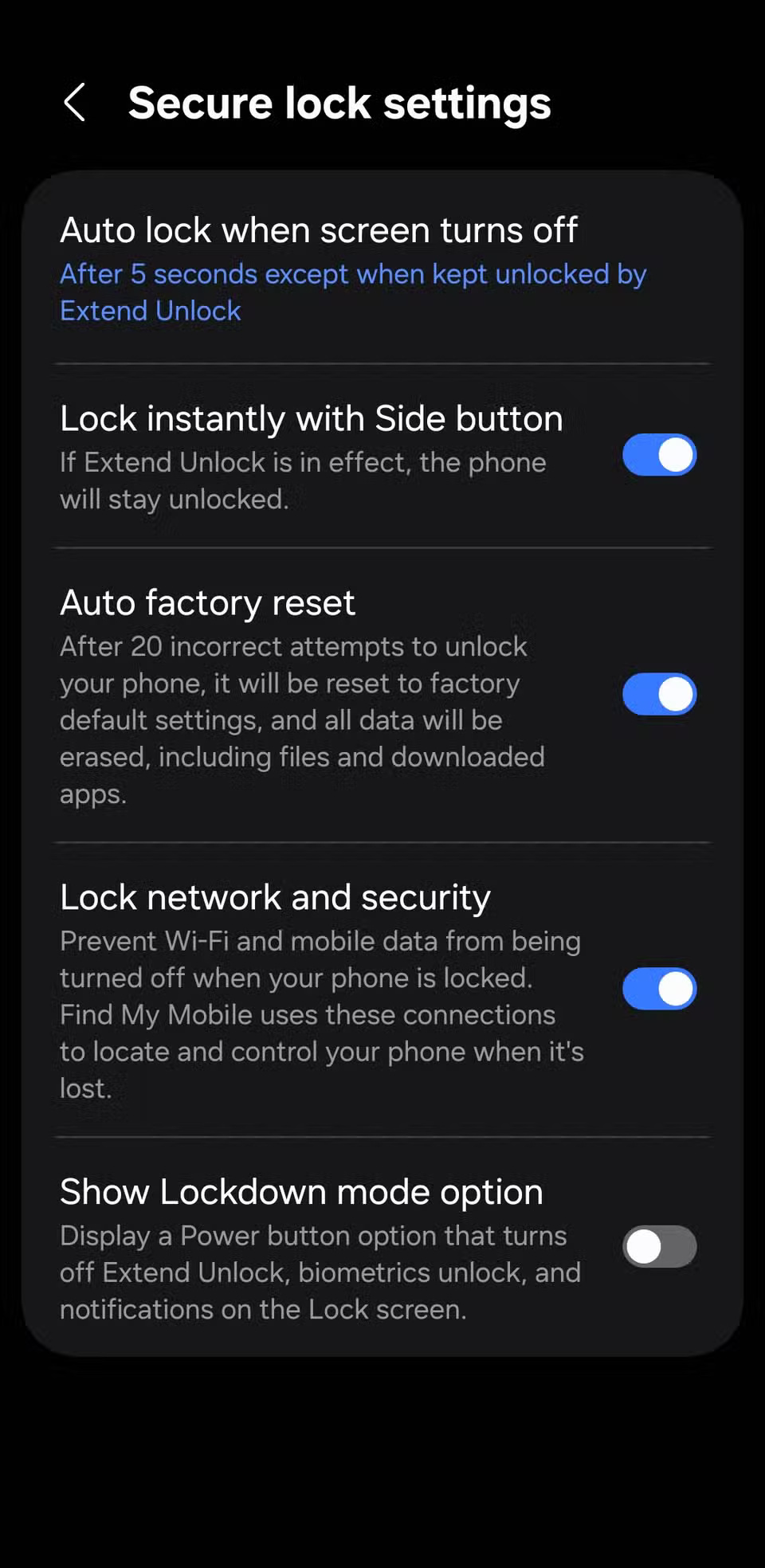
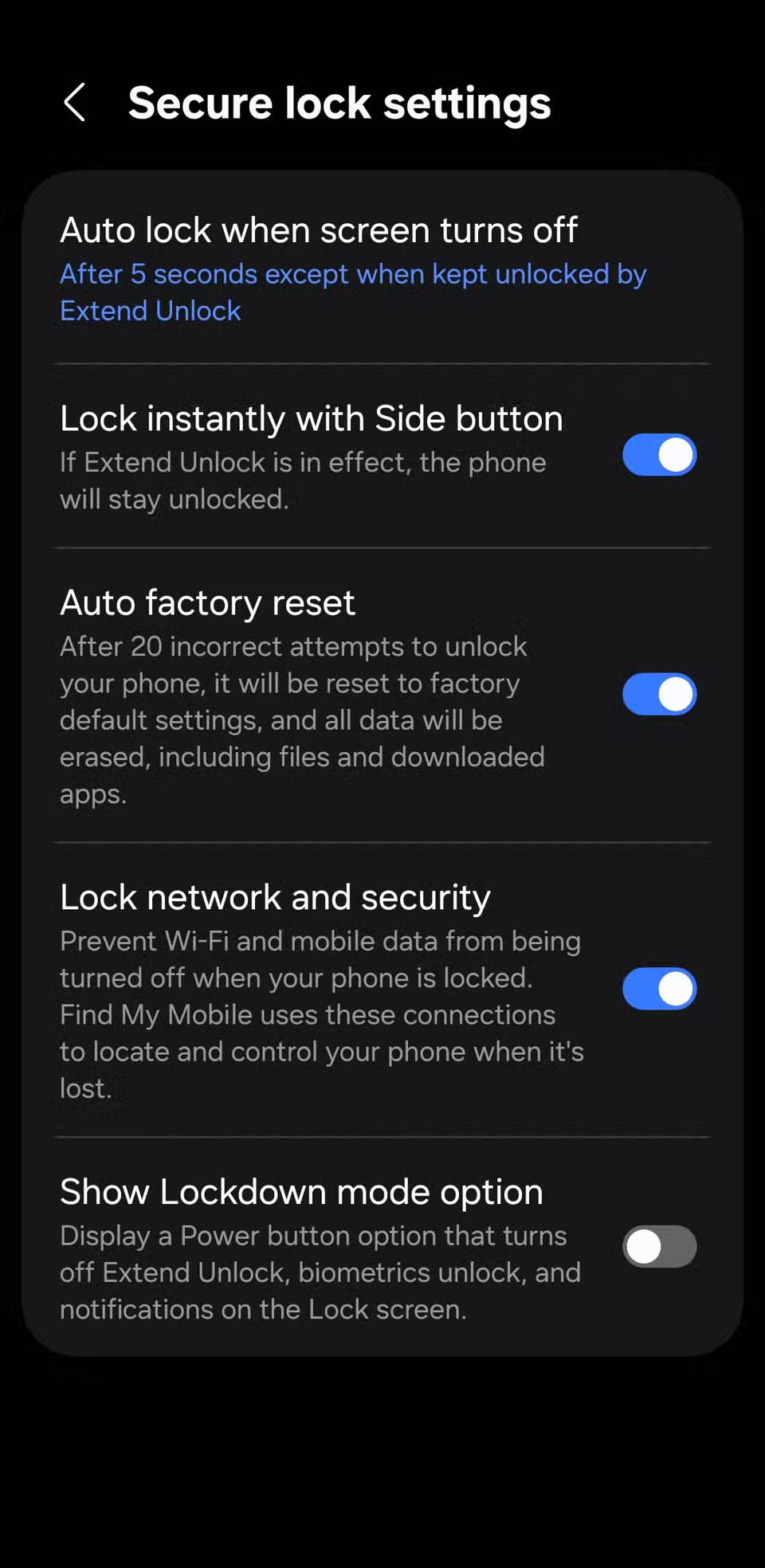
Screen timeout controls when the display goes dark. A separate lock delay may control when you must authenticate again. On supported Galaxy phones, check Secure lock settings and look for locking immediately with the side button. Test by turning the screen off and on.
3. Review Extend Unlock
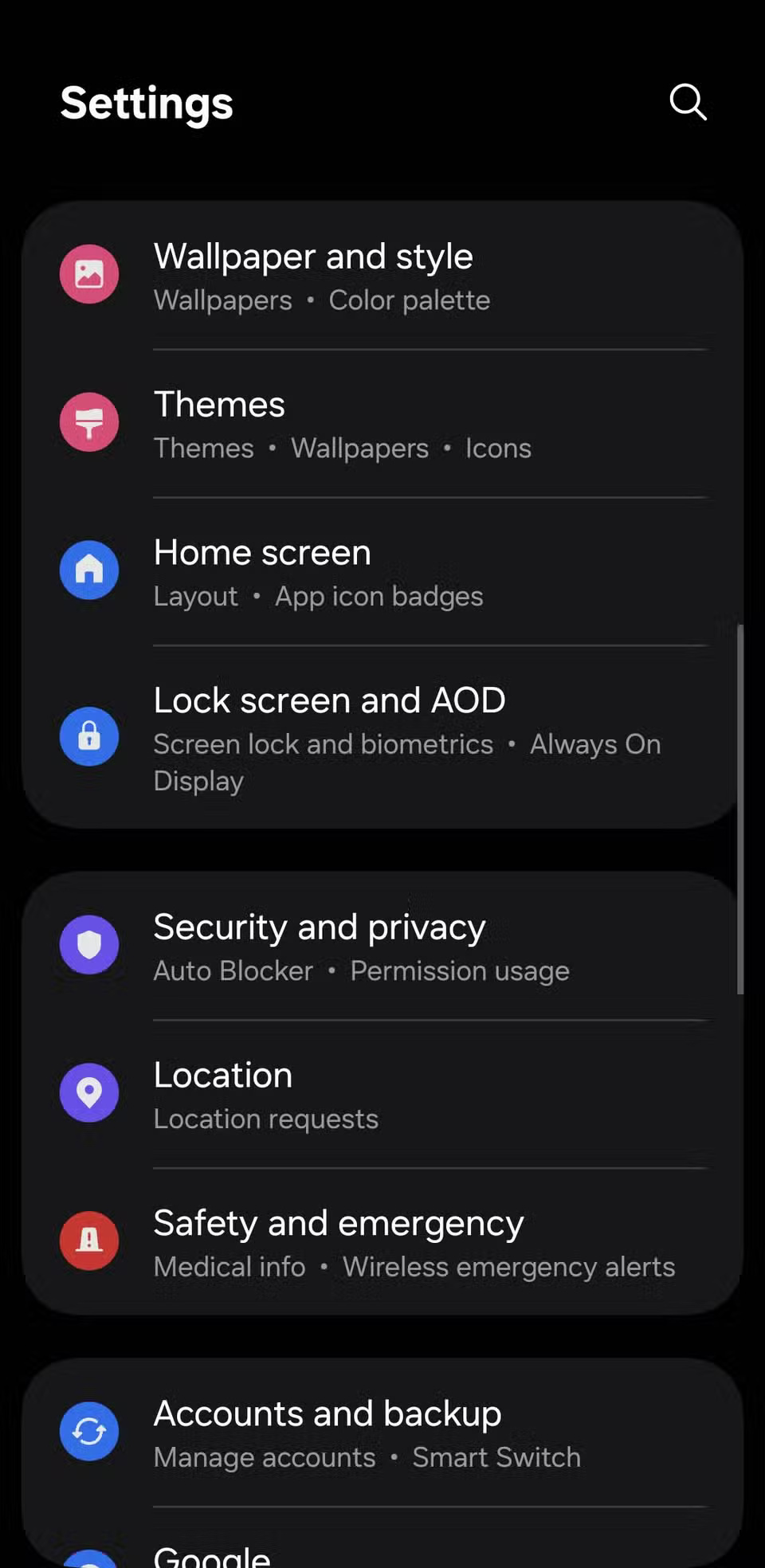
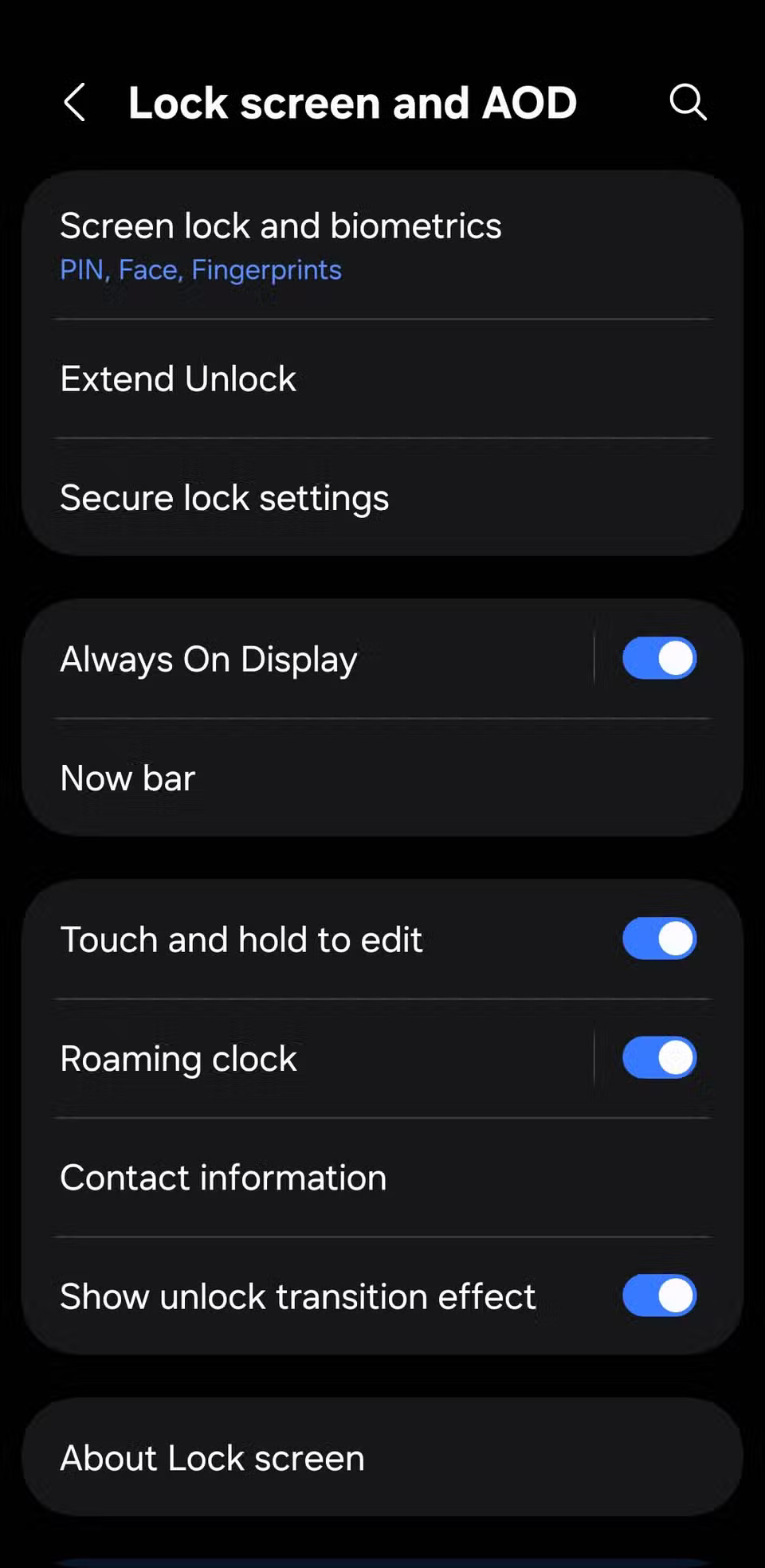
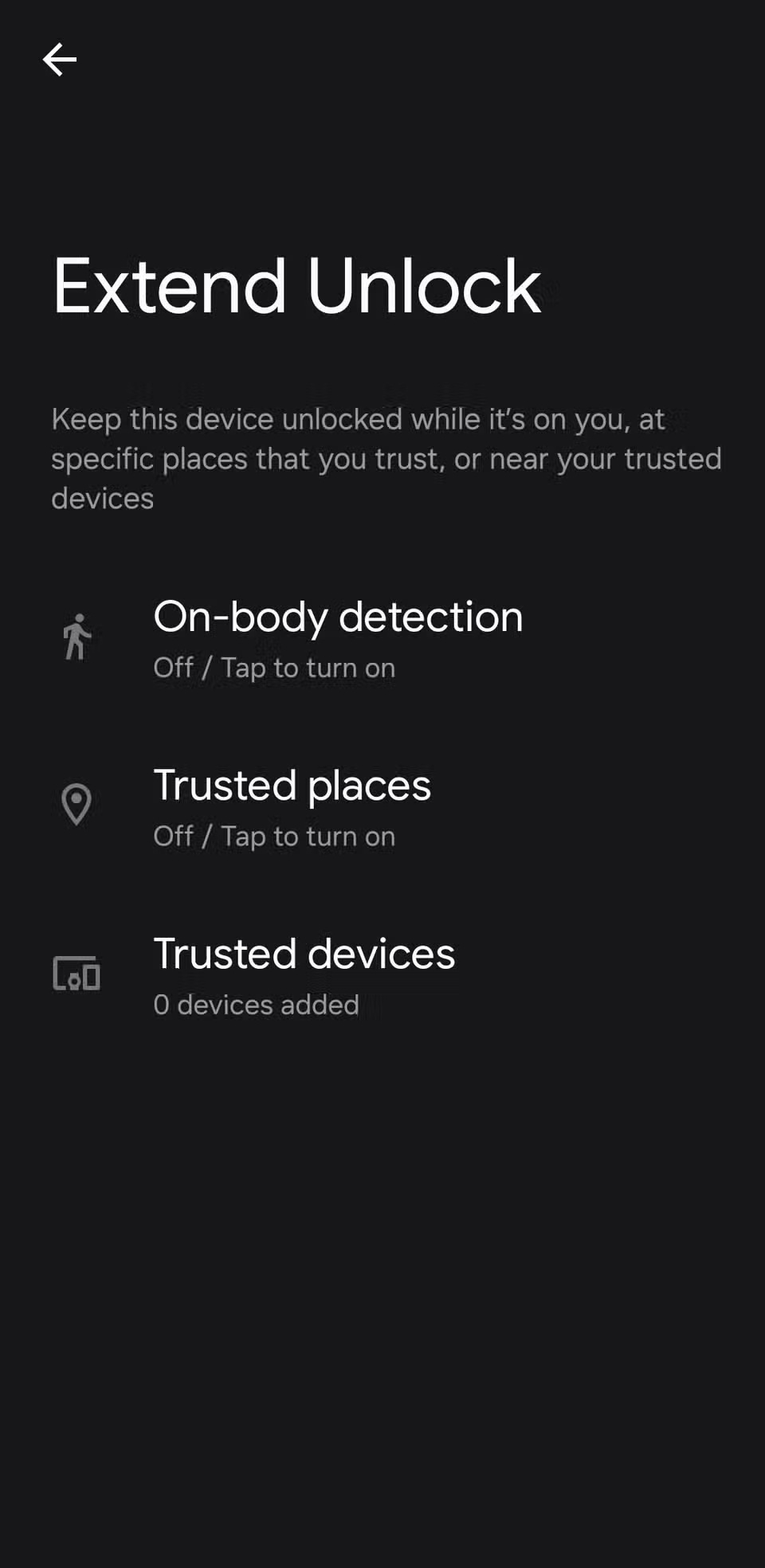
Search for Extend Unlock or Smart Lock. Trusted places, connected devices and on-body detection can keep the phone unlocked after you authenticate. Remove exceptions that you no longer need.
4. Restrict lock-screen network changes where supported
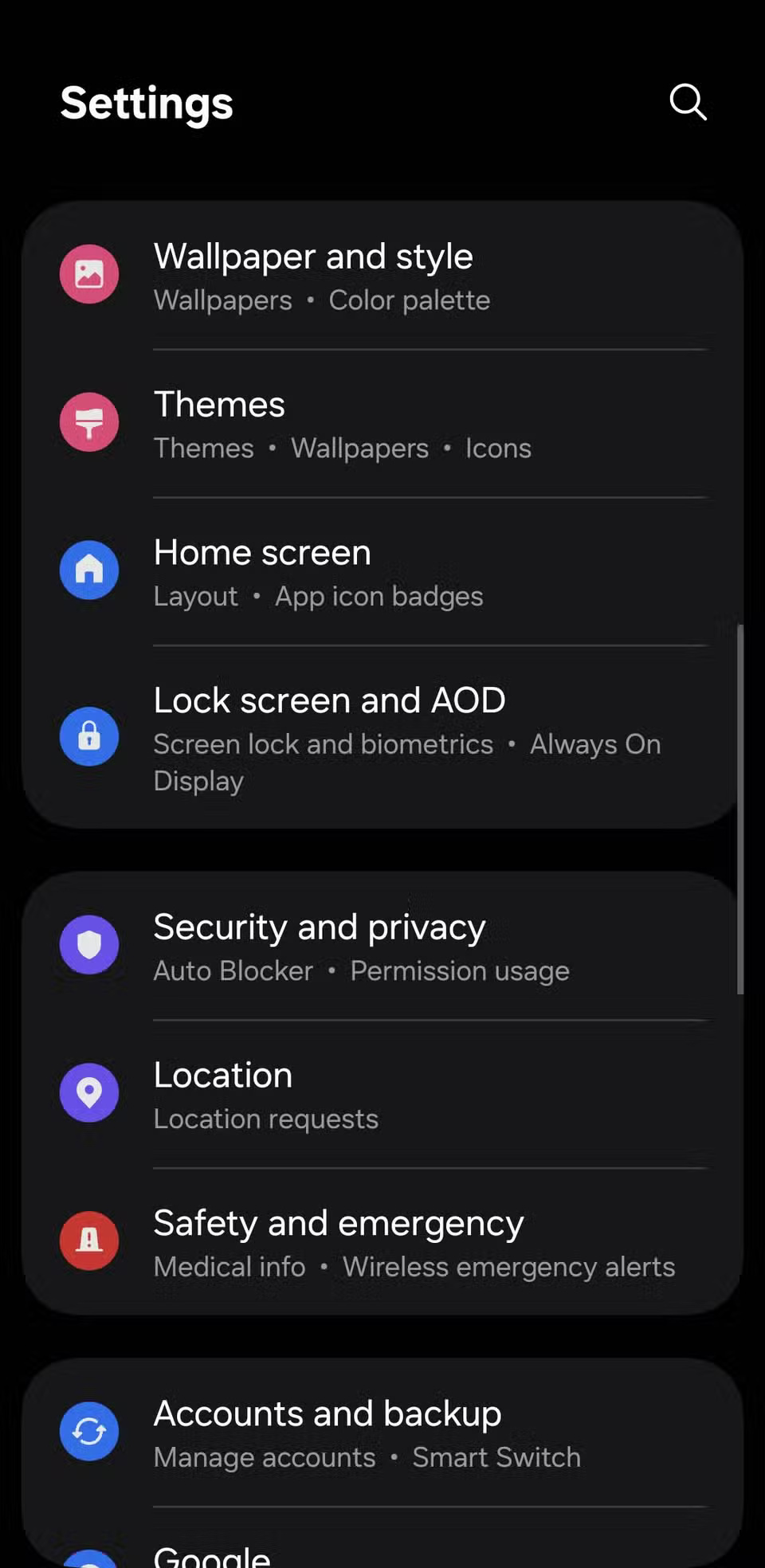
On some Galaxy devices, Lock network and security limits certain network and security changes while locked. Search for it in Secure lock settings and check which controls your model restricts.
5. Hide notification previews
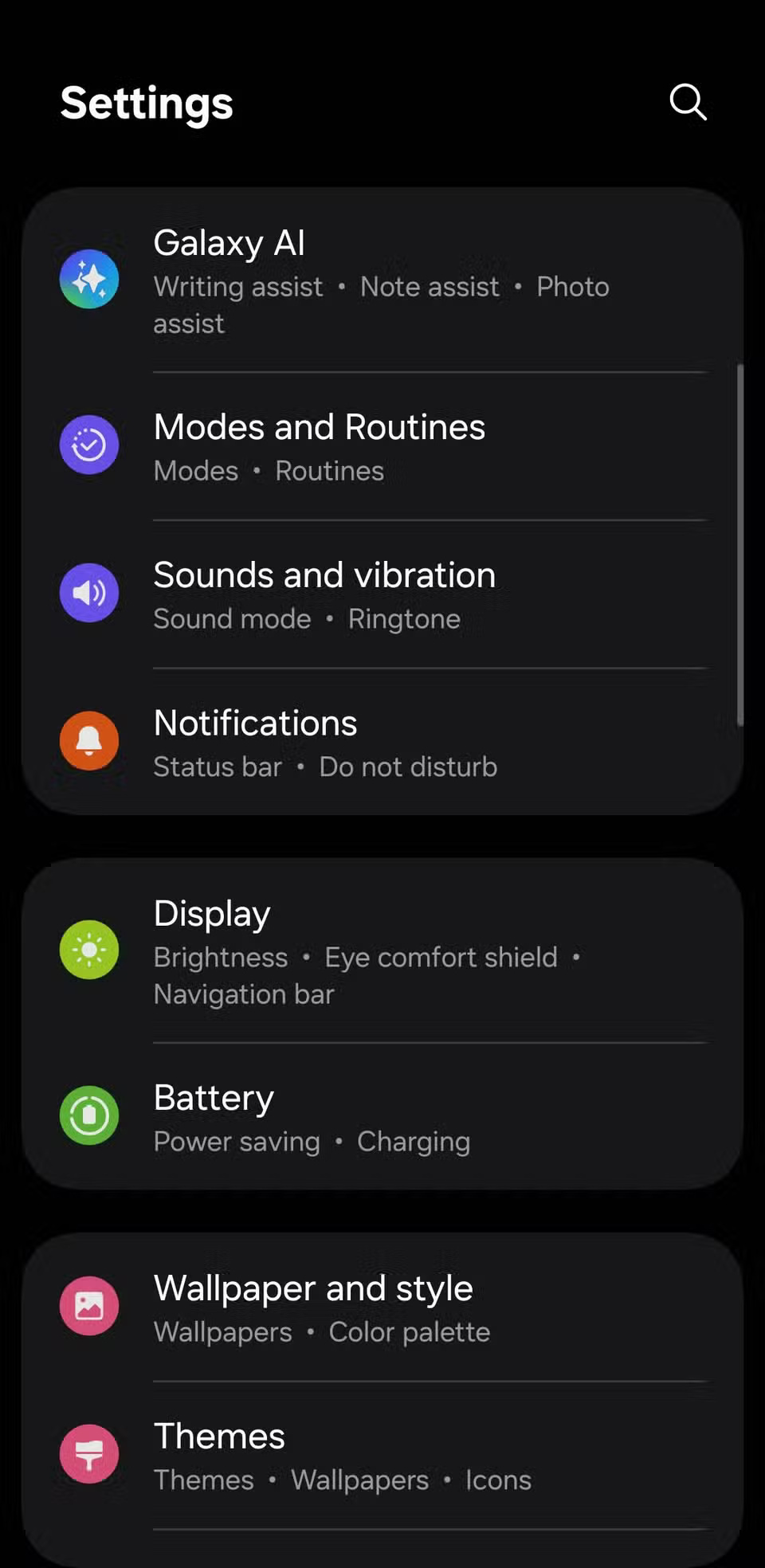
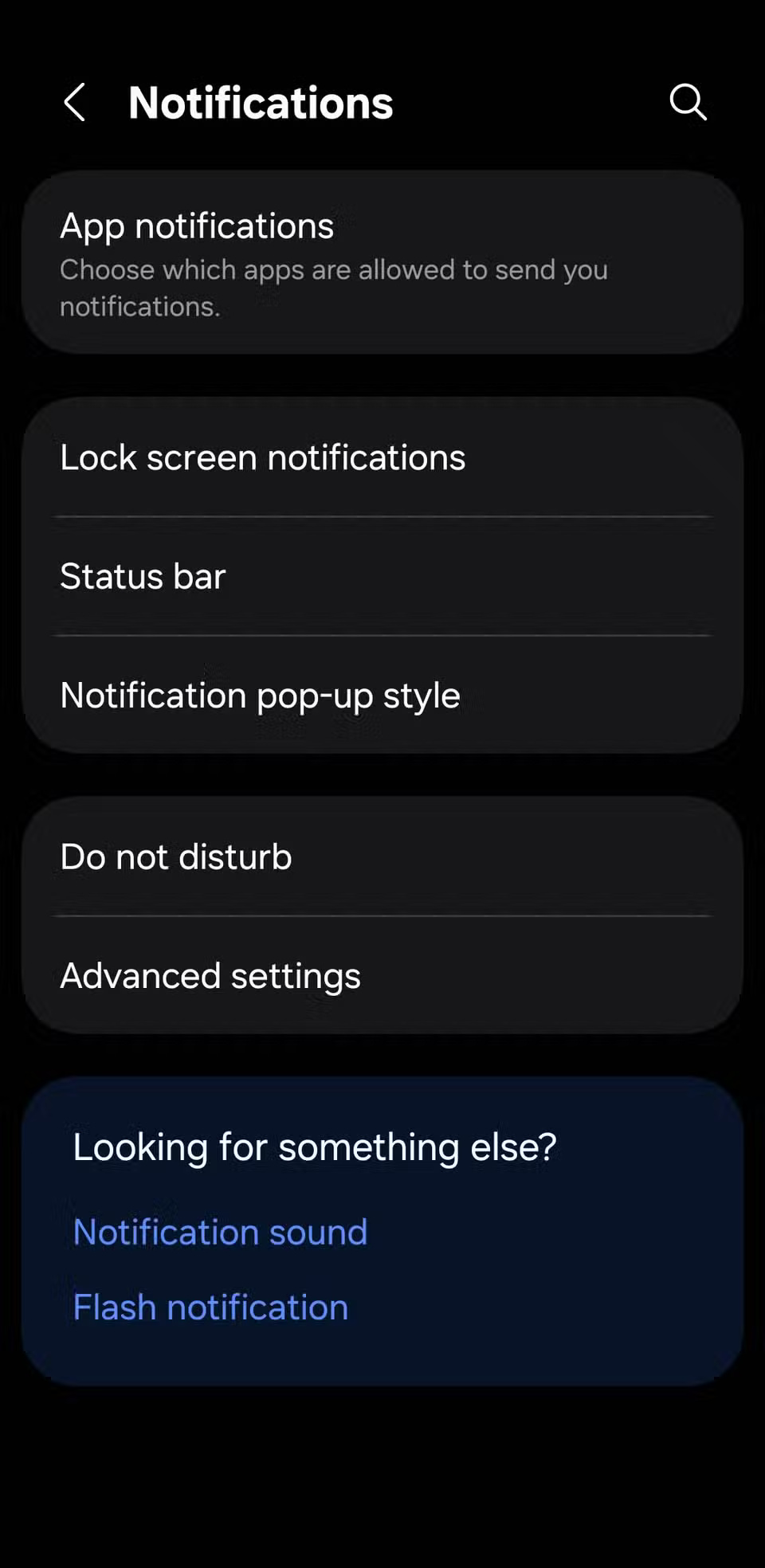
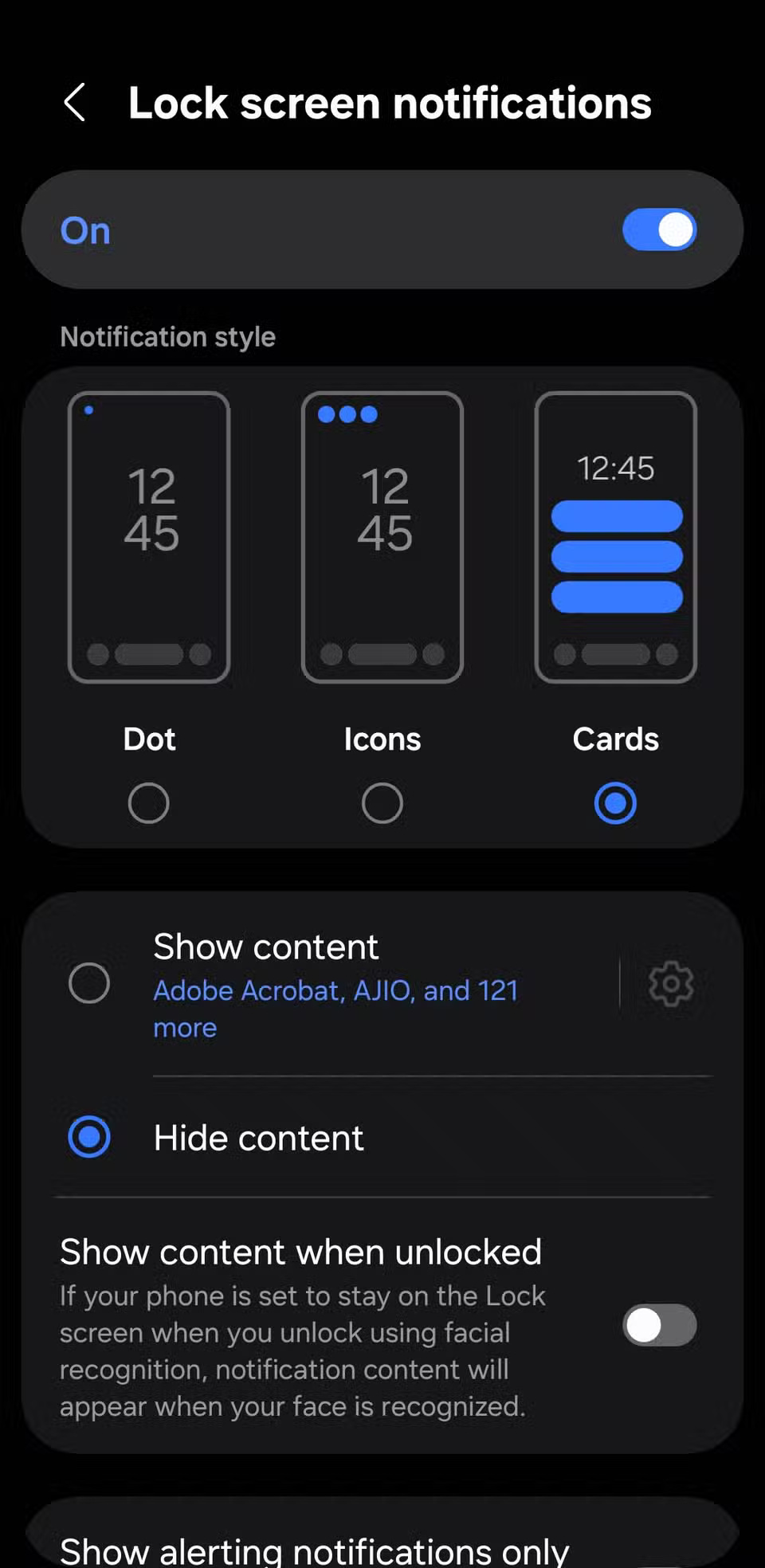
Open lock-screen notification settings and hide sensitive content or hide notifications entirely. Send yourself a test message and confirm that its text is hidden while the phone is locked.
6. Review NFC and wallet verification
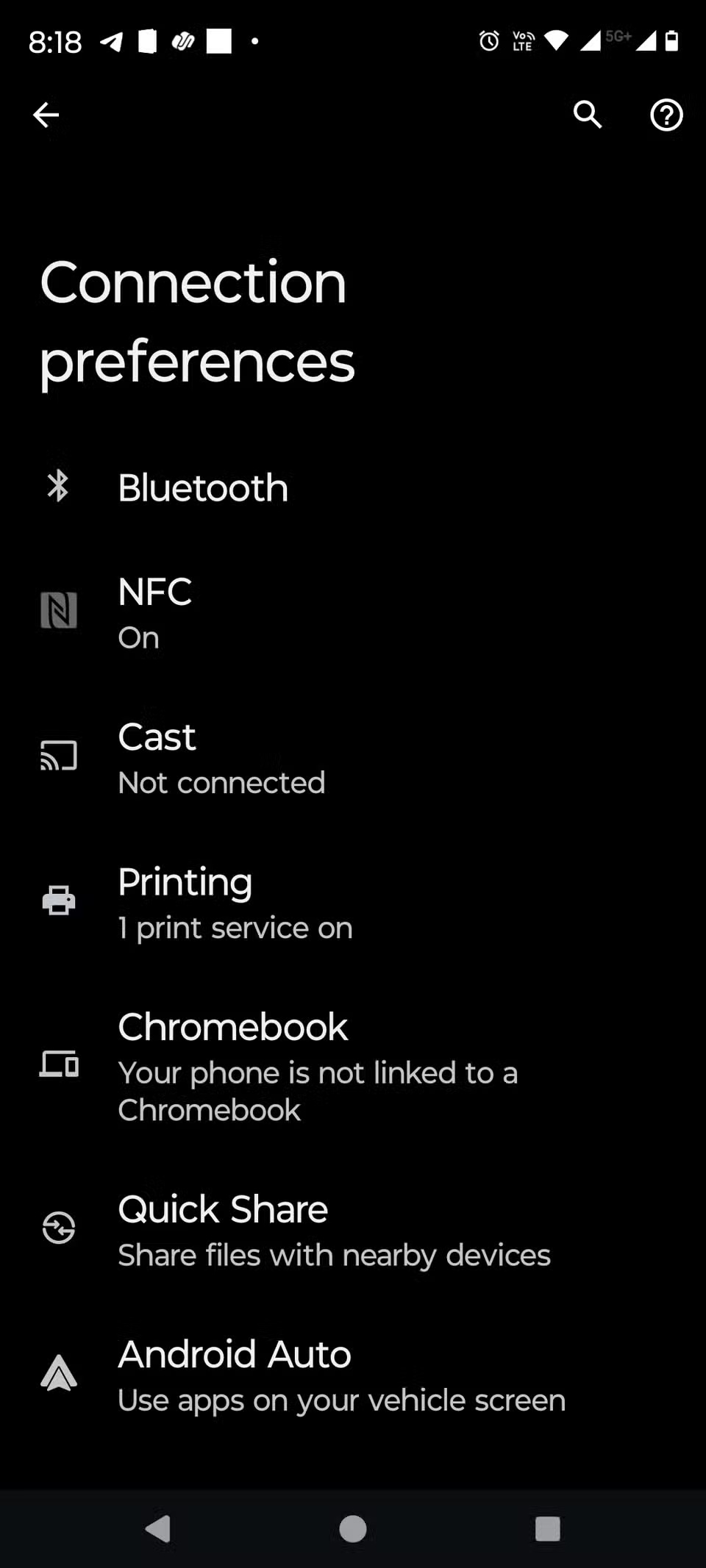
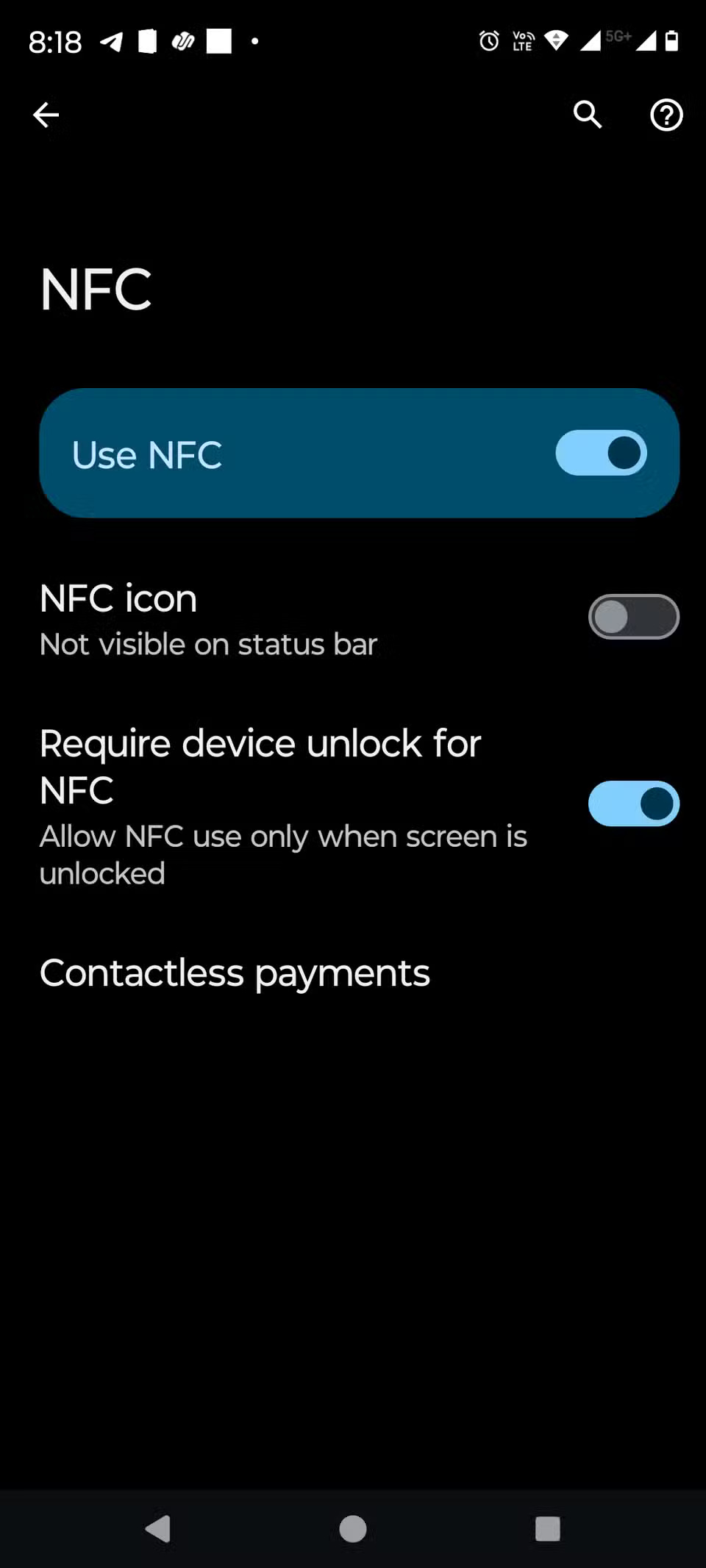
Look for Require device unlock for NFC if your device offers it. Review the wallet’s verification and transit settings too. Payment behavior depends on the wallet, region and device, and transit can have separate rules.
7. Limit assistant activity while locked
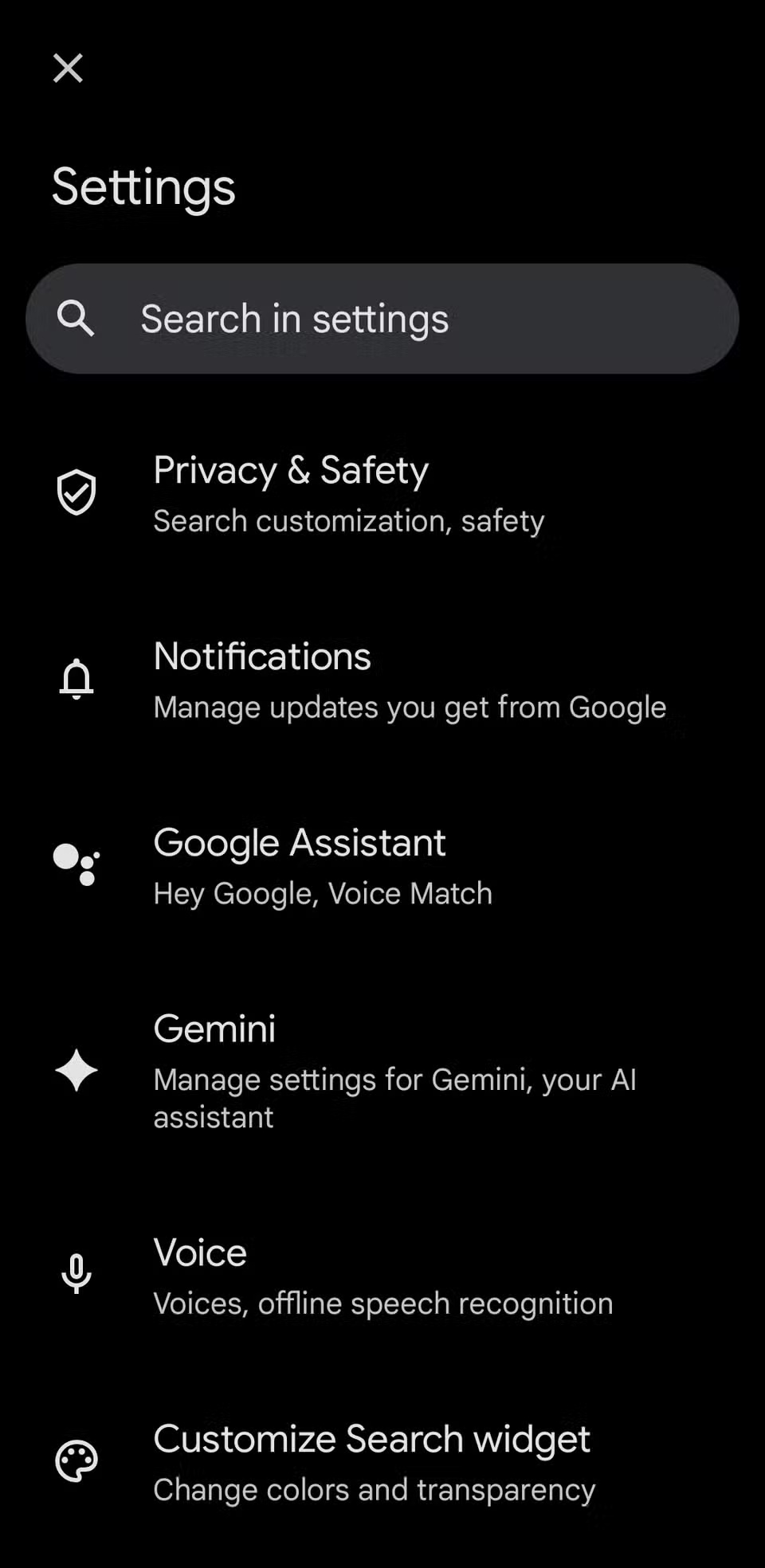
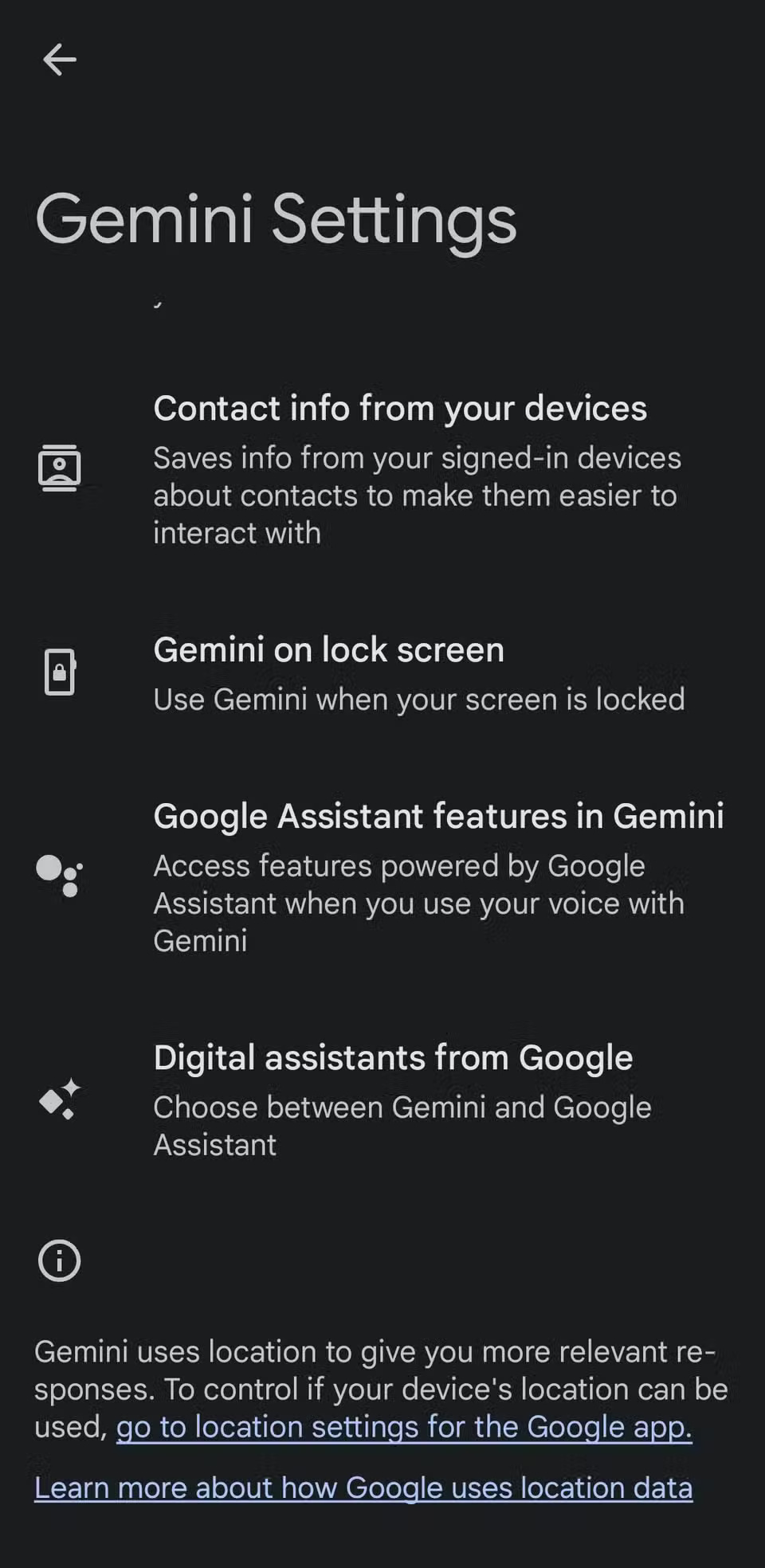
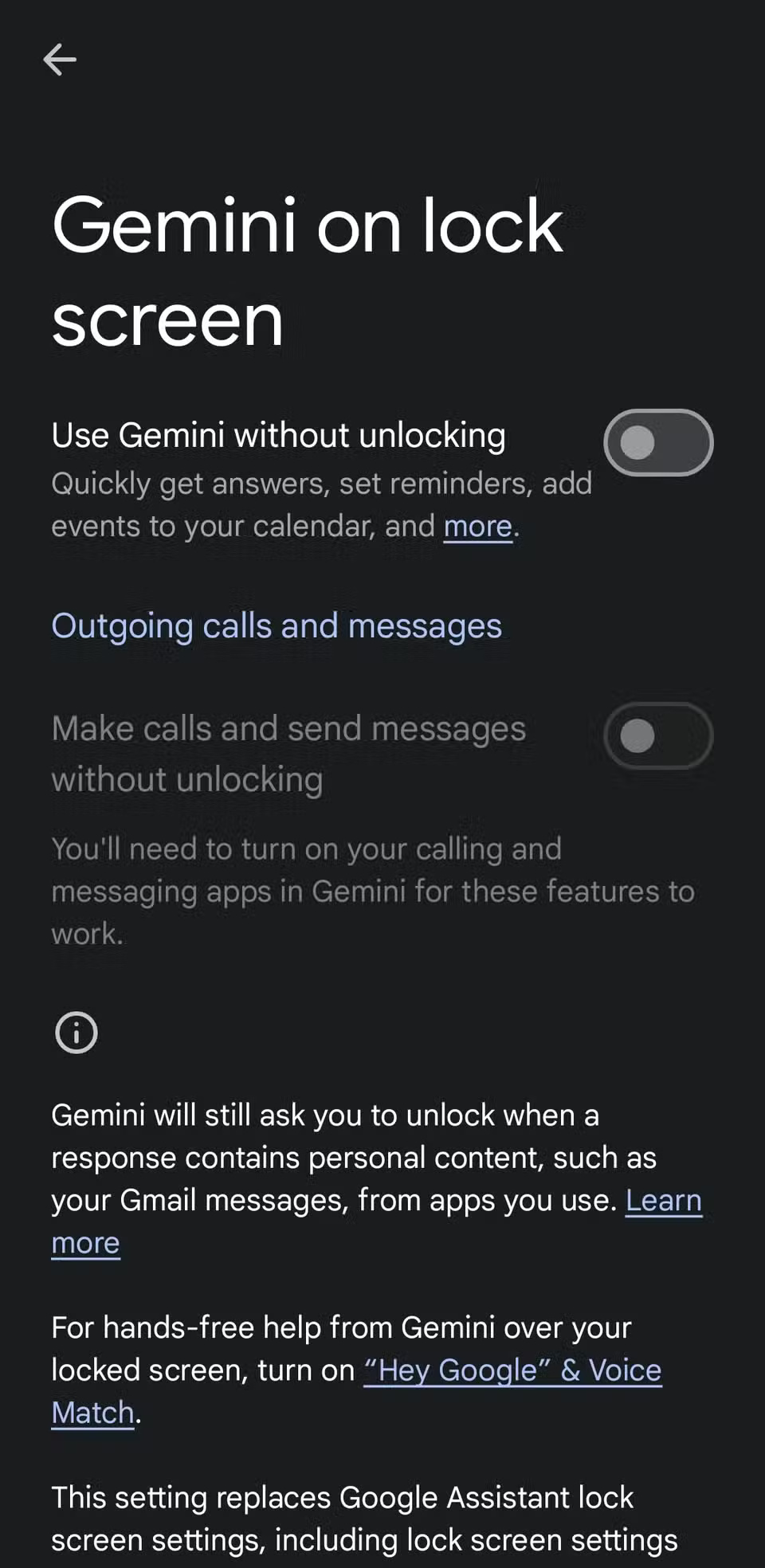
Check your assistant’s own settings for lock-screen responses. If you prefer an unlock prompt first, turn off the relevant Gemini or Bixby lock-screen option where available.
8. Restrict USB data access while locked
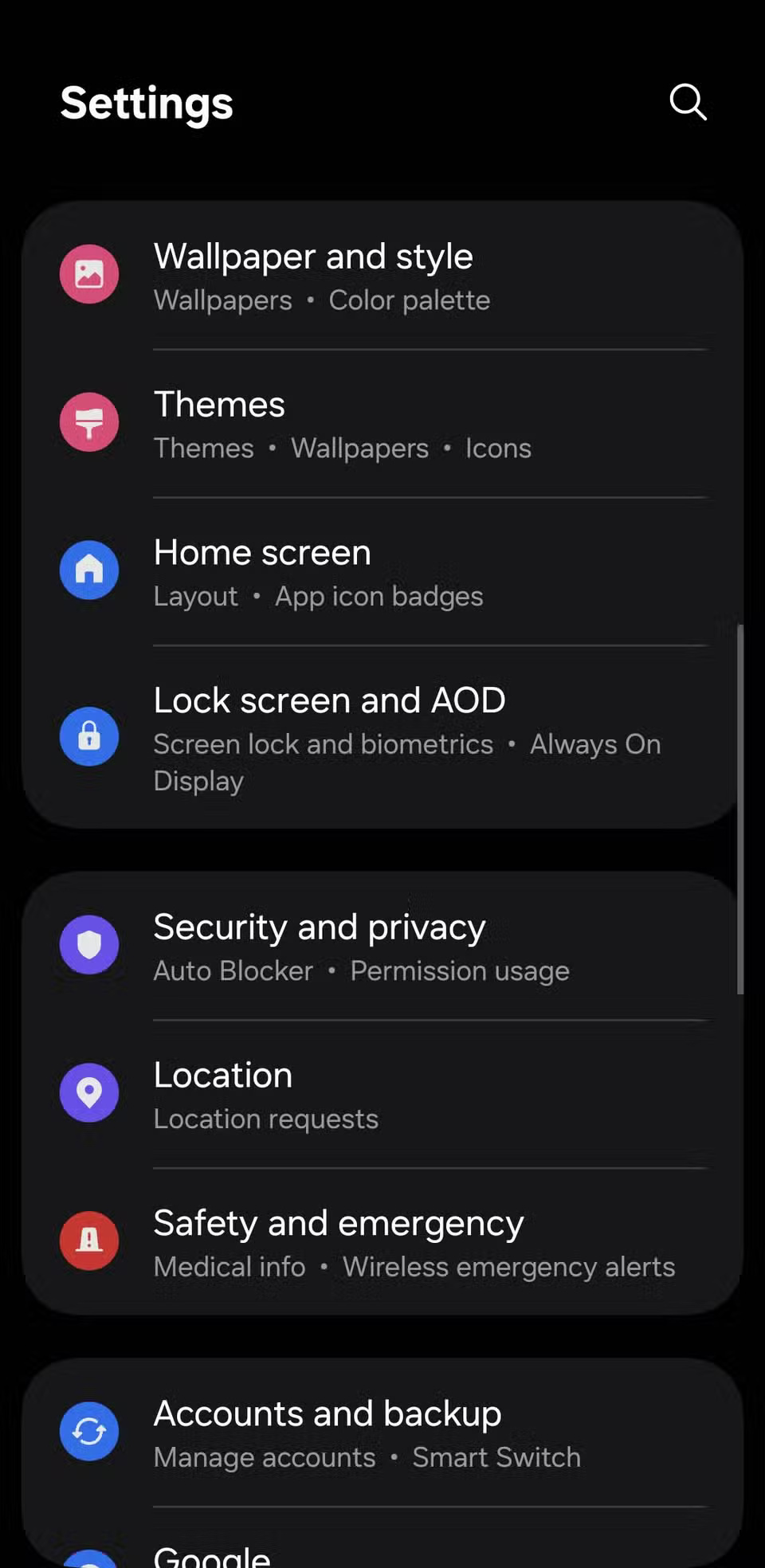
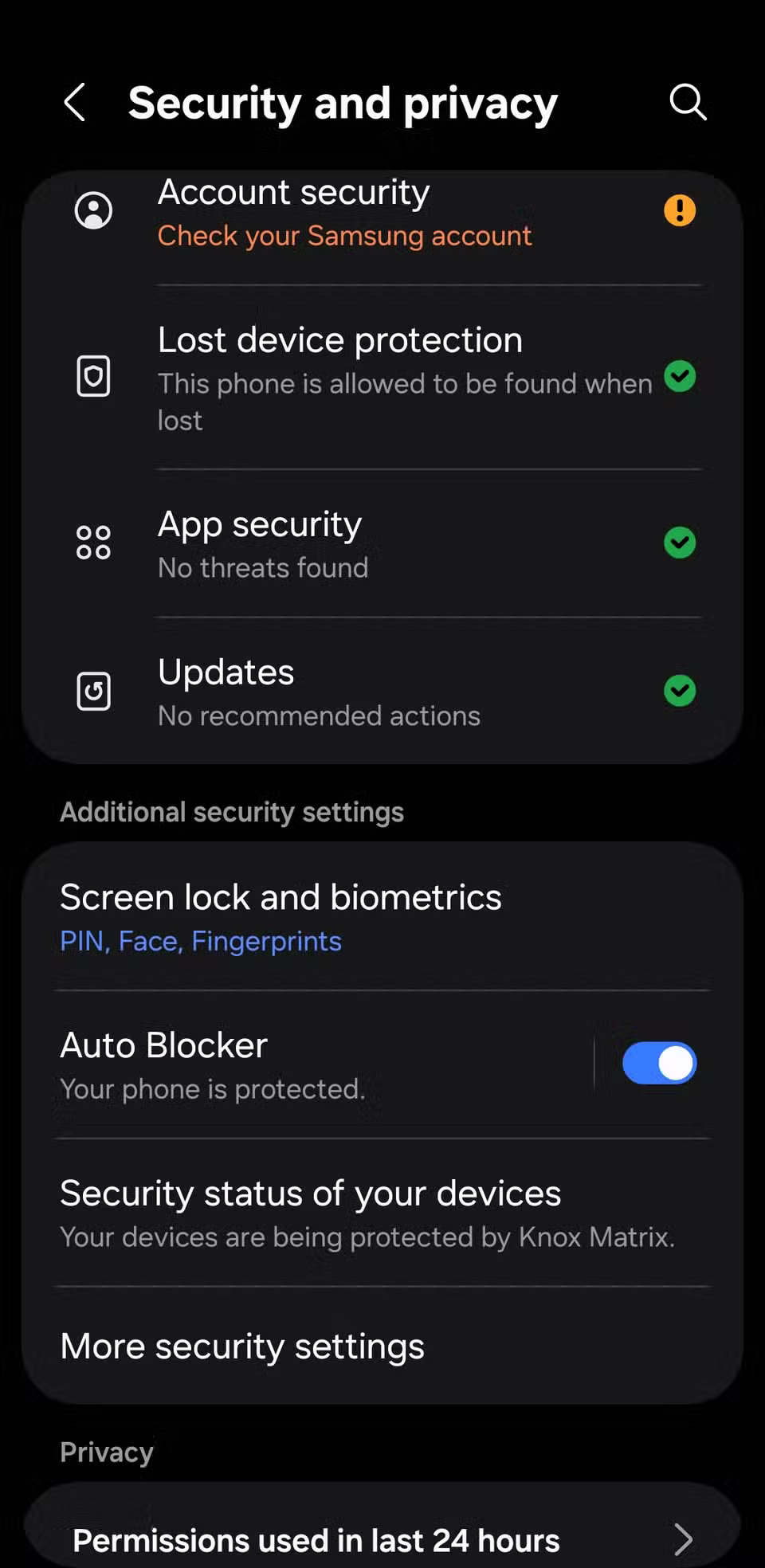
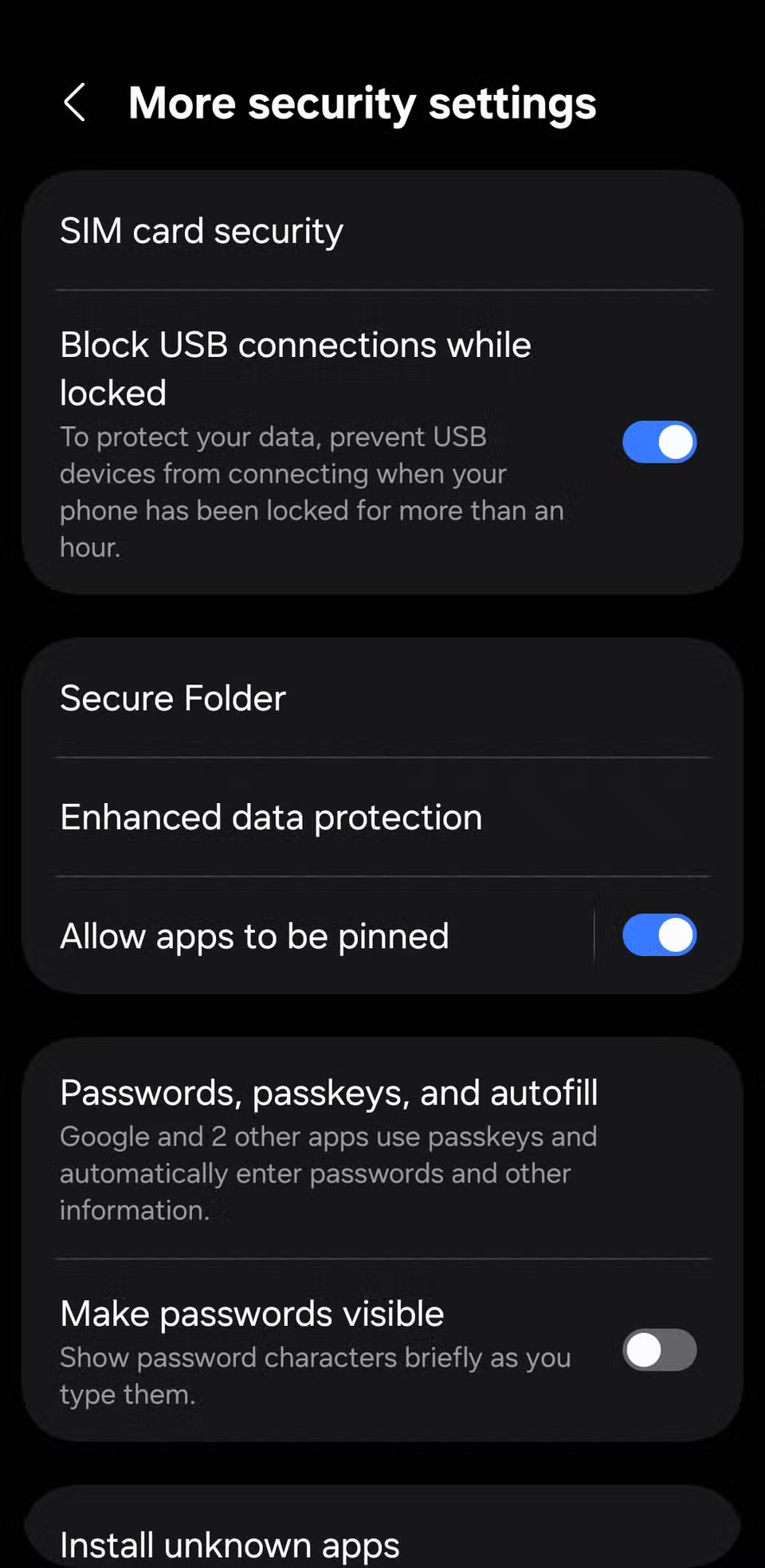
Search Security and privacy for USB protection. Some models block new data connections while locked. Test that your own charging and accessory workflows still work as expected.
9. Review the consequences of automatic reset
Some Galaxy devices can erase local data after repeated failed unlock attempts. The threshold depends on the model and policy. Consider this only if you understand the risk of accidental erasure and have verified an independent backup. See how to test a backup and Google’s theft protection settings for other options.






Reader Comments 0
Sign in with email or Google to join the discussion.