Table of Contents
The Online TV Player described in this legacy guide should not be installed on a current Windows PC. Its documented requirements include Windows 98, 2000, or XP and very old RealPlayer or Windows Media Player components. No current official publisher download or maintained support channel could be verified, so a modern installer from a mirror cannot be trusted confidently.
Why the original installation guide is obsolete
- Windows 98, 2000, and XP are unsupported and lack current security updates.
- RealPlayer 6 and Windows Media Player 7 are obsolete dependencies.
- Old channel lists and stream URLs are unlikely to remain reliable.
- Third-party download mirrors may wrap the program in adware or a modified installer.
- TV availability and licensing vary by country; a channel appearing in an aggregator does not establish viewing rights.
For those reasons, do not run this installer as administrator on an everyday or internet-connected computer. Do not disable antivirus protection or add broad firewall exceptions to make it work.
What the old installer looked like
The screenshots are retained for identification and archival reference, not as a recommendation to proceed.
Show the legacy Online TV Player installation screens
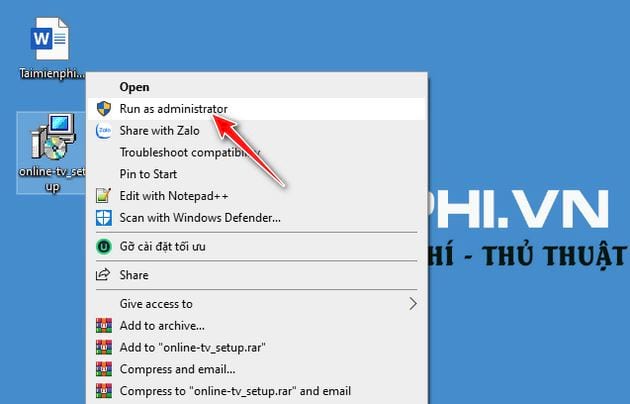
The original setup started by launching an executable with elevated privileges:
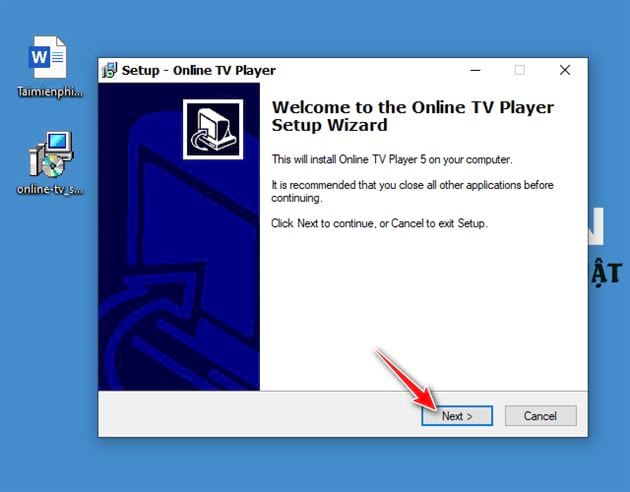
The welcome screen used a standard Next button:
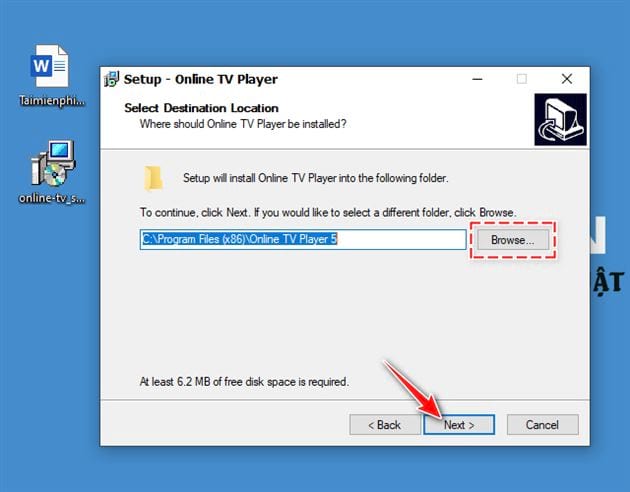
Users could select the installation directory:
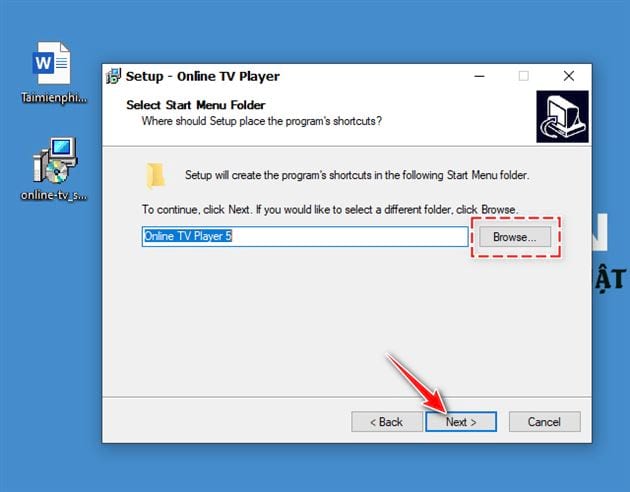
The wizard also created a Start Menu folder:
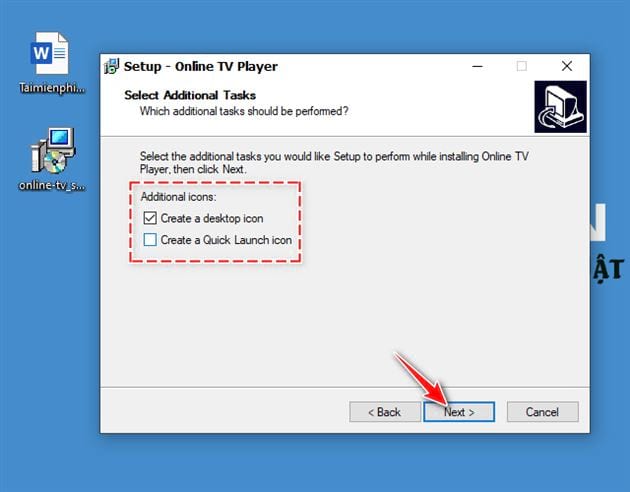
Desktop and Quick Launch shortcuts were optional:
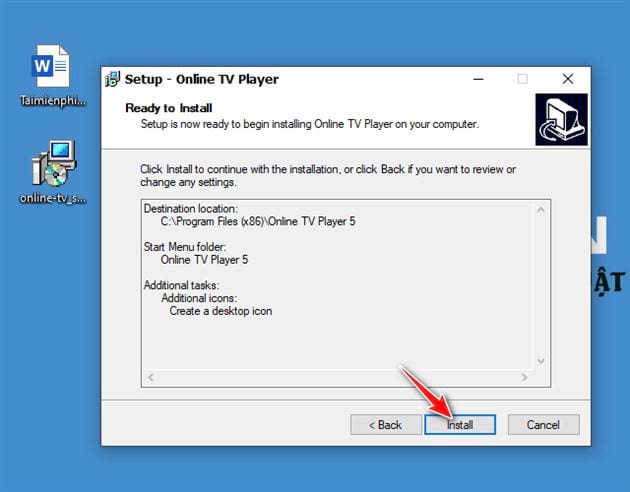
The Install button began copying files:
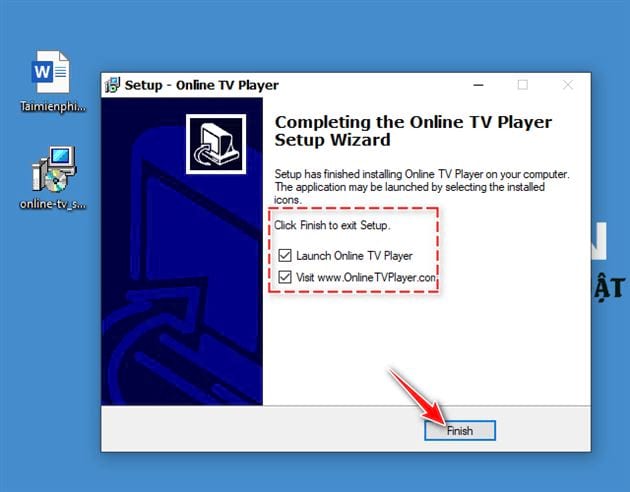
A Finish screen ended the setup:
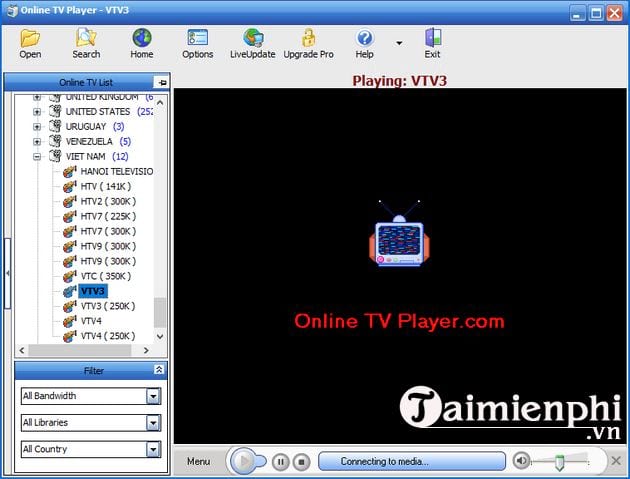
The application then displayed its channel interface:
Safer ways to watch TV on a computer
- Use the broadcaster's official website or app. This gives the clearest information about region limits, subscriptions, and programme rights.
- Use a maintained streaming service. Install it from the Microsoft Store or the provider's verified site and review the current price and availability.
- Use a maintained media player for a legal stream URL. VLC and similar players can open supported network streams without relying on an abandoned channel directory.
- Use a current media-center application. Confirm that its live-TV source and tuner support match your country and hardware.
See free TV streaming service options and verify each service's present regional availability before signing up. If you already have legal video files or stream URLs, compare maintained video players for Windows.
If you must examine the legacy program
Researchers should use an isolated virtual machine with no personal files, no saved credentials, and no access to a trusted network. Scan the installer, record its hash and signature information, and take a snapshot before running it. Even in a lab, do not use the software to access questionable streams or enter account details.
For a more capable living-room setup, review home theater and media-center software, then check the selected project's official documentation for current support.
Related Articles
 Instructions for Installing Flash Player for Browsers on Computers4 minutes read
 How to Install Adobe Flash Player on Your Computer5 minutes read
 Instructions to Record Screen with VLC Media Player3 minutes read
 Instructions for Cutting Videos with VLC Media Player Software3 minutes read
 Instructions on How to Scan for Viruses Online Without Installing5 minutes read
 Instructions on How to Watch TV Online on Your Computer with VLC Media3 minutes read
Reader Comments 0
Sign in with email or Google to join the discussion.