Table of Contents
A codec pack can help a DirectShow-based player open media that its built-in decoders do not support, but it does not guarantee that every MP4, MKV, or AVI file will play. On Windows 7, use a maintained pack such as K-Lite from its official publisher, choose a minimal preset, and avoid stacking several codec packs.
Important Windows 7 warning
Windows 7 is no longer supported by Microsoft and should not be used as a general internet-connected PC. Although Codec Guide currently lists K-Lite as compatible with Windows 7, that does not restore operating-system security. Upgrade to a supported Windows release when the hardware permits.
Decide whether you need system codecs
Try the file in a maintained player with its own decoders, such as VLC or MPC-HC, before modifying system-wide codecs. If only one file fails, it may be corrupt, incomplete, or encoded with an unusual profile. Use MediaInfo to identify the actual video and audio codecs rather than relying on the container extension.
The guide to playing an unsupported video format explains player and conversion alternatives.
Download the correct package
Get K-Lite from the official Codec Guide download page. The publisher offers Basic, Standard, Full, and Mega variants. Standard is usually sufficient for normal playback because it includes a player and common decoding components; larger variants mainly add specialist tools and codecs.
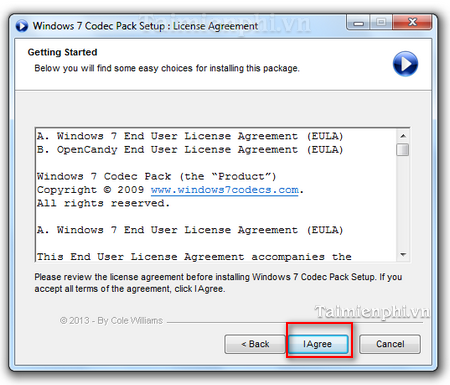
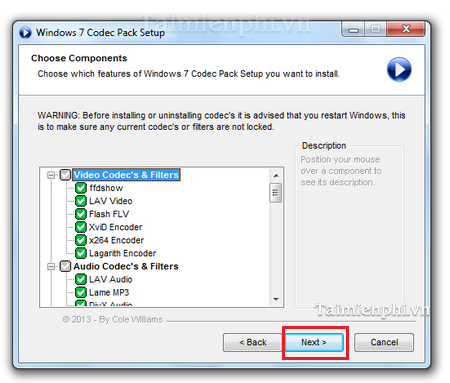
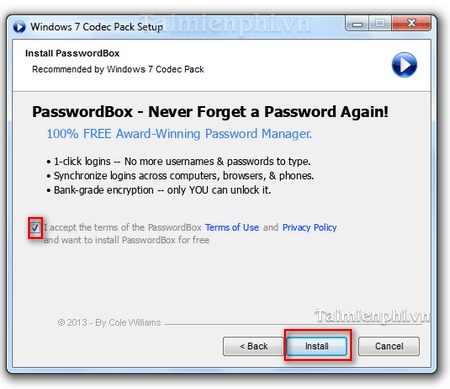
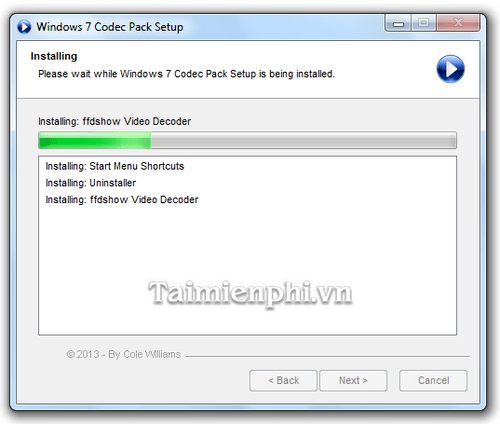
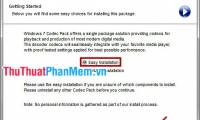
Do not confuse K-Lite with unrelated products called “Windows 7 Codec Pack.” The legacy screenshots below appear to come from another installer and should not be used to identify a current K-Lite package.
Install with the minimum changes
- Close media players and create a restore point.
- Run the verified installer. Choose a normal or recommended mode unless you understand DirectShow filters, splitters, hardware decoding, and file associations.
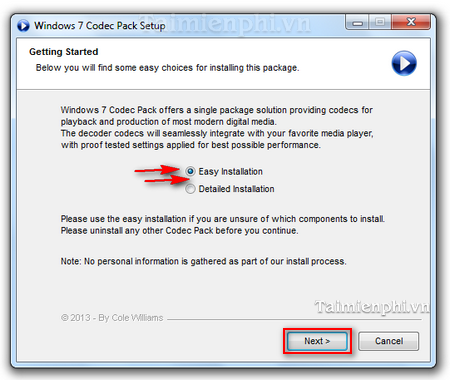
- Read the licence and continue only if the publisher and terms match the package you intended to install.
- In a custom setup, select only required playback components. Avoid duplicate decoders for the same format.
- Decline unrelated recommended software, browser changes, or bundled utilities.
- Start installation and wait for it to finish.
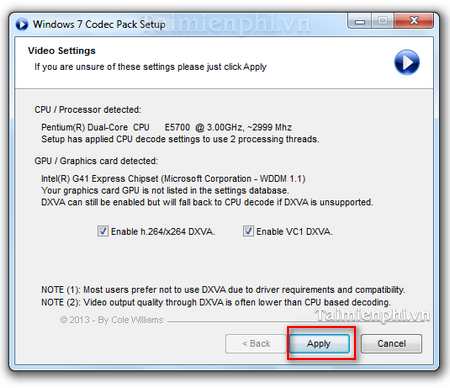
Configure video and audio cautiously
Leave hardware-acceleration settings at their defaults first. DXVA support depends on the GPU, driver, decoder, codec profile, and output renderer; enabling every option can cause a black screen or unstable playback.
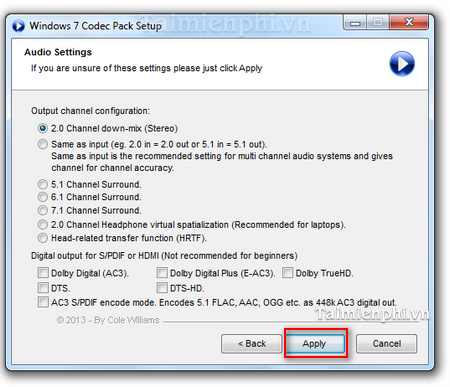
Select the speaker layout that matches the actual Windows sound configuration. Choosing 5.1 or 7.1 for stereo hardware can produce missing dialogue or incorrect channel mapping.
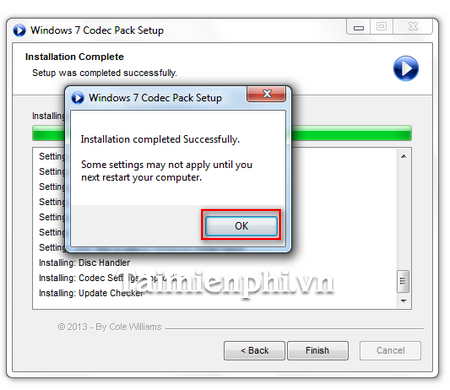
Complete the installer, restart Windows only if requested, and test one known-good file.
If playback is still broken
- Test the same file in another maintained player.
- Update the GPU and audio drivers from the hardware manufacturer.
- Use the pack's codec-tweak or reset tool to find broken filters.
- Remove older codec packs that compete for the same formats.
- Check whether the file is damaged or uses DRM.
Install only one codec pack and keep its installer for repair or removal. For a player that handles many formats without broad system changes, compare the best free video players for computers. General setup precautions are also covered in the Windows software installation principles.
Related Articles
 What Is the AV1 Codec? Used for What Purpose?6 minutes read
 How to Install AV1 Codec in Windows 103 minutes read
 3 Best Free Codec Media Packages for Windows 74 minutes read
 K-Lite Codec Pack Full - the Best Movie Software for Watching All Types of4 minutes read
 What Is Codec: What Is a Codec? Why Do I Need Codecs?6 minutes read
 Install Additional Codec to See All Video Formats with Windows Media Player3 minutes read
Reader Comments 0
Sign in with email or Google to join the discussion.