Table of Contents
Download KMPlayer from its official site, choose the edition that matches the PC, and test it with a known-good local video. Installing a player alone cannot guarantee smooth HD, 4K, or 8K playback—the codec, GPU, drivers, storage speed, and video renderer also matter.
Choose the right KMPlayer edition
- KMPlayer 64X: intended for current 64-bit Windows PCs and high-resolution playback.
- KMPlayer for PC: the standard 32-bit/64-bit line, useful for systems that do not meet 64X requirements.
Check the current requirements and download from KMPlayer's official site. Do not use an old Windows XP installer on a current PC simply because it matches these legacy screenshots.
Install KMPlayer on Windows
- Run the verified installer and choose a display language.
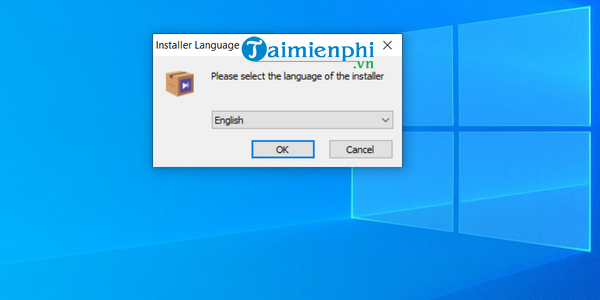
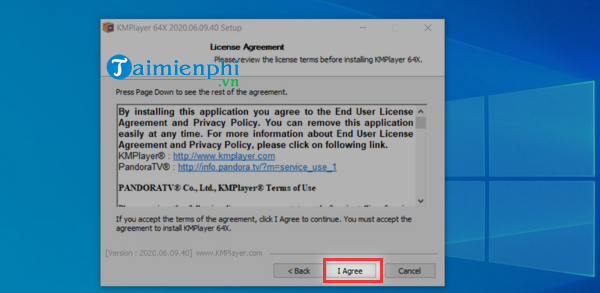
- Read the licence agreement and continue only if you accept it.
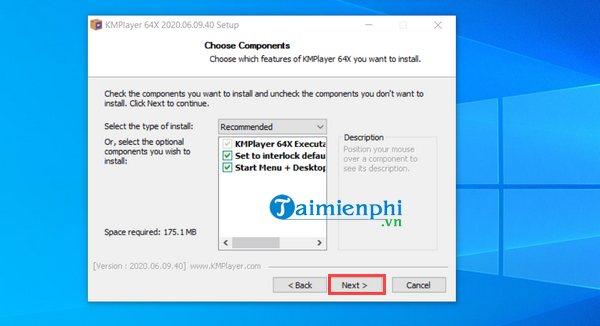
- Review components and optional integrations. Install only what you need and decline unrelated software.
- Keep the default installation folder unless you have a reason to change it.
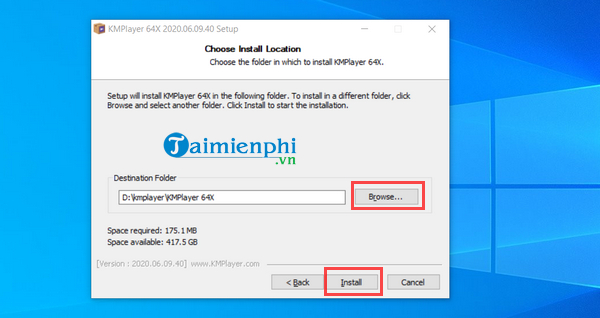
- Start installation and wait for the files to be copied.
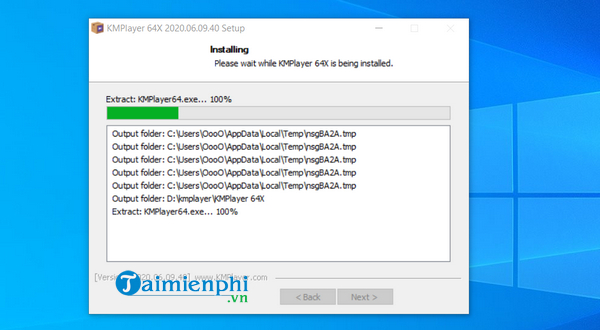
- Select Finish, then open the player.
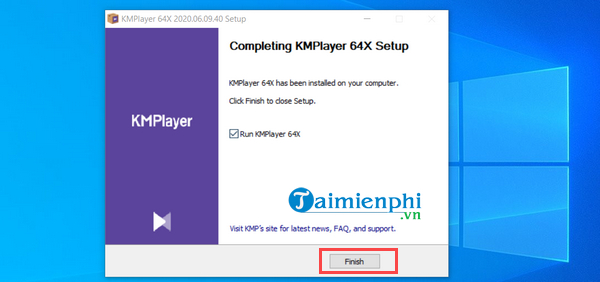
The current interface may differ from the version shown here.
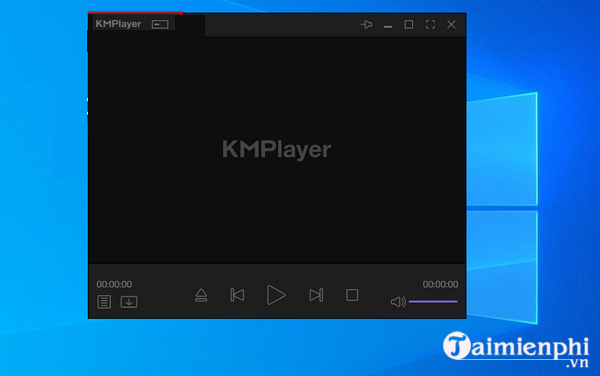
Open and play a local video
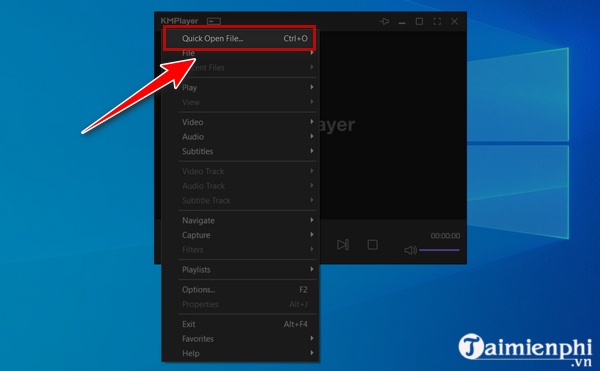
- Open the main menu in the upper-left area of the player.
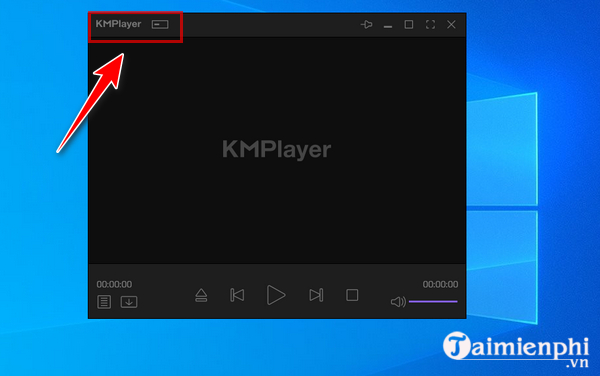
- Choose Open File or Quick Open File.
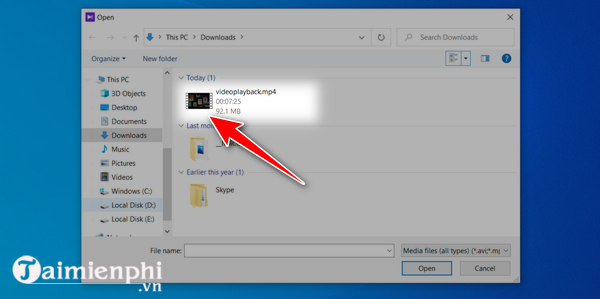
- Browse to the file, select it, and click Open.
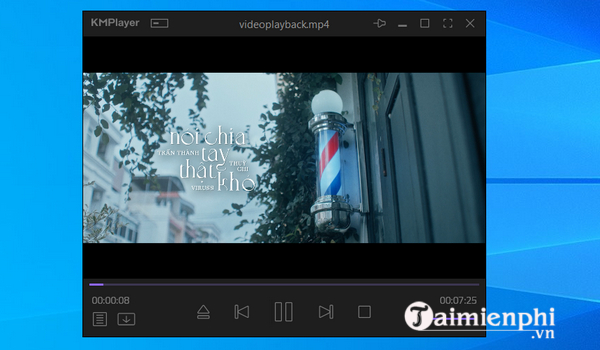
Use the timeline, volume, subtitle, speed, aspect-ratio, and full-screen controls during playback.
Useful playback controls
The window controls can keep the player on top, minimize it, change the window size, enter full screen, or close the app. An Always on Top option is useful for reference videos; While Playing keeps the window above others only during playback.
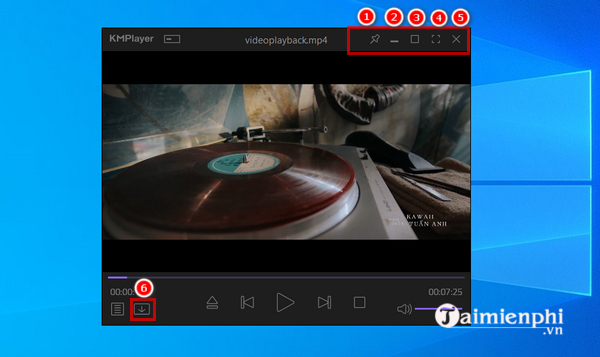
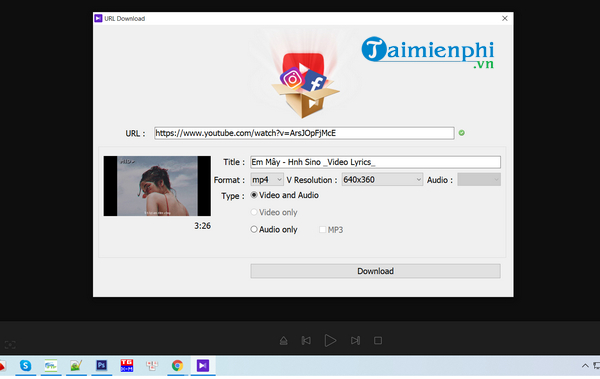
Some versions include URL playback or download controls. Use them only where the site permits downloading and you have rights to the content; a working URL field is not permission to copy a stream.
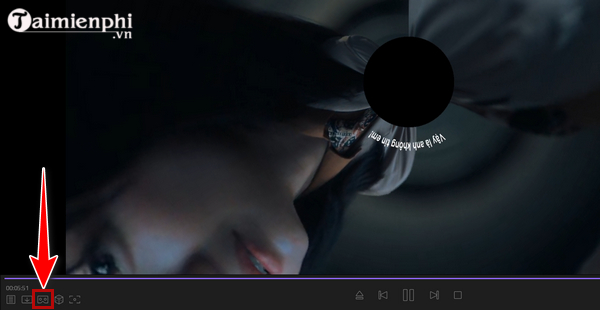
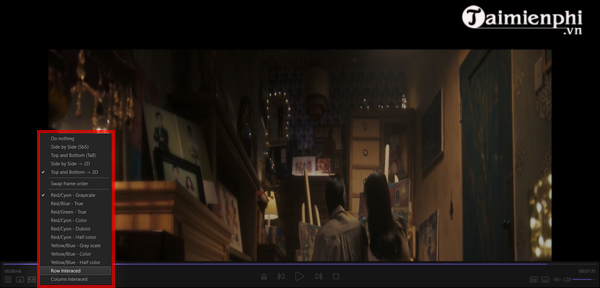
VR, 3D, viewing-mode, and capture features vary by edition and hardware. They are optional and may not apply to an ordinary 2D video.
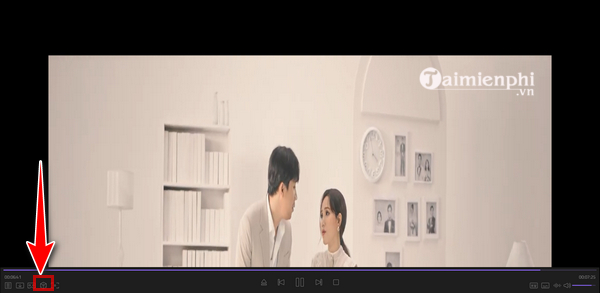
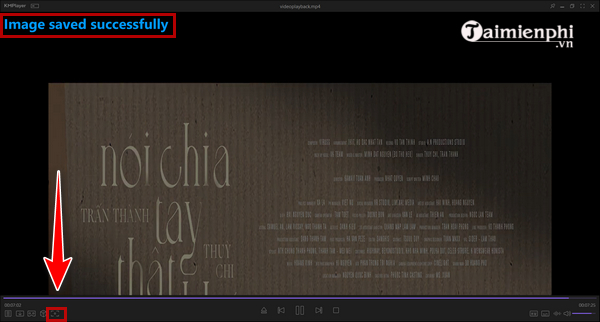
The capture tool can save a frame or, in supported builds, a selected clip or GIF. Choose a destination folder with enough free space.
Make HD playback smoother
- Update the GPU driver from the hardware manufacturer.
- Enable hardware decoding only if the GPU supports the video's codec and profile; turn it off if it causes a black screen or corrupted frames.
- Close background apps that use the GPU, CPU, or storage heavily.
- Play the file from a local SSD to rule out a slow network or drive.
- Use the recommended renderer and reset custom filters if playback became worse after changes.
- Test the same file in another player to distinguish an application issue from a corrupt file.
KMPlayer's 64X product page lists current high-resolution, codec, subtitle, and capture features, but actual performance depends on the PC.
If a file still will not play
Identify its codecs rather than installing random codec packs. A maintained player with built-in decoders is often safer than modifying system-wide filters. See how to handle an unsupported video format or compare free Windows video players if KMPlayer is not a good fit.
Related Articles
 Instructions to Delete History Viewed on Kmplayer3 minutes read
 Adjust the Speed of Watching Videos in Kmplayer2 minutes read
 How to Insert Text into Videos on iPhone7 minutes read
 How Does Kmplayer Not Open MP4 and FLV Files?4 minutes read
 Link Download Kmplayer 4.2.2.409 minutes read
 Shortcuts in KMPlayer4 minutes read
Reader Comments 0
Sign in with email or Google to join the discussion.