Table of Contents
HWMonitor reads temperature and other health sensors exposed by a Windows PC. To check the CPU, open the program, expand the processor entry, and look under Temperatures. The Package value is usually the most useful overall reading; individual Core readings show sensors for each CPU core or group.
Download HWMonitor safely
Get the installer or portable version from the developer's official HWMonitor page. Avoid download advertisements and third-party bundles. The interface and installer may change between versions, so verify the publisher and follow the prompts shown by the current release.
Install the program
- Open the downloaded installer. If Windows requests administrator permission, confirm only after checking that the file came from CPUID.
- Choose the installation folder or keep the default location.
- Select whether you want Start menu and desktop shortcuts.
- Review the choices, select Install, and then select Finish.
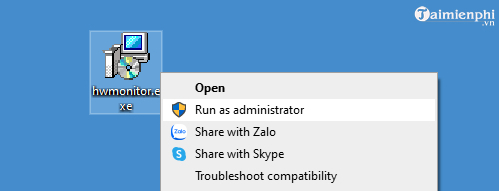
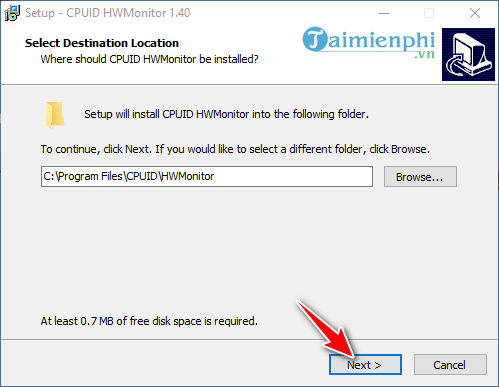
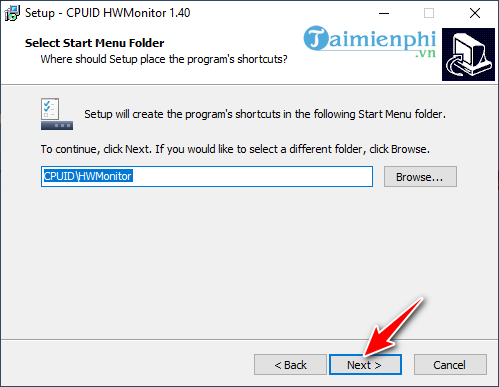
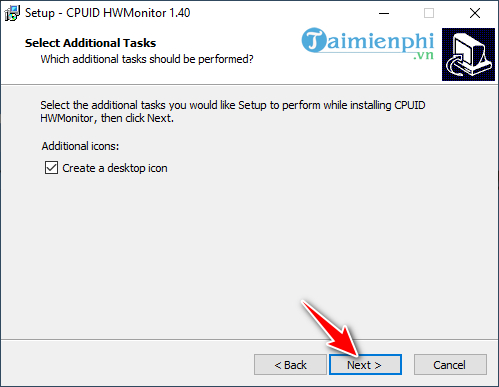
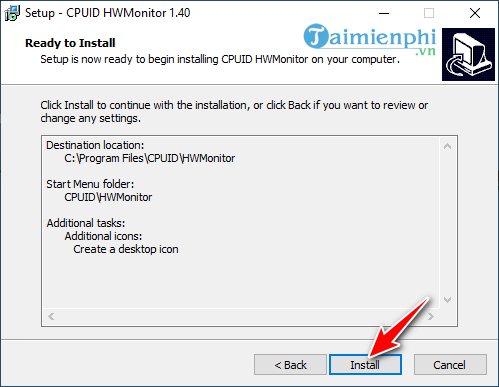
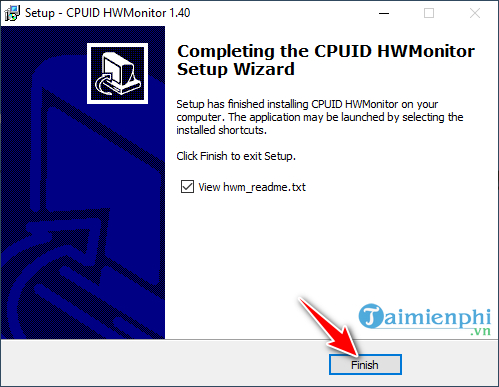
If you use the portable ZIP, extract it to a normal folder before running the executable that matches your Windows architecture. Do not run the program directly from inside the compressed archive.
Find the CPU temperature
- Open HWMonitor and wait a few seconds for sensor names and values to appear.
- Expand the entry that matches your processor, such as an Intel Core or AMD Ryzen model.
- Expand Temperatures.
- Read Package for the overall CPU package sensor. Core readings provide additional detail where the hardware exposes them.
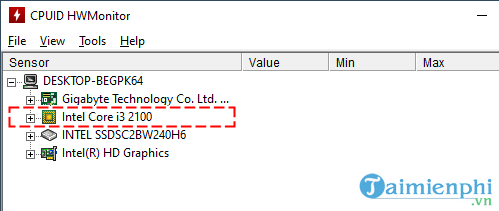
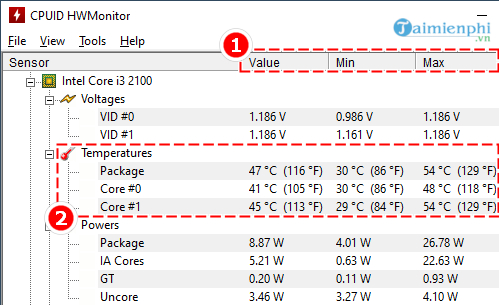
What Value, Min, and Max mean
- Value is the current sensor reading.
- Min is the lowest reading observed since HWMonitor was opened.
- Max is the highest reading observed during that session.
For a useful test, open HWMonitor, leave it running while you perform the workload that causes concern, then return to the window and check Max. A single idle reading does not show how the cooling system behaves during a game, render, compilation, or stress test.
There is no universal safe CPU temperature
Do not use one fixed threshold for every processor. Normal and maximum operating temperatures vary by CPU model, desktop or laptop design, workload, power mode, and the sensor being read. Modern processors also manage boost speed and thermal throttling dynamically.
Check the processor manufacturer's specification for the exact model and compare like with like—Package to Package, not a motherboard sensor to a CPU-core limit. Temperature close to the documented maximum for sustained periods, repeated thermal throttling, shutdowns, or rapidly rising values deserve investigation.
Sensor support also varies. A blank, obviously impossible, or mislabeled value may mean the motherboard does not expose that sensor correctly to HWMonitor. Compare it with the computer manufacturer's utility or another reputable monitor before assuming the hardware is overheating.
What to do if the CPU is unusually hot
- Close the demanding task and allow the system to return to idle.
- Check Task Manager for a process that is keeping CPU use high.
- Place the computer on a hard, ventilated surface and make sure vents are not blocked.
- Remove dust from external vents with the computer powered off. Do not force a fan to spin with compressed air.
- Confirm that case and CPU fans are operating and that the correct power or cooling profile is selected.
- If overheating began after a cooler replacement, repair, BIOS change, or overclock, return to the last known-good configuration.
Opening a laptop or removing a CPU cooler can damage components and may affect warranty coverage. If the fan is failing, the touch surface is bulging, or you are not comfortable servicing the cooling system, shut the computer down and use a qualified technician.
For additional tools, compare PC and laptop temperature-monitoring apps. If high CPU use is the underlying cause, follow the targeted steps in TipsMake's 100% CPU usage guide.
HWMonitor is most useful when you record the exact CPU model, current and maximum Package temperature, workload, room conditions, clock behavior, and fan speed. Those details help distinguish a normal short boost from a cooling or configuration problem.
Related Articles
 Hwmonitor - Free and Popular System Monitoring Tool8 minutes read
 How to Check the Temperature of CPU, VGA, Hard Drive of Computer6 minutes read
 How to Measure Temperature on a PC6 minutes read
 How to Check the Computer's CPU Temperature?3 minutes read
 The Ideal GPU Temperature Explained8 minutes read
 How to Check CPU Temperature Using CPU-Z3 minutes read
Reader Comments 0
Sign in with email or Google to join the discussion.