Table of Contents
The Excel COUNTIF function counts cells in a range that meet one condition. Use it for questions such as “How many orders are over 10 units?”, “How often does this product appear?”, or “How many cells begin with C?” For several conditions that must all be true, use COUNTIFS instead.
COUNTIF syntax
=COUNTIF(range, criteria)- range is the group of cells Excel will examine.
- criteria is the value or rule a cell must match to be counted.
Some regional Excel settings use a semicolon instead of a comma, so the same formula may appear as =COUNTIF(range; criteria). Follow the separator Excel uses when it inserts a function on your computer.
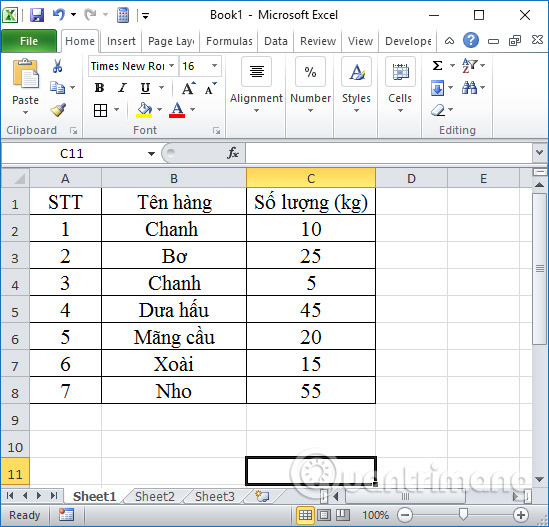
Rules for writing criteria
| Type of condition | Example criteria | Example formula |
|---|---|---|
| Exact text | "Mango" | =COUNTIF(B2:B8,"Mango") |
| Exact number | 10 | =COUNTIF(C2:C8,10) |
| Comparison | ">=10" | =COUNTIF(C2:C8,">=10") |
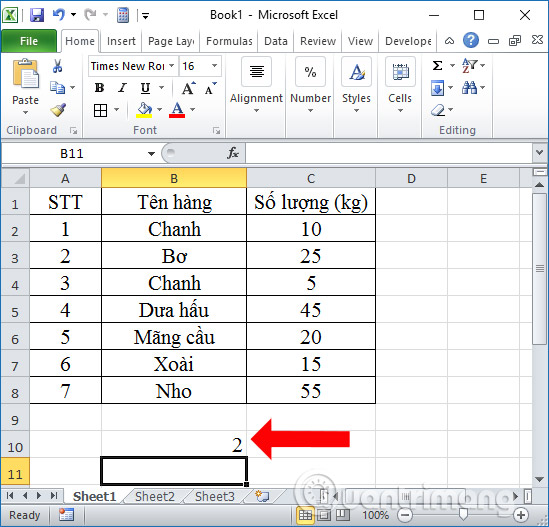
| Cell reference | B2 | =COUNTIF(B2:B8,B2) |
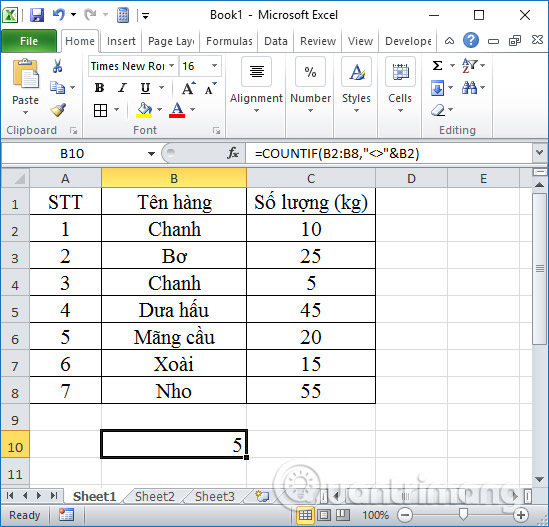
| Operator plus cell | "<>"&B2 | =COUNTIF(B2:B8,"<>"&B2) |
Text and comparison operators belong inside quotation marks. A plain cell reference does not. When an operator depends on a cell value, join the quoted operator and reference with &. COUNTIF text matching is not case-sensitive, so "mango" and "Mango" are treated alike.
COUNTIF examples
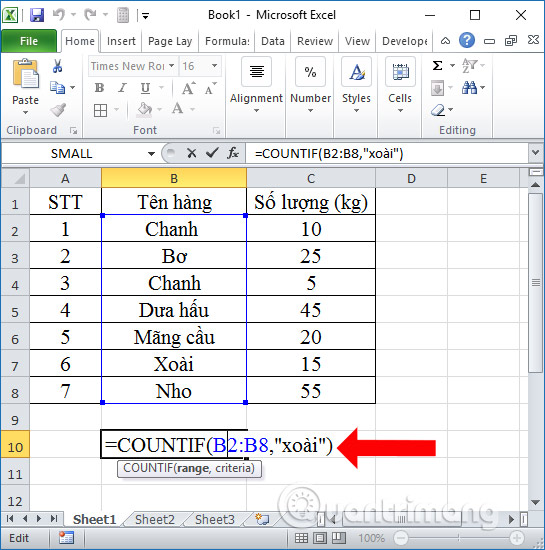
Count cells equal to text
=COUNTIF(B2:B8,"Mango")This counts cells in B2:B8 whose complete value is Mango. It does not count a phrase such as “Green Mango” unless you use wildcards.
Count cells not equal to text
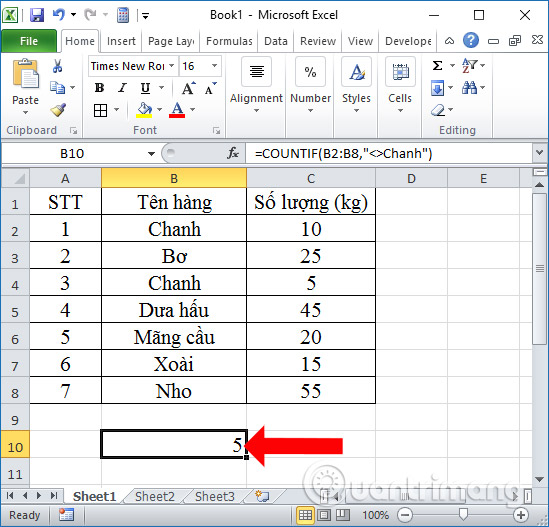
=COUNTIF(B2:B8,"<>Lemon")The <> operator means “not equal to.” Be aware that this formula can also count blank cells in the range because a blank is not equal to Lemon. If blanks must be excluded, add a nonblank condition with COUNTIFS:
=COUNTIFS(B2:B8,"<>Lemon",B2:B8,"<>")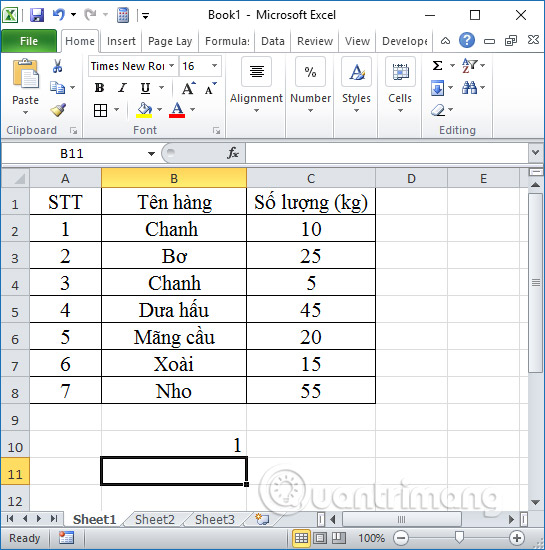
Count numbers above or below a threshold
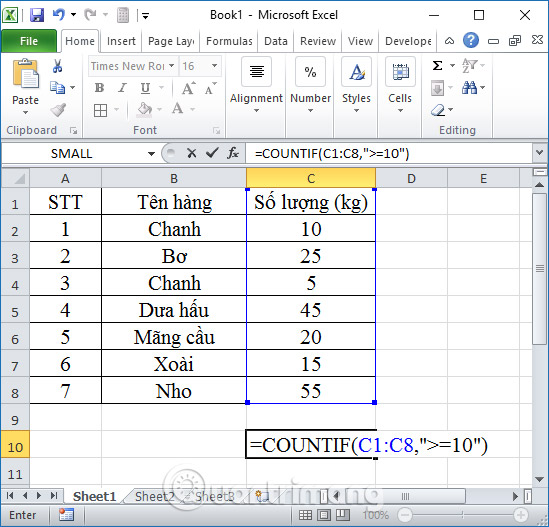
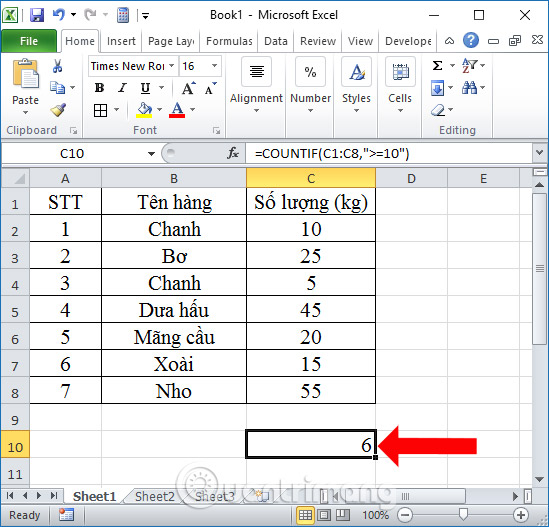
=COUNTIF(C2:C8,">=10")This counts numeric values of 10 or more. Confirm that the range starts on the first data row; including a text header usually does not change this result, but using precise ranges makes formulas easier to audit.
Use wildcards for partial text matches
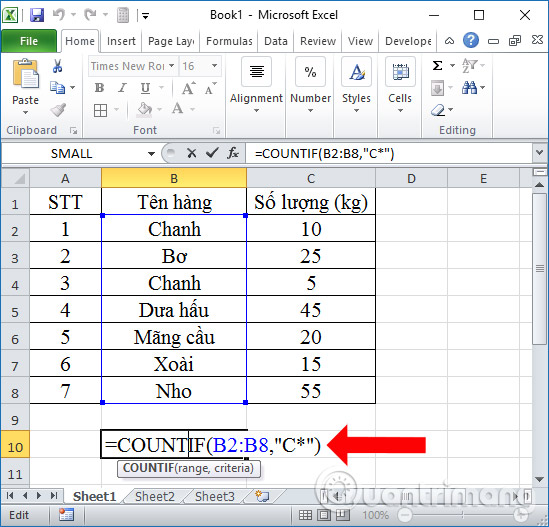
=COUNTIF(B2:B8,"C*")An asterisk matches any sequence of characters, so this counts text beginning with C. A question mark matches exactly one character: "C??" matches three-character entries that begin with C. To find a literal asterisk or question mark, precede it with a tilde, as in "~*" or "~?".
Build criteria from another cell
=COUNTIF(B2:B8,"<>"&B2)This counts cells whose value differs from the value stored in B2. Joining the operator with the reference is essential; placing B2 inside the quotation marks would make Excel search for the literal text “B2.”
Count between two numbers
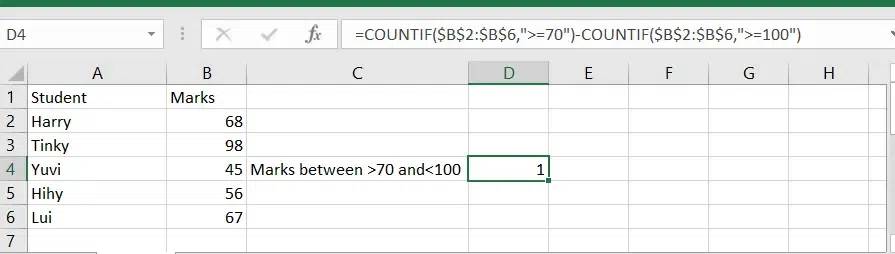
COUNTIF accepts one condition, so the clearest way to count numbers greater than 5 and less than 15 is COUNTIFS:
=COUNTIFS(A2:A9,">5",A2:A9,"<15")You can also subtract two cumulative counts:
=COUNTIF(A2:A9,">5")-COUNTIF(A2:A9,">=15")The second formula first counts everything above 5, then removes values of 15 or more. Do not use "=15" in the second term; that would remove only values equal to 15 and leave larger values in the result.
COUNTIF or COUNTIFS?
- COUNTIF: one condition applied to one range.
- COUNTIFS: two or more range/condition pairs; all pairs must be true on the same row or position.
For example, to count rows where column B contains Mango and column C is at least 10:
=COUNTIFS(B2:B8,"Mango",C2:C8,">=10")For an OR rule such as Mango or Lemon, add separate COUNTIF results:
=COUNTIF(B2:B8,"Mango")+COUNTIF(B2:B8,"Lemon")For more complex datasets, PivotTables can summarize counts without maintaining many individual formulas. DCOUNT is another option when you need database-style criteria against a labeled list.
Use COUNTIF to break ranking ties
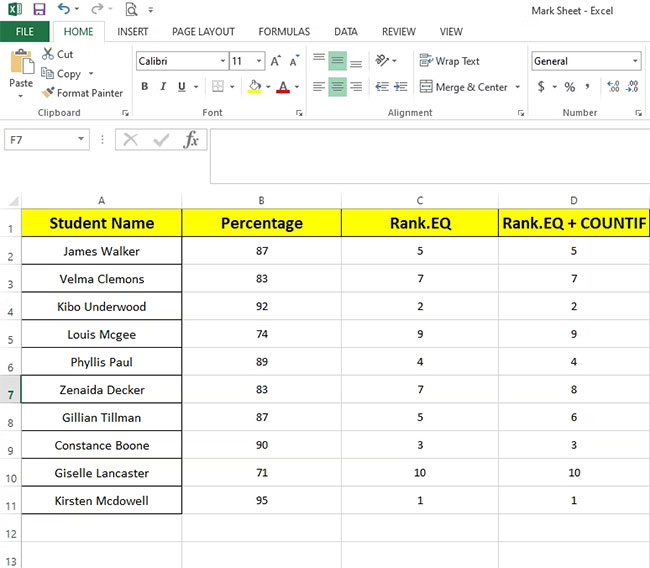
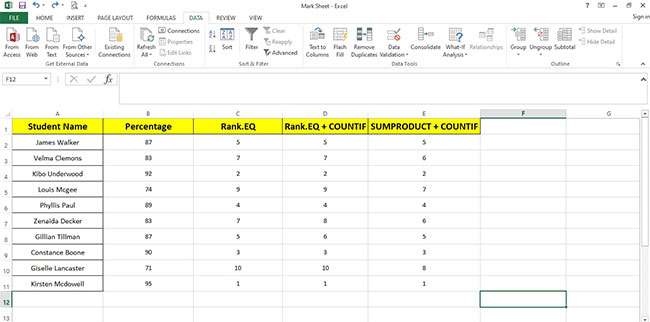
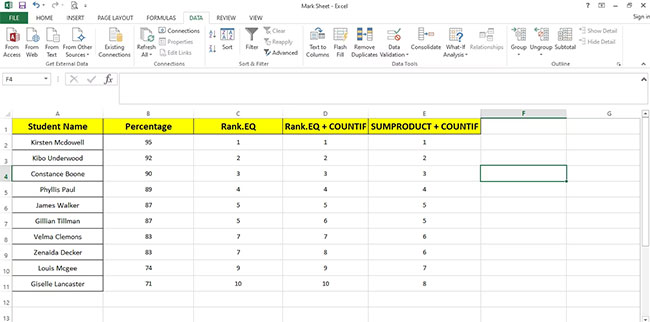
COUNTIF can help assign a unique sequential rank when two scores are equal. Suppose scores are in B2:B11 and a higher score should receive a better rank:
=RANK.EQ(B2,$B$2:$B$11,0)+COUNTIF($B$2:B2,B2)-1RANK.EQ gives equal scores the same base rank. The expanding COUNTIF range counts how many times the current score has appeared so far, causing later duplicates to receive the next position.
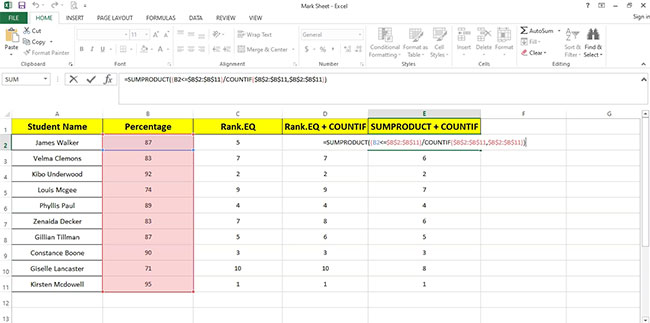
This formula deliberately gives tied scores different positions according to row order. If tied scores should share a rank without gaps—a dense ranking—one compatible approach for numeric scores is:
=SUMPRODUCT((B2<$B$2:$B$11)/COUNTIF($B$2:$B$11,$B$2:$B$11))+1It counts the distinct scores greater than the current score and adds one. Test it with your data before publishing results, especially if the range includes blanks, errors, or nonnumeric values.
Common COUNTIF problems
| Problem | Cause and fix |
|---|---|
| The result is zero or lower than expected | Check the range, spelling, data type, and quotation marks. Numbers stored as text may not match a numeric comparison. Remove unintended spaces or normalize the source data. |
| The result is higher than expected | A “not equal” criterion can include blank cells. Use COUNTIFS with an additional "<>" condition when blanks should be excluded. |
| A criterion based on a cell does not work | Join the operator and reference: ">"&E2, not ">E2". |
| A text match longer than 255 characters is wrong | Microsoft documents incorrect results for long criteria strings. Split the text with &, for example =COUNTIF(A2:A5,"first part"&"second part"), or place the text in a cell and test an alternative formula appropriate to the data. |
#VALUE! appears for another workbook | COUNTIF and COUNTIFS can return this error when the referenced workbook is closed. Open the source workbook and recalculate with F9. |
| A wildcard matches too much | Use ~* or ~? when you need the literal character rather than a wildcard. |
Microsoft's COUNTIF documentation lists additional examples and current version support. If cell addresses make a large formula difficult to read, consider creating descriptive ranges with Excel's Name Box. For a foundation in formula entry and references, see our guide to Excel formulas and functions.
Related Articles
 Conditional Counting Function in Excel4 minutes read
 How to Use Countif Function on Excel: Excel Function5 minutes read
 Excel Counting Functions: Count and Countif3 minutes read
 6 Conditional Functions That Make Excel Spreadsheets Smarter10 minutes read
 How to Use the COUNTIF Function in Excel3 minutes read
 DSUM Function: How to Sum with Complex Conditions in Excel5 minutes read
Reader Comments 0
Sign in with email or Google to join the discussion.