Table of Contents
This guide provides a clear overview of dell laptop screen capture, including Use the Keyboard Shortcut to Take a Screenshot Print Screen, Use the Prtsc Key to Capture the Full Screen Image. Use it to understand the topic, compare the available options, and make a more informed decision.
How to take screenshots of different brands may vary slightly, but most of the ways to take screenshots are the same and you can use the ways to take screenshots on many different laptop brands. Dell laptops are the same and if you are using a Dell laptop then scroll down to see a few ways to take screenshots of Dell laptops.
Use the Keyboard Shortcut to Take a Screenshot Print Screen
Use the Prtsc Key to Capture the Full Screen Image
Take a screenshot by pressing the PrtSc key, this is the basic way of taking screenshots of many other computer brands. This screenshot just by pressing the PrtSc key will only give you a snapshot of your entire screen.

Then you can go to the platform you want to share like Facebook, Instagram, Messenger. and select CTRL+V to paste the captured photo into, even applications like Word, Excel you can paste it there. and very convenient to share photos.
Take a Screenshot Continuously by Selecting Windows Key + Prtsc
Taken with this key combination, you will immediately have a series of screenshots that you want to save. Unlike taking a screenshot with just the PrtSc key above, you will be able to take screenshots continuously to save.
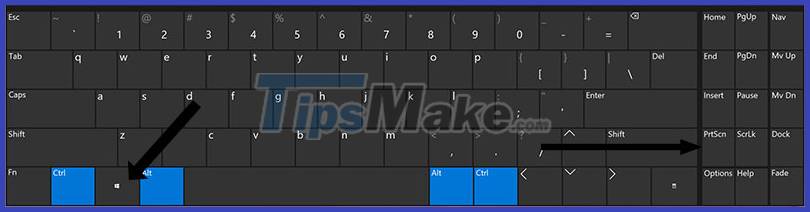
This helps users to save a series of information on the screen quickly and conveniently. Especially when used in cases where information is displayed for a short time.
Capture a Separate Software Window on Dell Laptop with Alt + Prtsc. Key
Sometimes users want to take a separate screenshot of a software window on their computer, they will use this method. In the two ways above, both are capturing the entire screen, so when you're done with the capture, there's information you don't want to share, you'll have to crop the image again.
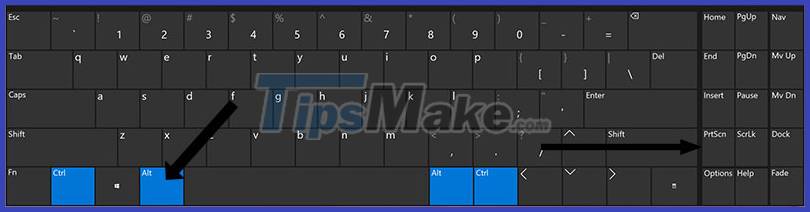
This way is faster, you just need to hold the ALT key and the screenshot key to record a picture of the software window you want to capture. Remember to bring your mouse pointer to the window to capture and click on it.
Capture Dell Laptop Screen with Tools Available on the Computer
Capture Dell Computer Screen with Game Bar
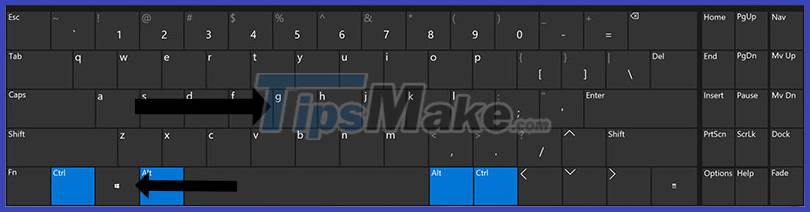
You will get the Game Bar tool by selecting Windows + G, several Game Bar windows will appear. Includes screen capture and screen recording window, along with the option to turn on the mic when recording screen videos.
Select the Take Screenshot icon at the top as shown below, or choose the keyboard shortcut Windows + Alt + PrtSc . Note that this way of taking screenshots will also only save your entire current desktop screen, and will not capture any individual windows.
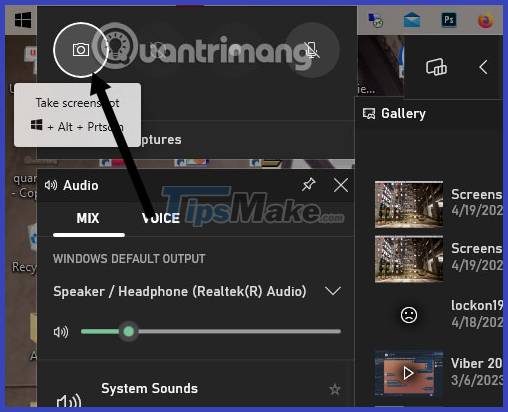
Once you've taken the screenshot, click See my captures to open the captured screenshots along with previous screen capture videos.
The Windows Game Bar may not be necessary for users who just want to take screenshots, but it is very handy for gamers who want to capture a lot of in-game moments or record their gameplay videos. Besides, the Game Bar also has a performance display window for gamers to check how the game is consuming hardware.
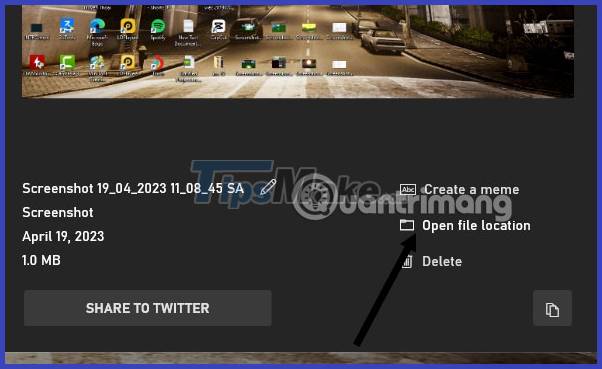
Take a Screenshot with the Snipping Tools
Search for the keyword Snipping Tools in the toolbar next to Start and search for the software's keyword. Select the Snipping Tools tool that appears below, then select New to create a new screenshot.
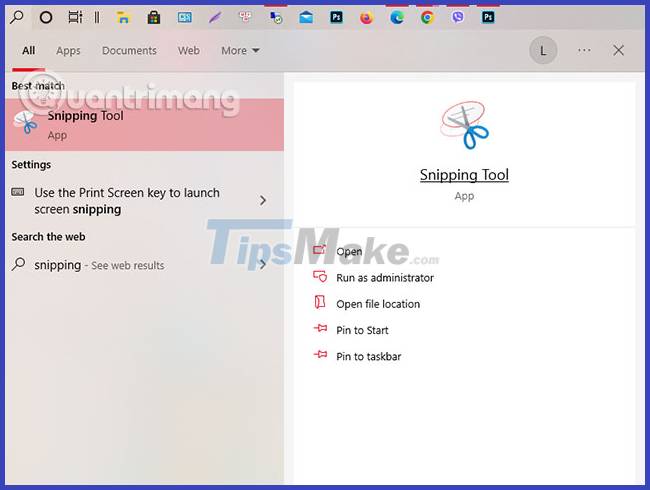
In the Snipping Tool panel, you will also have tools such as self-timer, select specific shooting frames. Select the Options gear icon to perform other options.
After capturing the image, you will be transferred to the window to edit the screenshot you just captured with some simple tools such as eraser, brush, or you can switch to editing on the Paint 3D tool.
Take a Screenshot with the Snip & Sketch Tool
Similar to the Snipping Tools tool above, you will have a way to take a screenshot by left-clicking and dragging on the screen frame you want to capture. Select New in the upper left corner and drag the frame you want to capture.
After dragging, the captured image will show up in the editing window of Snip & Sketch. Simple photo editing tools such as cropping, adding markers, markers, rulers, erasers. will be included in this photo editor.
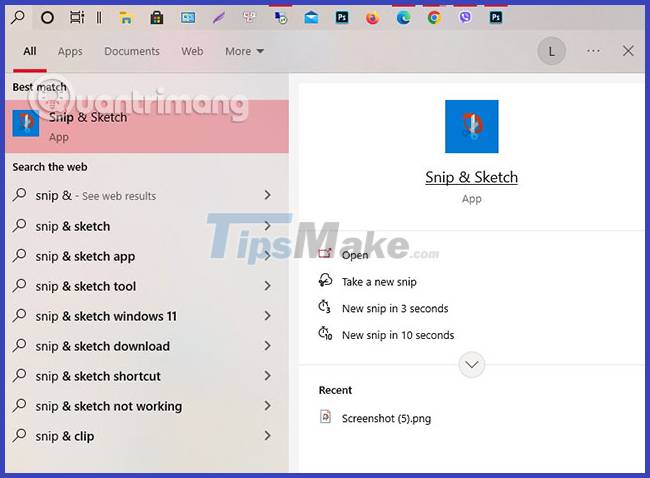
Use Some 3rd Party Screen Capture and Recording Tools
Lightshot
This is a free screen capture tool designed for quick social sharing. When you download and install Lightshot on Windows 10, it replaces the Print Screen function and provides more editing features.
Greenshot
Also another free tool that allows you to edit and customize screenshots, as well as the option to capture entire web pages. Greenshot also provides quite a few photo editing features before saving and sharing with friends.
Screenrec
ScreenRec is a free Windows recording tool that allows you to capture and share videos and screenshots. It also provides tools to annotate your recordings and screenshots, and instantly generates a link that you can share with others so they can view them.
Snagit
Snagit is a screen capture tool that allows you to create animated GIFs, take full-page screenshots, and many other photo editing tools. The premium version costs $50. There is a 30-day free trial option, but any photos you take during the trial period will be watermarked.
Screencast-O-Matic
Screencast-O-Matic is a web-based video editor and screen sharing tool for recording your screen activities. It also has the ability to take screenshots, you just need to sign up for a free account. You can also upgrade to a premium account to unlock advanced features, starting at $4 a month.
What Is a Screenshot?
Screenshots are images of exactly what is displayed on your desktop or laptop screen. We all know that a photograph is more engaging and meaningful than a long paragraph, and the evolution of screenshots is another testament to that.
Let's say you want to get feedback from a colleague about a new website you designed. Or you want your boss to see the banner you created. Your colleagues can review and document all possible changes and improvements. In addition, they can also take screenshots, mark places that need attention and send them over.
Screenshots also come in handy when reporting issues. You can often see on IT trouble support groups or the community about the error asking to take a screenshot when you report an issue. Once you provide a screenshot, it's easy for the support team to understand exactly what error you're having and can fix it quickly.
Conclusion
Understanding Dell Laptop Screen Capture makes it easier to compare options, avoid common mistakes, and apply the information in this guide more effectively. Review the relevant requirements before making changes or choosing a solution.
FAQ
What is Dell Laptop Screen Capture?
How to take screenshots of different brands may vary slightly, but most of the ways to take screenshots are the same and you can use the ways to take screenshots on many different laptop brands.
Why is Dell Laptop Screen Capture important?
Understanding Dell Laptop Screen Capture helps you evaluate features, compatibility, performance, and potential limitations before you choose a product or follow a procedure.
What should you consider when using or choosing Dell Laptop Screen Capture?
Consider your specific goal, compatibility requirements, available features, cost, security, and the practical recommendations described in this guide.
Related Articles
 How to Take a Screenshot of Dell Laptop3 minutes read
 How to Screenshot Dell Laptop for All Windows Generations from XP to 106 minutes read
 12 Quick and Simple Ways to Take Screenshots of Acer Computers9 minutes read
 How to Take Screenshot on HP Windows 10 Computer7 minutes read
 Ces 2020: Dell Launches G5 15 Se, a Mid-range Gaming Laptop3 minutes read
 The Best Dell Laptops 20205 minutes read
Reader Comments 0
Sign in with email or Google to join the discussion.